Let’s say for the sake of argument that @table variables were always more “in-memory” than #temp tables (they’re not). They’d still have a lot of the same fundamental problems:
With all that stuff in mind: who cares if they’re only in memory? There are so many downsides for most query patterns, they could all happen in quantum space and performance would still stink.
And here’s the other thing: Most of y’all don’t have enough memory to begin with, and the memory you do have you misuse in a million ways. Why do you wanna make that worse?
Thanks for reading!
Going Further
If this is the kind of SQL Server stuff you love learning about, you’ll love my training. Blog readers get 25% off the Everything Bundle — over 100 hours of performance tuning content. Need hands-on help? I offer consulting engagements from targeted investigations to ongoing retainers. Want a quick sanity check before committing to a full engagement? Schedule a call — no commitment required.
I dislike criticism without introspection, so anything that I say here I’ll also be doing my best to apply to anything I produce.
But anyway, I’m writing this because I read a lot of SQL Server books, and there are some things about them are pretty frustrating.
This goes for both print and digital copies, though some advice is specific to print copies because I think a lot of folks still buy them.
Anyway, here are some thoughts I have. You can show this post to your editors if you want. Maybe it’s their fault, not yours.
I have no idea.
Code Formatting
While I don’t expect anyone’s coding format to be as highly-evolved to near-perfection as mine, I do prefer consistency.
Many times while reading a book, the code formatting style changes from query to query, page to page, etc.
I understand that with multiple authors, things may change between chapters (but even then, agree to something, would ya?) but it’s jarring to see queries written in several different styles throughout a book.
Most code formatting tools out there will get you at least 70% of the way to code being formatted the way you want, even if you’re particularly persnickety about things.
Code Placement
For the absolute love of Crispin Glover, stop putting code in places where it will span multiple pages.
It sucks for everyone, no matter how they’re reading the book, but all those nice little SQL Server Scrubs who bought (hopefully bought) the digital copy of your book have an awkward time copying and pasting things over to run locally.
For the Print-cesses of the world, we just don’t need that kind of page-turning, cliff-hanging suspense.
I’ve seen this more than anything, and it drives me bonkers every time. Just keep writing and say the code example is on the next page.
If your code example takes up a whole page and then some… Well, look, I don’t have an easy answer for you. You want it there for digital folks to copy, but no one with a print edition is going to write that all out from scratch.
Maybe you should just get yourself a nice GitHub gist and link to longer code examples? Use a URL shortener or GO codes to make memorable URLs?
Either way, this particular issue is in every book I’ve ever read.
Image Quality
We really need to talk about this one.
Now, I get it, you’re probably not gonna talk anyone into printing a full color SQL Server book. At least no one smart.
If you can do that, great. You’re one step closer to your book not looking like a 90’s zine about anarchy or graffiti or whatever.
The next step: use high quality images. Please, please, please, use high quality images.
No one’s going to be able to read your book and follow along without wondering if they have cataracts if they’re staring at washed-out, fuzzy images the whole way through.
Far too often, it looks like someone compressed-to-death and watered down the printer ink for every image in a book.
Tech Review
Get someone you disagree with to tech review your book. Not someone who’s wrong, just someone who has a different point of view.
This isn’t a pitch to get me to do it. Unless I love you to death, I’m probably not gonna wanna read and review your book.
But far too many books seem to suffer from “I got my friend to do this”, which leads to groupthink.
There’s no alternate viewpoint considered or explored, and you end up with one-sided highways of thought.
Doing a tech review shouldn’t be about toeing a line, it should be about making a book more technically accurate.
Concept Introduction
I’m not sure if this is a book or thought organization issue, but… If you’re in an early chapter of a book, say the first three, and you keep seeing things like “we cover this more in chapter 12” or 13 or 14 or some other far off place, you probably shouldn’t be doing it right then and there.
When you’re going to introduce a concept, you should either be covering it in that chapter, or covering it in the next one.
I see this quite a bit, and wonder if I need to skip way ahead in the book and read about this other thing, and then come back.
That’s a crappy, because it makes you feel lost in the material that’s supposed to be bringing you clarity on a subject.
Try to contain yourself, here. Maybe you’re saying too much too soon.
Auto-Errata
It happens to me every time I write a blog post. I re-read it as I’m going through, I re-read it when I’m done, and I tend to check in on things a day or so before it goes live.
When it goes live, I read through the post, and notice half-a-hundred things that I wanna fix, tweak, or expand on.
As you make changes to the book, you should notify folks who bought it. Just randomly posting corrections is hard to keep track of.
GitHub is, again, a decent way to get and track feedback. It also gives you a way to announce large releases to the content so everyone knows when a new version is available.
Hopefully you’re making digital copies available to folks who purchase a physical copy. Otherwise, you’re gonna have a hard time getting a better product in their hands.
Reinventing The Wheel
Rather than take up a whole page with some reheated DMV query, give some love to community scripts out there that do the same thing, but better.
Anyone who knows better is going to pass right over that stuff anyway.
Thanks for reading!
Going Further
If this is the kind of SQL Server stuff you love learning about, you’ll love my training. Blog readers get 25% off the Everything Bundle — over 100 hours of performance tuning content. Need hands-on help? I offer consulting engagements from targeted investigations to ongoing retainers. Want a quick sanity check before committing to a full engagement? Schedule a call — no commitment required.
The summer intern at Microsoft was hard at work between CTPs. Last time around, there were some serious performance issues with our dear new friend GENERATE_SERIES.
With the release of CTP 2.1, the problems that we saw the first time around are all gone. But there are still a couple small caveats that you should be aware of.
There’s also been a change in the way you call the function, too. You not longer need the START and STOP identifiers in the function.
You just put in whatever numbers you’re into.
That’s probably a good thing.
Caveat #1: Parallelism Restrictions
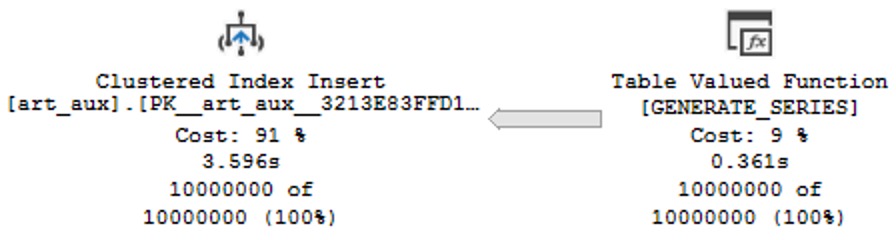
Loading data into tables that have row store indexes on them can’t go parallel.
DROP TABLE IF EXISTS
    dbo.art_aux;

CREATE TABLE
    dbo.art_aux
(
    id int NOT NULL PRIMARY KEY CLUSTERED
);

INSERT INTO
    dbo.art_aux WITH(TABLOCK)
(
    id
)
SELECT
    gs.value
FROM GENERATE_SERIES
     (
         1,
         10000000
     ) AS gs
OPTION
(
    MAXDOP 8,
    QUERYTRACEON 8649
);
But performance is still pretty good, here. Much better than prior.
cooperation
I think most folks out there would be okay waiting a few seconds for 10 million rows to show up in a table for them.
So sequential. Much unique.
But, what if you want to load those rows in faster?
Caveat #2: Use A Heap Or SELECT INTO Instead
If you create a heap, or just SELECT INTO on instead, you’ll get a parallel load into the table.
For 10 million rows, there’s an improvement of about 1.7 seconds on my sort of crappy travel VM with 4 available CPUs.
DROP TABLE IF EXISTS
    dbo.art_aux;

CREATE TABLE
    dbo.art_aux
(
    id int NOT NULL
);

INSERT INTO
    dbo.art_aux WITH(TABLOCK)
(
    id
)
SELECT
    gs.value
FROM GENERATE_SERIES
     (
         1,
         10000000
     ) AS gs;
Here’s the plan:
hot swap
Yes, dear reader, I even blog on vacation. That’s how much I love and care about you.
Thanks for reading!
Going Further
If this is the kind of SQL Server stuff you love learning about, you’ll love my training. Blog readers get 25% off the Everything Bundle — over 100 hours of performance tuning content. Need hands-on help? I offer consulting engagements from targeted investigations to ongoing retainers. Want a quick sanity check before committing to a full engagement? Schedule a call — no commitment required.
Most of the time, if you get the estimated plan for a query, the actual execution plan will look about the same.
You’ll get the additional information of course, but the shape and most of the other attributes will match up.
Other times, things will change between the two.
Here’s a silly example I came across recently while working on demos for some other stuff.
SELECT TOP (100)
     p.Id,
     vs.UpVotes,
     vs.DownVotes
FROM dbo.VoteStats() AS vs
JOIN dbo.Posts AS p
    ON vs.PostId = p.Id
WHERE vs.DownVotes > vs.UpMultipier
AND   p.CommunityOwnedDate IS NULL
AND   p.ClosedDate IS NULL
ORDER BY vs.UpVotes DESC;
Estimated Execution Plan
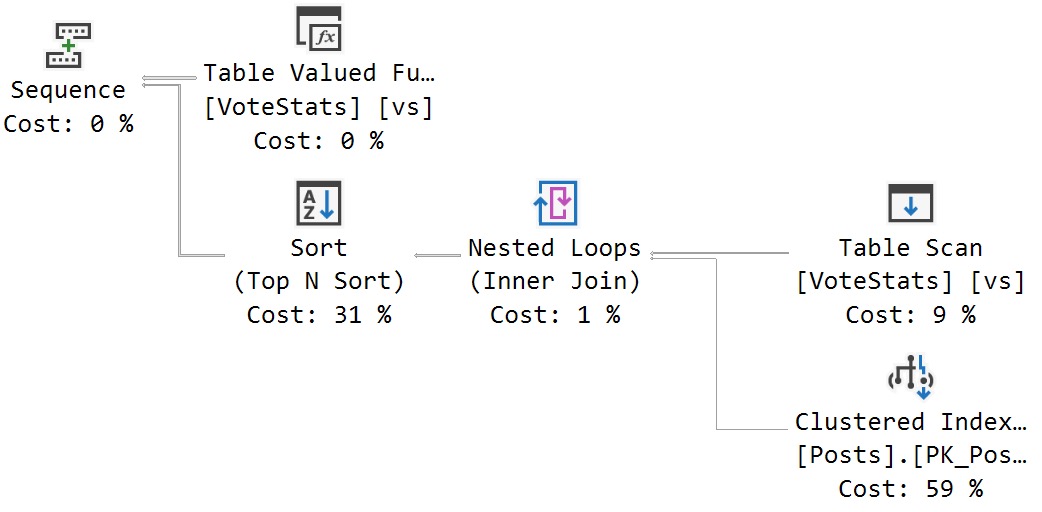
Here’s the estimated plan I get for this query:
estimations
SQL Server estimates that a serial execution plan will work best, here.
Actual Execution Plan
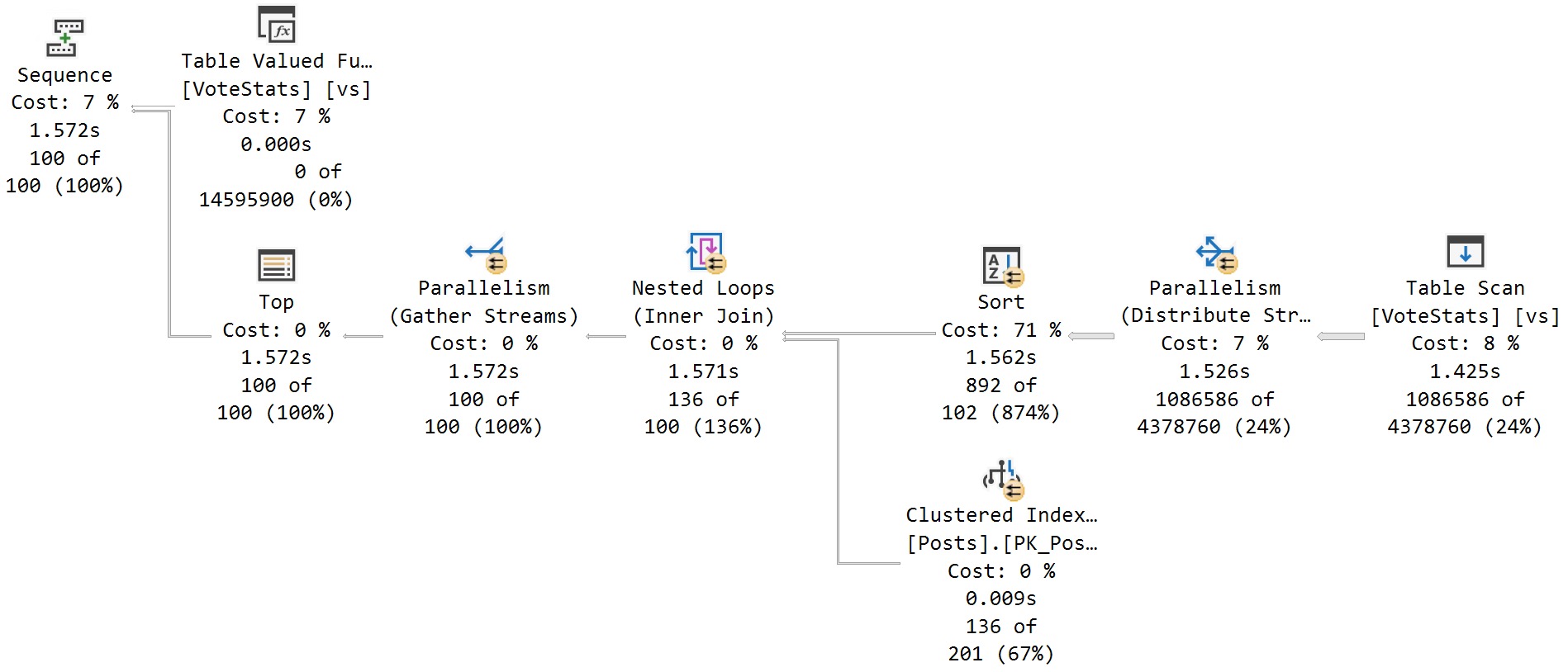
Here’s the actual execution plan for the same query:
actuality
At runtime, SQL Server decides that a parallel plan is the better solution.
Wild Nights
SQL Server can totally estimate parallel plans. I’ve seen it a million times.
In this case, though, it doesn’t do that. If you get the estimated plan after executing the query, it’ll come back with the parallel version.
Why does this happen? Well, as SQL Server adds features to the Intelligent Query Processing, more and more decisions are made when a query executes.
Stuff like this can make estimated and actual plans look much different from each other:
Adaptive joins
Interleaved execution
Table variable deferred compilation
Batch mode on row store
Wonders of modern query optimizers, eh?
Thanks for reading!
Going Further
If this is the kind of SQL Server stuff you love learning about, you’ll love my training. Blog readers get 25% off the Everything Bundle — over 100 hours of performance tuning content. Need hands-on help? I offer consulting engagements from targeted investigations to ongoing retainers. Want a quick sanity check before committing to a full engagement? Schedule a call — no commitment required.
When we talk about finding queries to tune, there’s an unfortunate term that gets thrown around: Expensive Queries.
Why is it unfortunate? Well, it reinforces the wrong mindset when it comes to query tuning, and leads people down the wrong path, looking at the wrong metrics.
SQL Server does have a cost-based optimizer, but those costs don’t mean anything to your hardware, or even to how long a query runs for.
Those costs are all estimates, based on two-decade old computer specs. There are many times when they’re wrong, or not properly aligned with reality.
Worse, it leads people to want to do crazy things like sort the plan cache by query cost to find things to tune.
Worse than that, they’ll look at “query cost relative to batch” to compare two queries for efficiency.
Ethically Sourced
There are many sources to find queries eating up your server hardware.
The point of this post isn’t to teach you how to use any of those things, but to teach you how to be smarter about using them in whatever way you’re comfortable.
My two favorite metrics to look at when looking for queries to tune are CPU and RAM. I explain why in the post, but the short story is that they’re reliable, real-life metrics that can be directly measured before and after to gauge progress.
I don’t look at things like reads, because those might go up or down while your query runtime doesn’t change at all.
They’re also pretty misleading if you’re looking at STATISTICS IO in a lot of circumstances, like with lookups.
Sortie
A while back I recorded a bunch of videos that show how cached/estimated plans can be really misleading when it comes to costs and all that stuff.
You can find it here:
Thanks for reading!
Going Further
If this is the kind of SQL Server stuff you love learning about, you’ll love my training. Blog readers get 25% off the Everything Bundle — over 100 hours of performance tuning content. Need hands-on help? I offer consulting engagements from targeted investigations to ongoing retainers. Want a quick sanity check before committing to a full engagement? Schedule a call — no commitment required.
SQL Server 2022 CTP 2.1 dropped recently, and there’s some new stuff in it! What kind of new stuff?
Well, there’s some linguistic stuff:
APPROX_PERCENTILE_DISC
APPROX_PERCENTILE_CONT
DATETRUNC
IS [NOT] DISTINCT FROM
Bit manipulation:
LEFT_SHIFT
RIGHT_SHIFT
BIT_COUNT
GET_BIT
SET_BIT
How useful any of that will be depends on how you use SQL Server. I’ve never heard anyone yearning for bit manipulation functions, but perhaps I travel in the wrong circles.
Inside You
As far as “unannounced” stuff, here’s some of what I noticed:
There’s a new database scoped configuration called LEDGER_DIGEST_STORAGE_ENDPOINT. The name seems fairly self-documenting, but I can’t picture myself using ledger enough to explore it further.
Again, their usefulness will depend on how you use the product.
Here are some new extended events:
query_ce_feedback_telemetry
query_feedback_analysis
query_feedback_validation
resumable_add_constraint_executed
I don’t think I’ll need to add any of these to sp_HumanEvents, but I’m sure you’ll see them in lots of Microsoft demos.
There are also some new wait stats, but I think I’ll be ignoring them.
CDC_SCAN_FINISHED
CORRUPTED_PAGE_PROCESS
DW_DB
DW_WS_DB_LIST
NATIVE_SHUFFLE_WRITE_BUFFER_DEQUEUE
PARQUET_INDEX_BUILD_MANIFEST_SYNC
PURVIEW_POLICY_SDK_PREEMPTIVE_SCHEDULING
PWAIT_S3_TEMP_CREDENTIAL
RBAC_AAD_GROUP_INFO
SPINLOCK_EXT
WAIT_EXTGOV_PERMCACHE_DECISIONLOCK
WAIT_EXTGOV_PERMCACHE_RESOURCELOCK
Nothing all that juicy this time around. Maybe next time!
Thanks for reading!
Going Further
If this is the kind of SQL Server stuff you love learning about, you’ll love my training. Blog readers get 25% off the Everything Bundle — over 100 hours of performance tuning content. Need hands-on help? I offer consulting engagements from targeted investigations to ongoing retainers. Want a quick sanity check before committing to a full engagement? Schedule a call — no commitment required.
In this video, I delve into the exciting new parameter-sensitive plan optimization introduced in SQL Server 2022. After a bit of a hiatus from recording videos due to other commitments and personal projects, the release of SQL Server 2022 has reignited my passion for sharing knowledge with you all. The video explores how this feature works by running queries multiple times with different input values, demonstrating the creation of distinct plans based on parameter sensitivity. I also highlight some quirks in query store data handling and plan cache management that arise from this optimization, offering insights into what developers might encounter as they adapt to these changes.
Full Transcript
Hello, hello, hello. Erik Darling here with Erik Darling Data. And I know that it’s been a little while since I recorded anything. That’s mostly because I’ve been really busy. I’ve still been writing nice things for all you kind and pleasant folks out there, but recording, I don’t know, it takes a special kind of thing for me to want to record something. And a lot of the stuff that I’ve been writing about has just not been stuff that I’ve been like, yeah, let’s record it. Let’s do a video about it. So I’ve been slacking a little bit on there. And, but now we have SQL Server 2022, and it has rekindled my desire to record things. So you’re welcome. Thank you, Microsoft, for releasing SQL Server 2022. And, I’ve been digging a lot into the parameter-sensitive plan optimization in SQL Server 2022. Because, I mean, apart from it being a very cool thing that now we have this, like, new layer of intelligent query processing where, all of a sudden, like, we don’t have the same, well, we don’t have the same. We don’t always have the same issue with parameter. We have new issues to deal with, like, when it misses out on perhaps a potentially useful optimization.
But anyway, now we have at least the built-in heuristic ability to occasionally get some help with parameter sniffing when the optimizer deems a parameter, a quality predicate, sensitive enough or having a sufficient skewness to generate multiple plans. So, what I’m going to do is run this main query here in a loop 10 times with two different sets of input values. One is going to be a 1 and a 0 up here, and the other is going to be a 2 and a 184618 down here. So if I run this, first we’re going to clear out the plan cache. We’re going to set, we’re going to clear all the data out of query store because I want this to be very clear.
All right, I’m going to clear it to make it, shut up. And I’m also just going to make sure that everyone knows that my database is in compat level 160, which is the magical new SQL Server 2022 compat level. I mean, I guess it’s old news if you’re up in Azure, but I don’t know. I don’t think people in Azure care, obviously. If they did, they wouldn’t use Azure. So we’re going to run those in a loop, and it’s going to finish pretty quickly because it’s an expert query tuner.
Even when I have queries that are parameter sensitive, they still manage to finish very quickly when I get my hands on them. But the main stuff that we need to pay attention to in here is if you look up here, we’re going to have, and this is how you’re going to know that your plans have received the parameter sensitive plan optimization. You’re going to see this option plan per value, and you’re going to get some query variant ID attached to your query.
Right now, you only have three options, or you only get three plans as part of this, right? So you will certainly only create three parameters, different parameter sensitive plans based on like bucketized values. And you can see those bucketized values if you look a little bit further over in the text of that hint where you see this predicate range, right?
And so you have stuff at the low end of the range, and you’ll have stuff at the high end of the range, and then you’ll have stuff in the middle of the range, which would be your third plan. I’m at the very top and very bottom of this, so I only have the two variant IDs. But if we scroll down through this, we’re going to see two distinct plans.
Really, they’re very similar in a lot of ways. The only thing that’s really different are these estimates over here, because one of them will actually find 50,000 rows, and the other one will not find anywhere near 50,000 rows. They’ll only find 518 rows.
And you can also see, of course, which parameter predicate… Oh, I didn’t go over it further enough. I’m goofy. I’m all out of practice here. You can also see which parameter SQL Server decided was the sensitive one, the sad little lad who dropped his lolly and leaves. And decided that that’s the one that needed some extra help and attention.
Needed a Kleenex and some spit on the cheek. But if you look through this stuff, these two plans are basically going to go back and forth over and over again. It’s going to be all query variant 2 and all query variant 3 going all the way down to the bottom.
And that’s the end of it, right? So these both executed 10 times a piece, just sort of in that loop. Now, where things get interesting…
If you read my blog, you would have seen a post sort of recently about how the parameter sensitive plan optimization, at least right now, as of this build, this first CTP build, kind of messes up plan cache stuff. Because when a store procedure calls a query and the query executes, it used to be, or at least it currently is, that you can figure out… Like there’s a parent object ID that gets tied back from the query to the store procedure that call this.
You can be like, oh, this query came from the store procedure. Great. That messes that up. They all get weird different SQL handles. Everything’s kind of a weird shamble over there.
There’s sort of a similar situation in query store. It’s not exactly the same. I mean, it is the same with you can’t tie statements back to the store procedure that called them. But there’s an additional sort of bit of weirdness that I want to talk you through here.
So what I’m going to do is execute these queries. And there’s nothing all that special or interesting about these queries. I’m not going to explain them because querying query store data is the hell on earth. I feel bad for anyone who does it.
I wrote spquickie store so that you wouldn’t have to do it because I care about you deeply as people. And I want you to have long and happy lives so you don’t have to think about these things. So looking through query store data, we have three distinct executions of this query, which is weird because we only had two plans, but I’m going to show you where that third thing comes from.
So if we blow this column up a little bit, and I wish there was a better way to do this without running some dumb substring parsing, we’ll see in this section that top plan, that ends the score descending clause of the query. The two ones below it have the plan per value, predicate range, blah, blah, blah stuff at the end of it.
All well and good. Where things get kind of interesting though, is if we, come on, move it, some scroll bars, not anyone’s friend, is when we look through other parts of this, right?
So we have query ID 123, plan ID 123, query text ID 123, okay, fine. Plan ID 1 doesn’t show up in runtime stats, right? So just kind of like a silly run, like query on, to get data out of the runtime stats view.
Query ID 1 doesn’t show up in there, right? We have, or sorry, plan ID 1 doesn’t show up there. We have plan ID 2 and 3 in there, right? So these two are in there.
This top one isn’t. Down at the bottom, and I will explain this query because this one is relatively simple to explain. We’re hitting a new view in SQL Server 2022 called sys.queryStoreVariant. And that is brand new.
And this is the one that tells us when a plan had a variant or a deviant in it somewhere. What’s kind of interesting here is that we have query variant query ID 2 and 3, right? So these query IDs would match up to these query IDs here.
Query ID 1 isn’t in there, right? Because it doesn’t have that option plan per value stuff in it. We have parent query ID, which does match up to that. And then we have dispatcher plan ID, which only shows you one.
Okay. Here’s where things get a little tricky. If we were to look for a plan, if we were to purely look for plans that have a variant in them, right? That were, you know, dispatched some other query plans.
This is all we get back. And as far as I know, I’m the first person to talk about this. So, you know, go me. Gold star, A plus, A for effort, all that stuff. We get this single operator back.
Multiple plan. Right? That’s all we get back here. Not a whole lot of detail. And if we go look at the XML, there’s a little bit more to see, but it’s kind of just weird stuff. You know, I mean, it’s all, you know, XML, which sucks to look at.
But we have this parameter sensitive predicate thing in here. We have a little bit of information about the, you know, the query. Like we can see what the query text is.
Just doesn’t have the parameter sensitive stuff tacked onto it. We can see the index that got used. We can see the boundary values for the parameter sensitivity stuff. And we can see the predicate that was considered parameter sensitive. Right?
So we get, there’s some, there’s some stuff in there, but it doesn’t show us the whole execution plan. If we click on any other, any of those other query plans, we’ll get the plan back. Like I said, there was the one that has a missing index attached to it. And then this one down here is the one that doesn’t have the missing index attached to it.
So those are the two variants that we saw when I executed the other scripts. So you have to be a little bit careful how you identify stuff in query store. Obviously you’d want to use the query variant query ID.
If you wanted to find the actual statements that had the varying plans in them. But right now getting, getting this dispatch or plan ID is just kind of useless. I wish there was another column that maybe had query variant plan ID in it so that we could say, Oh, this query was attached to this, you know, variant on the plan.
That might be kind of nice. The other thing that’s kind of interesting to look at in here is some of the hashes, right? So somehow these all have the same query hash, which is interesting.
I mean, because of the two of them have the option plan stuff at the end of them. So it almost doesn’t make sense for them to have that, but maybe, maybe that’s not considered as part of the hash value in there. Maybe that gets, maybe that gets sent in afterwards.
I don’t know. And then we have the query plan hash, which, you know, I guess that makes sense because, you know, we have this one where, you know, the, obviously that just that single multiple plan operator is not going to hash out to the same stuff. But then, you know, I mean, the other two are the same because it’s fundamentally the same plan.
It’s a blah, blah, key lookup. I mean, there was no difference in plan shape or anything. So in situations where the, the plan vary, the plan, the different plans generated had different shapes, different operators, parallel, not parallel, stuff like that. These would likely, these would likely vary.
What’s interesting to me though, is we have this query hash over here where they all end up being the same, but then quite obviously for last compile batch SQL handle and statement SQL handle, these are all very different values, right? This one’s 02, blah, blah, 51, 87, 72.
So these are all very different, right? These are all like just completely different SQL handles for things, right? These are all, these are all way different values. And even the statement SQL handles over, over here, obviously quite different values of the most will cooperate. Thank you very much, Mr. Mouse.
You are so useful today. Almost as useful as my liver. These all have very different values, right? So like, there’s a lot of stuff that’s just sort of spread out in here where, you know, before, there would at least be like some semblance of, of like, stuff you could figure out, right?
You could like, say, oh, the SQL handle for this query hasn’t changed. So this is where stuff gets a little bit trickier to identify and kind of get, get to the bottom of in here. So I guess the main thing here is be on the lookout for this, these kinds of changes.
Be on the lookout for maybe your query store scripts not working or getting you the value data that you want back as you start getting these new views into things. Obviously this dispatcher plan ID that just shows you the multiple plan operators, not very useful, right?
Like that’s not a very good query plan for you to use. The parent query ID likewise, that’s just going to get you this thing back, right? Query ID one, right?
That’s just going to get you that, you know, like that, the, the initial query without any of the parameter sensitive stuff attached to it. But you really want to be using this as query variant query ID, because this is what’s going to get you to these column to rather to these rows over here that have the more interesting plans. So, you know, be aware of this stuff, you know, as much as I love the idea of fixing parameter sniffing, I wish that there was a little bit less sort of nonsense, nonsense and shenanigans going on behind the scenes with all of the, the, the different values that, the, the queries generate and stuff.
I understand there has to be some separation. It wouldn’t make sense for everything to be just kind of congealed in together, but I do wish that there were a little bit more tooling or visibility into some of this stuff. For example, I mean, like, like I said earlier, it would be really helpful to have a query variant plan ID in here to track us to the plan IDs that we care about where there are variations.
And, you know, even in query store, you know, I talked about the plan cache earlier, even in query store, anything that gets called in the store procedure has a zero for a parent object ID when it gets a parameter sensitive plan optimization. So it’s going to be interesting seeing if that’s kind of stuff gets fixed or worked out as, as the CTPs roll out and we get closer to closer to RTM time. But anyway, sort of an initial observation, maybe at some point in the future, this video will be completely wrong.
Uh, that would be nice, but who knows? Uh, anyway, uh, I’m going to go now cause it’s, um, yeah, again, it’s seven, like seven 30 on a Friday. I’m going to, I’m going to go, uh, have, pour me a nice glass of something into my, my beer gut magazine, uh, mug.
And, uh, you know, maybe, maybe, maybe I’ll remember recording this video tomorrow. Maybe not. We’ll see. It’s all, it’s all a coin toss. It’s all up in the air.
Anyway, thanks for watching. Uh, I will see you hopefully in another video soon. Now the SQL Server 2022 stuff does have me, uh, back on to, uh, to actually record videos again. So I don’t know. I’ll have to work on that.
You have to brush off the rust and anything. Anyway, goodbye.
Going Further
If this is the kind of SQL Server stuff you love learning about, you’ll love my training. Blog readers get 25% off the Everything Bundle — over 100 hours of performance tuning content. Need hands-on help? I offer consulting engagements from targeted investigations to ongoing retainers. Want a quick sanity check before committing to a full engagement? Schedule a call — no commitment required.
This is a short post to warn you about the memory recommendation tab in the SQL Server installer.
Let’s say you’re doing the smart thing and giving your Standard Edition install 192 GB of RAM:
college
Why is this smart? Because Standard Edition’s 128GB memory limit is only on the buffer pool. SQL Server can use memory over and above that for other stuff, like:
Query memory grants
Compressed backups
Other caches/Lock memory, etc.
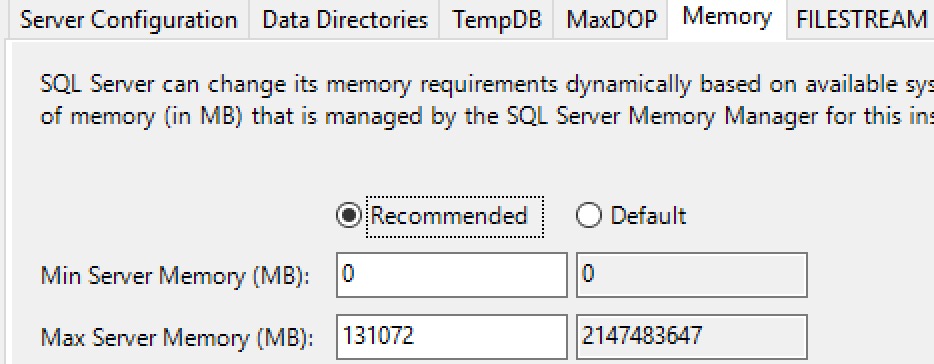
The problem is that the installer’s recommendation only reflects the buffer pool limit. It doesn’t actually consider that memory can get used over that, and you end up with this recommendation:
2low
That’s 128GB exactly, which is daft to the back teeth.
The number I usually start with here is 184320, which is 180GB. That gives Windows about 12GB to work with.
Thanks for reading!
Going Further
If this is the kind of SQL Server stuff you love learning about, you’ll love my training. Blog readers get 25% off the Everything Bundle — over 100 hours of performance tuning content. Need hands-on help? I offer consulting engagements from targeted investigations to ongoing retainers. Want a quick sanity check before committing to a full engagement? Schedule a call — no commitment required.
I get this question a lot while working with clients, largely in a couple specific contexts:
Me telling someone they need to use dynamic SQL in a stored procedure
Applications sending over parameterized SQL statements that are executed with sp_executesql
Often, the dynamic SQL recommendation comes from needing to deal with:
IF branching
Parameter sensitivity
Optional parameters
Local variables
Even in the context of a stored procedure, these things can really suck performance down to a sad nub.
But The Code
Now, much of the SQL generated by ORMs terrifies me.
Even when it’s developer misuse, and not the fault of the ORM, it can be difficult to convince those perfect angels that the query their code generated is submaximal.
Now, look, simple queries do fine with an ORM (usually). Provided you’re:
Paying attention to indexes
Not using long IN clauses
Strongly typing parameters
Avoiding AddWithValues
You can skate by with your basic CRUD stuffs. I get worried as soon as someone looks at an ORM query and says “oh, that’s a report…” because there’s no way you’re generating reasonable reporting queries with an ORM.
Procedural Drama
The real upside of stored procedures isn’t stuff like plan reuse or caching or 1:1 better performance. A single parameterized query run in either context will perform the same, all things considered.
Where they shine is with additional flexibility in tuning things. Rather than one huge query that the optimizer has to deal with, you can split things up into more manageable chunks.
You also have quite a bit more freedom with various hints, trace flags, query rewrites, isolation levels, etc.
In other words: eventually your query needs will outgrow your ORMs ability to generate optimal queries.
Until then, use whatever you’re able to get your job done with.
Thanks for reading!
Going Further
If this is the kind of SQL Server stuff you love learning about, you’ll love my training. Blog readers get 25% off the Everything Bundle — over 100 hours of performance tuning content. Need hands-on help? I offer consulting engagements from targeted investigations to ongoing retainers. Want a quick sanity check before committing to a full engagement? Schedule a call — no commitment required.
In my quest to tell you about new stuff in SQL Server 2022, I forgot to take a look at new things in sys.database_scoped_configurations.
It turns out that’s important, because some stuff has to be turned on if you want it to work. Here’s a list of new database scoped configurations for SQL Server 2022:
Some stuff is on by default, some stuff isn’t. You might notice DOP_FEEDBACK and OPTIMIZED_PLAN_FORCING are both off by default, here (even though I turned them on).
ALTER DATABASE SCOPED CONFIGURATION SET DOP_FEEDBACK = ON;
ALTER DATABASE SCOPED CONFIGURATION SET OPTIMIZED_PLAN_FORCING = ON;
Invitation Only
You might think that Microsoft is so excited about new features (especially in CTP builds) that they want them to be easy to preview and test by people who care enough to do that stuff.
No so much, it turns out.
Heck, I’ve seen several presentations that said Query Store would be on by default in new databases created on SQL Server 2022 instances, but I haven’t had that happen yet and that’s not even a new feature.
Anyway, not much here beyond this. Mind your database scoped database configurations when you’re testing out new features. Also make sure to check for extended events that help you track down if/when heuristics for those features kick in.
Thanks for reading!
Going Further
If this is the kind of SQL Server stuff you love learning about, you’ll love my training. Blog readers get 25% off the Everything Bundle — over 100 hours of performance tuning content. Need hands-on help? I offer consulting engagements from targeted investigations to ongoing retainers. Want a quick sanity check before committing to a full engagement? Schedule a call — no commitment required.