If you take performance for your SQL Servers seriously, you should be using Query Store for your business critical databases.
I used to say this about third party monitoring tools, but the landscape for those has really tanked over the last few years. I used to really love SQL Sentry, but it has essentially become abandonware since SolarWinds bought SentryOne.
At this point, I’m happier to enable query store, and then use a couple extended events to capture blocking and deadlocks. While it would be stellar if Query Store also did that, for now life is easy enough.
To analyze blocking and deadlock Extended Events, I use:
This won’t capture absolutely everything, but that’s okay. We can usually get enough to go on with those three things. If you have bad blocking and deadlocking problems, you should start there.
But once you turn on Query Store, where do you go?
Gooey
If you’re okay with all the limitations of the GUI, you can tweak a few things to get more useful information out of it.
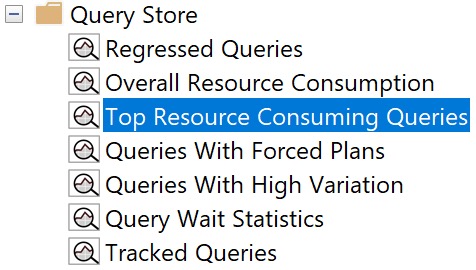
I usually start with the Top Resource Consuming Queries view, since, uh… those are usually good things to tune.
top resource consuming plans
But the crappy bar graph that Query Store defaults to is not what you want to see. There’s way too much jumping around and mousing over things to figure out what’s in front of you.
I like switching to the grid format with additional details view, by clicking the blue button like so:
additional details!
But we’re not done yet! Not by a long shot. The next thing we wanna do is hit the Configure button, and change what we’re looking at. See, the other crappy thing is that Query Store defaults to showing you queries by total duration.
What ends up being in here is a bunch of stuff that runs a lot, but tends to run quickly. You might get lucky and find some quick wins here, but it’s usually not where the real bangers live.
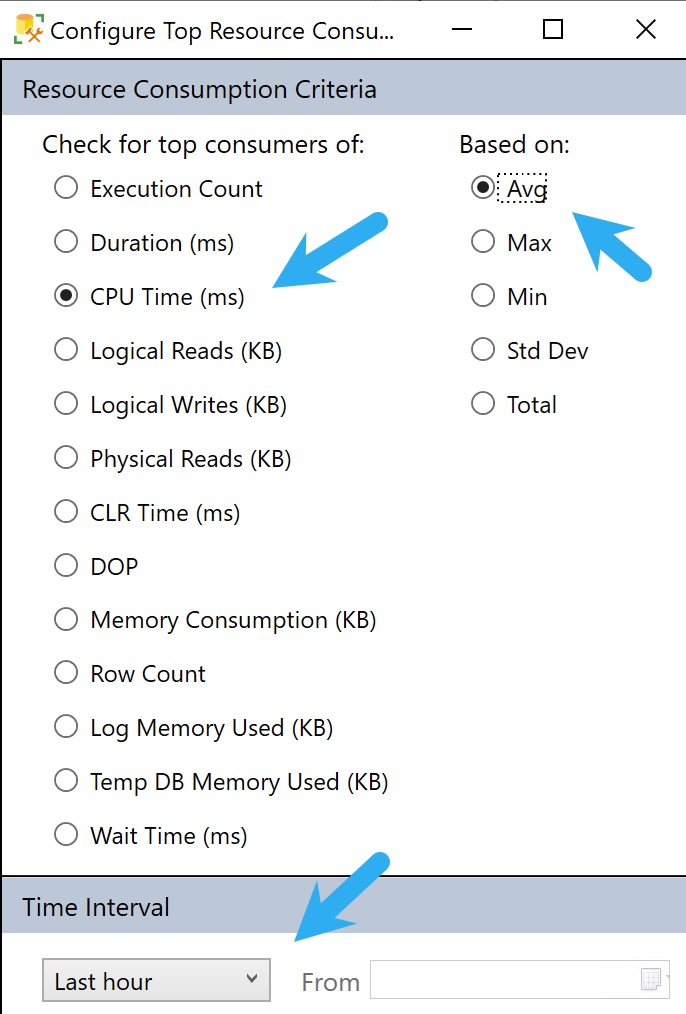
To get to those, we need to hit the Configure button and make a couple tweaks to look at queries that use a lot of CPU on average, and push the time back from only showing the last hour to the last week or so.
You can go back further, but usually the further you go back, the longer it takes to get you results.
configurator
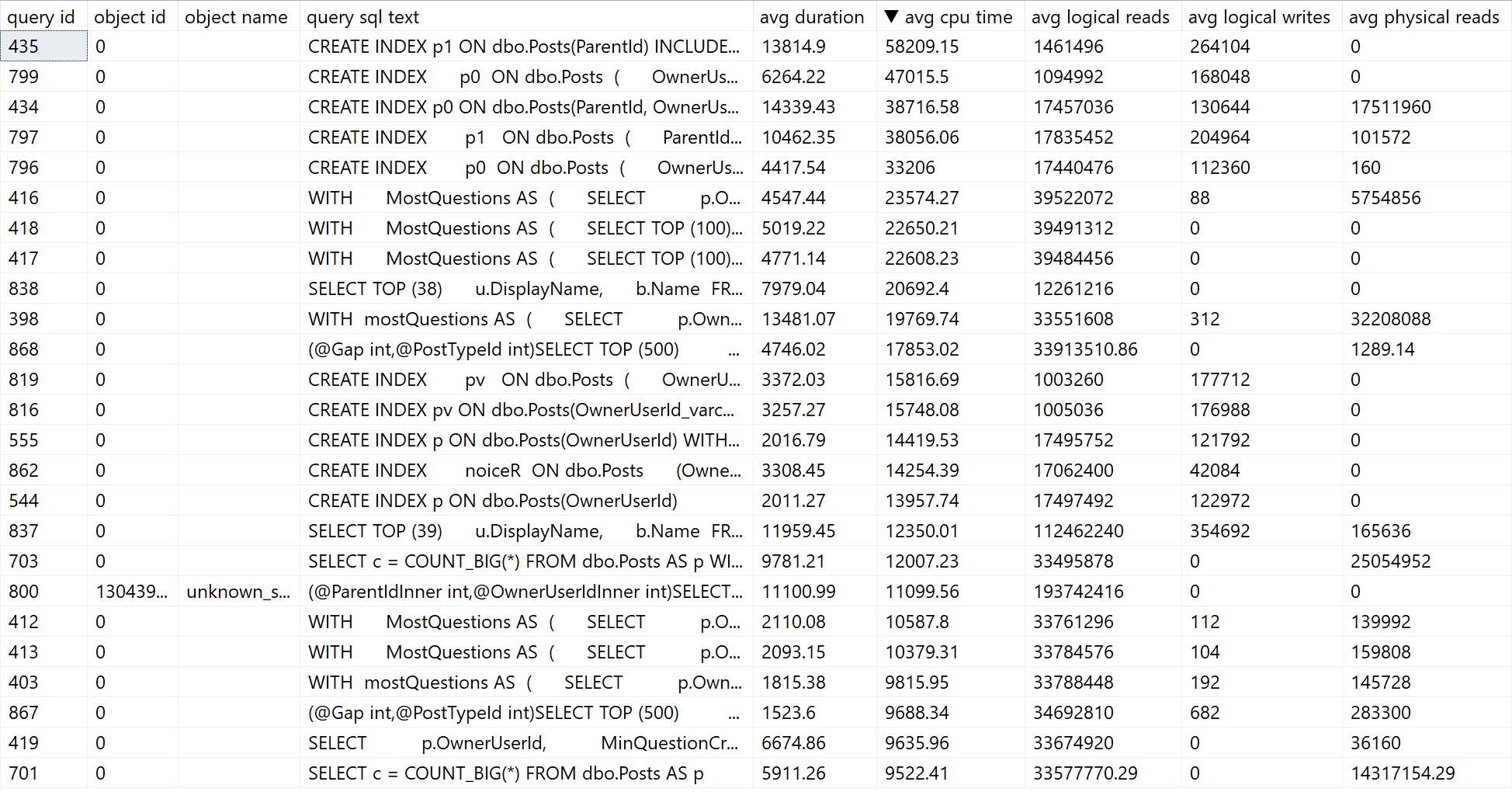
The problem here is that you can often get back quite a bit of noise that you can’t filter out or ignore. Here’s what mine looks like:
noise noise noise
We don’t really need to know that creating indexes took a long time. Substitute those with queries you don’t necessarily care about fixing, and you get the point.
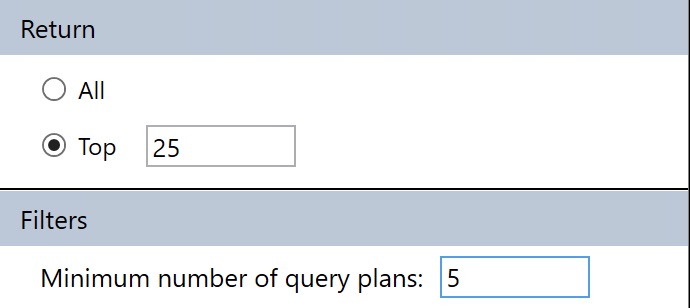
You can sort of control this by only asking for queries with a certain number of plans to come back, but if your queries aren’t parameterized and you have a lot of “single use” execution plans, you’ll miss out on those in the results.
min-maxing
This filter is available under the Configuration settings where we changes the CPU/Average/Dates before.
The major limitation of Query Store’s GUI is that you can’t search through it for specific problems. It totally could and should be in there, but as of this writing, it’s not in there.
The nice thing about sp_QuickieStore is that it gets rid of a lot of the click-clacking around to get things set up. You can’t save your Query Store GUI layout to open up and show you what you want every time, you have to redo it.
To get us to where we were with the settings above, all we have to do is this:
EXEC sp_QuickieStore
    @execution_count = 5;
By default, sp_QuickieStore will already sort results by average CPU for queries executed over the last week of Query Store data. It will also filter out plans for stuff we can’t really tune, like creating indexes, updating statistics, and waste of time index maintenance.
You’ll get results that look somewhat like so:
to the rescue!
There are a number of things you can do with to include or ignore only certain information, too:
@execution_count: the minimum number of executions a query must have
@duration_ms: the minimum duration a query must have
@execution_type_desc: the type of execution you want to filter
@procedure_schema: the schema of the procedure you’re searching for
@procedure_name: the name of the programmable object you’re searching for
@include_plan_ids: a list of plan ids to search for
@include_query_ids: a list of query ids to search for
@ignore_plan_ids: a list of plan ids to ignore
@ignore_query_ids: a list of query ids to ignore
@include_query_hashes: a list of query hashes to search for
@include_plan_hashes: a list of query plan hashes to search for
@include_sql_handles: a list of sql handles to search for
@ignore_query_hashes: a list of query hashes to ignore
@ignore_plan_hashes: a list of query plan hashes to ignore
@ignore_sql_handles: a list of sql handles to ignore
@query_text_search: query text to search for
You straight up can’t do any of that with Query Store’s GUI. I love being able to focus in on all the plans for a specific stored procedure.
Thanks for reading!
Going Further
If this is the kind of SQL Server stuff you love learning about, you’ll love my training. Blog readers get 25% off the Everything Bundle — over 100 hours of performance tuning content. Need hands-on help? I offer consulting engagements from targeted investigations to ongoing retainers. Want a quick sanity check before committing to a full engagement? Schedule a call — no commitment required.
Over the past month (plus or minus a couple days), I’ve shown you in a series of quick posts how I use different SQL Server Community Tools that are free and open source to troubleshoot SQL Server issues.
If this is the kind of SQL Server stuff you love learning about, you’ll love my training. Blog readers get 25% off the Everything Bundle — over 100 hours of performance tuning content. Need hands-on help? I offer consulting engagements from targeted investigations to ongoing retainers. Want a quick sanity check before committing to a full engagement? Schedule a call — no commitment required.
As much as I’d love to think that the normal set of results in sp_QuickieStore is sufficient, sometimes you need a little bit more to figure out what’s going on.
That’s where Expert Mode comes in. Or, as I lovingly call it, @expert_mode.
Quality engineering, there.
Most normal people don’t like a flood of information all at once. That’s why I tend to write shorter blog posts, and I write short sentences in small paragraphs.
In case you were wondering.
More Better
To summon @expert_mode all you have to do is ask nicely.
EXEC sp_QuickieStore
    @expert_mode = 1;
What you get back is stuff that wouldn’t be useful when you’re just trying to find some queries to tune, but might be really useful when you’re trying to dig deeper into why a specific query was slow.
Compilation Statistics: Here you get stuff like how many times, how long, how much memory, and other details around plan compilation.
Resource Statistics: This data comes from the plan cache and is largely for additional memory grant details that aren’t available in Query Store, like the actual grant, and not just what was used.
Query Store Wait Stats By Query: Up top, you get the three most prolific waits that a query was hit with; down here you get all of them ordered from highest to lowest
Query Store Wait Stats Total: At the database level, all of the wait stats that queries have generated
Query Store Options: How you set up Query Store, because sometimes you might wanna tweak those
Like I said, you won’t always need that stuff, but it can be useful at times in some scenarios.
Thanks for reading!
Going Further
If this is the kind of SQL Server stuff you love learning about, you’ll love my training. Blog readers get 25% off the Everything Bundle — over 100 hours of performance tuning content. Need hands-on help? I offer consulting engagements from targeted investigations to ongoing retainers. Want a quick sanity check before committing to a full engagement? Schedule a call — no commitment required.
I am not great at numbers. Especially big numbers, or numbers that need to get converted, like going from KB to GB.
Not KGB. I don’t wanna ever end up there.
Being but a mere mortal, I always find it a whole lot easier to figure out what I’m looking at when there are some separators in there.
For me in all my American Glory, that’s properly placed commas.
🫡🇺🇸
BigNumber4U
Some queries can rack up some pretty impressive resource consumption numbers, especially in Query Store where historical data is held for much longer times than the plan cache.
Making matters worse is that it makes sense to scale things to precise numbers that can look really confusing when they hit anything more than eight or nine digits.
That’s why I wanted to make sure sp_QuickieStore had a way to make things easier on us numerically-challenged public school kids.
EXEC sp_QuickieStore
    @format_output = 1;
Any number that meets the prerequisites for comma insertion will get one. here’s a small example:
commacastic
Isn’t that nice?
Thanks for reading!
Going Further
If this is the kind of SQL Server stuff you love learning about, you’ll love my training. Blog readers get 25% off the Everything Bundle — over 100 hours of performance tuning content. Need hands-on help? I offer consulting engagements from targeted investigations to ongoing retainers. Want a quick sanity check before committing to a full engagement? Schedule a call — no commitment required.
Query Store gives you no way to really search through it. There are knobs and you can filter to specific times and stuff, but… That’s not really helpful most of the time.
If you need to find information about a particular query, but it’s not showing up in the places that it should be showing up, you’re screwed.
Unless you wanna write a bunch of horrible queries to dive into the Query Store DMVs on your own, or you’re the kind of Awesome Blossom who uses sp_QuickieStore.
Then you can find queries in a bunch of different ways.
It’s fun. You’ll love it.
Positive ID
In query store, most of the views are related by a couple different things:
query id
plan id
One query id can be attached to many plan ids, and what often happened to me is wanting to filter in to a specific set of query and plan ids.
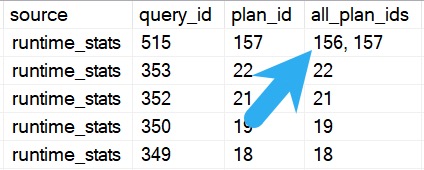
Note that these parameters are all pluralized, which means you can pass in a list. That’s particularly helpful when you team the plan id parameter up with the all_plan_ids column in the procedure’s output.
bang on
You can copy and paste those out and use them directly to search through Query Store with sp_QuickieStore.
You can do that with any of the other parameters too, to include or ignore certain queries.
Handle Hash Mustache
More recently, I added the ability to track down queries in Query Store by different hashes and handles in Query Store, using sp_QuickieStore.
@include_query_hashes
@include_plan_hashes
@include_sql_handles
@ignore_query_hashes
@ignore_plan_hashes
@ignore_sql_handles
Just like with the ids above, these accept CSV lists of hashes and handles to include or ignore.
But why? Well… Troubleshooting blocking and deadlocks is a whole lot easier when you can see query plans. You might see something obvious like…
A bunch of foreign keys need to be validated on modification
Some god awful trigger fires off
Modification queries don’t have useful indexes
The problem is that neither the blocking or deadlock XML reports give you query plans. You only get ways to identify them — you might get the full query text if you’re lucky — but no query plans to give you more information.
Here’s an XML fragment from the blocked process report:
Now you can find query plans by handle and hash really easily in Query Store.
Thanks for reading!
Going Further
If this is the kind of SQL Server stuff you love learning about, you’ll love my training. Blog readers get 25% off the Everything Bundle — over 100 hours of performance tuning content. Need hands-on help? I offer consulting engagements from targeted investigations to ongoing retainers. Want a quick sanity check before committing to a full engagement? Schedule a call — no commitment required.
These can be useful things to tweak based on your situation.
Details, Details
You can do some really cool stuff with these to narrow search results to things you care about. I’m gonna highlight those here, even if they may seem obvious.
@database_name: some databases are more important than others
@sort_order: if your server has a particular bottleneck, it can be useful to find queries using the most of that bottleneck
@top: sometimes there’s red meat beyond the top 10, like when you’re looking at high execution counts
@start_date: know when you had a problem? start here.
@end_date: know when the problem stopped? stop here.
@execution_count: you may not want to see queries with low execution counts, because they might just run once at night
@duration_ms: low duration queries may not be tunable, and you may not want to see them
@wait_filter: does a particular wait stat stick out on your server? Find the queries responsible for it!
I tried to give you plenty of options to focus in on high-level things that can help lead you to queries that are causing you problems.
You can also zoom in to specific queries using a few different searchables, and we’ll talk about that tomorrow.
Thanks for reading!
Going Further
If this is the kind of SQL Server stuff you love learning about, you’ll love my training. Blog readers get 25% off the Everything Bundle — over 100 hours of performance tuning content. Need hands-on help? I offer consulting engagements from targeted investigations to ongoing retainers. Want a quick sanity check before committing to a full engagement? Schedule a call — no commitment required.
Microsoft has invested some engineering time in the plumbing behind Query Store in SQL Server 2022. Really cool stuff, like the ability to add hints to a query and force it to use the plan with that hint in place.
That’s going to solve a crazy amount of problems for me, with queries that I can’t actually touch (and not because they’re priceless works of art).
But… the front end of Query Store still hasn’t changed. It’s clunky, it’s ugly, it’s not very configurable, and I find it downright unfriendly.
It can also be really slow and, golly and gosh, the number of times I’ve seen the queries that fill in the GUI show up in there is sort of depressing.
So I wrote sp_QuickieStore to fill in the gaps. No, it doesn’t populate a GUI (I don’t have those chops), but it does get you actionable results pretty quickly.
Explain Plan
By default, sp_QuickieStore will give you the top ten queries in query store by average CPU over the last 24 hours. I’m going to talk about other things you can do with it later this week.
For now, let’s just look at the first thing you see when you run it without any additional parameters. Most folks will stick sp_QuickieStore in the master database, but Query Store can only be turned on in user databases.
Of course, sp_QuickieStore has a parameter to tell it which database you want to analyze (@database_name). It’d be utterly insane for me to ask you, dear user, to install it in every user database.
The nice thing is that if you run sp_QuickieStorefrom a user database context, it will assume that that’s the database you want to analyze Query Store in.
EXEC sp_QuickieStore;
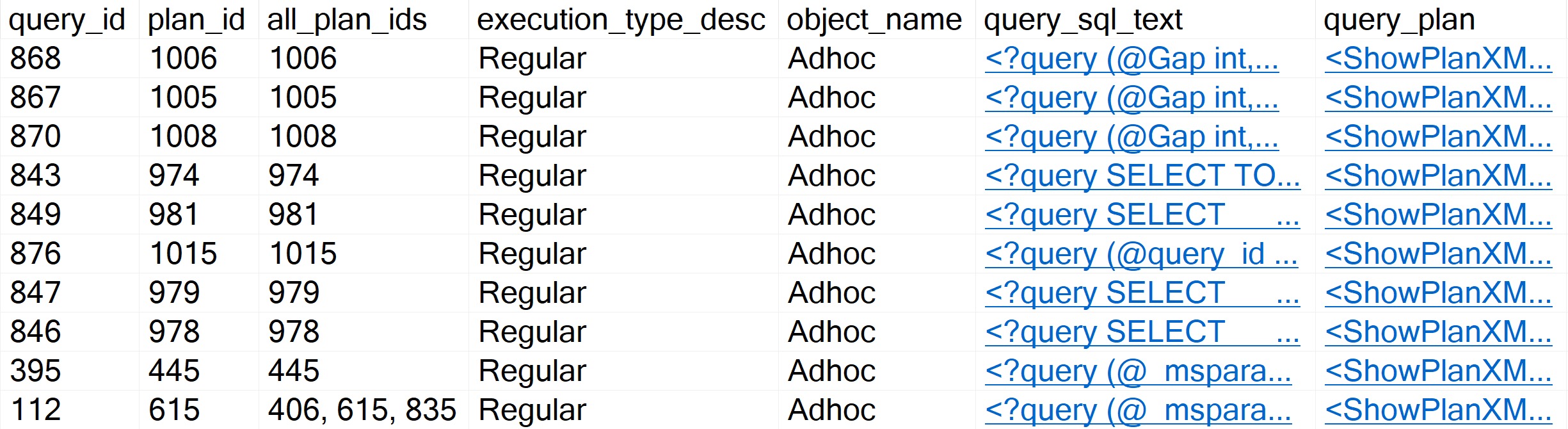
Right up front, you get the stuff that helps you figure out if you want to dig any deeper:
big machine
There’s a lot more information if you keep scrolling to the right that’ll tell you about resource usage, but here’s what you get:
query_id: how Query Store identifies the query text
plan_id: how Query Store identifies the query plan
all_plan_ids: if your query has generated multiple plans, you’ll get a CSV list of them here
execution_type_desc: if you query ran successfully or not
object_name: if your query came from a store procedure
query_sql_text: XML clickable of the query text
compatibility_level: uh… compatibility level
query_plan plan_forcing_type_desc: if Query Store is forcing a plan
top_waits: the high-level wait stats that your query has generated
first_execution_time: um… c’mon
last_execution_time: don’t make me say it
count_executions: oh gosh darn it to heck.
By The Numbers
There’s plenty for you to think about up there. Most folks know if they care about something by looking at some combination of object_name and query_sql_text. Sometimes count_executions will come into play.
Other times, you might have no idea what you’re looking at or why it’s showing up here. And baby. Baby, baby, baby. I am here for you.
bingo
These results are sorted by average CPU (that’s the default, remember), but there’s plenty of other memes here like logical reads for you to nod at sagely.
Something for everyone, really.
All this stuff is nice, but… Maybe you need something more. Maybe you’re searching for something in particular, maybe you want the results to look a little different, or uh… maybe you want to be an expert.
I would also love to be an expert. I would tell people expert things like “don’t throw eggs”.
Thanks for reading!
Going Further
If this is the kind of SQL Server stuff you love learning about, you’ll love my training. Blog readers get 25% off the Everything Bundle — over 100 hours of performance tuning content. Need hands-on help? I offer consulting engagements from targeted investigations to ongoing retainers. Want a quick sanity check before committing to a full engagement? Schedule a call — no commitment required.
From query plans, you can get the plan handle and plan hash:
WITH XMLNAMESPACES(DEFAULT 'http://schemas.microsoft.com/sqlserver/2004/07/showplan')
SELECT
   session_id,
   query_plan,
   additional_info,
   query_hash =
       q.n.value('@QueryHash', 'varchar(18)'),
   query_plan_hash =
       q.n.value('@QueryPlanHash', 'varchar(18)')
FROM dbo.WhoIsActive AS w
CROSS APPLY w.query_plan.nodes('//StmtSimple') AS q(n);
From additional info, you can get the SQL Handle and Plan Handle:
SELECT
  session_id,
  query_plan,
  additional_info,
  sql_handle =
      w.additional_info.value('(//additional_info/sql_handle)[1]', 'varchar(131)'),
  plan_handle =
      w.additional_info.value('(//additional_info/plan_handle)[1]', 'varchar(131)')
FROM dbo.WhoIsActive AS w;
Causation
For the plan cache, you can use your favorite script. Mine is, of course, sp_BlitzCache.
You you can use the @OnlyQueryHashes or @OnlySqlHandles parameters to filter down to queries you’re interested in.
For Query Store, you can use my script sp_QuickieStore to do the same thing.
It has parameters for @include_query_hashes, @include_plan_hashes or @include_sql_handles.
You might want to add some other filtering or sorting to the queries up there to find what you’re interested in, but this should get you started.
I couldn’t find a quick or easy way to combine the two queries, since we’re dealing with two different columns of XML data, and the query plan XML needs a little special treatment to be queried.
Thanks for reading!
Going Further
If this is the kind of SQL Server stuff you love learning about, you’ll love my training. Blog readers get 25% off the Everything Bundle — over 100 hours of performance tuning content. Need hands-on help? I offer consulting engagements from targeted investigations to ongoing retainers. Want a quick sanity check before committing to a full engagement? Schedule a call — no commitment required.
In this video, I delve into the exciting new parameter-sensitive plan optimization introduced in SQL Server 2022. After a bit of a hiatus from recording videos due to other commitments and personal projects, the release of SQL Server 2022 has reignited my passion for sharing knowledge with you all. The video explores how this feature works by running queries multiple times with different input values, demonstrating the creation of distinct plans based on parameter sensitivity. I also highlight some quirks in query store data handling and plan cache management that arise from this optimization, offering insights into what developers might encounter as they adapt to these changes.
Full Transcript
Hello, hello, hello. Erik Darling here with Erik Darling Data. And I know that it’s been a little while since I recorded anything. That’s mostly because I’ve been really busy. I’ve still been writing nice things for all you kind and pleasant folks out there, but recording, I don’t know, it takes a special kind of thing for me to want to record something. And a lot of the stuff that I’ve been writing about has just not been stuff that I’ve been like, yeah, let’s record it. Let’s do a video about it. So I’ve been slacking a little bit on there. And, but now we have SQL Server 2022, and it has rekindled my desire to record things. So you’re welcome. Thank you, Microsoft, for releasing SQL Server 2022. And, I’ve been digging a lot into the parameter-sensitive plan optimization in SQL Server 2022. Because, I mean, apart from it being a very cool thing that now we have this, like, new layer of intelligent query processing where, all of a sudden, like, we don’t have the same, well, we don’t have the same. We don’t always have the same issue with parameter. We have new issues to deal with, like, when it misses out on perhaps a potentially useful optimization.
But anyway, now we have at least the built-in heuristic ability to occasionally get some help with parameter sniffing when the optimizer deems a parameter, a quality predicate, sensitive enough or having a sufficient skewness to generate multiple plans. So, what I’m going to do is run this main query here in a loop 10 times with two different sets of input values. One is going to be a 1 and a 0 up here, and the other is going to be a 2 and a 184618 down here. So if I run this, first we’re going to clear out the plan cache. We’re going to set, we’re going to clear all the data out of query store because I want this to be very clear.
All right, I’m going to clear it to make it, shut up. And I’m also just going to make sure that everyone knows that my database is in compat level 160, which is the magical new SQL Server 2022 compat level. I mean, I guess it’s old news if you’re up in Azure, but I don’t know. I don’t think people in Azure care, obviously. If they did, they wouldn’t use Azure. So we’re going to run those in a loop, and it’s going to finish pretty quickly because it’s an expert query tuner.
Even when I have queries that are parameter sensitive, they still manage to finish very quickly when I get my hands on them. But the main stuff that we need to pay attention to in here is if you look up here, we’re going to have, and this is how you’re going to know that your plans have received the parameter sensitive plan optimization. You’re going to see this option plan per value, and you’re going to get some query variant ID attached to your query.
Right now, you only have three options, or you only get three plans as part of this, right? So you will certainly only create three parameters, different parameter sensitive plans based on like bucketized values. And you can see those bucketized values if you look a little bit further over in the text of that hint where you see this predicate range, right?
And so you have stuff at the low end of the range, and you’ll have stuff at the high end of the range, and then you’ll have stuff in the middle of the range, which would be your third plan. I’m at the very top and very bottom of this, so I only have the two variant IDs. But if we scroll down through this, we’re going to see two distinct plans.
Really, they’re very similar in a lot of ways. The only thing that’s really different are these estimates over here, because one of them will actually find 50,000 rows, and the other one will not find anywhere near 50,000 rows. They’ll only find 518 rows.
And you can also see, of course, which parameter predicate… Oh, I didn’t go over it further enough. I’m goofy. I’m all out of practice here. You can also see which parameter SQL Server decided was the sensitive one, the sad little lad who dropped his lolly and leaves. And decided that that’s the one that needed some extra help and attention.
Needed a Kleenex and some spit on the cheek. But if you look through this stuff, these two plans are basically going to go back and forth over and over again. It’s going to be all query variant 2 and all query variant 3 going all the way down to the bottom.
And that’s the end of it, right? So these both executed 10 times a piece, just sort of in that loop. Now, where things get interesting…
If you read my blog, you would have seen a post sort of recently about how the parameter sensitive plan optimization, at least right now, as of this build, this first CTP build, kind of messes up plan cache stuff. Because when a store procedure calls a query and the query executes, it used to be, or at least it currently is, that you can figure out… Like there’s a parent object ID that gets tied back from the query to the store procedure that call this.
You can be like, oh, this query came from the store procedure. Great. That messes that up. They all get weird different SQL handles. Everything’s kind of a weird shamble over there.
There’s sort of a similar situation in query store. It’s not exactly the same. I mean, it is the same with you can’t tie statements back to the store procedure that called them. But there’s an additional sort of bit of weirdness that I want to talk you through here.
So what I’m going to do is execute these queries. And there’s nothing all that special or interesting about these queries. I’m not going to explain them because querying query store data is the hell on earth. I feel bad for anyone who does it.
I wrote spquickie store so that you wouldn’t have to do it because I care about you deeply as people. And I want you to have long and happy lives so you don’t have to think about these things. So looking through query store data, we have three distinct executions of this query, which is weird because we only had two plans, but I’m going to show you where that third thing comes from.
So if we blow this column up a little bit, and I wish there was a better way to do this without running some dumb substring parsing, we’ll see in this section that top plan, that ends the score descending clause of the query. The two ones below it have the plan per value, predicate range, blah, blah, blah stuff at the end of it.
All well and good. Where things get kind of interesting though, is if we, come on, move it, some scroll bars, not anyone’s friend, is when we look through other parts of this, right?
So we have query ID 123, plan ID 123, query text ID 123, okay, fine. Plan ID 1 doesn’t show up in runtime stats, right? So just kind of like a silly run, like query on, to get data out of the runtime stats view.
Query ID 1 doesn’t show up in there, right? We have, or sorry, plan ID 1 doesn’t show up there. We have plan ID 2 and 3 in there, right? So these two are in there.
This top one isn’t. Down at the bottom, and I will explain this query because this one is relatively simple to explain. We’re hitting a new view in SQL Server 2022 called sys.queryStoreVariant. And that is brand new.
And this is the one that tells us when a plan had a variant or a deviant in it somewhere. What’s kind of interesting here is that we have query variant query ID 2 and 3, right? So these query IDs would match up to these query IDs here.
Query ID 1 isn’t in there, right? Because it doesn’t have that option plan per value stuff in it. We have parent query ID, which does match up to that. And then we have dispatcher plan ID, which only shows you one.
Okay. Here’s where things get a little tricky. If we were to look for a plan, if we were to purely look for plans that have a variant in them, right? That were, you know, dispatched some other query plans.
This is all we get back. And as far as I know, I’m the first person to talk about this. So, you know, go me. Gold star, A plus, A for effort, all that stuff. We get this single operator back.
Multiple plan. Right? That’s all we get back here. Not a whole lot of detail. And if we go look at the XML, there’s a little bit more to see, but it’s kind of just weird stuff. You know, I mean, it’s all, you know, XML, which sucks to look at.
But we have this parameter sensitive predicate thing in here. We have a little bit of information about the, you know, the query. Like we can see what the query text is.
Just doesn’t have the parameter sensitive stuff tacked onto it. We can see the index that got used. We can see the boundary values for the parameter sensitivity stuff. And we can see the predicate that was considered parameter sensitive. Right?
So we get, there’s some, there’s some stuff in there, but it doesn’t show us the whole execution plan. If we click on any other, any of those other query plans, we’ll get the plan back. Like I said, there was the one that has a missing index attached to it. And then this one down here is the one that doesn’t have the missing index attached to it.
So those are the two variants that we saw when I executed the other scripts. So you have to be a little bit careful how you identify stuff in query store. Obviously you’d want to use the query variant query ID.
If you wanted to find the actual statements that had the varying plans in them. But right now getting, getting this dispatch or plan ID is just kind of useless. I wish there was another column that maybe had query variant plan ID in it so that we could say, Oh, this query was attached to this, you know, variant on the plan.
That might be kind of nice. The other thing that’s kind of interesting to look at in here is some of the hashes, right? So somehow these all have the same query hash, which is interesting.
I mean, because of the two of them have the option plan stuff at the end of them. So it almost doesn’t make sense for them to have that, but maybe, maybe that’s not considered as part of the hash value in there. Maybe that gets, maybe that gets sent in afterwards.
I don’t know. And then we have the query plan hash, which, you know, I guess that makes sense because, you know, we have this one where, you know, the, obviously that just that single multiple plan operator is not going to hash out to the same stuff. But then, you know, I mean, the other two are the same because it’s fundamentally the same plan.
It’s a blah, blah, key lookup. I mean, there was no difference in plan shape or anything. So in situations where the, the plan vary, the plan, the different plans generated had different shapes, different operators, parallel, not parallel, stuff like that. These would likely, these would likely vary.
What’s interesting to me though, is we have this query hash over here where they all end up being the same, but then quite obviously for last compile batch SQL handle and statement SQL handle, these are all very different values, right? This one’s 02, blah, blah, 51, 87, 72.
So these are all very different, right? These are all like just completely different SQL handles for things, right? These are all, these are all way different values. And even the statement SQL handles over, over here, obviously quite different values of the most will cooperate. Thank you very much, Mr. Mouse.
You are so useful today. Almost as useful as my liver. These all have very different values, right? So like, there’s a lot of stuff that’s just sort of spread out in here where, you know, before, there would at least be like some semblance of, of like, stuff you could figure out, right?
You could like, say, oh, the SQL handle for this query hasn’t changed. So this is where stuff gets a little bit trickier to identify and kind of get, get to the bottom of in here. So I guess the main thing here is be on the lookout for this, these kinds of changes.
Be on the lookout for maybe your query store scripts not working or getting you the value data that you want back as you start getting these new views into things. Obviously this dispatcher plan ID that just shows you the multiple plan operators, not very useful, right?
Like that’s not a very good query plan for you to use. The parent query ID likewise, that’s just going to get you this thing back, right? Query ID one, right?
That’s just going to get you that, you know, like that, the, the initial query without any of the parameter sensitive stuff attached to it. But you really want to be using this as query variant query ID, because this is what’s going to get you to these column to rather to these rows over here that have the more interesting plans. So, you know, be aware of this stuff, you know, as much as I love the idea of fixing parameter sniffing, I wish that there was a little bit less sort of nonsense, nonsense and shenanigans going on behind the scenes with all of the, the, the different values that, the, the queries generate and stuff.
I understand there has to be some separation. It wouldn’t make sense for everything to be just kind of congealed in together, but I do wish that there were a little bit more tooling or visibility into some of this stuff. For example, I mean, like, like I said earlier, it would be really helpful to have a query variant plan ID in here to track us to the plan IDs that we care about where there are variations.
And, you know, even in query store, you know, I talked about the plan cache earlier, even in query store, anything that gets called in the store procedure has a zero for a parent object ID when it gets a parameter sensitive plan optimization. So it’s going to be interesting seeing if that’s kind of stuff gets fixed or worked out as, as the CTPs roll out and we get closer to closer to RTM time. But anyway, sort of an initial observation, maybe at some point in the future, this video will be completely wrong.
Uh, that would be nice, but who knows? Uh, anyway, uh, I’m going to go now cause it’s, um, yeah, again, it’s seven, like seven 30 on a Friday. I’m going to, I’m going to go, uh, have, pour me a nice glass of something into my, my beer gut magazine, uh, mug.
And, uh, you know, maybe, maybe, maybe I’ll remember recording this video tomorrow. Maybe not. We’ll see. It’s all, it’s all a coin toss. It’s all up in the air.
Anyway, thanks for watching. Uh, I will see you hopefully in another video soon. Now the SQL Server 2022 stuff does have me, uh, back on to, uh, to actually record videos again. So I don’t know. I’ll have to work on that.
You have to brush off the rust and anything. Anyway, goodbye.
Going Further
If this is the kind of SQL Server stuff you love learning about, you’ll love my training. Blog readers get 25% off the Everything Bundle — over 100 hours of performance tuning content. Need hands-on help? I offer consulting engagements from targeted investigations to ongoing retainers. Want a quick sanity check before committing to a full engagement? Schedule a call — no commitment required.
Add the ability to search by query hash, plan hash, and SQL handle
The SQL Server 2022 stuff isn’t important just yet, but… Hey, maybe someday.
The new search functionality is really important though, at least for how I use sp_QuickieStore much of the time. Often, you’ll find hashes and handles in other parts of the database:
Plan cache
Deadlock XML
Blocked process report
Query plans
There’s still no good way for you to search Query Store by anything. Not plan or query id, not query text, not object names. Nothing.
Don’t worry, I’m here for you.
Some other minor updates were to:
Improve the help section
Improve code comments throughout
Remove the filter to only show successful executions (sometimes you need to find queries that timed out or something)
If you filter on any hash or handle, I’ll display that in the final output so they’re easy to identify
Replace TRY_CONVERT with TRY_CAST, which throws errors in fewer circumstances
That’s about all the stuff you need to know about. Aside from that, all my changes were slight logical errors or plumbing to implement the new features.
Thanks for reading!
Going Further
If this is the kind of SQL Server stuff you love learning about, you’ll love my training. Blog readers get 25% off the Everything Bundle — over 100 hours of performance tuning content. Need hands-on help? I offer consulting engagements from targeted investigations to ongoing retainers. Want a quick sanity check before committing to a full engagement? Schedule a call — no commitment required.