Common SQL Server Consulting Advice: Setting MAXDOP And Cost Threshold For Parallelism

Dirty Work


There are three classes of administrator when it comes to parallelism settings

  • Never changed the defaults
  • Changed the defaults to something wacky
  • Changed the defaults to something safe

The beginning of this post is for the first couple of genus of administrator.

Even though Microsoft added a MAXDOP calculation to the installer starting with SQL Server 2016, I’ve seen cases where the recommended setting was wrong because hardware changed after the initial config.

As an example: Your VM admin created the smallest possible machine to get things set up for you, and added CPU and memory later on, and you ended up with MAXDOP set to 1.

The installer still doesn’t let you change Cost Threshold For Parallelism at setup, which is plum bizarre. I get why making a recommendation here is hard (and I’ll talk about that later on), but you should at least give folks the option.

I want to add this here, before we get too far along: The point of adjusting these values is not “because there’s too much parallelism” or “because there’s too much CX… waits”. The goal is to increase concurrency by only allowing queries that benefit from parallelism to use it, because parallel queries can reserve many CPU threads (DOP * parallel branches), and if you throw enough of them at a server you can end up running out of worker threads, and hitting THREADPOOL waits.

Some folks do Good Enough© with the stock advice of a max degree of parallelism of 4 to 8, and cost threshold for parallelism of 50. Others have a harder time finding a sweet spot that properly balances performance and concurrency.

But you need to start somewhere.

If you truly have no idea how to change these settings, review these example commands, but don’t just blindly run them.

EXEC sys.sp_configure
    @configname = 'show advanced options',
    @configvalue = 1;
RECONFIGURE;

EXEC sys.sp_configure
    @configname = 'cost threshold for parallelism',
    @configvalue = 50;
RECONFIGURE;

EXEC sys.sp_configure
    @configname = 'max degree of parallelism',
    @configvalue = 8;
RECONFIGURE;

Read the rest of the post first.

Evaluating


The easy way to see your settings and if they’re relatively sane is like so:

SELECT
    c.name,
    c.value,
    c.value_in_use,
    c.description,
    socket_count = 
        CASE c.name
             WHEN N'max degree of parallelism'
             THEN osi.socket_count
             ELSE NULL
        END, 
    cores_per_socket = 
        CASE c.name
             WHEN N'max degree of parallelism'
             THEN osi.cores_per_socket
             ELSE NULL
        END
FROM sys.configurations AS c
CROSS JOIN
(
    SELECT 
        osi.socket_count,
        osi.cores_per_socket
    FROM sys.dm_os_sys_info AS osi
) AS osi
WHERE c.name IN 
(
    N'cost threshold for parallelism',
    N'max degree of parallelism'
);

Whenever I query sys.configurations, I get the value and value in use, because sometimes folks forget to run RECONFIGURE; after they change something.

But back to the point! Whatcha got here?

  • Is Cost Threshold For Parallelism a number higher than 5 and lower than 200?
  • Is Max Degree Of Parallelism an even number between 4 and 8?

If so, you probably don’t need to make any changes here, unless something else is going on.

And hey, if you’ve got one of those really awful vendor products that tells you to set MAXDOP to one, you should be using database scoped configurations for that, these days.

For most folks, this will get you to an okay place. You may have some other considerations based on the number of cores and/or sockets, and that can get pretty confusing.

Changing these setting will clear out the plan cache, so you should be a little careful when you do it, but you don’t need to restart or anything.

Thinking Harder About Cost Threshold For Parallelism


Many folks who end up here are already pretty sophisticated when it comes to SQL Server, and I’d hate to leave them hanging.

Let’s talk more about each setting, and how they interact with your server and queries.

First up, alphabetically, is cost threshold for parallelism. Right now, you can only set it at the server level. You can technically remove it from the equation by:

  • Setting MAXDOP to 1
  • Using undocumented trace flag 8649, or…
  • Using undocumented query hint ENABLE_PARALLEL_PLAN_PREFERENCE to force a parallel plan

It would be neat if you could set it at the database level, like MAXDOP, but whatever.

One thing that comes up consistently when talking about this setting is that folks often see parallel queries with costs lower than the cost threshold for parallelism. All that means is that the serial query plan broke the threshold, and the parallel plan was chosen because it was cheaper. Cheaper can be lower than cost threshold for parallelism.

When a query executes, assuming there isn’t some parallelism-inhibiting factor in place (scalar UDFs, table variable inserts, etc.), it has to “cost” more than this threshold for a parallel plan to get considered. If it does, and the optimizer can come up with a parallel plan that’s cheaper than the serial plan, then you can pretty well count on it being chosen.

This is where things get tricky! Right off the bat!

See, query costs are all estimates, and there’s no actual counterpart to them in your query plans. If you’re anything like me, you’ve probably seen some low “cost” queries run for a really long time.

Many things contribute to pinning this setting down being difficult:

  • Incorrect assumptions about too much of a CX wait (this goes for MAXDOP too)
  • Untuned workloads having consistently high cost queries
  • Wasting time looking at the plan cache for average costs
  • Changing the setting not having an appreciable effect
  • Misunderstanding what costs actually mean

What does it all mean for you? Well, usually increasing the setting from the default — which is 5 — to a meaningfully higher number, will reduce the total number of queries that are eligible for a parallel plan.

This doesn’t mean performance is doomed for those queries, heck, they may not have needed a parallel plan to begin with. The optimizer is pretty good at costing queries generally. But it’s not perfect, and that’s where generalized workload settings need to be overridden or changed.

Having fewer queries be eligible for gobbling up a whole bunch of CPU threads is one way of increasing overall concurrency. Individual query performance may change for better or worse, and you may need to raise or lower the number you picked here, but that’s part of the process.

Thinking Harder About Max Degree Of Parallelism


The second option you have to address concurrency and performance issues stemming from parallelism is setting an upper limit on the number of cores, and threads per parallel branch that a parallel query is allowed to engage and acquire.

In a way, this setting is a little easier to settle on than Cost Threshold for Parallelism, but there are some things you should be aware of:

  • The parallel version of a plan isn’t just the serial version with parallelism; you can end up with a very different set of operators
  • The optimizer may choose a serial plan if DOP is set too low for a parallel plan to make sense
  • Whatever you set DOP to, parallel plans will use at least one extra coordinator thread to manage DOP threads
  • Leaving this set to zero is only really dangerous on servers with > 8 cores
  • Setting this to an odd number is generally not a good global setting, though it can be useful in edge cases for a single query

There have been times when I’ve suggested MAXDOP of 4 on servers with a single 8 core processor, but that was mostly a temporary fix until some more meaningful tuning work could be done.

It’s okay to use these settings as band aids, just don’t let them be habit-forming.

How can you tell if a parallel query plan is effective, and how can you decide if you need higher or lower DOP? Great question(s)! Look at you. I’m so proud.

  • If your parallel and serial plans have roughly equivalent CPU and duration, the parallel plan isn’t better
  • If your parallel plan isn’t anywhere near DOP faster than your serial query, the parallel plan probably isn’t better
  • If your parallel plan hits exchange spills or deadlocks, buckle up, you’re in for a fun day (of MAXDOP 1 hints)
  • If your parallel plan gets slower as you touch more data, you might want to try hinting a higher DOP

I know, it sounds kooky, but this is all stuff I have to think about and mess with when I’m tuning queries for clients. Many times, it seems like an attractive concept to force a parallel plan on a slow query, but the end result isn’t necessarily better.

It’s sort of like when I expect a query to use a nested loops join, but it doesn’t. If you hint the query to do the loop join, you might get a missing index request that lead the optimizer to think that a different join type was cheaper. Or you might just find out the optimizer was wrong. Again.

Getting back to the main point, though: parallelism is a very effective equalizer for the right kind of queries. It just doesn’t necessarily help every query.

Slug Away


To summarize and recap a little bit, here. Most SQL Server users out there will do fine following basic advice about cost threshold for parallelism and max degree of parallelism.

There will be outliers, edge cases, and times when you need to work outside of those settings for particular queries to run optimally. Heck, if a client tells me they’re running a data warehouse, the last thing I’m going to get hung up on is cost threshold for parallelism.

If you change those settings away from the defaults, and you’re still for some reason dissatisfied with the amount of CX_ waits on your server, try focusing on the queries that are going parallel and tuning them to reduce their estimated costs to lower numbers.

Sometimes those waits really are your fault.

Thanks for reading!

Going Further


If this is the kind of SQL Server stuff you love learning about, you’ll love my training. Blog readers get 25% off the Everything Bundle — over 100 hours of performance tuning content. Need hands-on help? I offer consulting engagements from targeted investigations to ongoing retainers. Want a quick sanity check before committing to a full engagement? Schedule a call — no commitment required.
Working With A SQL Server Consultant Checklist: Patches, Patches, Patches

Whacked


It’s obvious to most that you should keep some track of SQL Server patches. You don’t need to install them all the hot minute that they drop, but staying within range of current is pretty important.

If you have an extra 5-10 minutes a month, read the Cumulative Update notes that Microsoft adds along with releases and see if any of the issues sound like ones you’re hitting.

I’m not gonna pretend that the release notes are getting better — in fact they’ve really gone downhill over the last few years — but you can scan through them and get a reasonable idea of what’s in the update as far as fixes and improvements go.

What no reasonable consultant wants to see is a SQL Server that has been up and unpatched for a year. That messes you up in two ways:

  • Your problems could be solved by patching SQL Server
  • Your server metrics are all gonna be cumulative since your last patch

That makes any recent problems really tough to makes heads or tails out of, without a monitoring tool that breaks things down by time.

Remember when I said monitoring tools are important?

They still are.

More Than One


Monitoring tools are also useful for patching, not because they help you monitor for updates or tell you when things are out of date, but because a good monitoring tool will help you baseline to see if there’s any difference after patching.

That can help you just as much when things go well as when things go poorly. Even if it wasn’t the patch — maybe a bad plan got in the cache after you rebooted or something — you have a much earlier warning system.

But what’s really important is having that reservoir of information about your SQL Server.

This is where I get selfish.

If you patch SQL Server, you have to restart it. If you restart it, all the good stuff goes bye-bye, then we might have to delay working together for metrics to build back up.

So pretty and please, patch that thing regularly.

And get a monitoring tool.

For both of us.

Not Just SQL Server


I’ve seen lots of folks using really old versions of SSMS for no good reason. You should keep that up to date, too. Just don’t forget to skip the Azure Data Studio install, if you don’t need it.

There have been a lot of important improvements and fixes to SSMS, especially since version 18. If you’re not running at least that, go grab it.

Especially if we’re going to be working together, because I’ll stop and make you get it if you don’t already have it.

And get a monitoring tool.

For both of us.

Thanks for reading!

Going Further


If this is the kind of SQL Server stuff you love learning about, you’ll love my training. Blog readers get 25% off the Everything Bundle — over 100 hours of performance tuning content. Need hands-on help? I offer consulting engagements from targeted investigations to ongoing retainers. Want a quick sanity check before committing to a full engagement? Schedule a call — no commitment required.
Working With A SQL Server Consultant Checklist: Tools Of The Trade

Accustomed


There are thousands of scripts out there on the internet that tell you different things about SQL Server.

Some are packaged nicely into a stored procedure, and others… aren’t. I like to make things as easy as possible for folks to take and run, without worrying about database context or  SQL Server version/edition compatibility.

In shops with DBAs on staff, I get nervous when I see (or don’t see) certain things:

  • sp_WhoIsActive isn’t installed
  • sp_Blitz scripts are years out of date
  • They’re using maintenance plans instead of Ola’s scripts

You don’t have to look every day, but you should check in every three months or so to see if your favorite troubleshooting scripts have any updates to them.

Thankfully, GitHub makes this really easy.

Repo City


A lot of folks went and embraced GitHub as an easy way to release up to date scripts to the masses, with the ability for them to open issues for new features, bugs, and Q&A.

  • sp_WhoIsActive: Get tons of detailed information about queries currently executing
  • First Responder Kit: Basically anything you need to do a health and performance check of your servers
  • Ola Hallengren’s Maintenance Solution: Backups, CheckDB, Index and Stats maintenance, highly configurable
  • sp_HumanEvents: Easily set up and analyze Extended Events to troubleshoot common issues like blocking, compilations, query performance, and more
  • sp_PressureDetector: Detect memory and CPU pressure on SQL Server really fast
  • sp_QuickieStore: Get all the important stuff out of Query Store with the press of a button

With the exception of Ola’s scripts, I contribute code to all of the procedures listed above, and I use them in just about every engagement.

In tomorrow’s post, I’m gonna cover a few other things you should do to get ready for someone to look at your SQL server.

Thanks for reading!

Going Further


If this is the kind of SQL Server stuff you love learning about, you’ll love my training. Blog readers get 25% off the Everything Bundle — over 100 hours of performance tuning content. Need hands-on help? I offer consulting engagements from targeted investigations to ongoing retainers. Want a quick sanity check before committing to a full engagement? Schedule a call — no commitment required.
Working With A SQL Server Consultant Checklist: Monitoring Tools And Query Store

Forensics


I get called in to help with a lot of interesting performance problems. I’m gonna say something that sounds harsh right up front: very few people are prepared for sudden issues.

After the fact (and usually after a reboot that clears out all the useful information) people start doing all sorts of things, like logging sp_WhoIsActive to a table.

Consider a couple things for a second though (aside from the fact that rebooting clears out all your important server metrics)

  • Nothing captures blocking by default (you need the blocked process report for this)
  • The system health session keeps limited information in it about things like deadlocks
  • SQL Server doesn’t time-slice wait stats or any other metrics
  • The plan cache is usually highly volatile for a number of reasons

With SQL Server, you need to prepare today for emergencies tomorrow.

Query Store


One way you can get some of this stuff is by enabling Query Store on your important databases.

It’s not perfect, and there’s certainly a risk of introducing unacceptable observer overheard in environments with a really high rate of transactions.

But it’s a whole lot better than the plan cache for looking back in time at query performance issues, and starting with SQL Server 2017 we started getting high-level waits stats too.

It’s not a replacement for a monitoring tool, and there’s enough functionality missing that I wrote a stored procedure called sp_QuickieStore to search through it, but it’s better than nothing.

The odds of relevant query plans from a performance meltdown being in the plan cache several days later is nearly zero. People just do too many bad things that make it fill up or clear out:

  • They don’t parameterize queries
  • They turn on optimize for ad hoc workloads
  • They don’t give SQL Server enough memory
  • They stack dozens of databases or schema

SQL Server 2019 added a bunch of switches you can tweak to reduce the overhead and the queries you collect in Query Store, which is super helpful.

Monitoring Tools


I hear a lot of people say they have SQL Server monitoring tools, but they either:

  • Are really crappy and impossible to use
  • Don’t really monitor SQL Server well

That doesn’t even begin to account for end-user issues, like:

  • Broken monitoring tool installs not collecting data
  • Software being way out of date, or…
  • Them not not knowing what to look at because they’ve never opened it

But if you have a good monitoring tool collecting a variety of important SQL Server metrics, you have a much better chance of being able to root cause performance issues:

  • Blocking
  • Deadlocks
  • Wait Stats
  • Query Performance
  • Disk Stuff
  • Memory Stuff
  • CPU Stuff

You get the idea — your monitoring tool should collect a wide enough variety of metrics that common problems don’t totally escape it — but probably not show you every single meaningless metric that you can possibly collect.

Easy Street


As a consultant, I love having these things to comb through to either troubleshoot a past performance issue, or just find candidate queries to tune for clients.

Without them, it makes my job a lot harder — or even impossible sometimes, when data is gone for good — and I have to spend a lot of time waiting for an issue to crop up again to see what was involved, or do a bunch of generalized performance tuning in order to hopefully avoid future issues.

In tomorrow’s post, I’m going to talk about some of the common tools and scripts that I use while consulting (though not how to use them). If you’re talking to anyone in the SQL Server consulting space, these are good tools to have available.

Thanks for reading!

Going Further


If this is the kind of SQL Server stuff you love learning about, you’ll love my training. Blog readers get 25% off the Everything Bundle — over 100 hours of performance tuning content. Need hands-on help? I offer consulting engagements from targeted investigations to ongoing retainers. Want a quick sanity check before committing to a full engagement? Schedule a call — no commitment required.

Working With A SQL Server Consultant Checklist: Getting Access To SQL Server

Options


Working with clients long term presents some different options for how I interact with their SQL Servers.

  • Working on a web meeting with the team watching
  • Having them give me direct access to SQL Server

While everything kicks off with some analysis done all together, different teams have different ways of working with me after that.

It really depends on the point of the engagement.

Facetime


Some companies have teams of folks that want to:

  • Have me look at and work on specific things
  • Ask me questions about a bunch of topics
  • Learn how I do things so they can analyze and tune on their own

For those clients, we schedule meetings for a block of time, and someone shares their screen so I can take remote control.

It’s less messy, because everyone can see what I’m running, ask questions about the options and output, and I don’t need any credentials.

This way is my favorite, because it’s less for me to keep track of, and more interactive.

Shadowy


Other companies either don’t have time for all that, or are using me to do things they don’t have staff to do. Competency, or something.

For those folks, there’s usually a few things involved:

  • VPNs
  • Jump boxes
  • Authenticator apps

Only two clients have ever sent me a computer to work on. For everyone else, I set up a VM specific to them to use and work on.

It helps me keep things separated, and it makes getting rid of all the evidence assets when the engagement is done, and after everything has been handed over.

This way is more secure for everyone, but I have had issues with a couple VPN providers not liking connections from a VM, because they detect it as a RDP session.

You can work around that by using Team Viewer or another remote access app, but thankfully those issues are sporadic.

While this isn’t my favorite way to work, it does allow me to work asynchronously. I sometimes keep weird hours, and it’s nice to be able to get things done on my own schedule.

It’s also nice to be able to hand someone a flawlessly tuned query without them having to see all the different things I tried to get there.

Party Of One


Since I’m a one man party, I can’t really offer on-call or emergency hours.

I also tend to focus exclusively on SQL Server performance issues, and not security, corruption or server-down issues. I respect people who want to deal with those issues, but the liability is too big, and I’d much rather stick to the performance tuning stuff that I’m passionate about.

In tomorrow’s post, I’ll talk about some things you can do to get prepared to work with a consultant to make their jobs easier.

Thanks for reading!

Going Further


If this is the kind of SQL Server stuff you love learning about, you’ll love my training. Blog readers get 25% off the Everything Bundle — over 100 hours of performance tuning content. Need hands-on help? I offer consulting engagements from targeted investigations to ongoing retainers. Want a quick sanity check before committing to a full engagement? Schedule a call — no commitment required.
Working With A SQL Server Consultant Checklist: Who Should Attend Meetings, And When?

This Week Only


I’m going to be running some posts about working with clients, which might be sort of specific to the way I tend to work with people.

I realize it’s not my usual technical content, but every once in a while the brain needs a break from writing about that stuff all the time.

Anyway, the first post up is about who should attend meetings.

Stakeholders


Usually there’s a mix of people who are potentially invested in SQL Server.

  • Technical staff, like DBAs, developers, and sysadmins
  • Executives and managers
  • Customer support to advocate for client issues
  • Third party developers who build the product

Sometimes there are other people involved, but that covers the most common mix.

I like working with people who work with the server and product directly, because they have the best domain knowledge about why things are the way they are, and where the bodies are buried.

Working In The Dark


I tell everyone I work with that I don’t like working in the dark. That means a couple things:

  • I don’t want my process to be a black box, I want to build self-sufficiency where I can
  • I don’t want to wander blindly through a server, I want to focus on the pieces where the pain is

That’s why I kick off every engagement by working via web meeting with anyone who’s interested. We look at everything all together.

If it touches the SQL Server, it’s in scope:

  • Hardware
  • Settings
  • Queries
  • Indexes
  • Monitoring data

Other stuff sometimes comes into the mix, like looking at application code and servers, but there’s not a ton I can do to fix those directly. It’s mostly just advice.

I save any scripts we use so folks can run them later, on any other SQL Server. That’s part of building self-sufficiency, but not working in the dark isn’t just for your benefit, it’s for me too.

Anyone can find a slow query, but I like to focus in directly on the queries that are causing the business pain I’m getting paid to solve.

Even with Query Store or a monitoring tool, you’re only guessing at exactly which queries users are complaining about.

Showtime


The thing is, not everyone needs to attend every minute of every meeting.

Executives and managers very rarely have the time and technical knowledge to make attending start to finish. They might care very much about the product, and making sure the engagement is successful, but I usually save their time for delivery of findings.

After the initial analysis, I write detailed findings about the issues that get uncovered during the initial meeting, and I start them off with an executive summary.

You know, for executives.

That gives the really busy, non-technical folks a chance to hear high level pain points, and to ask questions about them without having to sit through all the technical voodoo behind them

After that, I get into all the gory details with the folks who have the best chance of understanding them.

In tomorrow’s post, I’ll talk about how I get access to client SQL Servers in different circumstances.

Thanks for reading!

Going Further


If this is the kind of SQL Server stuff you love learning about, you’ll love my training. Blog readers get 25% off the Everything Bundle — over 100 hours of performance tuning content. Need hands-on help? I offer consulting engagements from targeted investigations to ongoing retainers. Want a quick sanity check before committing to a full engagement? Schedule a call — no commitment required.
Darling Data Three Years In: Some Cool Stuff

Been A While


I wrote one of these after six months of independent consulting, and then never cared to do one again. You might find the April 1 timing of this weird, but there’s no additional Fools here, just me as usual.

Why bother now? Well, after three years, I figure I’m probably too much of a dandy to ever get a real job again. Since that’s the case, I’ve done a couple things:

  • I purchased the domain erikdarling.com for a stupid amount of money
  • I hired some nice gals from Brooklyn to make it look professional

Now, here’s the thing: many times in my life spending a significant amount of money on things signaled me about to quit doing that thing. I have many thousands of dollars worth of hobby equipment that sits forgotten in various bags, boxes, and closets.

But not this time! Unless this here PowerBall ticket is lined up with the stars.

When I first started getting set up to do this, I bought an easy domain, hooked it up to WordPress, designed some logos myself that I thought evinced a SQL coach aesthetic or some such, and let it ride.

Turns out that very few people want a SQL coach. They want someone to work out for them.

I never said I was a fast learner.

Number Signs


Since that first section isn’t much of a blog post, I’ll talk a little about how things are doing business-wise.

I’ve worked with over 500 consulting clients, and I’ve sold training to over 1,500 people. Most of the training sales are fairly low dollar value, but I’m hoping that changes with the move to Podia.

For consulting, I’ve got a couple basic products: a two-day performance analysis, or a bucket of hours. I still don’t do on-call or night/weekend work, but I found that a lot of shops out there want the insurance policy that comes with having time on the clock to use.

There’s no need to get into great detail here, because I often tweak things in response to individual clients, but this has been working out really well.

Anyway, keep an eye out for a SEAMLESS TRANSITION to the new website over the next month or so, and uh… I dunno.

Other stuff.

We’ll see.

Whatever.

Thanks for reading!

Going Further


If this is the kind of SQL Server stuff you love learning about, you’ll love my training. Blog readers get 25% off the Everything Bundle — over 100 hours of performance tuning content. Need hands-on help? I offer consulting engagements from targeted investigations to ongoing retainers. Want a quick sanity check before committing to a full engagement? Schedule a call — no commitment required.
SQL Server Query Store Improvements I’d Like To See

Not Love Or Hate


I like Query Store, I do. I don’t love the GUI, though. In fact, I kinda hate it — enough that I spent a hundred or so hours writing a script called sp_QuickieStore to avoid it — which should prove a point.

In the war of Chicken v Egg, one might say that it’s not worth developing a feature that isn’t exactly widely in use. Of course, the reason for that might be that… What got developed isn’t what people need.

Here are some similar examples:

  • Chicago Pizza
  • Tabs
  • Cats
  • Chunky peanut butter

See what I mean? I want better for Query Store.

With that said, here’s what I think it should do better.

Searching


Query Store needs to give you a way to search for things you care about. A few of the things sp_QuickieStore lets you search for:

  • Query Ids
  • Plan Ids
  • Object names (functions, procedures)
  • Query Text

I built that because I need that, and so do a lot of other people. Just opening up a GUI and sorting by some metrics doesn’t help you when you need to find a specific thing that’s causing a problem.

If I can write queries to do that, I’m sure the fine folks at Microsoft can manage. I’m not that bright.

Ignoring


Some queries you don’t care about. At all. Ever.

You know how you can track some queries? I’d love a way to unsubscribe from some queries, too.

And uh, sp_QuickieStore lets you ignore a list of Query and Plan Ids in the output.

It should also ignore a few other things that you can’t really tune:

  • Index maintenance
  • Statistics updates
  • Query Store Queries

If you’ve ever looked in Query Store, seen some crazy outlier, and found one of the queries you just ran to populate the GUI, you’re not alone.

Visualizing


In SQL Server 2017, Query Store started collecting high level wait stats. I’m not asking for anything more granular, but how about giving me an option to see them broken down over time?

Right now, you open that view up and there are some columns that show you the highest waits, but not when they happened.

When is pretty important! You might wanna see things that use high CPU, but only during the day. Sure, that’s easy if you know when you want to look at, but if you just wanna get a sense of how things ebbed and flowed over the last day or week, you’re outta luck.

A nice line graph that you can choose which waits to include in broken down over time would be awesome, especially if you could zoom in to find out what was running during a window.

The reports now are all very rudimentary. Maybe Microsoft is being nice to monitoring tool companies and not stepping on their toes, but not everyone has one of those.

Or will ever have one of those.

Please, help!

Collecting


I’ve griped before about this, but Query Store doesn’t collect one of the most useful metrics from a query: the granted memory. It only collects used memory.

You can get that from the Plan Cache, but that thing is an unreliable grump. And yeah, you can get that if you look in the query plan, but… If I want to do some analysis and quickly figure out which queries asked for huge grants and then didn’t use them, it’s not very practical to open every query plan to do it.

I’d also love if it stored some of the actual/runtime metrics. Not every one. Maybe the last 1-5 plans, either for tracked queries, or for ones that meet a certain threshold for resource usage.

Imagine if you could get the compile and runtime parameters for a query you know is sensitive to parameter sniffing, so that you could easily reproduce the issue?

Your life would get a whole lot easier.

Analyzing


Since Query Store is somewhat asynchronous, it would be helpful if you could get some advice about some of the gremlins in your Query Plan.

There’s a ton of detail and data in those query plans that’s ripe for analysis. If you’ve ever looked at the Warnings column in sp_BlitzCache, you’ll understand what I mean.

Yeah, that all comes from a bunch of terrible XQuery, but dammit… Normal folks looking at query plans don’t always know what to look for.

Heck, I’d forget to look for everything on that list, too, and I spend a good chunk of my days staring at these darn things.

It doesn’t have to be as exhaustive, but it would give civilians a fighting chance of understanding why things are bonked.

Thanks for reading!

Going Further


If this is the kind of SQL Server stuff you love learning about, you’ll love my training. Blog readers get 25% off the Everything Bundle — over 100 hours of performance tuning content. Need hands-on help? I offer consulting engagements from targeted investigations to ongoing retainers. Want a quick sanity check before committing to a full engagement? Schedule a call — no commitment required.
Trying Out Azure Data Studio Query Plans

Do You Really Wanna Hurt Me?


Hi, I’m Erik. You may remember me from such hits as Make ADS An Optional Install Alongside SSMS.

While I still don’t install Azure Data Studio by default, I heard recently from Erin Stellato (t) that there’s a preview of real, live, actual execution plans out now.

Since not having query plans available was one of my chief gripes about ADS, I figured this was a good time to install it.

The pro here is that it looks like the query plan assets are much higher DPI than the ones in SSMS, but… I still can’t picture using it every day just yet.

There’s some key stuff missing, like being able to hide query results, and plan operators don’t show parallelism yet. While I hear that a lot of improvements are on the to-do list, between whatever is going on internally along with the GitHub backlog, I have no idea what the timeline is for them.

A Query Plan In Azure Data Studio


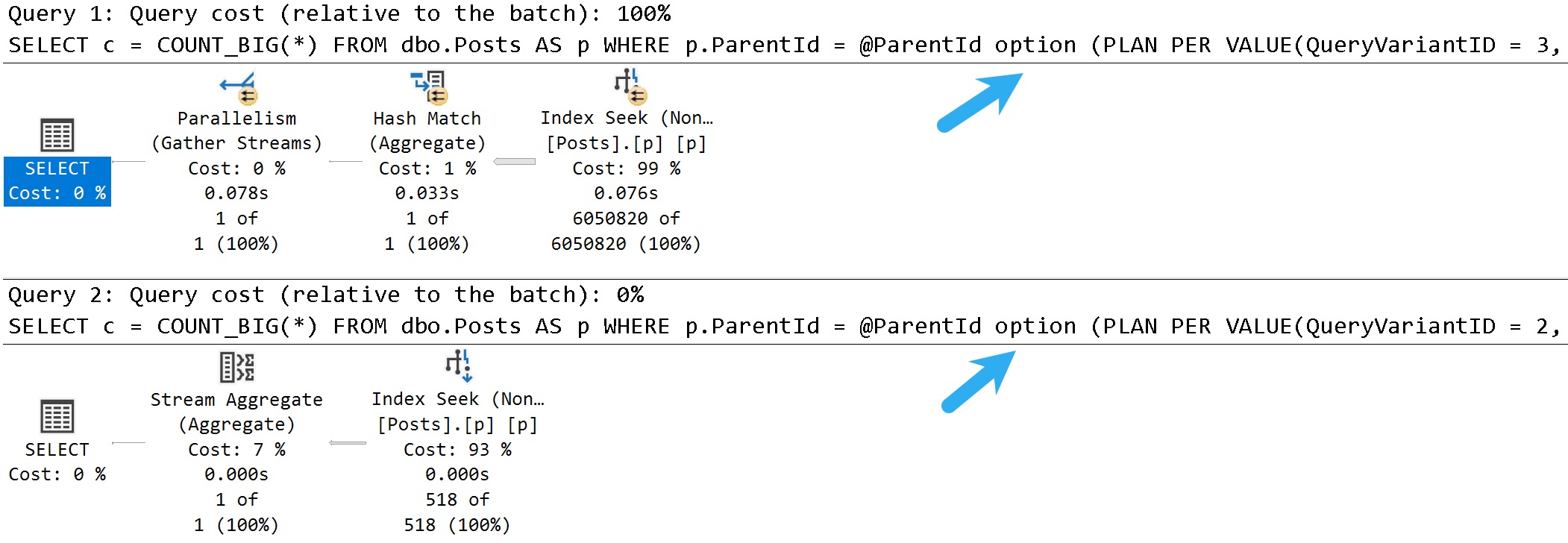
If you enable the workbench editor enable preview setting, you can hit CTRL+M to get an actual execution plan. Here’s what it looks like:

SQL Server Query Plan
clean and shiny

The arrow is just to point out the the plan does have parallelism engaged, but it is not shown anywhere (yet, I know, I know).

It is cool that you can get the full properties of any of the operators, and that operator times are consistent with what SSMS shows. Also, I like the highly accusatory, Snag-It style arrows here.

The Same Plan In SSMS


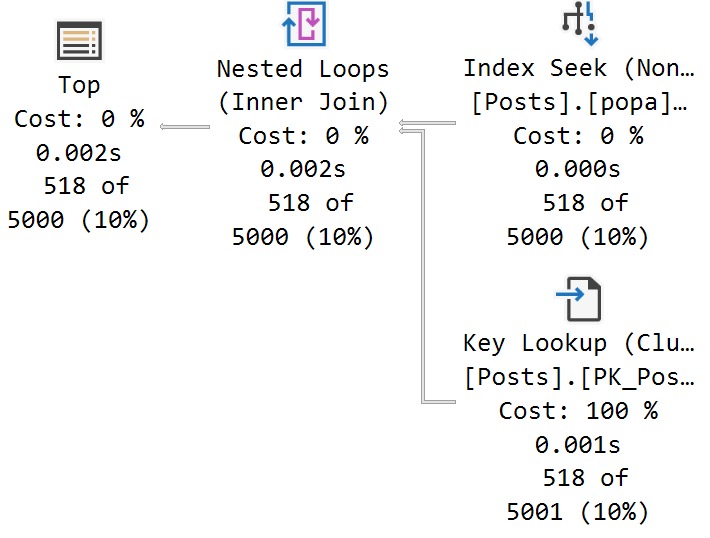
I recently changed the font that my query plans use to one that’s a bit less offensive. The only point here is that in this plan you can see parallelism more easily, and maybe that the operator icons aren’t quite as spiffy.

2022 03 24 12 54 29
nice font

Aside from slight variations in CPU timing, the plans are virtually identical. Good!

Kind of.

Six Different Ways


My criticisms of how query plans are displayed are somewhat nit-picky, and I’d even wager that some people might disagree with me on how things should show up.

For example, i think it’s quite confusing that batch mode operators track time differently than row mode operators, and that there’s no real visual indication as to which operators use batch mode. I also very much dislike that in both the ADS and SSMS plans, the index operation is cut off. “Clustered Index S…” doesn’t help anyone.

I’d also find it useful to have an I/O rollup in the root node, where other Query Time Statistics are. But hey.

When you get deeper into things, stuff like a visual indicator of how many times an operator executed, and missing index requests for Eager Index Spools would be nice, too.

Anyway, I’m still not the target audience for ADS (at least so far as I can tell), and I’ll be sticking with SSMS for now, but this is a very nice addition for folks who ADS is more useful for.

Thanks for reading!

Going Further


If this is the kind of SQL Server stuff you love learning about, you’ll love my training. Blog readers get 25% off the Everything Bundle — over 100 hours of performance tuning content. Need hands-on help? I offer consulting engagements from targeted investigations to ongoing retainers. Want a quick sanity check before committing to a full engagement? Schedule a call — no commitment required.

Updates To sp_PressureDetector: Crucial Wait Stats, More Consistent Column Arrangement, And More!

A Mother’s Guilt


GitHub had been making me feel guilty about taking some time off over the holidays to not monkey about with T-SQL, and since my brain finally seems to be working after a hectic travel schedule, I decided to tweak a few things in sp_PressureDetector.

2022 03 23 08 36 19
Paris, Cali, Cabo, London

What’d I change? Great question! There’s a preview in yesterday’s post, but here’s the change log:

  • Formatting, of course
  • Clarify memory rollup column names
  • Add a section with wait stats overview for related cpu/memory/disk waits
  • Add query text column to memory grant results
  • Make query txt columns xml clickables
  • Rearranged columns for readability and consistency
  • Added a couple comments to clarify code intent
  • Add Max Server Memory to the total/available/granted line

You can learn more about how to use sp_PressureDetector here. Happy troubleshooting.

Thanks for reading!

Going Further


If this is the kind of SQL Server stuff you love learning about, you’ll love my training. Blog readers get 25% off the Everything Bundle — over 100 hours of performance tuning content. Need hands-on help? I offer consulting engagements from targeted investigations to ongoing retainers. Want a quick sanity check before committing to a full engagement? Schedule a call — no commitment required.