Parameter sniffing gets blamed for a lot of things, and, well, sometimes it is parameter sniffing.
It’s probably not parameter sniffing if:
You use local variables
You use optimize for unknown
You’re recompiling anyway
ButWhatAbout
While working with a client recently, they were absolutely sure they had a parameter sniffing issue.
The general proof given was that as the day went on, queries got slower and slower.
The next day, they’d magically be fast again, and then the same slowdown would happen.
When we looked at the stored procedures in question, it looked like they might be right.
So I set up a test.
Pile and Recompile
We stuck a recompile hint on a stored procedure that people are always complaining about, and watched the runtime throughout the day.
Sure enough, it got slower and slower, but not because it got a bad plan. The server just got busier and busier.
6am: 2 seconds
7am: 6 seconds
8am: 15 seconds
9am: 20 seconds
10am: 30 seconds
I left out some details, and I’m sorry about that. You probably want the last 2 minutes of your life back.
Get in line.
Missing Persons
This poor server had hundreds of database totaling almost 4TB.
With 96 GB of RAM, and 4 cores, there was no good way for it to support many user requests.
When things got slow, two wait stats would tick up: PAGEIOLATCH_SH, and SOS_SCHEDULER_YIELD.
SQL Server had a hard time keeping the data people needed in memory, and it got really busy trying to make sure every query got a fair amount of CPU time.
In this case, it wasn’t parameter sniffing, it was server exhaustion.
Last Farewell
Wait stats aren’t always helpful, but they can help you with investigations.
This kind of resource contention won’t always be the issue, of course.
But when you’re investigating performance issues, it’s important to know what things look like when the server is running well, and what things look like when the’re not.
That includes
Wait stats
Query plans
Overall workload
Blocking
Thanks for reading!
Going Further
If this is the kind of SQL Server stuff you love learning about, you’ll love my training. Blog readers get 25% off the Everything Bundle — over 100 hours of performance tuning content. Need hands-on help? I offer consulting engagements from targeted investigations to ongoing retainers. Want a quick sanity check before committing to a full engagement? Schedule a call — no commitment required.
In SQL Server 2019, a few cool performance features under the intelligent query processing umbrella depend on cardinality estimation.
Batch Mode For Row Store (which triggers the next two things)
Adaptive Joins
Memory Grant Feedback
If SQL Server doesn’t estimate > 130k(ish) rows are gonna hop on through your query, you don’t get the Batch Mode processing that allows for Adaptive Joins and Memory Grant feedback. If you were planning on those things helping with parameter sniffing, you now have something else to contend with.
Heft
Sometimes you might get a plan with all that stuff in it. Sometimes you might not.
The difference between a big plan and little plan just got even more confusing.
Let’s say you have a stored procedure that looks like this:
CREATE OR ALTER PROCEDURE dbo.lemons(@PostTypeId INT)
AS
BEGIN

    SELECT OwnerUserId,
	       PostTypeId,
		   SUM(Score * 1.0) AS TotalScore,
		   COUNT_BIG(*) AS TotalPosts
	FROM dbo.Posts AS p
	JOIN dbo.Users AS u
	    ON p.OwnerUserId = u.Id
	WHERE PostTypeId = @PostTypeId
	AND u.Reputation > 1
	GROUP BY OwnerUserId,
             PostTypeId
	HAVING COUNT_BIG(*) > 100;

END
GO
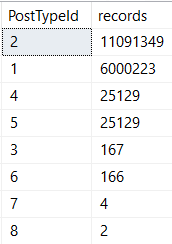
There’s quite a bit of skew between post types!
Working my way down
Which means different parameters will get different plans, depending on which one comes first.
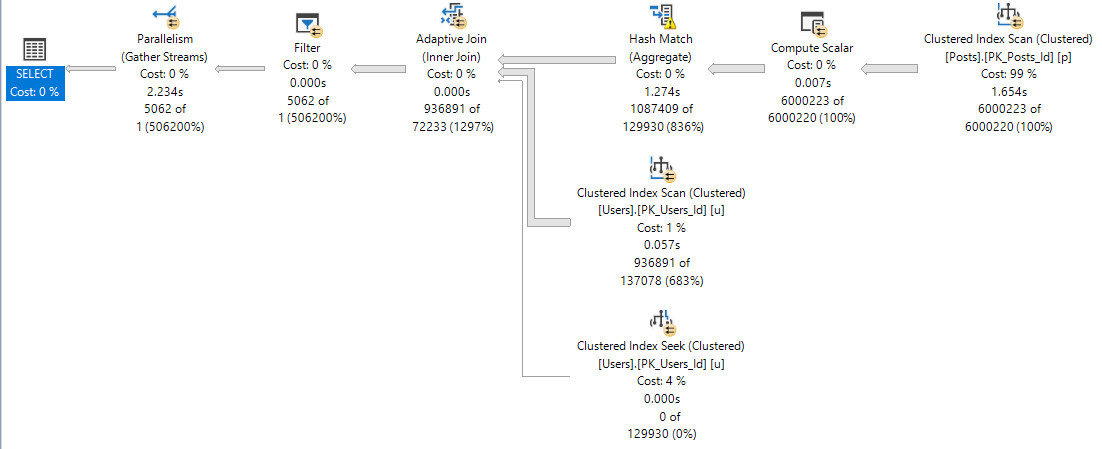
At 12 seconds, one might accuse our query of sub-par performance.
One and Lonely
When one runs first, the plan is insanely different.
22 2s
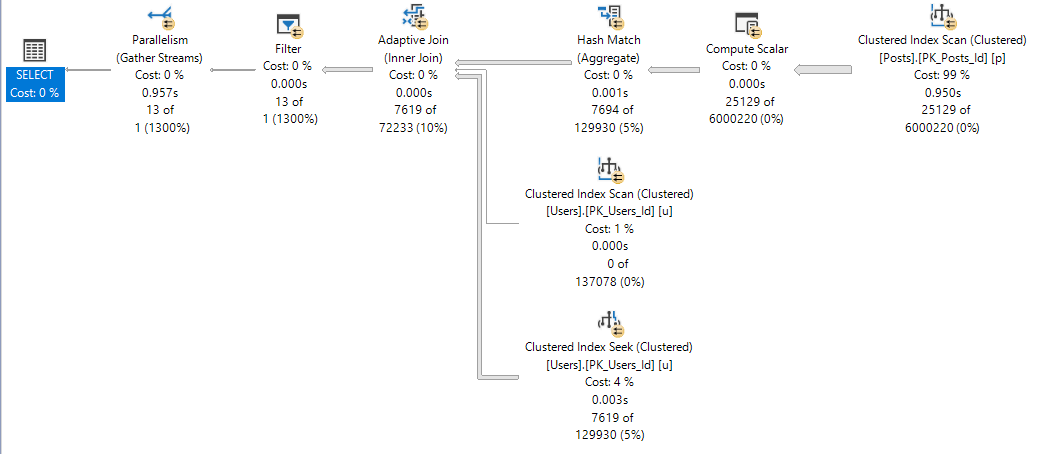
It’s about 10 seconds faster. And the four plan?
Not too shabby.
Four play
We notice the difference between 116ms and 957ms in SSMS.
Are application end users aware of ~800ms? Sometimes I wonder.
Alma Matters
The adaptive join plan with batch mode operators is likely a better plan for a wider range of values than the small plan.
Batch mode is generally more efficient with larger row counts. The adaptive join means no one who doesn’t belong in nested loops hell will get stuck there (probably), and SQL Server will take a look at the query in between runs to try to find a happy memory grant medium (this doesn’t always work splendidly, but I like the effort).
Getting to the point, if you’re going to SQL Server 2019, and you want to get all these new goodies to help you avoid parameter sniffing, you’re gonna have to start getting used to those OPTIMIZE FOR hints, and using a value that results in getting the adaptive plan.
I wish there was a query hint that pushed the optimizer towards picking this sort of plan, so we don’t have to rely on potentially changing values to optimize for.
Thanks for reading!
Going Further
If this is the kind of SQL Server stuff you love learning about, you’ll love my training. Blog readers get 25% off the Everything Bundle — over 100 hours of performance tuning content. Need hands-on help? I offer consulting engagements from targeted investigations to ongoing retainers. Want a quick sanity check before committing to a full engagement? Schedule a call — no commitment required.
Rounding out a few posts about SQL Server’s choice of one or more indexes depending on the cardinality estimates of literal values.
Today we’re going to look at how indexes can contribute to parameter sniffing issues.
It’s Friday and I try to save the real uplifting stuff for these posts.
Procedural
Here’s our stored procedure! A real beaut, as they say.
CREATE OR ALTER PROCEDURE dbo.lemons(@Score INT)
AS
BEGIN
    SELECT TOP (1000)
	       p.Id,
           p.AcceptedAnswerId,
           p.AnswerCount,
           p.CommentCount,
           p.CreationDate,
           p.LastActivityDate,
		   DATEDIFF( DAY,
		             p.CreationDate,
					 p.LastActivityDate
				   ) AS LastActivityDays,
           p.OwnerUserId,
           p.Score,
		   u.DisplayName,
		   u.Reputation
	FROM dbo.Posts AS p
	JOIN dbo.Users AS u
	    ON u.Id = p.OwnerUserId
	WHERE p.PostTypeId = 1
	AND   p.Score > @Score
	ORDER BY u.Reputation DESC;
END
GO
Here are the indexes we currently have.
CREATE INDEX smooth
    ON dbo.Posts(Score, OwnerUserId);

CREATE INDEX chunky
    ON dbo.Posts(OwnerUserId, Score)
	INCLUDE(AcceptedAnswerId, AnswerCount, CommentCount, CreationDate, LastActivityDate);
Looking at these, it’s pretty easy to imagine scenarios where one or the other might be chosen.
Heck, even a dullard like myself could figure it out.
Rare Score
Running the procedure for an uncommon score, we get a tidy little loopy little plan.
EXEC dbo.lemons @Score = 385;
It’s hard to hate a plan that sinishes in 59ms
Of course, that plan applied to a less common score results in tomfoolery of the highest order.
Lowest order?
I’m not sure.
Except when it takes 14 seconds.
In both of these queries, we used our “smooth” index.
Who created that thing? We don’t know. It’s been there since the 90s.
Sloane Square
If we recompile, and start with 0 first, we get a uh…
Well darnit
We get an equally little loopy little plan.
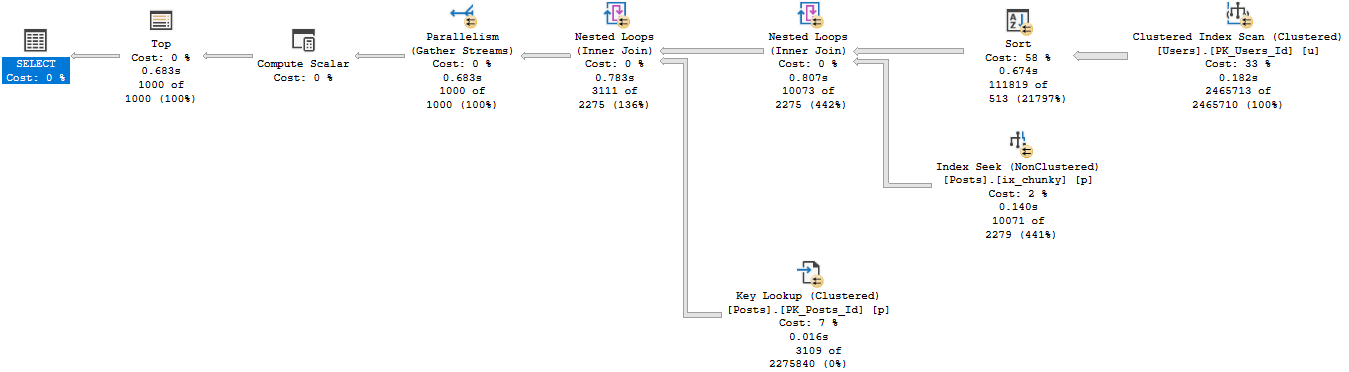
The difference? Join order, and now we use our chunky index.
Running our procedure for the uncommon value…
Don’t make fun of me later.
Well, that doesn’t turn out so bad either.
Pound Sand
When you’re troubleshooting parameter sniffing, the plans might not be totally different.
Sometimes a subtle change of index usage can really throw gas on things.
It’s also a good example of how Key Lookups aren’t always a huge problem.
Both plans had them, just in different places.
Which one is bad?
It would be hard to figure out if one is good or bad in estimated or cached plans.
Especially because they only tell you compile time parameters, and not runtime parameters.
Neither one is a good time parameter.
Thanks for reading!
Going Further
If this is the kind of SQL Server stuff you love learning about, you’ll love my training. Blog readers get 25% off the Everything Bundle — over 100 hours of performance tuning content. Need hands-on help? I offer consulting engagements from targeted investigations to ongoing retainers. Want a quick sanity check before committing to a full engagement? Schedule a call — no commitment required.
In this video, I delve into a peculiar performance issue that arose from a stored procedure and a missing index request. The scenario began when a user passed an unusual negative value to the stored procedure, causing significant performance degradation. To mitigate the problem, developers implemented a catch to convert any negative values to zero, ensuring the execution plan remained stable. However, this fix led to further complications as another query against the same table exhibited poor performance due to a missing index request. The video explores how adding an index suggested by SQL Server’s missing index feature improved one query but significantly slowed down another, highlighting the importance of carefully testing database changes in development environments before deployment.
Full Transcript
Hello, Erik Darling here with Erik Darling Data. And I wanted to talk about sort of a funny situation that I was recently asked to remedy. And that funny situation, well, the funny situation started with a stored procedure, sort of was escalated by a missing index request. And all came tumbling down on top of that stored procedure. So the stored procedure, it didn’t look like this because it was not, it was not, it was not an issue with Stack Overflow. I’m going to level with you. To be very honest, Stack Overflow has never asked me to fix a performance problem. I just keep having to find these random performance problems in the, when I do demos in the database. It’s the damnedest thing, isn’t it? Anyway. In real life, it was a slightly different scenario, but it was a stored procedure. And at some point, at some point, some user, we should call them a loser probably, had passed in a bad piece of data to the stored procedure. In fact, it was someone had passed a negative value into the stored procedure once. And that caused everything to fly off the rails.
Everything went really, really, really badly with this stored procedure. So the developers in charge of it put this catch in to fix things. Where if someone passed in a negative value for their stored procedure, they would, they would revert the value to zero to a positive number so that they did not get their big, golly gosh, awful plan. So this is what the stored procedure looks like. And, you know, there’s a pretty simple select top one query after that. Not a big deal. And in fact, if we go and we look, we can see that ever since we converted this database from access to SQL Server 2000, we have had this index in place, the single key column index in place. And with that index in place, this stored procedure runs relatively quickly. And by relatively quickly, I mean, instantly. If we look at the execution plan, this thing finishes in 87 milliseconds.
There’s a missing index request. But if I have a query that’s ending, that’s finishing in 87 milliseconds, I’m not like jumping up and down and saying, hey, we really, really need to add this missing index request for reasons. Right. Like I can run this a million times every time I run this. It’s quick. And I’m not running this for like a small value. I’m running this for John Skeet and John Skeet’s got all the values. John Skeet has a lot of the most posts in the posts table. So you can, this is not like just like some wimpy value that we’re searching for. Every time we run this, it is reliably under the 90 millisecond mark.
Right. So that’s a very fast stored procedure. At least I think it’s fast. You might, you might not. You, you might be a much better query tuner than I am and have a much faster, have a much different view of what’s a fast stored procedure. Now where things got kind of weird is, and this is even with this like funny catch in place, everyone would, normally you’d see this and chop someone’s head off for declaring a variable inside a stored procedure and then feeding it into a where clause. But, but, but everything’s okay here. Where things got bad was, there was this other query. And this other query was also against the post table, but it had a different where clause.
Now what I’m going to do is I’m going to run this store, I’m going to, not store procedure, this piece of code. And this piece of code is sort of going to look at, look, is going to look a lot like what the other query was doing. And this one takes about two seconds to finish, to get a top one. And it happened because we didn’t have another useful index for this, for this query to use. So we scanned the whole clustered index and the whole thing. Well, I mean, I guess that’s closer to about two and a half seconds there. 2.381 by 120 milliseconds.
We’re under. Now there’s a missing index request for this. I’m going to show you the missing index. Missing index details. Now if we zoom in here, zoom in and look at, look at what SQL Server thinks a helpful index is. It’s, I mean, it’s, it’s on the post table, obviously, because that’s where we’re selecting data from. And it’s on parent ID and then creation date and then last activity date. And we’re including post type ID.
Now, what you might notice at this point is that there’s some overlap between this missing index request and the query we have that’s fast. So A, they’re both on the post table. And B, the where clause for our query inside the store procedure also has parent ID and post type ID in the where clause on top of owner user ID. Right now, we have a single column index on owner user ID. When we seek to that and do a key lookup for everything else, we’re cool. We’re in great shape.
But we have this missing index request. And this missing index request was, was super, was everywhere. It was endemic. It was, I mean, it’s a big missing index request. I’m probably using all sorts of wrong words here. Let me turn off execution plans. And let’s run SP Blitz index and look at the post table. So over on the post table, the second thing we’re going to have down here is missing index requests.
Now, this one up top is the one that’s on the table for that query that we ran. And over in this window, I have run, I have run that query, as they say in the south, a whole mess of times. So this is printed out this phrase every time this, this has been running for doing a lot of stuff. But we have this missing index request. And this missing index request was showing, well, I mean, quite a bit of use, 14, almost 1,500 uses.
It would bring the query cost to zero. Impact is 100%. And the average query cost is absolutely astronomical. It is 3,474.1810 query box on that thing. So when we look at the estimated benefit of adding, I can hear my kids screaming in the background maybe.
If we look at the estimated benefit of adding this, it’s 515 million query box that we would have created or saved by adding this index to our workload. All right. You’ve talked me into its SQL Server. You have shown me that if I add this index, it would have been used 1,500 times by this very expensive query. Now, if I run that very expensive query, oh, wait, I did that. Two and a half seconds. Cool. We got that.
We have a benchmark there, right? This is two and a half seconds to do this. All right. Two and a half. Cool. Now, this is the index that someone came along and added. Someone charged a lot of money to add this index on parent ID, creation date and last activity date, and include post type ID.
Because that’s what SQL Server asked for. SP Blitz Index didn’t make this up. It didn’t conjure this out of nowhere. It showed us what SQL Server’s own DMVs have told us.
What they don’t tell us, though, is what if this index goes and screws up some other query? So let’s create this index. And this will take a moment. This will take a moment here. Create this index. This great index on parent ID and creation date and last activity date, including post type ID. Get that whole post table in there.
That took 12 seconds. But let’s look. Because now I want to make sure that this helped this query. And by God, it does. This thing finishes instantly. Now, if we turn query plans back on and look at this query, holy smokes, that is zeros.
Look it. Zeros. All zeros. We didn’t spend anything doing this. What an amazing index. What a fantastic index. That’s the best index that’s ever been created. Except now, this query slows down. This query is not as fast as it used to be.
This query has taken some extra time. This query now takes 14 seconds to run. Remember, this one was running reliably in under 90 milliseconds. And now, it just took 14 seconds to run. If we go look at the execution plan, we can see that was the entire time this thing ran.
We spent a second here. And we spent 9 seconds here. So that’s 10 seconds. Then we spent 4 seconds doing a nutty loops join. And then we spent, well, we spent to spend any time doing this sort. But, whew.
I mean, that’s bad enough. Imagine if you were tuning queries and indexes and you added that index. It was like, yeah, this is going to make everything much better. And then it made a vital query go much slower. Well, this happened for a pretty funny reason.
And a pretty funny reason is that when we declare a local variable for, what do you call it up there? Where is it going? For a parent ID.
We get a very, very bad guess in here for what’s equal, how many rows this equals several thinks are going to happen. Things are going to evaluate to true for any given predicate on parent ID. In fact, if we go look at the query plan, we go look at this seek, we can see that the estimated number of rows is 1.87.
But the actual number of rows is 6, 0, 0, 0, 2, 2, 3. 6, 0, 0, 0, 2, 2, 3. Yeah, that’s a seven finger number.
That’s a big number. We were off by a lot there. We made a pretty big mistake. If we look at the key lookup, this thing will have executed once for every row that came out of there. And that’s no good either. So we had kind of a funny, perfect storm of things go wrong here.
And if there’s a lesson, it’s that, you know, while SQL Server’s missing index requests are a lot better than nothing, they’re a good sign that we need to do some work. They are like a crying baby.
On your tables and DMBs. Whereas SQL Server says, hey, we could be doing something better over here. We have to be very careful how those indexes change other queries in the workload. And this is why, you know, we must, as responsible data peoples, tell people to test things carefully in a development environment before just releasing these changes into prod. Because you can introduce all sorts of funny regressions here where you might make one query much better.
But you can make another query much worse. Now, granted, this is not the best thing to do here. This is not a good practice. I’m not condoning doing this. But this is what made sort of the perfect storm of weird stuff happen. We’re adding that other index made this query much, much worse.
Anyway, that’s it for me. Thanks for watching. I hope you learned something. I hope you were shocked and horrified by what I showed you. And I will see you in some other video. Goodbye.
Going Further
If this is the kind of SQL Server stuff you love learning about, you’ll love my training. Blog readers get 25% off the Everything Bundle — over 100 hours of performance tuning content. Need hands-on help? I offer consulting engagements from targeted investigations to ongoing retainers. Want a quick sanity check before committing to a full engagement? Schedule a call — no commitment required.
In this video, I delve into the intricacies of parameter sniffing in SQL Server and address a question posed by Bradley Jamrozik on Twitter regarding optimizing for large values to ensure always getting powerful execution plans. I explain why simply opting for a big value might not be the best approach due to resource constraints, particularly focusing on concurrency limits such as worker threads and memory grants. By examining these limitations through practical examples on my laptop’s hardware setup, I illustrate how different execution plans can impact the number of concurrent queries that SQL Server can handle efficiently.
Full Transcript
Howdy folks, Erik Darling here with Erik Darling Data. You should be used to that by now. If you’re not, I’m sorry. You just have trouble accepting change in your life. Change and then stability, I guess. Anyway, I’m recording this video because I got asked a, not good, but a great question not too long ago on Twitter by Bradley Jamrozik, or Rozeker, Rozeker. I don’t know how to pronounce that, Bradley. I apologize. You can correct me somewhere. I hear that correcting people on the internet is sometimes, sometimes happens. It’s a bit of a national pastime at this point. Anyway, the question was, when you’re dealing with a parameter sniffing situation, in a situation where SQL Server comes up with two or even more different execution plans based on which parameter it was compiled with the first time around, why not always just optimize for a big, why not just optimize for a big, crazy value so that you always get a big, powerful plan, probably parallel, probably ask for a decent chunk of memory, all that other stuff. Well, there are, I think, for me, some pretty fair reasons not to always do that. And those fair reasons come down to, of course, resources.
Now, if I look at the hardware that I have in my laptop, I have a processor in there with four cores that are hyper-threaded, unfortunately. I apologize to everyone out there who hates hyper-threading. And I also have 64 gigs of memory in my laptop, of which about 50 is dedicated to SQL Server. When I run these two queries, I can see how many worker threads I have available for SQL Server, which is 576. And I can see how much memory I have available to give out to queries. If I go down here and I zoom in a little bit, I can see that my total and my available memory are about the same. And this is how much memory in gigs I can give out to queries for memory grants.
Memory grants is, of course, memory that queries ask for outside of the usual. I have to run stuff to do other things like sort or hash or, you know, do some columnstore stuff that, excuse me, that consumes additional memory. And these are limits. When you start up SQL Server, depending on how many cores you have assigned to your server, and depending on how much memory you have in your server and your max server memory, SQL Server sets limits for how much it’ll allow itself to give out for different things.
Whenever a query runs, it has to take a little piece from those things. The more pieces that these queries are asking for, the fewer queries in total you can have running. For example, with a serial query, with 576 worker threads, I can run 576 copies of that query. If I have a query that goes parallel and it reserves more worker threads, well, whatever DOP is, is going to tell SQL Server how many parallel threads it can use in a branch.
And if I have multiple concurrent branches, SQL Server, just for example, on my laptop, I have max DOP set to 4. So if I have two concurrent branches, that’s 8 threads. And if I have three concurrent branches, that’s 12 threads. So the more parallel queries, the more parallel branches in those queries, the more threads they can just reserve and run with.
Ditto memory. If a query comes along and asks for a large memory grant, and SQL Server is able to grant the entire thing, well, if I have a query that asks for one gig of memory, and currently I can run just about 37 of them, or let’s just say 36 to be safe.
If I have a query that asks for 10 gigs of memory, I can run far fewer of them concurrently. So if we go over to this tab, and we look at a store procedure where I’ve recompiled before executing for two different parameters, 9 and 0, I get two different execution plans.
This top plan is a serial plan, and if I look at how much memory it asks for, it’s about 17 megs. 1, 7, 1, 1, 2. And if I look at how many threads it asks for, an F4 over here, it’s just one, because it’s a serial query.
This will come in handy in a minute. If I look at the second query, look at the select operator, this thing has asked for, let’s see, 7794944. That’s a seven-digit number.
So since it’s 779, I’m going to say that’s 7.8 gigs of memory, as opposed to 17 for the serial query. If you remember what’s on that other tab, about 37, I can’t run as many of these at once as I can of the other one at once. Far fewer, in fact.
If I look at how many threads this thing asks for, if I… Sorry, we’re going to have a dance party for a moment. Oh, alright.
You know, I’m always worried about playing music while a video, while I’m recording a video. But you know what? It’s alright with me. Anyway, if we look at how many threads this query reserved, we can see that we had one branch that was available to execute concurrently.
And we reserved four threads. So that’s not a ton. Granted, there are queries where you can have a lot more than this going on.
But for this query, in four threads, we can run far fewer of these copies concurrently than we can of the single-threaded version. So for me, when I think about why not just optimize for a big value, right? Why not just have every query run as forcefully as possible?
It’s a concurrency thing. And I know that when a lot of people think about concurrency, they think of locking and blocking and deadlocks and other things that kind of hold other queries up. But concurrency goes beyond that.
Concurrency also goes into, you know, from a resource perspective, right? So like not a logical resource like a lock, but a physical resource like how many threads you have or how much memory you have to give out to queries. These are hard limits.
The more queries you have that take up more of those resources, the fewer of those queries you can run. On a larger server, like on a big, big server, that might shut up windows. That might make less of a difference.
On a smaller server, say that’s maybe already a little bit underpowered for your workload, you might end up with a pretty bad situation. If you run out of worker threads, you hit a weight called thread pool. If you run out of memory to give out to queries, you hit a weight called resource semaphore.
So when asked why not just go with the big plan, well, it’s because of that. Because you have hard limits inside of your SQL Server for how much you can give out to queries. Of course, if you don’t care about concurrency, then the problem is solved for you.
Anyway, my name’s Erik Darling with Erik Darling Data. And thank you for watching. Bye.
Video Summary
In this video, I delve into the intricacies of parameter sniffing in SQL Server and address a question posed by Bradley Jamrozik on Twitter regarding optimizing for large values to ensure always getting powerful execution plans. I explain why simply opting for a big value might not be the best approach due to resource constraints, particularly focusing on concurrency limits such as worker threads and memory grants. By examining these limitations through practical examples on my laptop’s hardware setup, I illustrate how different execution plans can impact the number of concurrent queries that SQL Server can handle efficiently.
Full Transcript
Howdy folks, Erik Darling here with Erik Darling Data. You should be used to that by now. If you’re not, I’m sorry. You just have trouble accepting change in your life. Change and then stability, I guess. Anyway, I’m recording this video because I got asked a, not good, but a great question not too long ago on Twitter by Bradley Jamrozik, or Rozeker, Rozeker. I don’t know how to pronounce that, Bradley. I apologize. You can correct me somewhere. I hear that correcting people on the internet is sometimes, sometimes happens. It’s a bit of a national pastime at this point. Anyway, the question was, when you’re dealing with a parameter sniffing situation, in a situation where SQL Server comes up with two or even more different execution plans based on which parameter it was compiled with the first time around, why not always just optimize for a big, why not just optimize for a big, crazy value so that you always get a big, powerful plan, probably parallel, probably ask for a decent chunk of memory, all that other stuff. Well, there are, I think, for me, some pretty fair reasons not to always do that. And those fair reasons come down to, of course, resources.
Now, if I look at the hardware that I have in my laptop, I have a processor in there with four cores that are hyper-threaded, unfortunately. I apologize to everyone out there who hates hyper-threading. And I also have 64 gigs of memory in my laptop, of which about 50 is dedicated to SQL Server. When I run these two queries, I can see how many worker threads I have available for SQL Server, which is 576. And I can see how much memory I have available to give out to queries. If I go down here and I zoom in a little bit, I can see that my total and my available memory are about the same. And this is how much memory in gigs I can give out to queries for memory grants.
Memory grants is, of course, memory that queries ask for outside of the usual. I have to run stuff to do other things like sort or hash or, you know, do some columnstore stuff that, excuse me, that consumes additional memory. And these are limits. When you start up SQL Server, depending on how many cores you have assigned to your server, and depending on how much memory you have in your server and your max server memory, SQL Server sets limits for how much it’ll allow itself to give out for different things.
Whenever a query runs, it has to take a little piece from those things. The more pieces that these queries are asking for, the fewer queries in total you can have running. For example, with a serial query, with 576 worker threads, I can run 576 copies of that query. If I have a query that goes parallel and it reserves more worker threads, well, whatever DOP is, is going to tell SQL Server how many parallel threads it can use in a branch.
And if I have multiple concurrent branches, SQL Server, just for example, on my laptop, I have max DOP set to 4. So if I have two concurrent branches, that’s 8 threads. And if I have three concurrent branches, that’s 12 threads. So the more parallel queries, the more parallel branches in those queries, the more threads they can just reserve and run with.
Ditto memory. If a query comes along and asks for a large memory grant, and SQL Server is able to grant the entire thing, well, if I have a query that asks for one gig of memory, and currently I can run just about 37 of them, or let’s just say 36 to be safe.
If I have a query that asks for 10 gigs of memory, I can run far fewer of them concurrently. So if we go over to this tab, and we look at a store procedure where I’ve recompiled before executing for two different parameters, 9 and 0, I get two different execution plans.
This top plan is a serial plan, and if I look at how much memory it asks for, it’s about 17 megs. 1, 7, 1, 1, 2. And if I look at how many threads it asks for, an F4 over here, it’s just one, because it’s a serial query.
This will come in handy in a minute. If I look at the second query, look at the select operator, this thing has asked for, let’s see, 7794944. That’s a seven-digit number.
So since it’s 779, I’m going to say that’s 7.8 gigs of memory, as opposed to 17 for the serial query. If you remember what’s on that other tab, about 37, I can’t run as many of these at once as I can of the other one at once. Far fewer, in fact.
If I look at how many threads this thing asks for, if I… Sorry, we’re going to have a dance party for a moment. Oh, alright.
You know, I’m always worried about playing music while a video, while I’m recording a video. But you know what? It’s alright with me. Anyway, if we look at how many threads this query reserved, we can see that we had one branch that was available to execute concurrently.
And we reserved four threads. So that’s not a ton. Granted, there are queries where you can have a lot more than this going on.
But for this query, in four threads, we can run far fewer of these copies concurrently than we can of the single-threaded version. So for me, when I think about why not just optimize for a big value, right? Why not just have every query run as forcefully as possible?
It’s a concurrency thing. And I know that when a lot of people think about concurrency, they think of locking and blocking and deadlocks and other things that kind of hold other queries up. But concurrency goes beyond that.
Concurrency also goes into, you know, from a resource perspective, right? So like not a logical resource like a lock, but a physical resource like how many threads you have or how much memory you have to give out to queries. These are hard limits.
The more queries you have that take up more of those resources, the fewer of those queries you can run. On a larger server, like on a big, big server, that might shut up windows. That might make less of a difference.
On a smaller server, say that’s maybe already a little bit underpowered for your workload, you might end up with a pretty bad situation. If you run out of worker threads, you hit a weight called thread pool. If you run out of memory to give out to queries, you hit a weight called resource semaphore.
So when asked why not just go with the big plan, well, it’s because of that. Because you have hard limits inside of your SQL Server for how much you can give out to queries. Of course, if you don’t care about concurrency, then the problem is solved for you.
Anyway, my name’s Erik Darling with Erik Darling Data. And thank you for watching. Bye.
Going Further
If this is the kind of SQL Server stuff you love learning about, you’ll love my training. Blog readers get 25% off the Everything Bundle — over 100 hours of performance tuning content. Need hands-on help? I offer consulting engagements from targeted investigations to ongoing retainers. Want a quick sanity check before committing to a full engagement? Schedule a call — no commitment required.
I’m going to use a funny example to show you something weird that I see often in EF queries.
I’m not going to use EF to do it, because I have no idea how to. Please use your vast imagination.
In this case, I’m going to figure out if a user is trusted, and only if they are will I show them certain information.
Here goes!
Trust Bust
The first part of the query establishes if the user is trusted or not.
I think this is silly because no one should ever trust users.
DECLARE @UserId INT = 22656, --2788872
        @PostId INT = 11227809,
		@IsTrusted BIT = 0,
		@SQL NVARCHAR(MAX) = N'';

SELECT @IsTrusted = CASE WHEN u.Reputation >= 10000
                         THEN 1
						 ELSE 0
				    END
FROM   dbo.Users AS u
WHERE  u.Id = @UserId;
The second part will query and join a few tables, but one of the joins (to the Votes table) will only run if a user is trusted.
SET @SQL = @SQL + N'
SELECT p.Title, p.Score,
       c.Text, c.Score,
	   v.*
FROM dbo.Posts AS p
LEFT JOIN dbo.Comments AS c
    ON p.Id = c.PostId
LEFT JOIN dbo.Votes AS v
    ON p.Id = v.PostId
    AND 1 = @iIsTrusted
WHERE p.Id = @iPostId
AND   p.PostTypeId = 1;
';

EXEC sys.sp_executesql @SQL,
                       N'@iIsTrusted BIT, @iPostId INT',
					   @iIsTrusted = @IsTrusted,
					   @iPostId = @PostId;
See where 1 = @iIsTrusted? That determines if the join runs at all.
Needless to say, adding an entire join in to the query might slow things down if we’re not prepared.
First I’m going to run it for user 2788872, who isn’t trusted.
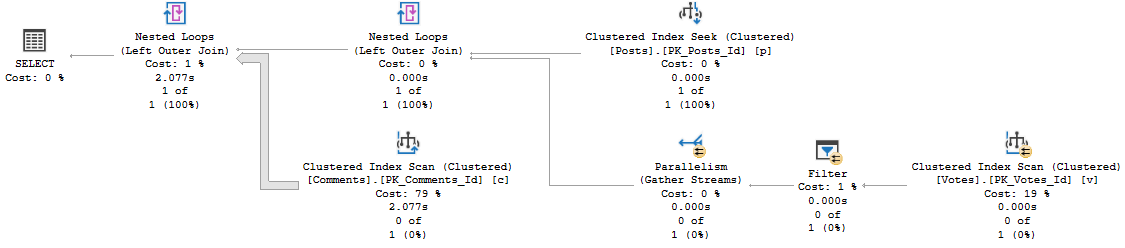
This query finishes rather quickly (2 seconds), and has an interesting operator in it.
Henanigans, S.Pump the brakes
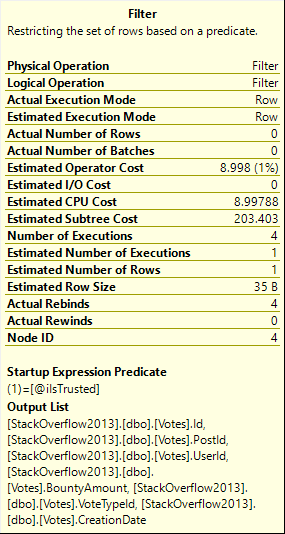
The filter has a startup expression in it, which means it’s sort of a gatekeeper, here. If the parameter is 0, we don’t touch Votes.
If it’s 1… Boy, do we touch Votes. This is another case of where cached plans can lie to us.
Rep Up
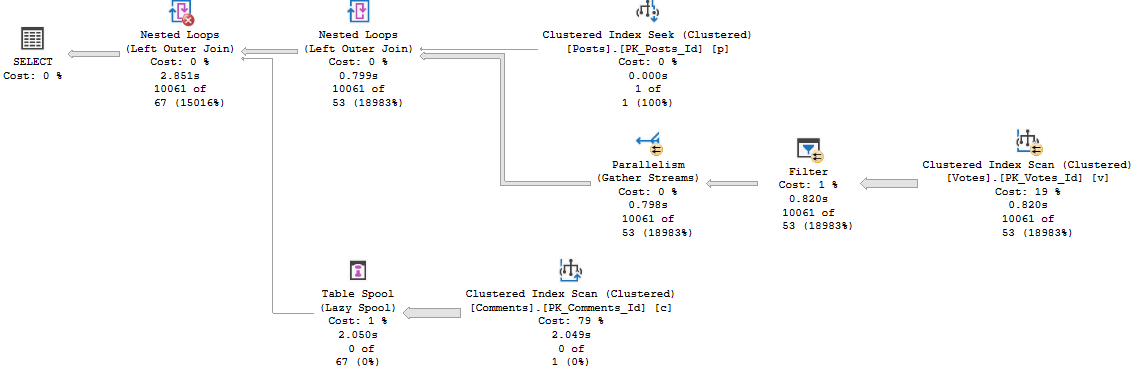
If we run this for user 22656 (Jon Skeet) afterwards, we will definitely need to touch the Votes table.
I grabbed the Live Query Plan to show you just how little progress it makes over 5 minutes.
Dirge
The cached plan will look identical. And looking at the plan, it’ll be hard to believe there’s any way it could run >5 minutes.
CONFESS
If we clear the cache and run this for 22656 first, the plan runs relatively quickly, and looks a little different.
Bag of Ice
Running it for an untrusted user has a similar runtime. It’s not great, but it’s the better of the two.
Fixing It?
It’s difficult to control EF queries with much granularity.
You could branch the application code to run two different queries based on if a user is trusted.
In a perfect world, you’d never even consider that join at all, and avoid having to worry about it.
On the plus side (at least in this case), the good plan for trusted users runs in the same time as the good plan for untrusted users, even though they’re different.
If you’re feeling extra confident, you can try adding an OPTIMIZE FOR hint to your code, or implementing a plan guide.
Thanks for reading!
Going Further
If this is the kind of SQL Server stuff you love learning about, you’ll love my training. Blog readers get 25% off the Everything Bundle — over 100 hours of performance tuning content. Need hands-on help? I offer consulting engagements from targeted investigations to ongoing retainers. Want a quick sanity check before committing to a full engagement? Schedule a call — no commitment required.
In the plan cache, it’s really hard to tell if a query is suffering from parameter sniffing in isolation.
By that I mean, if someone sends you a cached plan that’s slow, how can you tell if it’s because of parameter sniffing?
Cached Plans Lie
Here’s a simple example with a simple index:
CREATE INDEX ix_grindr
    ON dbo.Users (CreationDate);
This query will return a couple days of data:
DECLARE @CreationDate DATETIME = '2013-12-30'
DECLARE @sql NVARCHAR(MAX) =
N'
SELECT *
FROM dbo.Users AS u
WHERE u.CreationDate >= @iCreationDate
ORDER BY u.CreationDate DESC;
'

EXEC sys.sp_executesql @sql,
                       N'@iCreationDate DATETIME',
					   @iCreationDate = @CreationDate;
GO
This query will return a year and a couple days worth of data:
DECLARE @CreationDate DATETIME = '2012-12-30'
DECLARE @sql NVARCHAR(MAX) =
N'
SELECT *
FROM dbo.Users AS u
WHERE u.CreationDate >= @iCreationDate
ORDER BY u.CreationDate DESC;
'

EXEC sys.sp_executesql @sql,
                       N'@iCreationDate DATETIME',
					   @iCreationDate = @CreationDate;
GO
Time After Time
If we run those one right after the other, the query that returns a year of data will use the query plan of the query that returns a day of data.
This is what performance tuners call “bad”.
Let’s look at the cached plan!
SELECT ds.execution_count,
       ds.min_worker_time / 1000000. AS min_worker_time_ms,
	   ds.max_worker_time / 1000000. AS max_worker_time_ms,
	   ds.min_elapsed_time / 1000000. AS min_elapsed_time_ms,
	   ds.max_elapsed_time / 1000000. AS max_elapsed_time_ms,
	   ds.min_logical_reads,
	   ds.max_logical_reads,
	   ds.min_rows,
	   ds.max_rows,
       SUBSTRING(st.text, (ds.statement_start_offset / 2) +1,
                 ((CASE ds.statement_end_offset
                       WHEN -1
				       THEN DATALENGTH(st.text)
                       ELSE ds.statement_end_offset
                   END - ds.statement_start_offset) / 2) +1) AS text,
	   dp.query_plan
FROM sys.dm_exec_query_stats AS ds
CROSS APPLY sys.dm_exec_sql_text(ds.plan_handle) AS st
CROSS APPLY sys.dm_exec_query_plan(ds.plan_handle) AS dp
WHERE st.dbid = DB_ID()
AND ds.query_plan_hash = 0x2D530BDF87345191
OPTION(RECOMPILE);
This query will go look at some details about the queries I ran.
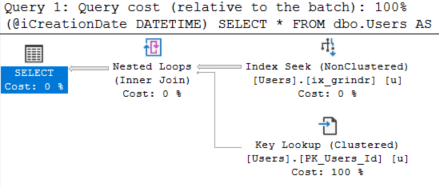
Since my code is parameterized, the cached plan for both executions looks like this:
So cute though
How could this plan cause any trouble?
Metric System
The plan isn’t telling us everything, though.
Look what those other columns have to say:
Sometimes~
We have two executions, which we knew! We ran it twice.
But the min and max for many important metrics are very different.
CPU, wall clock time, reads, rows… They all tell me that this query has wild swings in performance.
On Your Own
One simple way to go about finding queries with parameter sniffing issues might be to just look for ones with much different CPU usage.
You could easily do with this other metrics; I just like CPU as a measure of these things.
SELECT TOP (100) ds.execution_count,
       ds.min_worker_time / 1000000. AS min_worker_time_ms,
	   ds.max_worker_time / 1000000. AS max_worker_time_ms,
	   ds.min_elapsed_time / 1000000. AS min_elapsed_time_ms,
	   ds.max_elapsed_time / 1000000. AS max_elapsed_time_ms,
	   ds.min_logical_reads,
	   ds.max_logical_reads,
	   ds.min_rows,
	   ds.max_rows,
       SUBSTRING(st.text, (ds.statement_start_offset / 2) +1,
                 ((CASE ds.statement_end_offset
                       WHEN -1
				       THEN DATALENGTH(st.text)
                       ELSE ds.statement_end_offset
                   END - ds.statement_start_offset) / 2) +1) AS text,
	   dp.query_plan
FROM sys.dm_exec_query_stats AS ds
CROSS APPLY sys.dm_exec_sql_text(ds.plan_handle) AS st
CROSS APPLY sys.dm_exec_query_plan(ds.plan_handle) AS dp
WHERE st.dbid = DB_ID()
AND ds.execution_count > 1
AND (ds.min_worker_time / 1000000.) * 100. < (ds.max_worker_time / 1000000.)
ORDER BY max_worker_time_ms DESC
OPTION(RECOMPILE);
Thanks for reading!
Going Further
If this is the kind of SQL Server stuff you love learning about, you’ll love my training. Blog readers get 25% off the Everything Bundle — over 100 hours of performance tuning content. Need hands-on help? I offer consulting engagements from targeted investigations to ongoing retainers. Want a quick sanity check before committing to a full engagement? Schedule a call — no commitment required.
Like most tricks, this has a specific use case, but can be quite effective when you spot it.
I’m going to assume you have a vague understanding of parameter sniffing with stored procedures going into this. If you don’t, the post may not make a lot of sense.
Or, heck, maybe it’ll give you a vague understanding of parameter sniffing in stored procedures.
One For The Money
Say I have a stored procedure that accepts a parameter called @Reputation.
The body of the procedure looks like this:
    SELECT TOP (1000)
	        u.*
    FROM dbo.Users AS u
    WHERE u.Reputation = @Reputation
    ORDER BY u.CreationDate DESC;
In the users table, there are a lot of people with a Reputation of 1.
Data distributions like this matter. They change how SQL Server approaches coming up with an execution plan for a query.
Which indexes to use, what kind of joins to use, how to aggregate data, if the plan should be serial or parallel…
The list goes on and on.
In this case, we have a narrow-ish nonclustered index:
    CREATE INDEX whatever
        ON dbo.Users (Reputation, Age, CreationDate);
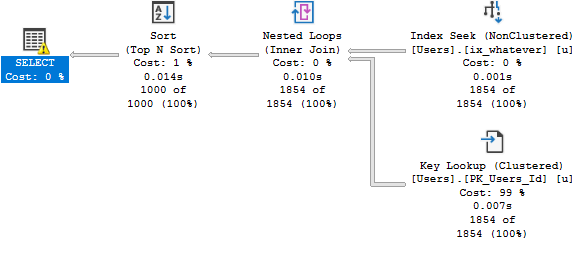
When I run my stored procedure and look for Reputation = 2, the plan is very fast.
EXEC dbo.WORLDSTAR @Reputation = 2;
Getting to know you.
This is a great plan for a small number of rows.
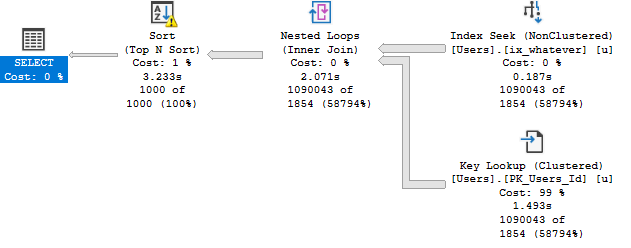
When I run it for a large number of rows, it’s not nearly as fast.
EXEC dbo.WORLDSTAR @Reputation = 1;
Stuck on you.
We go from a fraction of a second to over three seconds.
This is bad parameter sniffing.
If we run it for Reputation = 1 first, we don’t have the same problem.
That’s good(ish) parameter sniffing.
Better For Everyone
Many things that prevent parameter sniffing will only give you a so-so plan. It may be better than the alternative, but it’s certainly not a “fix”.
It’s possible to get a better plan for everyone in this situation by re-writing the Key Lookup as a self join
    SELECT TOP (1000)
	        u2.*
    FROM dbo.Users AS u
    JOIN dbo.Users AS u2
        ON u.Id = u2.Id
    WHERE u.Reputation = @Reputation
    ORDER BY u.CreationDate DESC;
The reason why is slightly complicated, but I’ll do my best to explain it simply.
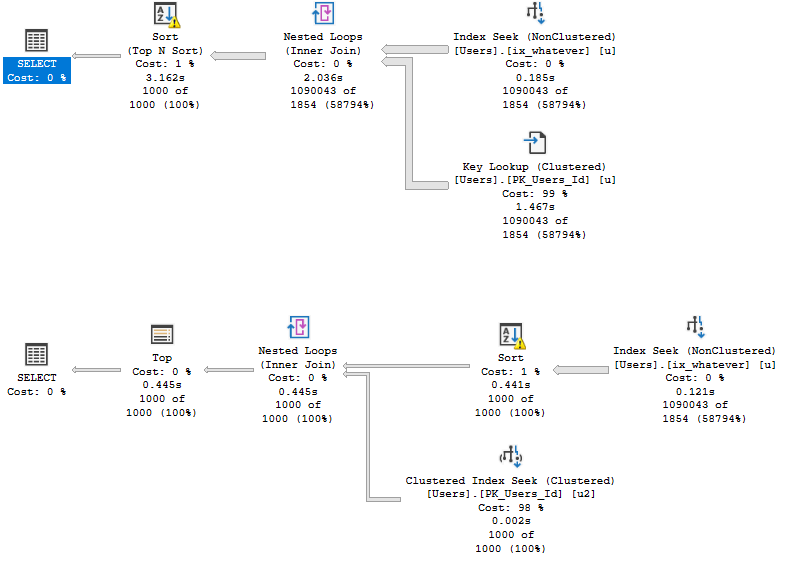
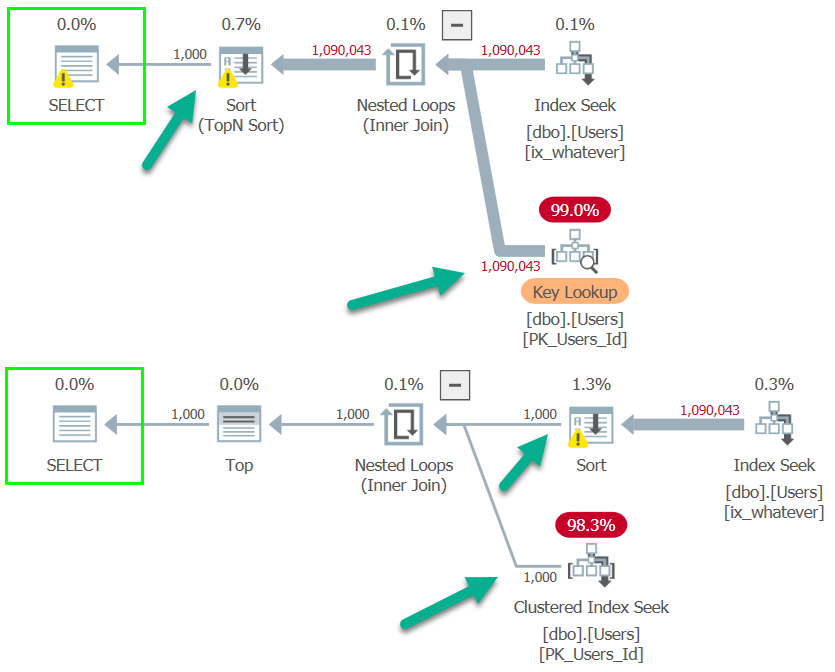
Here’s what the bad parameter sniffing plan looks like for each query.
Note that the Key Lookup plan still runs for ~3 seconds, while the self-join plan runs for around half a second.
DAWG CHILL
While it’s possible for Key Lookups to have Sorts introduced to optimize I/O… That doesn’t happen here.
The main difference between the two plans (aside from run time), is the position of the Sort.
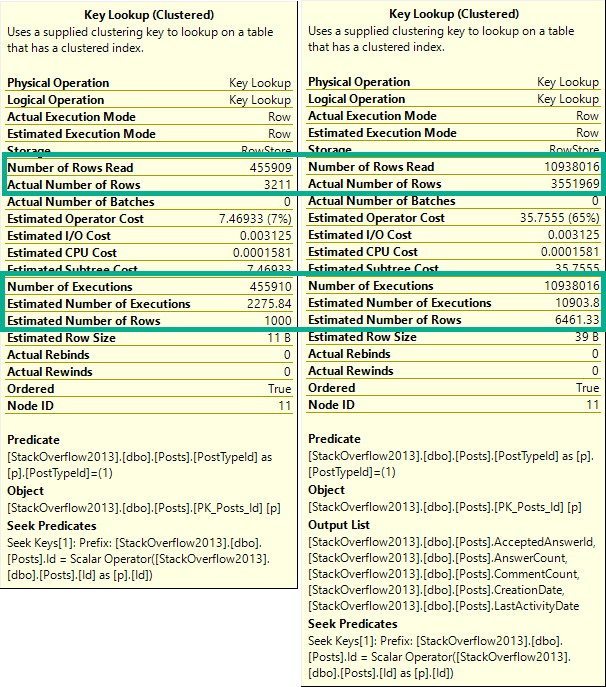
In the Key Lookup plan (top), the Key Lookup between the nonclustered and clustered indexes runs to completion.
In other words, for everyone with a Reputation of 1, we go to the clustered index to retrieve the columns that aren’t part of the nonclustered index.
In the self-join plan (bottom), all rows go into the Sort, but only the 1000 come out.
Different World
The difference is more obvious when viewed with Plan Explorer.
Get’Em High
In the Key Lookup plan, rows aren’t narrowed until the end so a seek occurs ~1mm times.
In the self-join plan, they’re eliminated directly after the Index Seek, so the join only runs for 1000 rows and produces 1000 seeks.
This doesn’t mean that Top N Sorts are bad, it just means that they may not produce the most optimal plans for Key Lookups.
When This Doesn’t Work
Without a TOP, the self-join pattern isn’t as dramatically faster, but it is about half a second better (4.3s vs. 3.8s) for the bad parameter sniffing scenario, and far less for the others.
Of course, an index change to put CreationDate as the second key column fixes the issue by removing the need to sort data at all.
    CREATE INDEX whatever --Current Index
        ON dbo.Users (Reputation, Age, CreationDate);
    GO

    CREATE INDEX apathy --Better Index For This Query
	    ON dbo.Users (Reputation, CreationDate, Age);
    GO
But, you know, not everyone is able to make index changes easily, and changing the key column order can cause problems for other queries.
Thanks for reading!
Going Further
If this is the kind of SQL Server stuff you love learning about, you’ll love my training. Blog readers get 25% off the Everything Bundle — over 100 hours of performance tuning content. Need hands-on help? I offer consulting engagements from targeted investigations to ongoing retainers. Want a quick sanity check before committing to a full engagement? Schedule a call — no commitment required.
Look, it’s impressive enough that sp_WhoIsActive works as well as it does. Most people who’ve been using it for a while are familiar with using @get_plans to retrieve query plans, or @get_locks to see locking information. I’m gonna spend a couple posts talking about less well known flags that I really like.
We’re gonna start off with one that can help you figure out if a particular query is misbehaving, or if things are just cruising along normally.
Nipples
I’ve got a stored procedure. What it does is unimportant. What’s important is that it’s sensitive to parameter sniffing.
We may not know this walking into an emergency, but we can figure it out pretty quickly using sp_WhoIsActive.
EXEC sp_WhoIsActive @get_avg_time = 1;
Breathe Easy
This’ll give us back the usual information about how long our query has been running, but now right next to it is another column that ends in (avg).
When you use this switch, sp_WhoIsActive goes into the plan cache and looks at how long a particular query runs for on average.
If that number is much lower than how long the query has been running for, and it isn’t being blocked, you just might have a case of parameter sniffing on your hands.
Thanks for reading!
Going Further
If this is the kind of SQL Server stuff you love learning about, you’ll love my training. Blog readers get 25% off the Everything Bundle — over 100 hours of performance tuning content. Need hands-on help? I offer consulting engagements from targeted investigations to ongoing retainers. Want a quick sanity check before committing to a full engagement? Schedule a call — no commitment required.
CREATE INDEX ix_fraud ON dbo.Votes ( CreationDate );

SELECT *
FROM   dbo.Votes AS v
WHERE  v.CreationDate >= '20101230';

SELECT *
FROM   dbo.Votes AS v
WHERE  v.CreationDate >= '20101231';
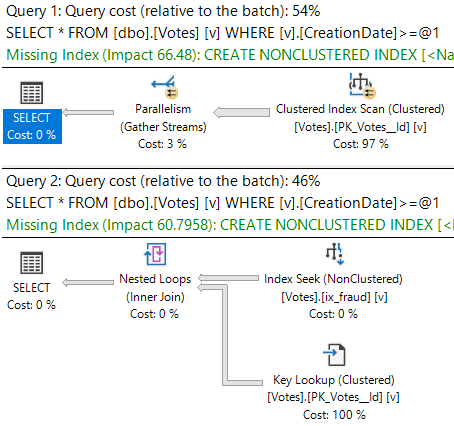
What a difference a day makes to a query plan!
Curse the head
Hard To Digest
Let’s paramaterize that!
DECLARE @creation_date DATETIME = '20101231';
DECLARE @sql NVARCHAR(MAX) = N''

SET @sql = @sql + N'
SELECT *
FROM   dbo.Votes AS v
WHERE  v.CreationDate >= @i_creation_date;
'

EXEC sys.sp_executesql @sql,
                       N'@i_creation_date DATETIME',
                       @i_creation_date = @creation_date;
This’ll give us the key lookup plan you see above. If I re-run the query and use the 2010-12-30 date, we’ll re-use the key lookup plan.
That’s an example of how parameters are sniffed.
Sometimes, that’s not a good thing. Like, if I passed in 2008-12-30, we probably wouldn’t like a lookup too much.
One common “solution” to parameter sniffing is to tack a recompile hint somewhere.
Recently, I saw someone use it like this:
DECLARE @creation_date DATETIME = '20101230';
DECLARE @sql NVARCHAR(MAX) = N''

SET @sql = @sql + N'
SELECT *
FROM   dbo.Votes AS v
WHERE  v.CreationDate >= @i_creation_date;
'

EXEC sys.sp_executesql @sql,
                       N'@i_creation_date DATETIME',
                       @i_creation_date = @creation_date
                       WITH RECOMPILE;
Which… gives us the same plan. That doesn’t recompile the query that sp_executesql runs.
You can only do that by adding OPTION(RECOMPILE) to the query, like this:
SET @sql = @sql + N'
SELECT *
FROM   dbo.Votes AS v
WHERE  v.CreationDate >= @i_creation_date
OPTION(RECOMPILE);
'
A Dog Is A Cat
Chalk this one up to “maybe it wasn’t parameter sniffing” in the first place.
I don’t usually advocate for jumping right to recompile, mostly because it wipes the forensic trail from the plan cache.
There are some other potential issues, like plan compilation overhead, and there have been bugs around it in the past.
Thanks for reading!
Going Further
If this is the kind of SQL Server stuff you love learning about, you’ll love my training. Blog readers get 25% off the Everything Bundle — over 100 hours of performance tuning content. Need hands-on help? I offer consulting engagements from targeted investigations to ongoing retainers. Want a quick sanity check before committing to a full engagement? Schedule a call — no commitment required.