TRY_CAST and TRY_PARSE Can Return Different Results

There’s a lot of guidance out there that states that TRY_CAST is a faster, more modern version of TRY_PARSE and that TRY_PARSE should only be used if you need to set the optional culture parameter. However, the two functions can return different results in some cases, even without the culture parameter.

Parsing

First I’ll throw a million rows into a single varchar column temp table:

CREATE TABLE #number_as_string (why_tho VARCHAR(100));

INSERT INTO #number_as_string (why_tho)
SELECT ISNULL(CAST(TRY_CAST(q.RN % 33000 AS SMALLINT) AS VARCHAR(100)), '')
FROM
(
	SELECT TOP (1000000) ROW_NUMBER() OVER (ORDER BY (SELECT NULL)) RN
	FROM master..spt_values t1
	CROSS JOIN master..spt_values t2
) q;

Let’s suppose that I want to count the rows that are numbers that fit within the limits of the TINYINT data type. The following code takes 36937 ms of CPU time on my machine and returns a value of 7935:

SELECT COUNT_BIG(*)
FROM #number_as_string
WHERE TRY_PARSE(why_tho AS TINYINT) IS NOT NULL
OPTION (MAXDOP 1);

The poor performance of the query isn’t unexpected. The documentation mentions the following about TRY_PARSE:

Keep in mind that there is a certain performance overhead in parsing the string value.

Casting

I can use TRY_CAST in an attempt to avoid the string parsing overhead of TRY_PARSE. The following code uses 110 ms of CPU time so it is significantly faster than the previous query:

SELECT COUNT_BIG(*)
FROM #number_as_string
WHERE TRY_CAST(why_tho AS TINYINT) IS NOT NULL
OPTION (MAXDOP 1);

However, this query returns a value of 14895, nearly double the count from before. The query results are different because TRY_PARSE returns NULL for an empty string but TRY_CAST returns 0. As a workaround (special thanks to Stephen Morris), the following query returns the expected value of 7935 and completes after using 157 ms of CPU time:

SELECT COUNT_BIG(*)
FROM #number_as_string
WHERE TRY_CAST(why_tho AS TINYINT) IS NOT NULL AND why_tho NOT IN ('', '+', '-')
OPTION (MAXDOP 1);

Final Thoughts

It’s not that TRY_CAST is returning the wrong results. In SQL Server, an empty string converts to 0 when cast to an integer data type. It’s more so that when TRY_CAST is applied to a string, the person writing the query usually wants only the values that a human would consider to be a number. TRY_PARSE seems to follow a set of rules that is more in line with human judgment of what is and isn’t a number. Avoiding TRY_PARSE due to the performance penalty is still a good idea in many cases, but be sure to filter out empty strings if you don’t want them included in the result set. If anyone knows of any other values treated differently between TRY_CAST and TRY_PARSE kindly leave a comment on this blog post. Thanks for reading!

Unkillable Sessions and Undetected Deadlocks

I recently experienced a blocking issue in a production environment which had been going on for hours. As a responsible DBA, I tried to kill the head of the blocking chain. Unexpectedly, killing the session seemed to have no effect. The blocking continued and the session seemed to stick around.

How to Create an Unkillable Session

It’s surprisingly easy to create a session that seemingly can’t be killed. Use good judgment in picking an environment to run this code against. First you’ll need to enable the “Ad Hoc Distributed Queries” configuration option if you haven’t done so already:

sp_configure 'Ad Hoc Distributed Queries', 1;
RECONFIGURE;
GO
sp_configure;

You can then run the following code after replacing the SERVER_NAME and INSTANCE_NAME placeholder values with the server name and instance name that you’re running against. In other words, you want the OPENROWSET call to point at the same server that you’re executing the query against:

BEGIN TRANSACTION;

SELECT TOP (1) [name]
FROM master.dbo.spt_values WITH (TABLOCKX);

SELECT TOP (1) d.[name]
FROM OPENROWSET('SQLNCLI', '{{SERVER_NAME}}\{{INSTANCE_NAME}};Trusted_Connection=yes;', master.dbo.spt_values) AS d;

This code seems to run forever. Trying to kill the session is not effective, even though there’s no error message and a line written to the error log claiming that the session was killed. Running kill with the STATUSONLY option gives us the following:

SPID 56: transaction rollback in progress. Estimated rollback completion: 0%. Estimated time remaining: 0 seconds.

Trying to cancel the query using SSMS also seems to have no effect as well.

The Undetected Deadlock

Running sp_whoisactive reveals a pretty alarming state:

a57 blocking

Session 56 (the one that I can see in SSMS) is waiting on an OLEDB wait. Based on the documentation, I assume that you’ll get this wait type while waiting for the OPENROWSET call to complete:

Includes all connection information that is required to access remote data from an OLE DB data source. This method is an alternative to accessing tables in a linked server and is a one-time, ad hoc method of connecting and accessing remote data by using OLE DB.

I did get callstacks for the OLEDB wait using the wait_info_external extended event, but there were two problems. The first problem is that wait_info_external fires after the wait is complete and the OLEDB wait won’t finish. The second problem is that the callstacks that I did get weren’t very interesting.

Getting back on topic, I believe that the OLEDB wait for session 56 can only end once session 66 completes its work. Session 66 is the session that was created by the OPENROWSET call. However, session 66 needs an IS lock on the spt_values table. That is not compatible with the exclusive lock held on that object by session 56. So session 56 is waiting on session 66 but session 66 is waiting on session 56. This is an undetected deadlock. The deadlock can be resolved by killing session 66 (the OPENROWSET query).

Note that if you are crazy enough to try this on your own, you may see a MEMORY_ALLOCATION_EXT wait instead of an OLEDB wait. I don’t believe that there’s any meaningful distinction there, but don’t assume that a long running OLEDB wait is required for this problem to occur.

Final Thoughts

This blocking issue was unusual in that killing the blocking session doesn’t resolve the issue. I had to kill the session getting blocked instead. Thanks for reading!

Why Some Types of Parallel Scans can be Slow on Cloud Storage

Upon reading the title, you may be thinking that of course parallel scans will be slow in the cloud. Cloud storage storage simply isn’t very fast. I would argue that there’s a bit more to it.

The Timeout

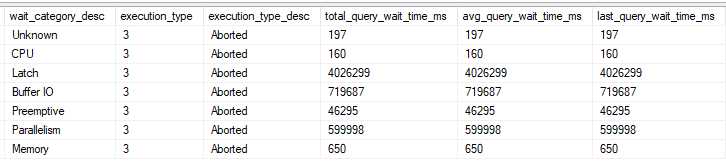
A query timed out the other day in production after running for 600 seconds. Of note, one of the tables used by the stored procedure is in a database with data files hosted by Azure blob storage. I grabbed the wait stats for the timed out query using query store:

a56 qs waits

According to the documentation, the latch category maps to LATCH_% wait types and the preemptive category maps to PREEMPTIVE_% wait types. I wasn’t able to reproduce the timeout when executing the same query text, even if I forced the exact same query plan with a USE PLAN. Admittedly, I was puzzled by the wait stats distribution for a while.

Decoding the Categories

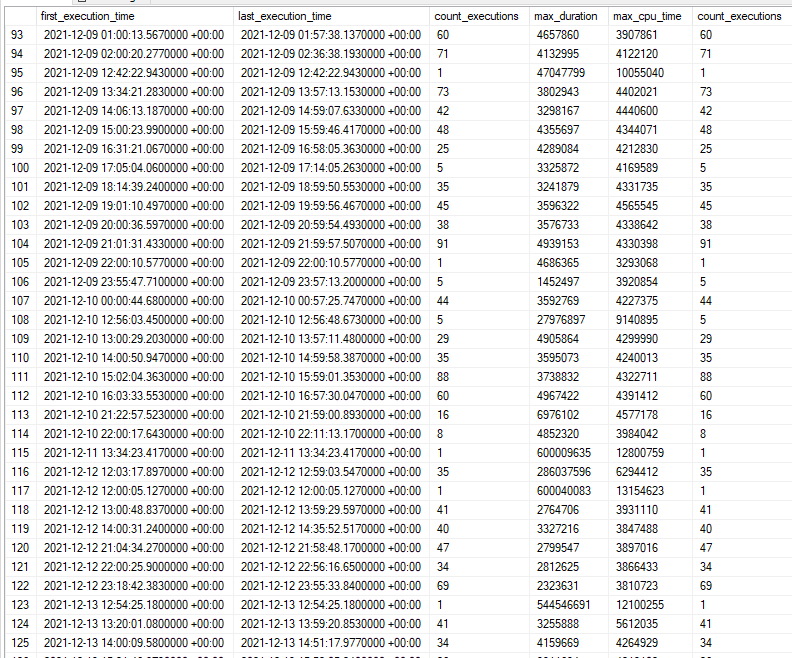
I eventually realized that typically the first execution of the stored procedure for the business day tended to be the slowest. Sorting query store runtime DMV results by time:

qs by time

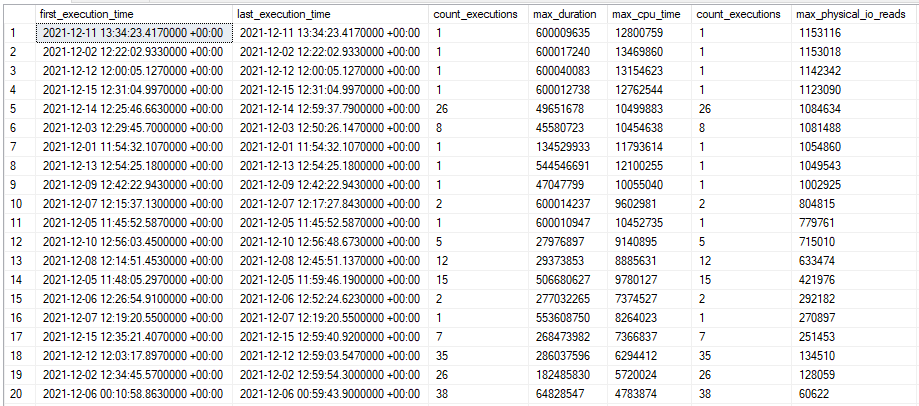
I also noticed that the timed out executions tended to have higher physical I/O than the other executions. Sorting query store runtime DMV results by I/O:

qs by io

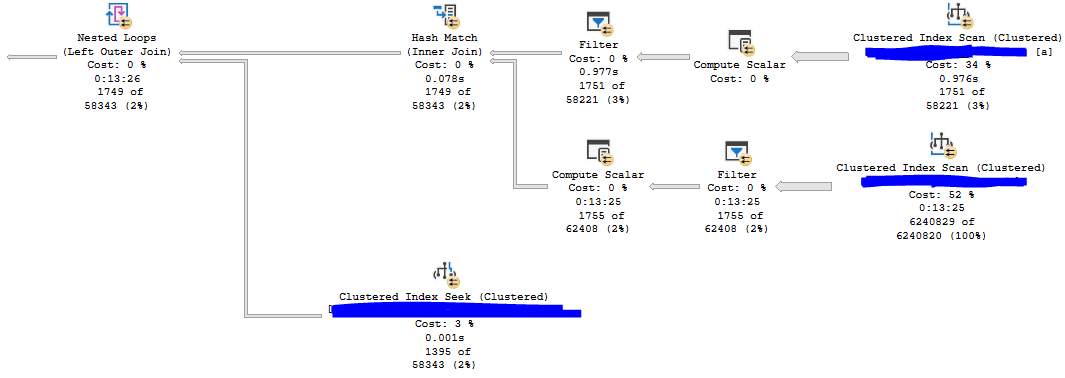
I now finally had a method to reproduce the poor performance of the stored procedure: being the first one to run the code in the morning, presumably when the buffer pool didn’t have anything helpful for this stored procedure. Early in the morning, I was able to capture an actual plan that took 13 minutes at MAXDOP 8. Nearly all of the execution time is spent on an index scan for a table that is hosted on cloud storage:

a56 actual azure

Here are the top wait stats from the actual plan:

<Wait WaitType=”LATCH_EX” WaitTimeMs=”5423928″ WaitCount=”1971″ />
<Wait WaitType=”PAGEIOLATCH_SH” WaitTimeMs=”977288″ WaitCount=”29210″ />
<Wait WaitType=”CXPACKET” WaitTimeMs=”809678″ WaitCount=”700″ />
<Wait WaitType=”PREEMPTIVE_HTTP_REQUEST” WaitTimeMs=”43801″ WaitCount=”50344″ />

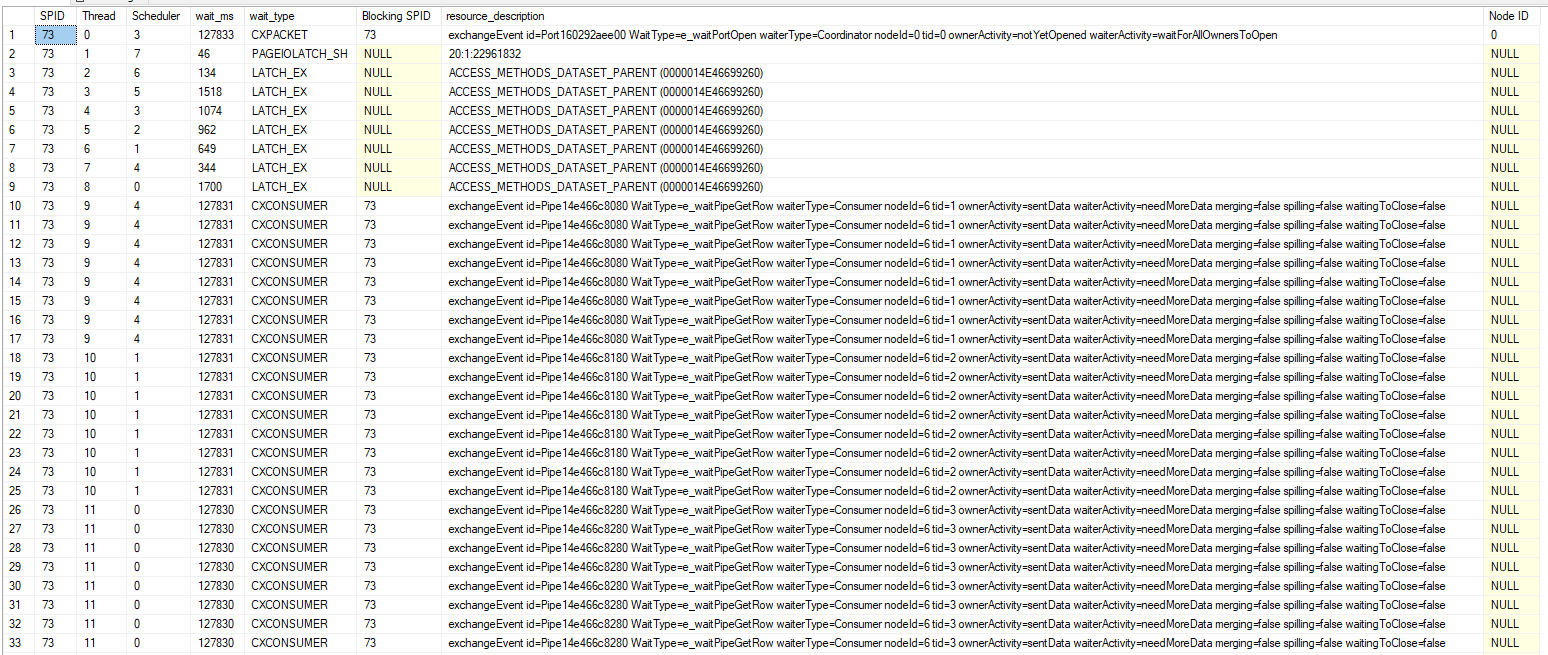
I used the task DMVs during query execution to get information about the latch type:

a56 tasks


Now I know that the query spends most of its time trying to acquire exclusive latches of the ACCESS_METHODS_DATASET_PARENT type. There is also a fair amount of I/O wait time compared to the mysterious PREEMPTIVE_HTTP_REQUEST wait type.

The ACCESS_METHODS_DATASET_PARENT Latch

I asked the community if this latch was considered to be interesting. The winning option was “What?”. As usual, twitter is useless:

a56 twitter

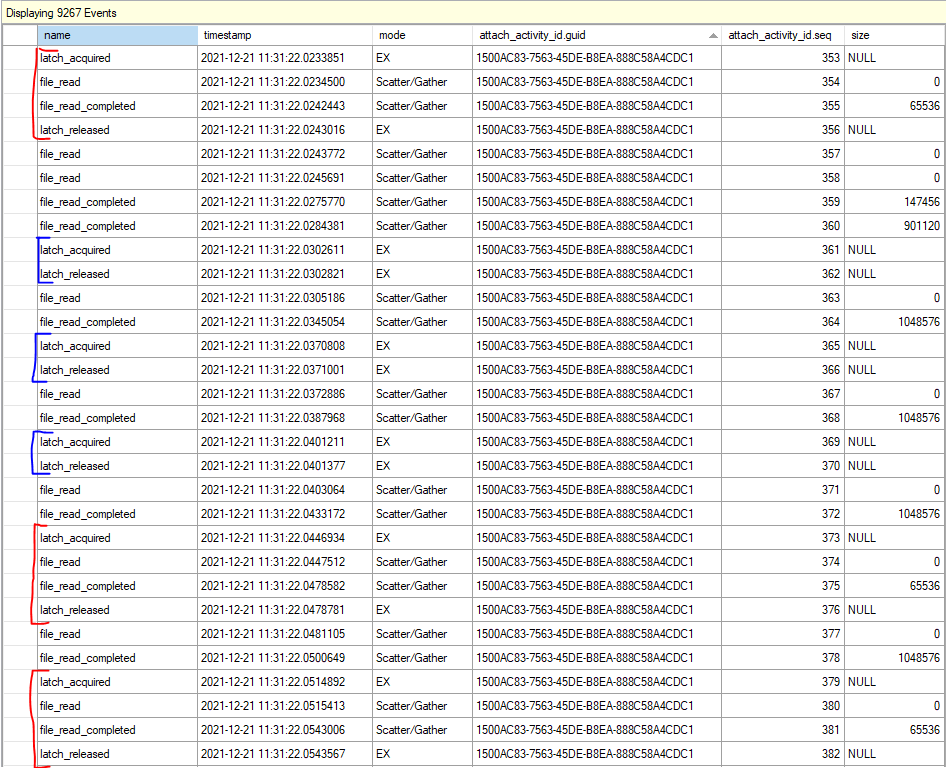
For my query, at times I observed seven out of eight worker threads all waiting for an exclusive latch at the same time. This isn’t surprising considering that the query averaged 6.7 LATCH_EX wait seconds per second. That the other thread was doing an I/O wait while the others were waiting for the latch, so perhaps the worker threads were doing I/Os while holding the latch resource. On a development environment (with unfortunately significantly better I/O), I mocked up a roughly similar table and enabled the latch_acquired, latch_released, file_read, and file_read_completed extended events. The results were quite educational:

a56 red blue 1

There were two different patterns in the XE files. Sometimes the worker threads would acquire the latch, perform one or more I/Os, and release the latch. Otherwise they would acquire the latch and quickly release it without performing any I/Os. Paul Randal recently wrote the following about this latch:

When either a heap or an index is being accessed, internally there’s an object called a HeapDataSetSession or IndexDataSetSession, respectively. When a parallel scan is being performed, the threads doing the actual work of the scan each have a “child” dataset (another instance of the two objects I just described), and the main dataset, which is really controlling the scan, is called the “parent.”

When one of the scan worker threads has exhausted the set of rows it’s supposed to scan, it needs to get a new range by accessing the parent dataset, which means acquiring the ACCESS_METHODS_DATASET_PARENT latch in exclusive mode. While this can seem like a bottleneck, it’s not really, and there’s nothing you can do to stop the threads performing a parallel scan from occasionally showing a LATCH_EX wait for this latch.

At a very high level, I suspect that the fast latch releases (marked in blue in the above picture) occur when the worker thread can acquire an already available range of rows from the parent object. The slow latch releases (marked in red) occur when the worker thread tries to acquire a new range, can’t find one, and has to perform I/Os to add more ranges to the parent object. In both cases the parent object needs to be modified, so an exclusive latch is always taken. I don’t know how it actually works behind the scenes, but the theory matches the observed behavior.

In summary, the query does a parallel scan which is protected by the ACCESS_METHODS_DATASET_PARENT latch. The table getting scanned is hosted on cloud storage with high I/O latency. Latency being high contributes to the exclusive latch on ACCESS_METHODS_DATASET_PARENT getting held for a long time which can block all of the other parallel worker threads from proceeding.

The PREEMPTIVE_HTTP_REQUEST Wait Type

I already have enough information to be confident in a query tuning fix for the stored procedure, but for completeness, I also investigated the PREEMPTIVE_HTTP_REQUEST wait type. I was not able to find any useful documentation for this wait type. The official documentation only says “Internal use only.” Thanks, Microsoft.

A common technique to learn more about undocumented waits is to get callstacks associated with the wait type. I’ve seen the PREEMPTIVE_HTTP_REQUEST wait occur in Azure SQL databases, Azure SQL Managed Instances, and for databases hosted in Azure blob storage. It is possible to get callstacks for managed instances, but it is not possible to translate them because Microsoft does not release public symbols for managed instances. However, the blob storage scenario did allow me to get and translate call stacks for the wait. Below are a few of the stacks that I captured:

Performing I/Os to read data not in the buffer pool:

sqldk!XeSosPkg::wait_info_external::Publish
sqldk!SOS_Task::PushWait
sqlmin!SOS_Task::AutoSwitchPreemptive::AutoSwitchPreemptive
sqlmin!BlobAccess::AsyncHttpIOInternal
sqlmin!BlobAccess::AsyncIOInternal
sqlmin!XFCB2::ScatterReadInternal
sqlmin!FCB::ScatterRead
sqlmin!RecoveryUnit::ScatterRead
sqlmin!BPool::GetFromDisk
sqlmin!BPool::Get
sqlmin!BlobBase::FixNode
sqlmin!BlobManager::LocateBlob
sqlmin!BlobManager::OpenInternal
sqlmin!BlobManager::Open
sqlmin!LockBytesSS::Open
sqlmin!OpenLockBytesNew
sqlmin!OpenIlbssWithSeLobHandleRO
sqlmin!IndexDataSetSession::OpenStreamWithSeLobHandle
sqlmin!RowsetNewSS::OpenWithSeLobHandle
sqlmin!CBlobHandleBaseTableFactory::PilbGet
sqlTsEs!CompareLegacyLobNull
sqlTsEs!CTEsCompare<35,35>::BlCompareXcArgArgImpl
sqlTsEs!CEsExec::GeneralEval4
sqlmin!CQScanStreamAggregateNew::GetRowHelper

Writing LOB data to disk:

sqldk!XeSosPkg::wait_info_external::Publish
sqldk!SOS_Task::PushWait
sqlmin!SOS_Task::AutoSwitchPreemptive::AutoSwitchPreemptive
sqlmin!BlobAccess::AsyncHttpIOInternal
sqlmin!BlobAccess::AsyncIOInternal
sqlmin!XFCB2::ScatterReadInternal
sqlmin!FCB::ScatterRead
sqlmin!RecoveryUnit::ScatterRead
sqlmin!BPool::GetFromDisk
sqlmin!BPool::Get
sqlmin!BlobBase::FixNode
sqlmin!Blob::RWBlob
sqlmin!Blob::RWBlob
sqlmin!Blob::ReadWriteAt
sqlmin!BlobManager::ReadAtInternal
sqlmin!BlobManager::ReadAt
sqlmin!LockBytesSS::ReadAt
sqllang!write_LOB_chunked
sqllang!`anonymous namespace’::TSendRowClassNoCount<7,0>::TSendUnlimitedVartype<0>
sqllang!CTds74::SendRowImpl
sqlTsEs!CEsExec::GeneralEval
sqllang!CXStmtQuery::ErsqExecuteQuery
sqllang!CXStmtSelect::XretExecute
sqllang!CMsqlExecContext::ExecuteStmts<1,1>

Transaction log writes:

sqldk!XeSosPkg::wait_info_external::Publish
sqldk!SOS_Scheduler::UpdateWaitTimeStats
sqldk!SOS_Task::PopWait
sqlmin!SOS_ExternalAutoWait::~SOS_ExternalAutoWait
sqlmin!SOS_Task::AutoSwitchPreemptive::~AutoSwitchPreemptive
sqlmin!BlobAccess::AsyncHttpIOInternal
sqlmin!BlobAccess::AsyncIOInternal
sqlmin!XFCB2::AsyncWriteInternal
sqlmin!FCB::AsyncWrite
sqlmin!SQLServerLogMgr::FlushLCOld
sqlmin!SQLServerLogMgr::LogWriter
sqldk!SOS_Task::Param::Execute
sqldk!SOS_Scheduler::RunTask
sqldk!SOS_Scheduler::ProcessTasks
sqldk!SchedulerManager::WorkerEntryPoint
sqldk!SystemThreadDispatcher::ProcessWorker
sqldk!SchedulerManager::ThreadEntryPoint
KERNEL32.DLL+0x0000000000017974
ntdll.dll+0x000000000006A271

I’m guessing this one is renewing the lease as noted in the documentation: “the implementation of SQL Server Data Files in Azure Storage feature requires a renewal of blob lease every 45 to 60 seconds implicitly”

sqldk!XeSosPkg::wait_info_external::Publish
sqldk!SOS_Task::PushWait
sqlmin!SOS_Task::AutoSwitchPreemptive::AutoSwitchPreemptive
sqlmin!BlobAccess::AsyncHttpIOInternal
sqlmin!BlobAccess::AsyncIOInternal
sqlmin!LeaseRenewalManager2::RenewLeases
sqlmin!XStoreLeaseRenewalTask2
sqldk!SOS_Task::Param::Execute
sqldk!SOS_Scheduler::RunTask
sqldk!SOS_Scheduler::ProcessTasks
sqldk!SchedulerManager::WorkerEntryPoint
sqldk!SystemThreadDispatcher::ProcessWorker
sqldk!SchedulerManager::ThreadEntryPoint

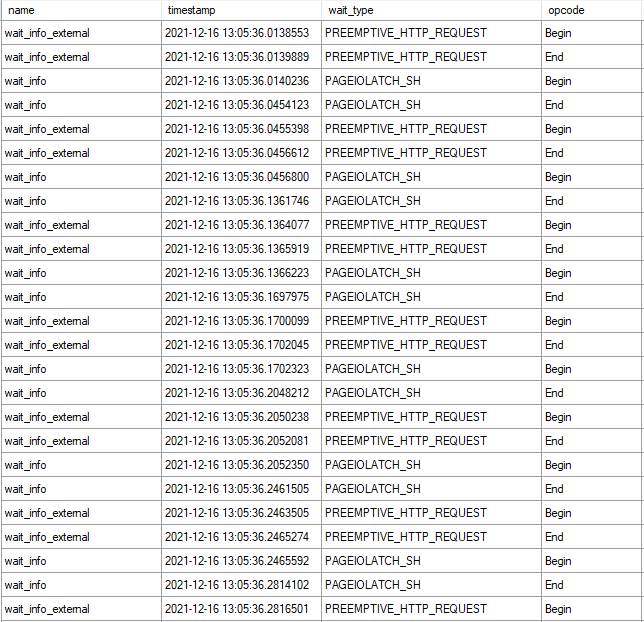
Not surprisingly, all of them have to do with accessing azure storage. I was able to observe an interesting pattern during a table scan: every PAGEIOLATCH_SH wait was immediately preceded by a PREEMPTIVE_HTTP_REQUEST wait.

Getting stacks for the waits that are close together, with shared code removed and the I/O wait on top with the preemptive wait on the bottom:

sqldk!XeSosPkg::wait_info::Publish
sqldk!SOS_Task::PreWait
sqldk!WaitableBase::Wait
sqlmin!LatchBase::Suspend
sqlmin!LatchBase::AcquireInternal
sqlmin!BUF::AcquireLatch
sqlmin!BPool::Get
<<SHARED STACKS REMOVED>>

sqldk!XeSosPkg::wait_info_external::Publish
sqldk!SOS_Task::PushWait
sqlmin!SOS_Task::AutoSwitchPreemptive::AutoSwitchPreemptive
sqlmin!BlobAccess::AsyncHttpIOInternal
sqlmin!BlobAccess::AsyncIOInternal
sqlmin!XFCB2::ScatterReadInternal
sqlmin!FCB::ScatterRead
sqlmin!RecoveryUnit::ScatterRead
sqlmin!BPool::GetFromDisk
sqlmin!BPool::Get
sqlmin!BlobBase::FixNode
sqlmin!BlobManager::LocateBlob
sqlmin!BlobManager::OpenInternal
sqlmin!BlobManager::Open
sqlmin!LockBytesSS::Open
sqlmin!OpenLockBytesNew
sqlmin!OpenIlbssWithSeLobHandleRO
sqlmin!IndexDataSetSession::OpenStreamWithSeLobHandle
sqlmin!RowsetNewSS::OpenWithSeLobHandle
sqlmin!CBlobHandleBaseTableFactory::PilbGet
sqlTsEs!CompareLegacyLobNull

My understanding is that SQL Server makes an HTTP request to the blob storage in preemptive mode in order to queue an asynchronous I/O. The preemptive wait ends and the PAGEIOLATCH_SH wait begins shortly after. The traditional I/O wait ends when the I/O is received by SQL Server. That’s just a guess though.

I think a reasonable summary is that you should expect to see PREEMPTIVE_HTTP_REQUEST waits if you’re performing I/O against Azure storage. They are a normal part of SQL Server’s operations.

Reducing ACCESS_METHODS_DATASET_PARENT Latch Wait Time

In some situations, a query that is slow due to I/O performance can run faster with a higher DOP. Instead of one thread waiting for I/O you can have many threads waiting and overall runtime will decrease. Of course, this won’t work in all scenarios, such as if you’re hitting an IOPs limit. For my scenario, the DOP 8 query had 6.7 LATCH_EX wait seconds per second of runtime. Latch contention is so bad that it nearly steals all of the theoretical benefits achieved with query parallelism.

The obvious solution is to reduce the amount of I/O that is done by the query. That is what was indeed done to resolve the production issue. Another obvious solution is to improve I/O performance. More on that in the next section. However, in some cases the query may simply need to scan a lot of data and you can’t do anything about storage performance. In that situation, it may sometimes be practical to change the type of parallel scan performed by SQL Server.

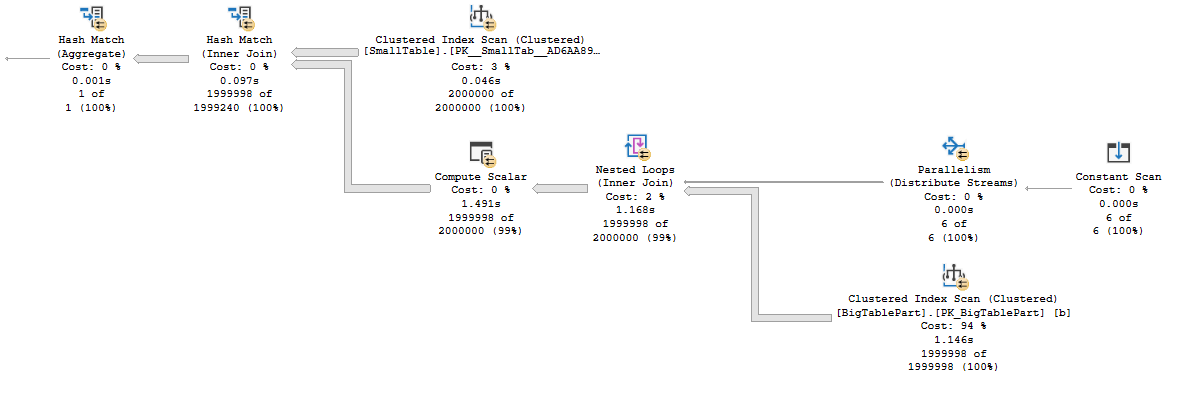
Consider the following parallel plan against a partitioned table on the probe side:

a56 part

For clarity, here is what the T-SQL looks like:

SELECT SUM(Case WHEN OffPageFiller IS NOT NULL THEN 1 ELSE 0 END)
FROM (
      VALUES (1),(2),(3),(4),(5),(6)
) v(v)
CROSS APPLY(
       SELECT OffPageFiller
       FROM dbo.SmallTable s
       INNER JOIN dbo.BigTablePart b ON s.JoinId = b.JoinId
       WHERE b.PartId = v.v
) q;

Each thread of the parallel nested loop operator gets assigned an entire partition and reads all of the data for that partition. There is no longer a need for the ACCESS_METHODS_DATASET_PARENT latch because the shared state between worker threads has been removed. I checked using extended events and found that the ACCESS_METHODS_DATASET_PARENT latch wait count was significantly decreased as expected. I suspect that the remaining latch acquisitions were from the hash build side scan. This type of access pattern requires a partitioned table, can be a pain to express in T-SQL, and may not work well if partitions are unevenly sized or if there aren’t enough partitions compared to DOP to get good demand-based distribution.

Perhaps a more reasonable option is to switch to columnstore instead. The query will do less I/O and I assume that the latch pattern is quite different, but I didn’t test this. Testing things in the cloud costs money. Maybe I should start a Patreon.

Reducing PREEMPTIVE_HTTP_REQUEST Wait Time

As I said earlier, I believe that seeing this wait is normal if you’re using azure storage. In my limited experience with it, any noticeable wait time was always tied to even longer PAGEIOLATCH waits. Tuning the query using traditional methods to reduce I/O wait time was always sufficient and I never had a need to specifically focus on PREEMPTIVE_HTTP_REQUEST. However, if you really need to focus on this wait type in particular for some reason, I’ll theorize some ways to reduce it:

  1. For all platforms, reduce I/O performed by the query using query tuning, schema changes, and so on.
  2. For managed instances, move your I/O from user databases to tempdb (it uses locally attached storage).
  3. For azure blob storage databases, make sure that you are using the right geographical region for your storage.

Here are a few more options which may not specifically reduce PREEMPTIVE_HTTP_REQUEST wait time but may improve I/O performance overall:

  1. For managed instances and azure blob storage databases, try increasing the size of your data files.
  2. For managed instances, try increasing the number of data files.
  3. For all platforms, switch to a more expensive tier of storage.

Final Thoughts

The query timed out in production because it performed a large parallel scan against a table that had little to no data in the buffer pool. PAGEIOLATCH waits were not the dominant wait type due to high latency from Azure blob storage. That high latency caused latch contention on the ACCESS_METHODS_DATASET_PARENT latch. My parallel scan was slow because cloud storage isn’t very fast. Maybe it isn’t so complicated after all?

Using Batch Mode for the “Matching Supply With Demand” Challenge

Itzik Ben-Gan posted an interesting T-SQL challenge on SQL performance dot com. I’m writing up my solution in my own blog post because I have a lot to say and getting code formatting right can be tricky in blog post comments. For reference, my test machine is using SQL Server 2019 CU14 with an i7-9700K CPU @ 3.60 GHz processor. The baseline cursor solution completes in 8465 ms on my machine.

Running Totals

A simple way to solve this problem is to calculate running totals of quantity separately for supply and demand, treat the resulting rows as intervals, and find the intersections between supply and demand intervals. It is fairly straightforward and fast to calculate the interval start and end points and load them into temp tables, so I’ll omit that code for now. We can find the intersecting intervals with the query below( which you should not run):

SELECT d.ID DemandId, s.ID as SupplyID,
CASE
WHEN d.IntervalEnd >= s.IntervalEnd THEN s.IntervalEnd - CASE WHEN s.IntervalStart >= d.IntervalStart THEN s.IntervalStart ELSE d.IntervalStart END
ELSE d.IntervalEnd - CASE WHEN s.IntervalStart >= d.IntervalStart THEN s.IntervalStart ELSE d.IntervalStart END
END TradeQuantity
FROM #demand_intervals d
CROSS JOIN #supply_intervals s
WHERE d.IntervalEnd > s.IntervalStart AND d.IntervalStart < s.IntervalEnd
OPTION (QueryRuleOff BuildSpool);

Performance is terrible for this query because there is no possible index that will make that join condition fast. The query takes 955 seconds of CPU time and 134 seconds of elapsed time at MAXDOP 8.
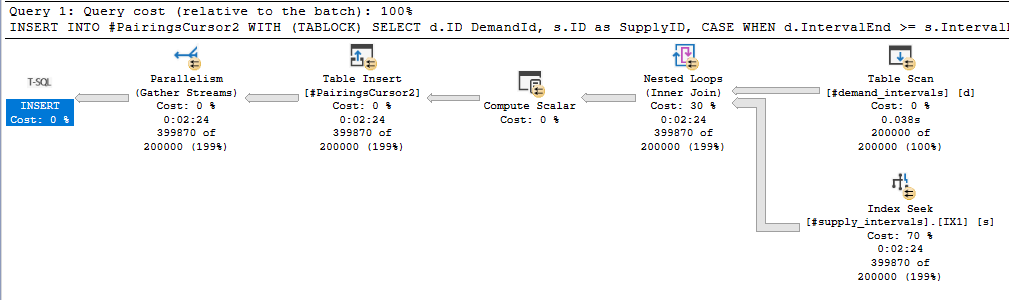
a55 bad loop join

This blog post is about batch mode, so we need to turn that nested loop join into a hash join. It is important to recall that a hash join requires at least one equality condition in the join clause.

Exploring the Data

It’s important to Know Your Data while query writing, especially if you want to cheat in a performance competition. Taking a quick look at the Auctions table with the 400k row configuration:

a55 know your data

The things that stand out to me are that there are an equal number of supply and demand rows, both supply and demand have nearly the same average value, and the maximum quantity for both supply and demand is under 100. We can exploit the relatively low maximum quantity value to improve performance. A supply interval with a end point that is more than 100 units away from the demand end point cannot possibly intersect it. This is one of those things that feels intuitively correct, but I’ll go ahead and prove it anyway by contradiction.

Suppose that 100 is the maximum interval length, [d_start, d_end] and [s_start, s_end] overlap, s_end is more than 100 units away from d_end.

  1. The distance between end points implies that d_end < s_end – 100
  2. If they overlap, then s_start < d_end
  3. This implies that s_start < d_end < s_end – 100
  4. This implies that s_start < s_end – 100
  5. This implies that s_end – s_start > 100

The final statement is impossible because 100 is the maximum interval length. You can do the same proof in the other direction. Therefore, it should be safe to add some filters to our original query:

SELECT d.ID DemandId, s.ID as SupplyID,
CASE
WHEN d.IntervalEnd >= s.IntervalEnd THEN s.IntervalEnd - CASE WHEN s.IntervalStart >= d.IntervalStart THEN s.IntervalStart ELSE d.IntervalStart END
ELSE d.IntervalEnd - CASE WHEN s.IntervalStart >= d.IntervalStart THEN s.IntervalStart ELSE d.IntervalStart END
END TradeQuantity
FROM #demand_intervals d WITH (TABLOCK)
CROSS JOIN #supply_intervals s WITH (TABLOCK)
WHERE d.IntervalEnd > s.IntervalStart AND d.IntervalStart < s.IntervalEnd
AND s.IntervalEnd >= d.IntervalEnd - 100
AND s.IntervalEnd <= d.IntervalEnd + 100;

Now we can get a proper index seek on the s.IntervalEnd column. Performance is significantly better with this additional filter clause. The total runtimes for all steps, including the omitted temp table creation, are 1030 ms of CPU time and 345 ms of elapsed time. We are of course not using batch mode though:
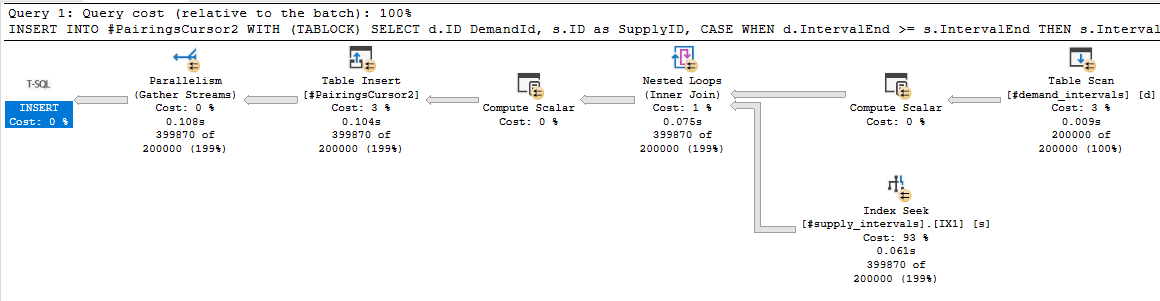
a55 good loop join

Buckets

Time for more math. Starting with the following filter conditions:

AND s.IntervalEnd >= d.IntervalEnd – 100
AND s.IntervalEnd <= d.IntervalEnd + 100;

I can divide both sides by 100 and the condition will still be true:

AND s.IntervalEnd / 100 >= d.IntervalEnd / 100 – 1
AND s.IntervalEnd / 100 <= d.IntervalEnd / 100 + 1

You’ll have to take my word for it that the equation is still true if we truncate everything down to integers:

AND FLOOR(s.IntervalEnd / 100) >= FLOOR(d.IntervalEnd / 100) – 1
AND FLOOR(s.IntervalEnd / 100) <= FLOOR(d.IntervalEnd / 100) + 1

Now we’re dealing with integers, so we can express this as the following:

FLOOR(s.IntervalEnd / 100) IN (FLOOR(d.IntervalEnd / 100) – 1, FLOOR(d.IntervalEnd / 100) + 0, FLOOR(d.IntervalEnd / 100) + 1)

Rewriting once again:

FLOOR(s.IntervalEnd / 100) = FLOOR(d.IntervalEnd / 100) – 1
OR FLOOR(s.IntervalEnd / 100) = FLOOR(d.IntervalEnd / 100) + 0
OR FLOOR(s.IntervalEnd / 100) = FLOOR(d.IntervalEnd / 100) + 1

That’s still not eligible for a hash join, but it is if we change it to a UNION ALL:

... JOIN ON ...
FLOOR(s.IntervalEnd / 100) = FLOOR(d.IntervalEnd / 100) - 1

UNION ALL

... JOIN ON ...
FLOOR(s.IntervalEnd / 100) = FLOOR(d.IntervalEnd / 100) + 0

UNION ALL

... JOIN ON ...
FLOOR(s.IntervalEnd / 100) = FLOOR(d.IntervalEnd / 100) + 1

We have successfully transformed a single BETWEEN join filter into three joins with equality filters. All three of those joins are eligible for batch mode.

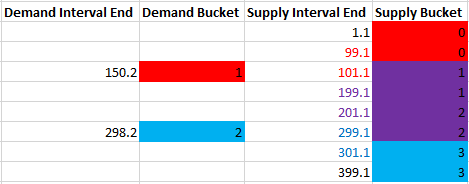
A visual representation may be helpful. Suppose we have two demand intervals that end in 150.2 and 298.2. We need to match those intervals with 8 supply intervals with end points that range from 1.1 to 399.1. To do so, we can divide the intervals into buckets of 100 width and join on matching bucket values as well as the immediately adjacent bucket values:
a55 colors

The demand interval that ends in 150.2 has a bucket value of 1, so it is matched with supply buckets 0, 1, and 2. In this way, we can guarantee that any supply interval that’s 100 or fewer units away ends up getting matched with the right demand intervals. The supply buckets with a background of red are only matched to the demand interval of 150.2, blue is only matched to the demand interval of 298.2, and purple is matched to both. The buckets are overly inclusive of course. The actual rows that might match based on distance have their font color changed in the same way, but filtering out extra rows later will be no problem. The important thing is that we have an equality condition to work with. Now that we can finally perform hash joins, it’s time to work out all of the details.

Gotta Go Fast

We need to perform three operations:

  1. Calculate the maximum interval length.
  2. Calculate running totals for supply and demand, their bucket values, and load them into temporary objects.
  3. Query the temp tables to load the final results into another table.

For step 1, we simply need an index on the Quantity column to make the query fast. We also need to get an exclusive lock and hold it until we’re finished with all of the steps. Otherwise the max length could change in the middle of our code’s execution.

For step 2, the best performing options are either a MAXDOP 1 query with an ordered index scan and a batch mode window aggregate or a parallel query with a batch mode sort, parallel batch mode window aggregate, and parallel insert. An NCCI on the Auctions table is helpful in getting batch mode. In order to make the code go as fast as possible, I elected to use the parallel option at MAXDOP 4 even though it uses significantly more CPU time than the MAXDOP 1 option. DOP is at 4 instead of 8 due to contention caused by the NESTING_TRANSACTION_FULL latch. Here’s an estimated plan picture in case you don’t know what I mean by all of that:

a55 window

For the third query, I’m using a UNION ALL of 3 joins that are eligible for batch mode like I said earlier. I added some query hints to reduce compile time.

As a step 0 that I forgot to mention earlier, create the following indexes on the Auctions table:

CREATE INDEX IX_Auctions__Code_ID__INCLUDE_Quantity ON Auctions (Code, ID) INCLUDE (Quantity);

CREATE INDEX IX_Auctions__Quantity ON Auctions (Quantity);

CREATE NONCLUSTERED COLUMNSTORE INDEX NCCI_Auctions ON Auctions (Code) with (MAXDOP = 1);

You can find the full code below for all three steps:

SET NOCOUNT ON;

DROP TABLE IF EXISTS #PairingsCursor2;
CREATE TABLE #PairingsCursor2
(
DemandID INT NOT NULL,
SupplyID INT NOT NULL,
TradeQuantity DECIMAL(19, 6) NOT NULL
);

DROP TABLE IF EXISTS #demand_intervals;
CREATE TABLE #demand_intervals (
ID INT NOT NULL,
IntervalStart DECIMAL(19, 6) NOT NULL,
IntervalEnd DECIMAL(19, 6) NOT NULL,
IntervalBucket BIGINT NOT NULL
);

DROP TABLE IF EXISTS #supply_intervals;
CREATE TABLE #supply_intervals (
ID INT NOT NULL,
IntervalStart DECIMAL(19, 6) NOT NULL,
IntervalEnd DECIMAL(19, 6) NOT NULL,
IntervalBucket BIGINT NOT NULL
);

DECLARE @MaxQuantityRange DECIMAL(19, 6);

BEGIN TRANSACTION;

SELECT @MaxQuantityRange = MAX(Quantity) - MIN(Quantity)
FROM Auctions WITH (TABLOCKX);

INSERT INTO #demand_intervals WITH (TABLOCK)
SELECT ID, rt - Quantity IntervalStart, rt IntervalEnd, CAST(rt / @MaxQuantityRange AS BIGINT) AS IntervalBucket
FROM
(
SELECT a.ID, Quantity, SUM(Quantity) OVER (ORDER BY a.ID ROWS BETWEEN UNBOUNDED PRECEDING AND CURRENT ROW) rt
FROM dbo.Auctions a WITH (TABLOCK)
WHERE Code = 'D'
) q
OPTION (USE HINT('ENABLE_PARALLEL_PLAN_PREFERENCE'), MAXDOP 4);

INSERT INTO #supply_intervals WITH (TABLOCK)
SELECT ID, rt - Quantity IntervalStart, rt IntervalEnd, CAST(rt / @MaxQuantityRange AS BIGINT) AS IntervalBucket
FROM
(
SELECT a.ID, Quantity, SUM(Quantity) OVER (ORDER BY a.ID ROWS BETWEEN UNBOUNDED PRECEDING AND CURRENT ROW) rt
FROM dbo.Auctions a WITH (TABLOCK)
WHERE Code = 'S'
) q
OPTION (USE HINT('ENABLE_PARALLEL_PLAN_PREFERENCE'), MAXDOP 4);

/*
-- prevents temp table caching, slight performance overhead in last query, but avoids "expensive" stats gathering for uncached object scenario
CREATE STATISTICS s0 ON #demand_intervals (IntervalBucket) WITH SAMPLE 0 ROWS;
CREATE STATISTICS s1 ON #supply_intervals (IntervalBucket) WITH SAMPLE 0 ROWS;
*/

INSERT INTO #PairingsCursor2 WITH (TABLOCK)
SELECT d.ID DemandId, s.ID as SupplyID,
CASE
WHEN d.IntervalEnd >= s.IntervalEnd THEN s.IntervalEnd - CASE WHEN s.IntervalStart >= d.IntervalStart THEN s.IntervalStart ELSE d.IntervalStart END
ELSE d.IntervalEnd - CASE WHEN s.IntervalStart >= d.IntervalStart THEN s.IntervalStart ELSE d.IntervalStart END
END TradeQuantity
FROM #demand_intervals d WITH (TABLOCK)
INNER JOIN #supply_intervals s WITH (TABLOCK) ON d.IntervalBucket = s.IntervalBucket
WHERE d.IntervalEnd > s.IntervalStart AND d.IntervalStart < s.IntervalEnd

UNION ALL

SELECT d.ID DemandId, s.ID as SupplyID, CASE WHEN d.IntervalEnd >= s.IntervalEnd THEN s.IntervalEnd - CASE WHEN s.IntervalStart >= d.IntervalStart THEN s.IntervalStart ELSE d.IntervalStart END
ELSE d.IntervalEnd - CASE WHEN s.IntervalStart >= d.IntervalStart THEN s.IntervalStart ELSE d.IntervalStart END
END TradeQuantity
FROM #demand_intervals d WITH (TABLOCK)
INNER JOIN #supply_intervals s WITH (TABLOCK) ON s.IntervalBucket = d.IntervalBucket - 1
WHERE d.IntervalEnd > s.IntervalStart AND d.IntervalStart < s.IntervalEnd

UNION ALL

SELECT d.ID DemandId, s.ID as SupplyID, CASE WHEN d.IntervalEnd >= s.IntervalEnd THEN s.IntervalEnd - CASE WHEN s.IntervalStart >= d.IntervalStart THEN s.IntervalStart ELSE d.IntervalStart END
ELSE d.IntervalEnd - CASE WHEN s.IntervalStart >= d.IntervalStart THEN s.IntervalStart ELSE d.IntervalStart END
END TradeQuantity
FROM #demand_intervals d WITH (TABLOCK)
INNER JOIN #supply_intervals s WITH (TABLOCK) ON s.IntervalBucket = d.IntervalBucket + 1
WHERE d.IntervalEnd > s.IntervalStart AND d.IntervalStart < s.IntervalEnd
OPTION (USE HINT('ENABLE_PARALLEL_PLAN_PREFERENCE'), MAXDOP 8, HASH JOIN, CONCAT UNION, FORCE ORDER, NO_PERFORMANCE_SPOOL); -- reduce compile time

COMMIT TRANSACTION;

For the first execution, CPU time is generally around 1245 ms and elapsed time is around 500 ms. For subsequent executions, CPU time is around 634 ms and elapsed time is around 168 ms. Here is an actual execution plan for step 3:
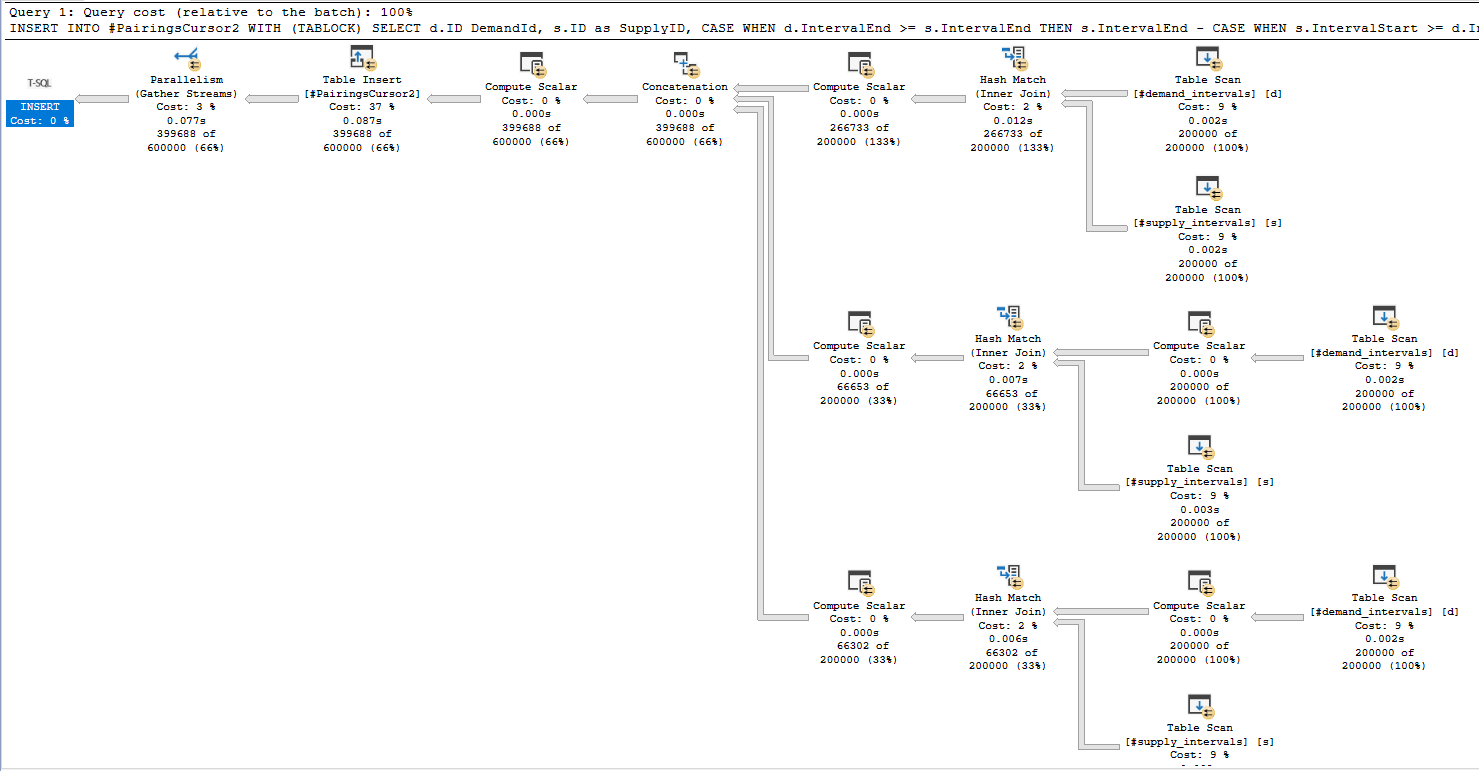
a55 batch temp table

Not surprisingly, the join for matching buckets returns significantly more rows than the joins for adjacent buckets.

REEEEEEEEEEEEECOMPILES

You may be wondering why the first execution takes so much longer than subsequent executions. The problem is the creation of temp table statistics. For some reason, SQL Server issues four StatMan queries per statistic that it creates:

a55 temp table statistics

Some of them run at MAXDOP 1 and some of them run at MAXDOP 8 and all of that time adds up. After the first execution the creation of statistics no longer happens, I assume due to statistics caching for temporary tables. Even adding an explicit FULLSCAN create statistics statement doesn’t avoid this problem for some reason. You can create 0 row statistics if you like (see the commented out code), but I’m going to declare a moral victory here instead of digging into it further. If the biggest performance problem for your query is statistics creation on a pair of 200k row temp tables then you probably have pretty efficient code.

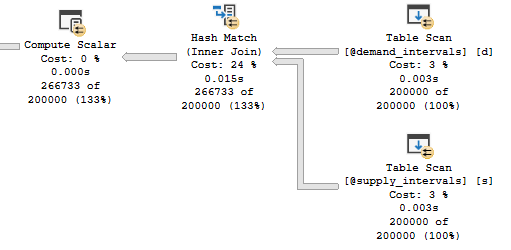
With that said, table variables are an interesting alternative here. I get consistent runtimes of 550 CPU ms and 230 ms of elapsed time using table variables. The deferred compilation feature introduced in SQL Server 2019 is important to get the right query plan. We lose a bit of runtime for the MAXDOP 1 table variable inserts and the final insert is slightly less efficient as well due to the missing statistics. Still, the runtimes are consistent between the first and second executions and overall CPU usage is down. Also you have to admit that seeing a batch mode table variable scan with a correct cardinality estimate (without RECOMPILE) is pretty cool:
a55 batch table variables

Query Scaling

The performance of the batch mode query greatly depends on the maximum interval length. Query runtime increases in a roughly linear fashion as the max length increases:
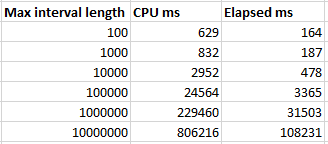
a55 scaling

The linear pattern is broken for the final test case because all of the rows are in a single bucket at that point, so two out of three of the joins don’t do much of anything. Is this type of query safe to use in production? Sure, as long as you’re okay with significantly worse performance if a single outlier row happens to appear. Possible defenses against that include additional constraints on the data, knowing your data well, or writing a fallback algorithm if the maximum interval length is too long for the batch mode bucketizing approach to perform well.

Final Thoughts

This blog post shows how batch mode hash joins can be used as an efficient solution to find intersecting intervals, provided that the maximum interval length is sufficiently small. The important thing is everyone involved had fun. Thanks for reading!

Blocking on Columnstore Indexes that RCSI and NOLOCK Don’t Resolve

I recently ran into a production issue where a SELECT query that referenced a NOLOCK-hinted table was hitting a 30 second query timeout. Query store wait stats suggested that the issue was blocking on a table with a nonclustered columnstore index (NCCI). This was quite unexpected to me and I was eventually able to produce a reproduction of the issue. I believe this to be a bug in SQL Server that’s present in both RTM and the current CU as of this blog post (CU14). The issue also impacts CCIs as well but I did significantly less testing with that index type.

The Setup

First I’ll create a heap with 500k rows. All of the rows have the same value. I’ll also create an NCCI on the single column of the table.

DROP TABLE IF EXISTS dbo.TEST_NCCI_1;
CREATE TABLE dbo.TEST_NCCI_1 (
ID VARCHAR(10) NOT NULL
);

INSERT INTO dbo.TEST_NCCI_1
SELECT TOP (500000) '1'
FROM master..spt_values t1
CROSS JOIN master..spt_values t2;

CREATE NONCLUSTERED COLUMNSTORE INDEX NCCI ON dbo.TEST_NCCI_1 (ID) WITH (MAXDOP = 1);

The NCCI has a single compressed rowgroup with no rows in the delta store or delete buffer. It’s an honest table and I’m not trying to trick you:

a54 ncci stats

We also need a table to join to. A heap with a single row will serve that need:

DROP TABLE IF EXISTS dbo.JOIN_TO_ME;
CREATE TABLE dbo.JOIN_TO_ME (
ID VARCHAR(10) NOT NULL
);

INSERT INTO dbo.JOIN_TO_ME VALUES ('1');

Suppose a different session has a long held exclusive table lock on TEST_NCCI_1. For example, the code below could be running in a different session with a yet to be committed transaction:

BEGIN TRANSACTION;

SELECT TOP (1) *
FROM dbo.TEST_NCCI_1 WITH (TABLOCKX);

Would you expect the following query to be blocked by the open transaction?

SELECT COUNT_BIG(*)
FROM dbo.TEST_NCCI_1 a WITH (NOLOCK)
Left Outer Join dbo.JOIN_TO_ME b WITH (NOLOCK) ON a.ID = b.ID;

Test Results

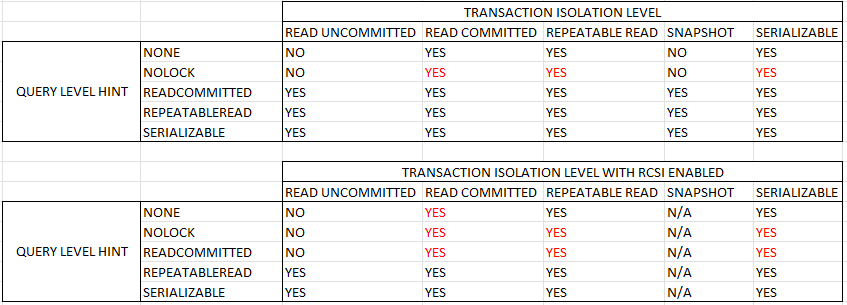
I ran 45 tests in total by varying the isolation level (SET TRANSACTION ISOLATION LEVEL) and the locking hint at the table level. You may be wondering why I bothered to do so. According to the documentation, a table level locking hint overrides the isolation level for read operations:

Only one of the isolation level options can be set at a time, and it remains set for that connection until it is explicitly changed. All read operations performed within the transaction operate under the rules for the specified isolation level unless a table hint in the FROM clause of a statement specifies different locking or versioning behavior for a table.

This is not what I observed which is part of why I believe that the current behavior in SQL Server should be considered a bug. In the table below, “YES” means that the query was blocked and “NO” means the query was able to execute. I used red font for the behavior which I believe to be in error based on my understanding of expected locking behavior in SQL Server.

a54 blocking by isolation level and hint

To summarize the results:

  • The query is always blocked under the read committed, repeatable read, and serializable isolation levels. The table locking hint does not matter.
  • Blocking behavior works as expected under the read uncommitted and snapshot isolation levels.
  • RCSI does not help here. With RCSI, to avoid getting blocked you need to set the transaction isolation level to READ UNCOMMITTED.

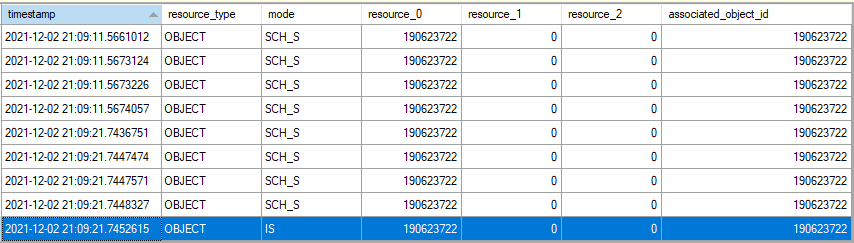
I was able to use the lock_acquired extended event to see the problematic requested lock. In the screenshot below, the results are filtered to the object level. The first set of locks that occurred around the 11 second mark were under the read uncommitted isolation level. The second set of locks at around the 21 second mark where under the read committed isolation level. A table level NOLOCK hint was included for both queries.

a54 IS lock guilty

To be clear, it is unexpected to see an IS object lock for a SELECT query with a table level NOLOCK hint. As far as I can tell, there are no interesting locks taken after the IS lock is acquired:

a54 locks after IS

I attempted to investigate further by getting callstacks before the IS lock is acquired:

sqlmin.dll!XeSqlPkg::lock_acquired::Publish+0x228
sqlmin.dll!lck_lockInternal+0x1139
sqlmin.dll!LockAndCheckState+0x2c5
sqlmin.dll!GetHoBtLockInternal+0x445
sqlmin.dll!ColumnDataSetSession::WakeUp+0xa86
sqlmin.dll!NormalColumnDataSet::WakeUp+0xe
sqlmin.dll!ColumnDataSetSession::Create+0x183
sqlmin.dll!ColumnsetSS::WakeUpInternal+0x1ec
sqlmin.dll!ColumnsetSS::WakeUp+0x15e
sqlmin.dll!CreateDictionaryRowsetHelper+0x250
sqlmin.dll!CBpLocalDictionaryManager::GetSEStringDictionaryRowset+0x416
sqlmin.dll!CBpLocalDictionaryManager::FGetData+0xd1
sqlmin.dll!CBpDeepDataContextForBatch::GetStringValue+0x1d
sqlTsEs.dll!CTEsHashMultiData<167,1>::MdEsIntrinFn<CMDPureInput,CMDIteratorAllPureInputs>+0x13d
sqlTsEs.dll!CEsMDIntrinsicWrapper::UnaryImpl<&CTEsHashMultiData<167,1>::MdEsIntrinFn<CMDPureInput,CMDIteratorAllPureInputs>,&CTEsHashMultiData<167,1>::MdEsIntrinFn<CMDImpureInput,CMDIterator> >+0xd1
sqlTsEs.dll!CEsExecMultiData::GeneralEval+0x188
sqlTsEs.dll!CMultiDataEsRuntime::Eval+0x247
sqlmin.dll!CBpComputeMulticolumnHashRunTime::Eval+0x5b7
sqlmin.dll!CBpPartialJoin::ProcessProbeSide+0x445
sqlmin.dll!CBpQScanHashJoin::Main+0x148
sqlmin.dll!CBpQScanHashJoin::BpGetNextBatch+0x28
sqlmin.dll!CBpQScan::GetNextBatch+0x6f
sqlmin.dll!CBpChildIteratorScanner::BpGetNextBatch+0x12
sqlmin.dll!CBpQScanHashAggNew::ProcessInput+0x8b

I’m not terribly surprised to see a reference to a dictionary in the callstacks because I’m not able to reproduce the issue with an INT or BIGINT column. However, I have no idea where to go from here.

Workarounds

Adding an IGNORE_NONCLUSTERED_COLUMNSTORE_INDEX query hint was an effective workaround for all of my test cases. I experienced the expected locking behavior for all test cases with that hint, so it is apparent to me that the issue is caused by the query plan reading from the NCCI.

Disabling batch mode using the DISALLOW_BATCH_MODE use hint seems to be an effective workaround as well, but I did not test this as thoroughly.

Changing the isolation level may also be an acceptable way to avoid the unexpected blocking for some scenarios. For example, if you already have a NOLOCK table hint in place then changing the transaction isolation level to read uncommitted may not introduce any new data correctness issues.

Final Thoughts

For some queries, a simple join on a VARCHAR column between a table with a columnstore index and another table can lead to unexpected blocking, even with a table level NOLOCK hint or with read committed snapshot isolation enabled for the database. This is frustrating and disappointing behavior from a concurrency perspective. It is an odd scenario where enabling snapshot isolation offers a significant benefit over enabling read committed snapshot isolation. I hope that this locking behavior changes in a future version of SQL Server. Thanks for reading!

Why does FAST_FORWARD make some cursors so much faster in SQL Server?

If you’re like me, you started your database journey by defining cursors with the default options. This went on until a senior developer or DBA kindly pointed out that you can get better performance by using the FAST_FORWARD option. Or maybe you were a real go-getter and found Aaron Bertrand’s performance benchmarking blog post on different cursor options. I admit that for many years I didn’t care to know why FAST_FORWARD sometimes made my queries faster. It had “FAST” in the name and that was good enough for me.

Recently I saw a production issue where using the right cursor options led to a 1000X performance improvement. I decided that ten years of ignorance was enough and finally did some research on different cursor options. This post contains a reproduction and discussion of the production issue.

A Dramatic Example

The code below creates a 16 GB table. It has a primary key and clustered index on the ID column and a nonclustered index on the ID2 column. You can adjust the TOP value to insert fewer rows if you wish to create a smaller table, but don’t drop it below 200000.

DROP TABLE IF EXISTS tbl_1;

CREATE TABLE tbl_1 (
ID BIGINT NOT NULL,
ID2 BIGINT NOT NULL,
PAGE_FILLER VARCHAR(5000) NOT NULL,
PRIMARY KEY (ID)
);

INSERT INTO tbl_1 WITH (TABLOCK)
SELECT RN, RN % 100000, REPLICATE('Z', 5000)
FROM
(
	SELECT TOP (2000000) ROW_NUMBER() OVER (ORDER BY (SELECT NULL)) RN
	FROM master..spt_values t1
	CROSS JOIN master..spt_values t2
) q
OPTION (MAXDOP 1);

CREATE INDEX IX2 ON tbl_1 (ID2);

Consider the following select query, which is a simplified example of the production query:

Select ID
from tbl_1
WHERE ID2 < 1
ORDER BY ID;

There’s an index on ID2 and the filter is highly selective: only 20 rows out of 2 million will match. I would expect the query optimizer to use that index and for the query to finish instantly. The following stored procedure defines a FAST_FORWARD cursor for that SELECT query, fetches the 20 matching rows, and does nothing with them:

CREATE OR ALTER PROCEDURE CURSOR_WITH_FF
AS
BEGIN
SET NOCOUNT ON;

Declare @ID BIGINT;

Declare FF Cursor FAST_FORWARD for
Select ID
from tbl_1
WHERE ID2 < 1
ORDER BY ID;

Open FF;
Fetch Next from FF into @ID;
WHILE @@FETCH_STATUS = 0
BEGIN
	Fetch Next from FF into @ID;
END;
Close FF;
Deallocate FF;
END;

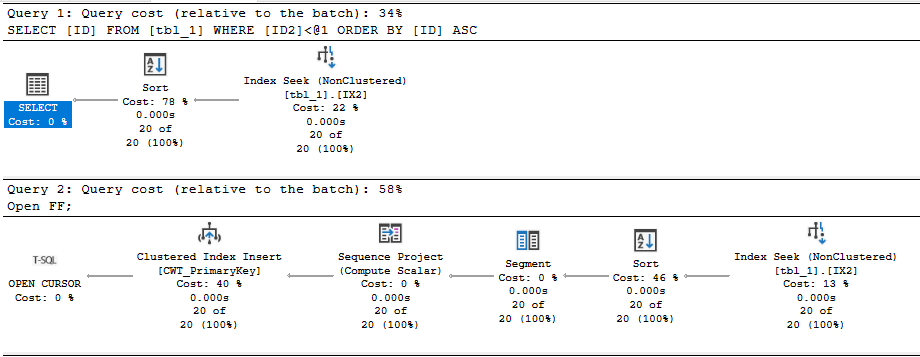
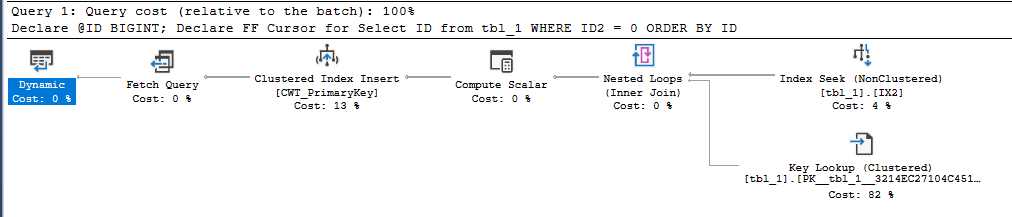
Executing the stored procedure takes about 2 ms on my machine. In this case, I get a query plan that’s very similar to what I’d get by running a simple SELECT query. There’s some additional cursor garbage, but that doesn’t impact performance in this case:

SQL Server Query Plan

Regrettably, the code takes 50 seconds to execute on my machine if I remove the FAST_FORWARD option. What is responsible for the dramatic difference in runtime?

The “What”

We can start by looking at the query plan for the default cursor:

SQL Server Query Plan

The query optimizer decided to do an ordered clustered index scan instead of using the IX2 index. We’re getting all rows from the cursor so we have to read through the whole table. That’s 20 scans with each scan covering about 5% of the table. We should definitely expect this to be less efficient than the FAST_FORWARD plan, but a 50 second execution time felt too slow based on what I know about my hardware. Looking at the wait stats:

SQL Server Query Plan

It’s certainly not surprising that I/O is the biggest contributor to wait time (what else would it be?), but why do I have so much I/O wait time when I have fast, locally attached storage with an average latency less than 1 ms? For a comparison test, I decided to force the query plan that the cursor picks but to run it outside of the cursor. The following code finished in about 8 seconds on my machine:

CHECKPOINT;
DBCC DROPCLEANBUFFERS;

Select ID
from tbl_1 WITH (INDEX(1))
WHERE ID2 < 1
ORDER BY ID
OPTION (MAXDOP 1);

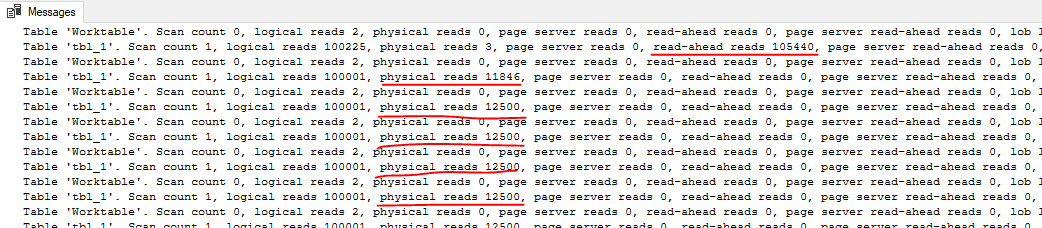
Using sys.dm_io_virtual_file_stats, I found that the cursor was doing about 240000 I/Os with an average I/O size of 66 KB. The single SELECT query did about 10000 I/Os with an average I/O size of 1.7 MB. The key difference is that only the first query execution of the cursor is able to get read-ahead reads:

SQL Server Query Plan

For the cursor execution, we don’t get read ahead reads for 95% of the I/O needed for the query. Even a sub-ms I/O latency can be painful when you have to do 240000 I/Os with a DOP 1 query. In summary, the FAST_FORWARD cursor is able to use an index to efficiently seek to the 20 matching rows. The cursor with default options does about 15 GB of I/O that’s not eligible for read-ahead reads.

Of course, the situation should be expected to be much worse in the cloud. Using the quoted latency of 5-10 ms for general purpose Managed Instances, one might expect the cursor with default options to take between 20 and 40 minutes. Just for fun, I decided to test it against a 4 vCore Managed Instance. The cursor with the FAST_FORWARD option took about 120 ms. The cursor with default options took about 70 minutes. Here are the wait stats for the execution:

SQL Server Query Plan

To put a positive spin on it: using the correct cursor options improved performance by 35000X on the Managed Instance.

The “Why”

I’ll start by saying that I don’t want to be a cursor expert. I’d much rather be an expert in not using cursors. I was having a lot of trouble explaining why the default cursor was getting such a bad query plan, but fortunately I was scooped 12 years ago. I’m going to reproduce the entire section on dynamic plans because you never know when a Microsoft hosted blog post will disappear:

A dynamic plan can be processed incrementally. In SQL Server we do this by serializing the state of the query execution into what we call a marker. Later, we can build a new query execution tree, use the marker to reposition each operator. Moreover, a dynamic plan can move forwards and backwards relative to its current position. Dynamic plans are used by both dynamic and some fast_forward cursors.

A dynamic plan consists only of dynamic operators — operators that support markers and moving forwards and backwards. This corresponds closely, but not exactly, to the query processing notion of streaming operators (vs. stop-and-go). But not every streaming operator is dynamic. In SQL Server, dynamic means:

1. The operator can be repositioned to its current position using a marker, or to a relative position (either next or previous) from its current one.

2. The operator’s state has to be small, so the marker can be small. No row data can be stored in the operator. In particular, no sort table, hash table, or work table. Not even one row can be stored, since a single row can be very large.

Without a dynamic plan, the cursor would need temporary storage to keep the query result set (or keyset thereof). A dynamic plan does no such thing! However, certain operators are disqualified — hash join, hash agg, compute sequence, and sort, for example. This leads to sub-optimal plans.

In short, you can consider a dynamic plan to be similar in concept to a plan with no blocking operators, but there are some additional restrictions. Reliable sources tell me that a cursor with default options will always pick a dynamic plan if one is available. For our SELECT query, a dynamic plan is indeed available. The ordering of the clustered index can be used to return sorted rows without doing an explicit sort. The IX2 index cannot be used for ordering because I’m filtering on ID2 with an inequality. Changing the query to do an equality filter instead allows for a dynamic plan that uses the IX2 index:

SQL Server Query Plan

What about cursors without default options? Going back to the original query, specifying the STATIC or KEYSET option avoids the bad query plan and uses the IX2 index to do an index seek. Both of those options write the cursor result set to a table in tempdb, so it makes intuitive sense that there wouldn’t be some kind of restriction that forces a clustered index scan.

Specifying the FAST_FORWARD option allows the query optimizer to pick between a static and dynamic plan. In this case, the static plan is obviously much more efficient, and the query optimizer is aware of that. It picks the static plan that doesn’t do the clustered index scan.

For completeness, specifying the READ_ONLY option also results in the index seek, as long as the DYNAMIC option isn’t also specified.

In general, I would say that FAST_FORWARD is still a good starting point for your cursors as long as your application code allows for the restrictions that come with it. FAST_FORWARD alone isn’t always sufficient to get query performance that is similar to what you’d get with a standard SELECT. As Erik points out, you’ll end up with a MAXDOP 1 query with that option. The query optimizer may also choose a worse dynamic plan instead of a static plan if the estimated query plan costs don’t reflect reality. Using STATIC instead of FAST_FORWARD can be quite helpful in some cases, but you’ll have to test your cursor specifically to know for sure. Of course, you may be able to write your code without using a cursor instead.

Insufficient Permissions

As someone always on the lookout for cool demos, this bit of the documentation caught my eye:

If a DECLARE CURSOR using Transact-SQL syntax does not specify READ_ONLY, OPTIMISTIC, or SCROLL_LOCKS, the default is as follows:

If the SELECT statement does not support updates (insufficient permissions, accessing remote tables that do not support updates, and so on), the cursor is READ_ONLY.

Could I get better performance by running the code as a login with less privileges? Sadly, I couldn’t get this to work. I verified that the lowly ‘erik’ login couldn’t modify data in the table but I got the same query plan as before. There was also no change in the properties column from the sys.dm_exec_cursors DMF.

I don’t know if the documentation was wrong or if I was doing something wrong on my end. I’d be interested in seeing a working repro of this if anyone has one.

Final Thoughts

Some query patterns can experience extremely poor performance with the default cursor options. You may be able to identify these queries by sorting by total logical reads in the standard SSMS query store reports. In our production environment we had a few cursors that were doing far more logical reads than anything else on the database, so they were easy to pick out. We were able to significantly speed up some of those queries just by adding the FAST_FORWARD option.

Thanks for reading!
Going Further


If this is the kind of SQL Server stuff you love learning about, you’ll love my training. Blog readers get 25% off the Everything Bundle — over 100 hours of performance tuning content. Need hands-on help? I offer consulting engagements from targeted investigations to ongoing retainers. Want a quick sanity check before committing to a full engagement? Schedule a call — no commitment required.

Trying out the new premium-series Azure SQL Managed Instances

At Microsoft Ignite 2021, public preview for new “premium-series” hardware was announced for Azure SQL Managed Instances. There’s even a black friday sort of sale during this month where you can do testing on premium-series VMs without paying for the compute costs. As someone without free cloud bucks: sign me up!

I did some basic query benchmarking to get an idea of the performance difference between the new premium VMs and the standard gen 5 VMs. The test VMs aren’t identical in specs: the standard-series has 4 vCore with 20.4 GB of memory and the premium-series has 8 vCore with 56 GB of memory. I will attempt to call out any situations where that spec difference had a measurable impact.

What is an Intel 8370C processor?

When I see an Intel CPU model that I’m not familiar with, the first thing I do is try to look it up on the Intel Ark website. Unfortunately, like other cloud specific CPUs, there is no information available there on the Intel 8370C. I did try to ask around but I didn’t get very far. Here’s everything that I know:

  • 3rd Generation Intel® Xeon® Scalable Processors
  • Ice Lake code name
  • At least 24 cores per socket
  • 2.8 GHz base
  • Turbo clock speed of 3.5GHz
  • Intel Turbo Boost Technology 2.0
  • Intel AVX-512
  • Intel Deep Learning Boost

That will have to do. It’s a bit annoying trying to compare on-prem performance numbers to MI when we don’t have full details about the processor in the cloud, but this seems to be how it is.

What is a Managed Instance vCore?

There are a few things that you need to know in order to put a vCPU or vCore count into perspective:

1) What is the hardware in the physical host? For Managed instances, we know that the gen 5 series physical hosts have Intel E5-2673 v4, SP-8160, or 8272CL processors. For the premium-series, we know that the physical hosts only have Intel 8370C processors. We may not know exactly what those processors are, but we at least have some information.

2) How are the logical cores in the VM spread over the physical costs of the physical host? In other words, are 4 vCores generally spread over 2 physical cores on the host or are they spread over a single hyperthread each from four different physical cores? Those configurations will result in very different application throughput. In a blog post that I haven’t written yet, I present evidence that you should think of Managed Instance VMs as being spread over the minimum number of physical cores on the host. In other words, a 4 vCore VM will at most get 2X the throughput of a single query running at MAXDOP 1.

3) How much CPU oversubscription is there at the physical host level? Your VM may be fighting for CPU time with other VMs on the same physical host. With MI, you only have access to the SQL Server instance. As far as I know, there really isn’t a way to tell if your query runtime is getting penalized due to activity by some other VM. I’ve seen query performance degrade on MI instances with nothing else going on. The only way that I know to explain it is some kind of oversubscription at the host level. Note that Microsoft only offers compute isolation for standard-series VMs at 40+ vCores and for premium-series VMs at 64+ vCores.

You might be wondering why I’m writing all of this in a blog post about query performance testing. The reason is simple: CPU time at the individual query level may be a significantly less consistent performance metric on Managed Instances compared to what you’re used to. As an example from this round of testing, the same query used both 1289 ms of CPU and 1929 ms of CPU under conditions that appeared to be identical. Both hyperthreading and VM oversubscription can contribute to “inflated” CPU times. You might be getting time on one of the processor’s logical cores but that time is shared with whatever else may be running on the other logical core. And who even knows what HyperV is doing in terms of scheduling?

With that said, I did not observe the wild variances in CPU time on the premium-series VM. I suspect that this is a property of the public preview nature of the VM. Still, I ran all queries five times each and averaged the results to mitigate the CPU variance problem. When query tuning on Managed Instances in the real world, do note that if your rewrite reduces CPU time by 20%, you may have not accomplished anything. You’ll need to test performance many times or evaluate performance in a different way, perhaps by examining the query plan shape or (gasp!) looking at logical reads.

While Loop Test

The first test that I did was the simple WHILE loop described here. Managed Instances have significant observer overhead for this code compared to a vanilla SQL Server install. Perhaps it has something to do with all of the extended event sessions mentioned in the MI error log. It could be said that testing this T-SQL is really just benchmarking that observer overhead. However, it’s still CPU work, so why not do it?

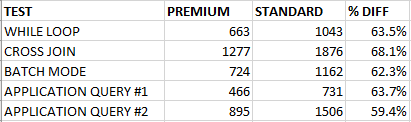
The premium-series VM took an average of 663 CPU ms compared to 1043 CPU ms for the standard VMs.

Cross Join Test

For the next test case, I wanted to reduce the observer overhead but still execute a CPU-bound query with a minimum of time lost to waits. I decided on the following query which calculates 6.5 million checksums:

SELECT MIN(CHECKSUM(CAST(t1.number AS BIGint) + CAST(t2.number AS BIGint)))
FROM master..spt_values t1
CROSS JOIN master..spt_values t2
OPTION (MAXDOP 1, NO_PERFORMANCE_SPOOL);

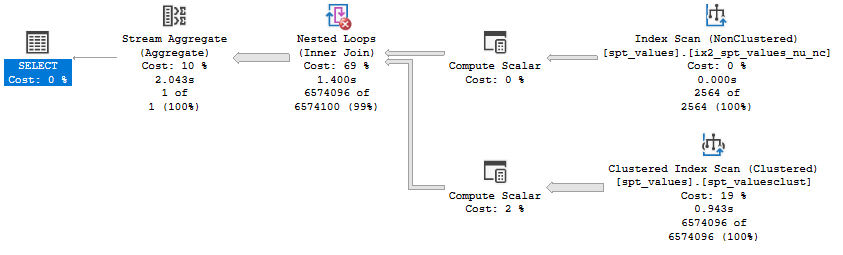
The query plan isn’t very exciting:

a52 query plan

The premium-series VM took an average of 1277 CPU ms compared to 1876 CPU ms for the standard VMs.

Batch Mode Test

I also wanted to run a query that does some batch mode work without spilling to tempdb. I don’t know if it applies here, but in some cases, CPUs with newer instruction sets can get better performance with batch mode operations. First I created a simple CCI:

CREATE TABLE dbo.BatchModeTest (
ID1 BIGINT NOT NULL,
ID2 BIGINT NOT NULL,
ID3 BIGINT NOT NULL,
STRING VARCHAR(100),
INDEX CCI CLUSTERED COLUMNSTORE
);

INSERT INTO dbo.BatchModeTest WITH (TABLOCK)
SELECT q.RN, q.RN, q.RN, REPLICATE('Z', 100)
FROM
(
    SELECT ROW_NUMBER() OVER (ORDER BY (SELECT NULL)) RN
    FROM master..spt_values t1
    CROSS JOIN master..spt_values t2
) q
OPTION (MAXDOP 1);

I then tested the performance of the following query:

SELECT COUNT_BIG(DISTINCT ID1)
FROM BatchModeTest
OPTION (MAXDOP 1);

The premium-series VM took an average of 724 CPU ms compared to 1162 CPU ms for the standard VMs.

On a batch mode related note, I observed that Managed Instances don’t seem to have the fix for the “queries on CCIs can get trivial plans which result in no batch mode” issue that was addressed with SQL Server 2017. I sent this feedback to Microsoft and it was received positively, so perhaps there will be an update one day on Managed Instances that addresses that problem. I have to admit that I’m curious as to how such a situation is possible. Are there other fixes that haven’t been ported to the Managed Instance bits yet? Performance tuning in the cloud is difficult enough without the absence of performance fixes implemented years ago in the boxed product!

Application Query Tests

I also tested two of our application queries which are known pain points for our end users. I am not able to share any information about the queries, but you may consider them to be significantly more “real world” compared to the previous tests done so far. As with the other tests conducted so far, both queries used significantly less CPU time on the premium-series managed instance. Here are all of the performance testing results so far:

a52 results table

I will note once again that the VMs aren’t identical in specs: the standard-series has 4 vCore with 20.4 GB of memory and the premium-series has 8 vCore with 56 GB of memory. With that said, tempdb spills would have contributed to at most a 30 ms difference in CPU time for the application queries.

Maintenance Tests

By popular demand, I also tested a few maintenance activities. I ran DBCC CHECKTABLE against one of the largest tables in the database. It took 44 seconds to complete on the premium-series and 65 seconds to complete on the standard-series.

Rebuilding an index of a table was more interesting. The premium-series VM took significantly longer than the standard-series: 209 seconds vs 158 seconds. However, the premium-series tests used significantly less CPU: 55 seconds vs 109 seconds. I saw a lot of LOGBUFFER waits on the premium-series VM that weren’t observed on the standard-series. As far as I can tell, storage performance should have been identical between the two VMs. Perhaps I just got unlikely, or maybe the root cause of this difference will be addressed before premium-series VMs become generally available.

Final Thoughts

Based on limited public preview results, the new premium-series VMs are significantly more CPU efficient than the standard-series VMs for several different types of queries. I saw a 40% reduction in CPU time across the board in my testing. Workloads with queries that are CPU bound may be able to reduce their overall vCore count and still see improved query performance by switching to the premium-series VMs. For our workload, based on the information that I have, I would prefer a 24 vCore premium-series VM over a 32 vCore standard-series VM. It’s a cheaper option with slightly more memory and more CPU power. Other workloads that aren’t as CPU bound may not see the same benefits from switching to the Intel 8370C. Perhaps the 15% price premium isn’t worth it in all cases.

For VM sizes that don’t qualify for compute isolation (fewer than 64 vCores), I suspect that these test results are biased in favor of the premium-series. It’s just speculation on my part, but I didn’t see the kind of oversubscription at the host level with the premium-series that I’m used to seeing on the standard-series MI VMs. It is possible that the premium-series VMs will have less of a performance advantage compared to the standard-series once they become generally available.

I’ll add that databases platforms, and software in general, are supposed to serve us and make our lives easier. Too often it feels like we’re the ones serving the database platforms instead. That’s part of why I’m such a big advocate for using the right hardware for your important relational database workloads. It’s really hard to get excited when spinning up a new Managed Instance VM only to get something on an E5-2673 v4 physical host. That doesn’t sound like the right hardware to me.

Thanks for reading!

Simple test results for query I/O performance on Azure SQL Managed Instance

Lately I’ve been doing some exploratory performance testing on Azure SQL Managed Instances in preparation for a migration to that platform. This blog post documents some storage testing results and may even have practical advice near the end. All testing was done on a gen5 general purpose instance with 8 vCores.

The Test Query

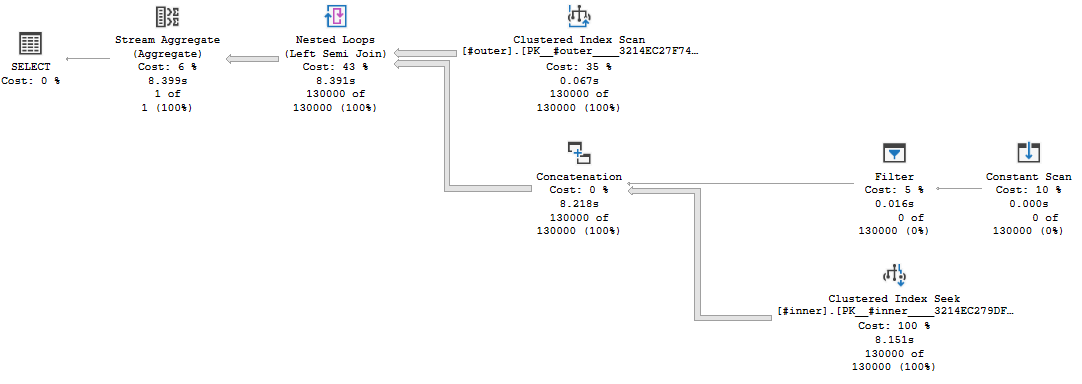
The test case is relatively simple. I want to do about 1 GB of physical reads without doing any read-ahead reads. To accomplish that, I loaded 130k rows into a table making sure that only one row could fit on each data page. I also wrote a simple nested loop join query that doesn’t allow for nested loop prefetching. Here’s a picture of the query plan:

a51 query plan

The presence of the concat operator on the inner side of the nested loop prevents the prefetch optimization. This limitation is unusually annoying, but I’m using it to my advantage here to stress I/O as much as I can. Here’s the T-SQL used to generate the query plan in the picture:

use tempdb;
 
CREATE TABLE #outer (
    ID BIGINT IDENTITY(1, 1) NOT NULL,
    DUMMY BIGINT NOT NULL,
    PRIMARY KEY (ID)
);

INSERT INTO #outer (DUMMY)
SELECT TOP (130000) 0
FROM master..spt_values t1
CROSS JOIN master..spt_values t2;


CREATE TABLE #inner (
    ID BIGINT IDENTITY(1, 1) NOT NULL,
    BIG_DUMMY CHAR(5000) NOT NULL,
    PRIMARY KEY (ID)
);

INSERT INTO #inner (BIG_DUMMY)
SELECT TOP (130000) '0'
FROM master..spt_values t1
CROSS JOIN master..spt_values t2;

CHECKPOINT;
DBCC DROPCLEANBUFFERS;
 

SELECT COUNT_BIG(*)
FROM #outer o
WHERE o.DUMMY = 1
OR EXISTS (
    SELECT 1
    FROM #inner i
    WHERE i.ID = o.ID
)
OPTION (MAXDOP 1, QueryRuleOff BuildSpool);

For the different cases, I ran the SELECT query at MAXDOP 1 and MAXDOP 2 and cleared the buffer pool before each query execution.

Is Tempdb no longer the outhouse?

For user databases on managed instances, the documentation states that you should expect I/O latency of around 5-10 ms. However, tempdb is attached locally so we might get better latency there. Wanting to start off on a positive note, I elected to try testing in tempdb first. Here are the test results for the tempdb database:

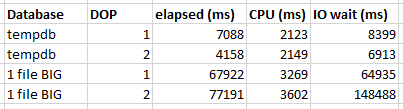
a51 tempdb

The managed instance spends more time waiting for I/O compared to testing on my local machine’s tempdb, but the MAXDOP 2 query has the nice property of nearly being twice as fast as the MAXDOP 1 query. Both queries on the managed instance have roughly the same amount of I/O wait time. The MAXDOP 2 query is primarily faster because the I/O waits are spread fairly evenly between both threads. I will note that I was a bit lazy with my test query and I didn’t ensure that an appropriate amount of work is sent to each thread, but things worked out well enough for this kind of test.

My next test was performed in a user database that was created solely for the purpose of this testing. The initial database size was about 1.5 GB. The code is the same as before, but I just created user tables instead of temp tables. The test results were not good. Both queries ran for over a minute and the MAXDOP 2 query was slower than the MAXDOP 1 query. The documentation says the following:

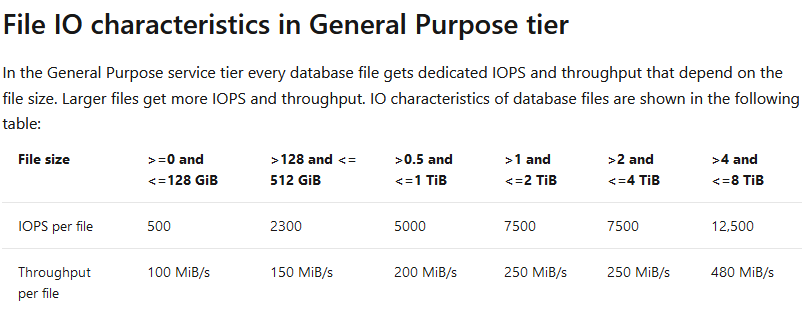
If you notice high IO latency on some database file or you see that IOPS/throughput is reaching the limit, you might improve performance by increasing the file size.

In this case, I might improve performance if I increase my data file size to greater than 128 GB. I didn’t want to do that for a few reasons:

  1. It costs money and I don’t like spending money.
  2. There’s an instance level storage limit of 2 or 8 TB for general purpose (depending on vCore count).
  3. Creating a database with 99% free space is silly and a well-meaning DBA could shrink it without realizing the performance implications.

For you, dear reader, I increased the database size to 132 GB. I did not observe any performance improvements after doing so, despite testing many times. Here are the test results so far:

a51 big file

Tempdb has 12 data files btw

The chart below makes me wonder if creating multiple files for a small database would be helpful:

a51 storage tiers

If I can get 500 IOPS per database file and I have four database files, logically speaking I would expect to get 2000 IOPS for a single database with four files. I’m personally a big fan of databases with multiple files. I’ve seen a lot of performance problems fixed or mitigated by going beyond the default one data file per database rule.

There is at least one downside to creating multiple small files for one database on managed instances: there’s a documented limit of 280 total files for the general purpose tier. This limit is there because each file takes up a minimum of 128 GB on the storage backend and a general purpose instance can only use up to 35 TB of storage on the backend: 280 * 128 = 35 * 1024. It is amusing to consider how master, model, and msdb take up about 750 GB of storage behind the scenes.

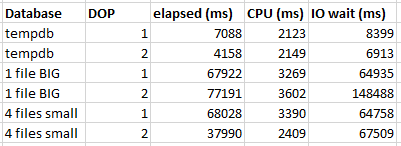
On my instance, I’m nowhere near the 280 file limit/35 TB storage backend limit, so I created a small database (significantly below 128 GB) with about 4 files and tested the query again. Here are the full results:

a51 many files

MAXDOP 1 query performance is pretty much the same as before, but the MAXDOP 2 query runtime decreased from 77 seconds to 37 seconds. That’s a huge improvement. The MAXDOP 2 query is also roughly twice as fast as the MAXDOP 1 query which is nice to see. The only thing that I did to improve parallel query performance was to create a new database with 4 data files instead of 1.

Practical Applications

To get the obvious out of the way: if you’re writing temporary data to user tables instead of temp tables on Managed Instance, you probably shouldn’t be doing that.

I don’t have any production workloads in managed instances yet, but I’ll go ahead and attempt to give some guidance on file counts. You should consider exceeding 1 data file per database if all of the following are true:

  1. Your database is under 128 GB
  2. You care about I/O performance for that database or your I/O waits for that database are higher than you’d like
  3. Your instance isn’t close to the 35 TB backend limit

It will always be workload dependent, but you may see a performance improvement by splitting your database into multiple files. Do note that you’ll need to spread your data over all of the files (rebuild your tables and indexes after adding files) and you’ll want the files to be the same sizes with the same autogrowth settings. Also, there are other situations where you may want more than one data file for a database. Do not interpret the above to mean that databases already above 128 GB only need a single file.

If you’ve got a managed instance with only one database, perhaps you’re wondering if it would be a good idea to give it 96 data files. In theory, that will allow that database to hit the instance IOPS limit of 30k-40k. I can say that I’ve run with 96 file user databases in Enterprise and I didn’t observe any issues other than an annoying initial setup. The scenario for that was a large ETL system and I was trying to reduce PFS and GAM contention, so it’s quite a bit different than what you would run on a managed instance.

I would be somewhat cautious with creating significantly more data files for one database than your vCore count. In that configuration, I would also try to avoid excess autogrowth events as that is one place you might run into trouble. In general, when doing unusual things, you should test very carefully. That same advice is applicable here. It might work out well or it might not help at all. Stop asking me, I’ve used the cloud for like a week.

Final Thoughts

In some scenarios on Azure SQL Managed Instances, you may be above to improve I/O performance for small databases FOR FREE by spreading your data over multiple data files. Isn’t that wonderful?

Thanks for reading!
What’s in your SQL Server error log?

This is my 50th blog post! I’m going to do something a bit special.

The Error Log

I’ve found the SQL Server error log to be slightly underrated as a source of useful information for how your SQL Server instance is doing. It’s true that it’s easy to find yourself in a situation where the applications write tens of thousands of failed login messages per day, but if you can get past that, SQL Server might be telling you important stuff that you really need to know about. Examples that I’ve seen:

  • Memory dumps
  • non-yielding schedulers
  • long I/Os
  • latch timeouts

Maybe this an odd thing to do, but I’ve personally set up alerting to get an email whenever SQL Server writes something to the error log. Naturally I filter out a lot of benign and informational messages. This kind of alerting is useful because let’s face it, using SSMS to open the error log isn’t always the fastest operation in the world. And who even knows if Azure Data Studio can be used to view the error log?

What’s in your error log?

If you haven’t checked your error log in a while, I challenge you to do so on your next working day. You never know what you’ll find. I’m happy to share my own, but readers may be confused as I run a custom version of SQL Server:

a50 shizuku SSMS FINAL IMPROVED

Thanks for reading!
Quick SQL Server CPU Comparison Tests

Sometimes I have a need to run a quick CPU comparison test between two different SQL Server instances. For example, I might be switching from old hardware to new hardware and I want to immediately see a faster query to know that I got my money’s worth. Sometimes I get a spider sense while working with virtualized SQL Server instances and want to check for problems. Yesterday, I was doing a sort of basic health check on a few servers that I hadn’t worked with much and I wanted to verify that they got the same performance for a very simple query.

The Test Code

To get a single CPU core to 100% within SQL Server with minimal setup, the best method known to me uses a temporary procedure that does a simple operation within a WHILE loop:

CREATE OR ALTER PROCEDURE #p AS
BEGIN
    SET NOCOUNT ON;
    DECLARE @i BIGINT = 0, @time DATETIME2 = SYSUTCDATETIME();
    
    WHILE @i < 1000000
    BEGIN
        SET @i = @i + 1;
    END;
    
    SELECT cpu_time, DATEDIFF(MILLISECOND, @time, SYSUTCDATETIME()) elapsed_time
    FROM sys.dm_exec_requests
    WHERE session_id = @@SPID;
END;

GO

EXEC #p;

The code is extremely efficient (from a certain point of view) and CPU time will closely match elapsed time as as long as there’s no other processes on the lucky CPU that runs my beautiful code. It’s designed to spend as little time on waits and latches as possible. A temporary stored procedure is used to avoid ASYNC_NETWORK_IO waits. Paul White explains why the ASYNC_NETWORK_IO waits appear when the same code is run as part of a batch in this stack exchange answer.

CPU Problems

Going back to the intro, you can probably guess that I did not see identical CPU times when comparing the two servers. Otherwise, there would be no reason to write a blog post. The first server that I tested took about 2400 CPU ms to execute the code. The second server took about 300 CPU ms. There are of course a lot of factors in play here, but I would expect a healthy machine to take somewhere around 200-800 ms of CPU work. I definitely wouldn’t expect an 8X difference for two servers that were supposed to have identical performance!

To be clear, the only thing that you can safely conclude in this kind of situation is that there’s some kind of unknown configuration difference between the two servers. It does not necessarily mean that there’s some kind of severe issue with the server that takes more CPU time to perform the same work. With that said, it’s definitely suspicious and not something that you want to unexpectedly see. Running down the root cause of the issue can be difficult and time consuming because there are a lot of possible causes. Here is an incomplete list:

  • Hardware differences
  • Power plan and other OS configuration settings
  • OS patching, especially side channel vulnerability fixes
  • Enabling hyperthreading (CPU reporting within SQL server doesn’t have the same meaning)
  • Disabling Intel Turbo Boost
  • VM CPU oversubscription
  • VMware’s Enhanced vMotion Compatibility (EVC) – force a CPU to run on an older instruction set for compatibility reasons
  • Other VM issues
  • SQL Server version
  • Expensive monitoring configured within SQL Server including certain extended events, trace flags, profiling, or traces

In my case, the culprit ended up being a popular SQL Server third party monitoring solution (I will decline to name the vendor). Again, we can’t conclude that the vendor is doing something wrong. Different types of monitoring will have different overheads for different types of work within SQL Server. In some cases, simply asking for a SQL Server actual plan can more than double the execution time of a query. That doesn’t mean that we shouldn’t use actual plans as performance diagnosis tool!

Digging In

There was a fair amount of circumstantial evidence that the monitoring tool was responsible. It was running on the server with the slower code and it wasn’t running on the server with the faster code. Disabling the monitoring tool made both CPU times match. However, how can we really prove that the monitoring tool is the culprit? Where exactly is that extra CPU time going?

ETW tracing can provide a summary of call stacks during a sampled time period. Common choices are Windows Performance Recorder or PerfView. As usual, I will use PerfView. I was able to temporarily add third party monitoring to the server with the fast code. Fortunately, there wasn’t any other SQL Server work occurring during my testing so PerfView was quite effective at showing the difference between the two servers. In the image below, call stacks for slightly modified code without the monitoring tool are on the left. Call stacks for the same code with the monitoring tool present on the left are on the right:

a49 perfview side by side

It doesn’t take a SQL Server expert to see that there are some notable differences here. I’m not an expert in SQL Server call stacks, but a lot of the stuff on the left is about what I would expect for extremely efficient code in a loop. It’s a similar feeling to those people who can identify photoshopped pictures by looking at the pixels. A lot of the stuff on the right is what I would expect if SQL Server is spending a relatively large percentage of CPU time doing monitoring, such as ntdll!RtlQueryPerformanceCounter and sqllang!TraceUtil::GetStatementInfoBase. Here’s a diff view if that makes it easier to see some of the differences:

a49 perfview diff

The “exc” column is the difference of the number of CPU ms spent by the method itself (not including called methods). A positive number means that the slow code spent more CPU time on that method and a negative number (not shown in this picture) means that the fast code spend more CPU time on that method.

I would describe the PerfView results as fairly conclusive evidence: the third party SQL Server monitoring tool is responsible for the 8X difference in CPU time for the WHILE loop between the two servers.

Final Thoughts

The real production workload does something more important (and complicated) than simply incrementing a variable. Seeing an 8X performance difference in that simple code wasn’t a good or welcome sign, but I expect to see a dramatic reduction in monitoring overhead when benchmarking the real workload after disabling the monitoring tool. There may not be anything to fix here, but it’s always helpful to be reminded of everything that’s running on your servers. Thanks for reading!