Darling does not update itself. A new release is a new zip, and upgrade-darling.ps1, which ships in that zip, lays it over the install you already have. It stops the service, backs up the install folder, copies the new build, checks that darling.json came through byte for byte, and starts the service again.
This page is a real upgrade from Darling 3.10.0 to 3.11.0 on a plain Windows Server 2022 VM, with the command and what it printed. The first install is on the Install Walkthrough.
Last checked against Darling 3.11.0 in October 2026. Where this page and the Darling README on GitHub disagree, the README is right.
Upgrading from 3.5.0 or earlier? upgrade-darling.ps1 does not exist in those builds, so the steps here do not apply to you. The README has a manual procedure for that case, in the section on upgrading from a build that predates the script.
Before you start
- Back up darling.json. The script checks that it is unchanged, but a copy you made yourself costs nothing. Nothing else you need to keep lives in the install folder. The store, the credential files and the logs are under C:\ProgramData\PerformanceMonitorDarling.
- If you want a way back for the data, snapshot the volume, or stop the service and copy C:\ProgramData\PerformanceMonitorDarling. The script backs up program files only. It does not back up the store.
- Close anything running out of the install folder: a viewer you left open, a psql session, a shell sitting in the folder. The script never kills a process. It names what it finds and refuses before it changes anything.
- Open an elevated PowerShell (Run as administrator).
Download and extract to a staging folder
Download PerformanceMonitorDarling-<version>.zip and SHA256SUMS.txt from the latest release and check the hash the same way as for the install. Then extract the zip to a staging folder under Program Files, not directly under C:\. You run the script from that folder, so anyone who can write to it could replace the script. Only administrators can write under Program Files.
Expand-Archive PerformanceMonitorDarling-3.11.0.zip -DestinationPath "C:\Program Files\PerformanceMonitorDarling-staging\3.11.0"
& "C:\Program Files\PerformanceMonitorDarling-staging\3.11.0\upgrade-darling.ps1" -Source "C:\Program Files\PerformanceMonitorDarling-staging\3.11.0"
The script finds the install folder from the registered service. It refuses to run from the install folder itself, because the copy would overwrite the script PowerShell is reading.
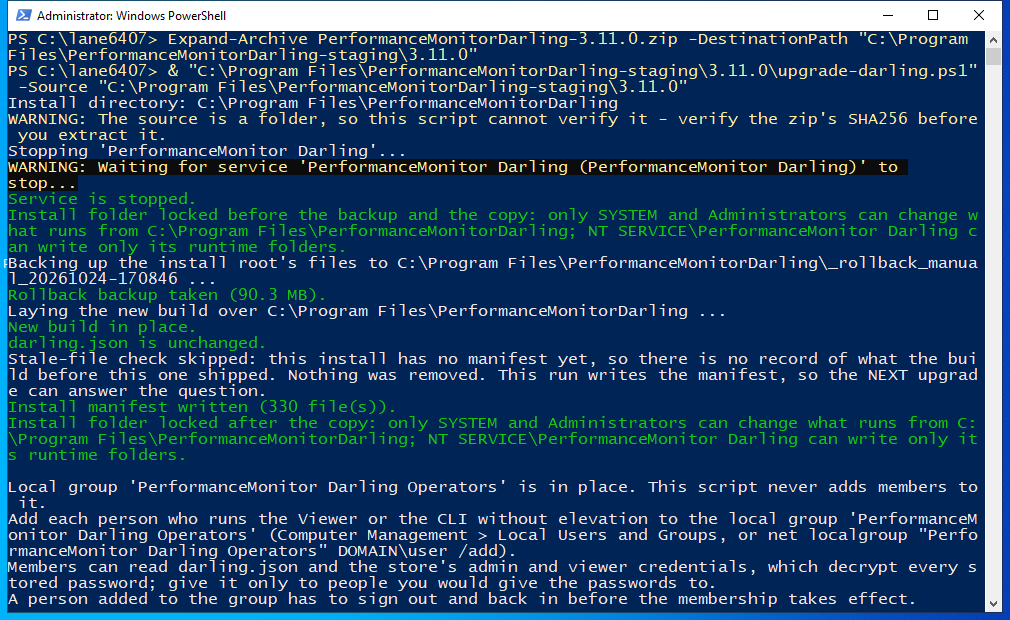
The warning near the top is there because -Source pointed at a folder, and a folder cannot be hash-checked. To have the script check the hash, point -Source at the downloaded zip instead, and pass the hash from the release page with -Sha256, or leave SHA256SUMS.txt beside the zip. It copies the zip into its own protected staging folder, hashes the copy, and extracts from that.
Here is what it did, in order. It stopped the service and waited for it to stop. It locked the install folder so that only SYSTEM and Administrators can change what runs from it. It took a rollback backup of 90.3 MB. It laid the new build over the install folder and confirmed darling.json is unchanged. This install had never been through the script. So there was no record of what the previous build shipped, and it removed no old files. It wrote a manifest, and the next upgrade uses that to name any file a build stopped shipping. It checked the PerformanceMonitor Darling Operators group, which it never adds anyone to, and started the service.
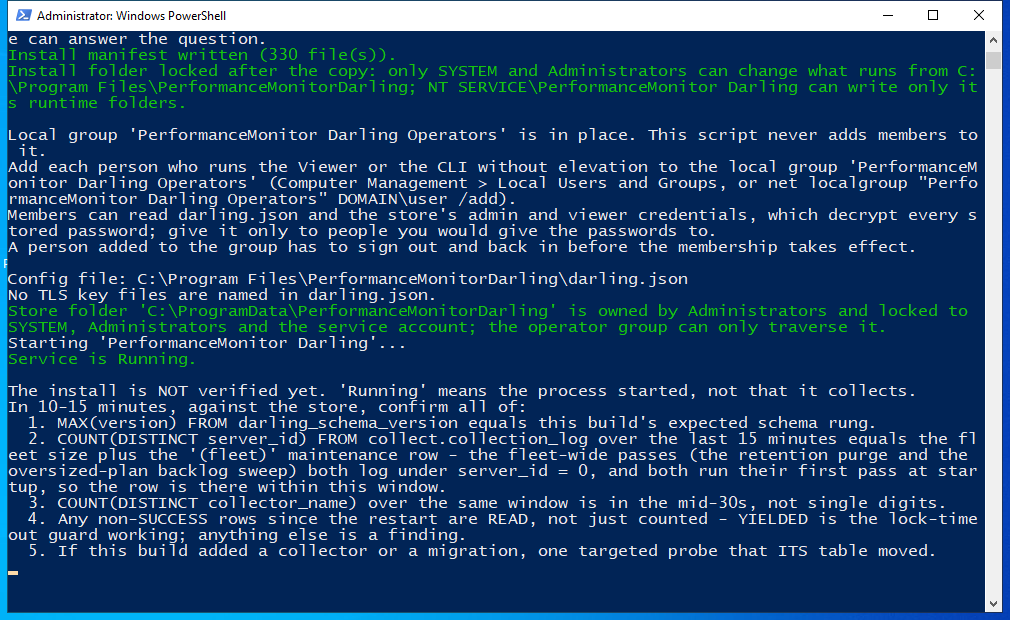
The 3.11.0 script prints an older list of SQL checks here. The checks below are the ones to do. The next release prints this shorter list.
Check it collects
The install is not verified yet. Service is Running means the process started, not that it collects. About 10 to 15 minutes after the start, check these:
- Open the Viewer. Every monitored server shows Online, and the status bar shows “Collection: Active”.
- On each server card, Collectors shows OK and “Failing: 0”. The status bar shows “Collectors: N OK”. The web page has a Collection Health tab for each server.
- The service log (%ProgramData%\PerformanceMonitorDarling\logs) has a line “Postgres store ready (schema v<N>, …)” from this start. N is the store version this build expects. If the line is missing, the store did not finish its update. Read the log lines near the start.
If you connect to the store, you can also run SELECT MAX(version) FROM darling_schema_version. It returns the same N.
The backups it leaves
Each upgrade leaves a folder named _rollback_manual_<timestamp> (a date and time stamp in UTC) inside the install folder, so C:\Program Files\PerformanceMonitorDarling\_rollback_manual_<timestamp>. It holds the install folder’s files and leaves out the viewer, wwwroot, runtimes and pg-runtime subfolders. That keeps one backup near 90 to 120 MB instead of about 1 GB. The script reuses a backup taken in the last hour. So a second run after a failure cannot replace the good pre-upgrade copy with a copy of a half-upgraded folder. Running it again after a failure is safe, and it is the intended recovery.
The script keeps the newest three backups and prunes the rest. -KeepRollbacks changes the number. To see or clear a backlog, run the installed copy of the script. It needs no staging folder and does not stop the service:
& "C:\Program Files\PerformanceMonitorDarling\upgrade-darling.ps1" -ListRollbacks   # show what would go
& "C:\Program Files\PerformanceMonitorDarling\upgrade-darling.ps1" -PruneOnly       # remove all but the newest 3
The copy is an overlay: it writes what the new build ships and deletes nothing else. From the second upgrade on, the script names files an earlier build shipped and this one does not. Add -RemoveStaleFiles to delete them instead of only listing them.
Rolling back
A rollback restores the install files. It does not restore the store. The store keeps every migration the newer build applied, and the older build runs against it, because migrations only add. When it starts, the older build logs one warning that names the migrations it does not know.
Some of those migrations change what an older build reads. Before you roll back past one, read the list under Rolling back to an older build in the README. It names each migration and what to do first. For example, going back past the schema that added scoped notification routes means disabling those routes first, or the older build sends every server’s alerts to a route meant for one.
For a full revert of the files, stop the service and extract the previous version’s zip over the install folder. Then copy the files from the newest _rollback_manual_ folder over the top and start the service. I did not run a rollback for this page. For a rollback point for the data itself, use the volume snapshot or the ProgramData copy from the start of this page.
Uninstalling
That is on the Install Walkthrough, with a screenshot of uninstall-darling.ps1 and what -PurgeData deletes.