Lite is the desktop version of Performance Monitor. It runs on your own computer, queries your SQL Servers over the network, and keeps what it collects in local files. Nothing gets installed on the servers you monitor.
This page is a first install of Lite 3.11.0 on a plain Windows Server 2022 VM. It adds one SQL Server 2019 test instance, shows the first data, shows where Lite keeps its files, and then covers upgrade and uninstall.
Last checked against Lite 3.11.0 in October 2026. Where this page and the Lite guide on GitHub disagree, the GitHub text is right.
Looking for the service version instead? The Darling Install Walkthrough covers it.
What you need
- A Windows computer to run Lite on. The VM in these screenshots runs Windows Server 2022.
- Windows that is current on its updates. .NET 10 programs need them on a CPU with CET, a hardware protection. Without them, Lite stops at start with exit code 0x80131506, and Setup.exe ends with “Install Partially Succeeded” and no reason. The Lite README on GitHub has the fix and a short-term workaround.
- Nothing else to install first. Both downloads carry their own .NET runtime.
- A SQL Server login with VIEW SERVER STATE on each server you want to monitor. The Permissions page on GitHub lists every grant.
1. Download: which file
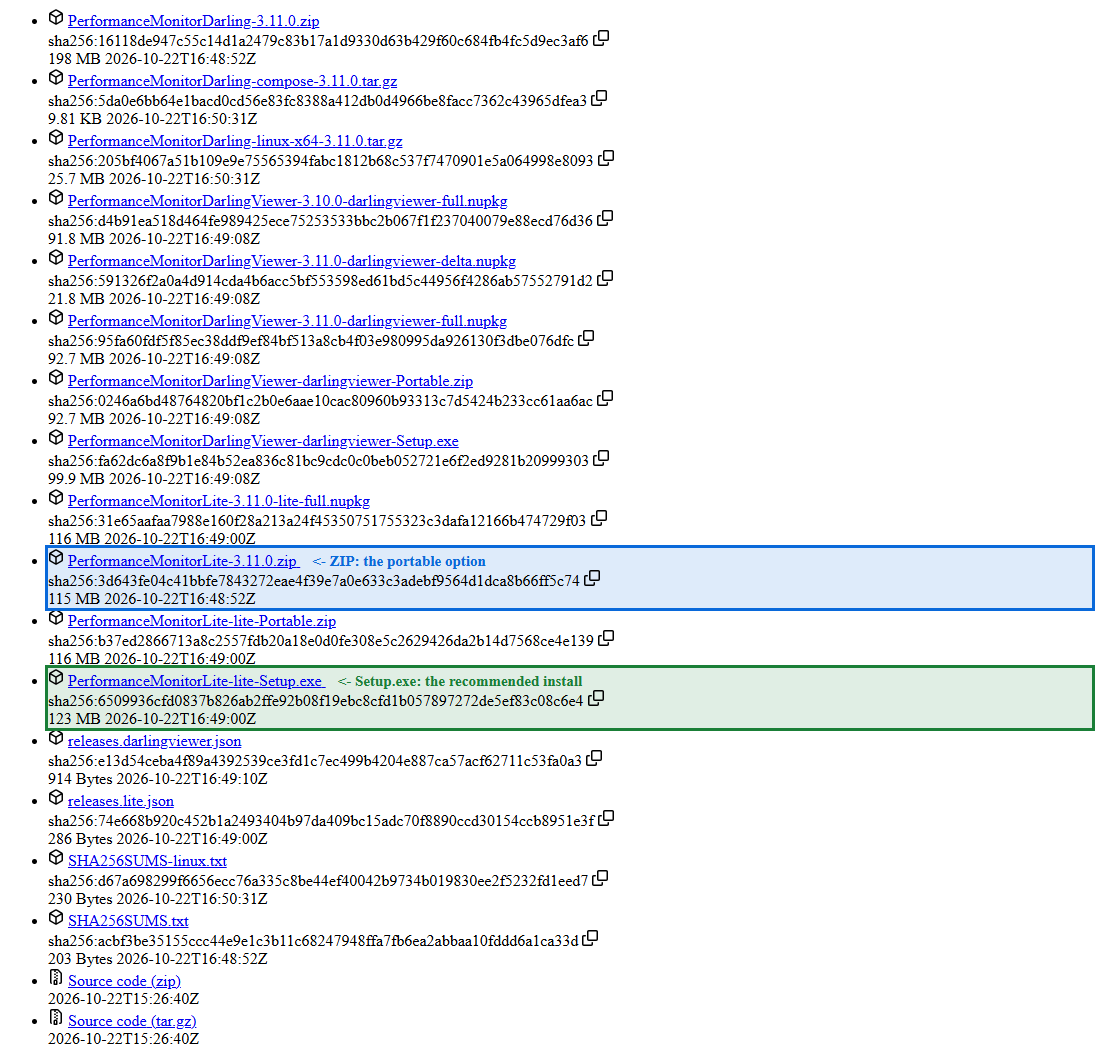
Open the latest release on GitHub and look at the Assets list. Two files are for Lite.
| File | What it is |
|---|---|
PerformanceMonitorLite-lite-Setup.exe |
The installer, and the one we recommend. It installs to %LocalAppData%\PerformanceMonitorLite, adds Start Menu and Desktop shortcuts, adds an entry to Apps & features, and updates itself. |
PerformanceMonitorLite-<version>.zip |
The portable option. Unzip it anywhere and run PerformanceMonitorLite.exe. No installer runs, so it adds no shortcuts and no Apps & features entry. To move to a newer version, unzip the newer ZIP and use Import Settings and Import Data in the sidebar. |
The release also lists other files with Lite in the name. The README names only the two files above, so you do not need the others.
2. Install
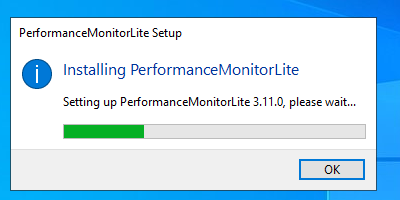
Run PerformanceMonitorLite-lite-Setup.exe. A small window shows a progress bar and needs no input. Setup adds the shortcuts, and Lite starts when it finishes.
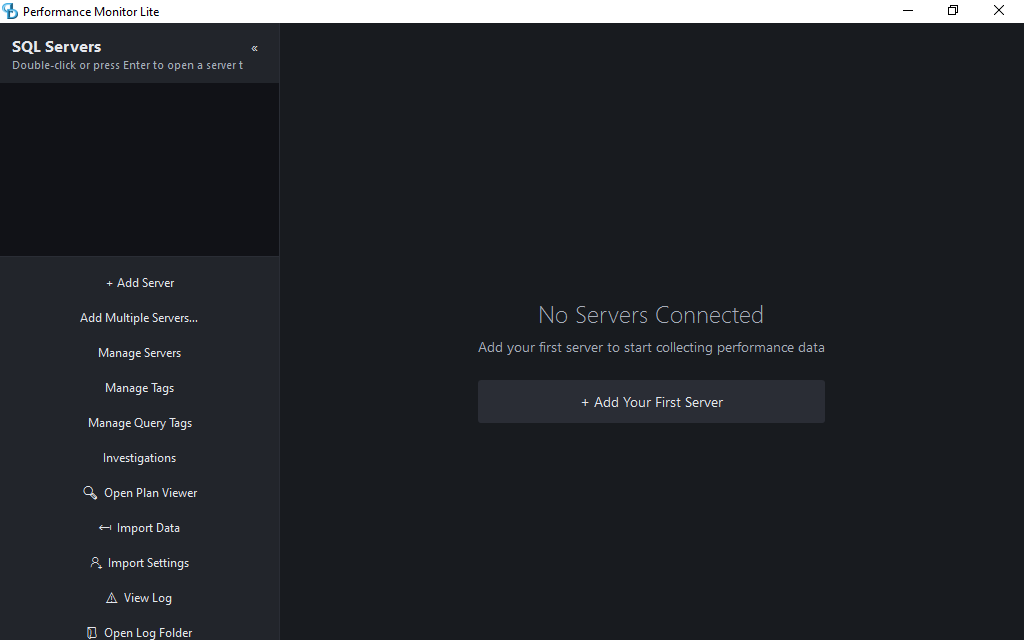
On first start Lite has no servers yet. It shows No Servers Connected and an Add Your First Server button. If you took the ZIP, unzip it, run the exe, and you land on the same screen.
3. Add a server
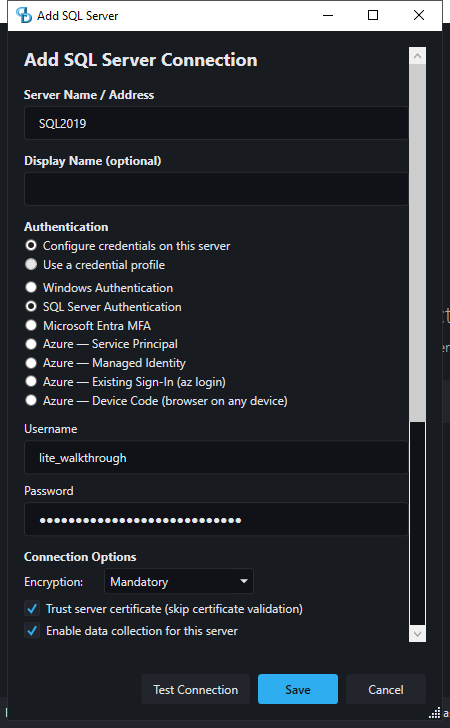
- Click + Add Server, or + Add Your First Server.
- Type the server name in Server Name / Address. In the screenshots it is
SQL2019. - Under Authentication, select SQL Server Authentication, and enter the login name and password. The password box shows dots, not the text. Windows Authentication uses the Windows account that runs Lite.
- Leave Encryption on Mandatory. Tick Trust server certificate only if the server certificate is self-signed or this computer does not trust it. SQL2019 is a lab instance, so we ticked it.
- Click Test Connection. A message reports success and the SQL Server version.
- Click Save.
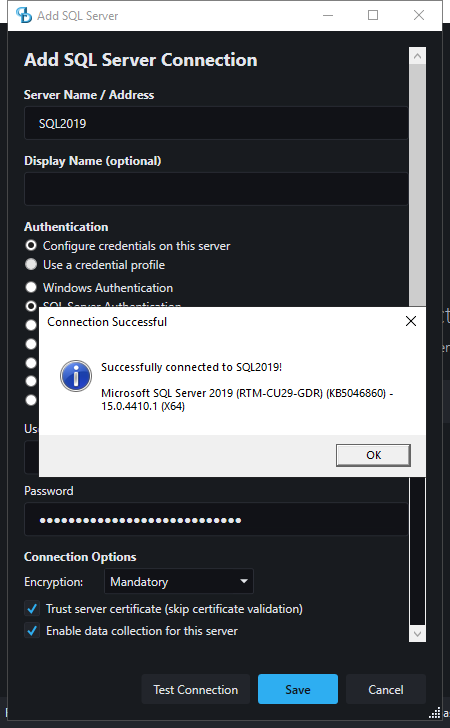
The login in the screenshots has the grants from the Permissions page. The first one is GRANT VIEW SERVER STATE TO [YourLogin]. The page lists the rest.
Lite keeps the server list in %ProgramData%\PerformanceMonitorLite\config\servers.json. Passwords stay in Windows Credential Manager for the Windows user who typed them.
4. First data
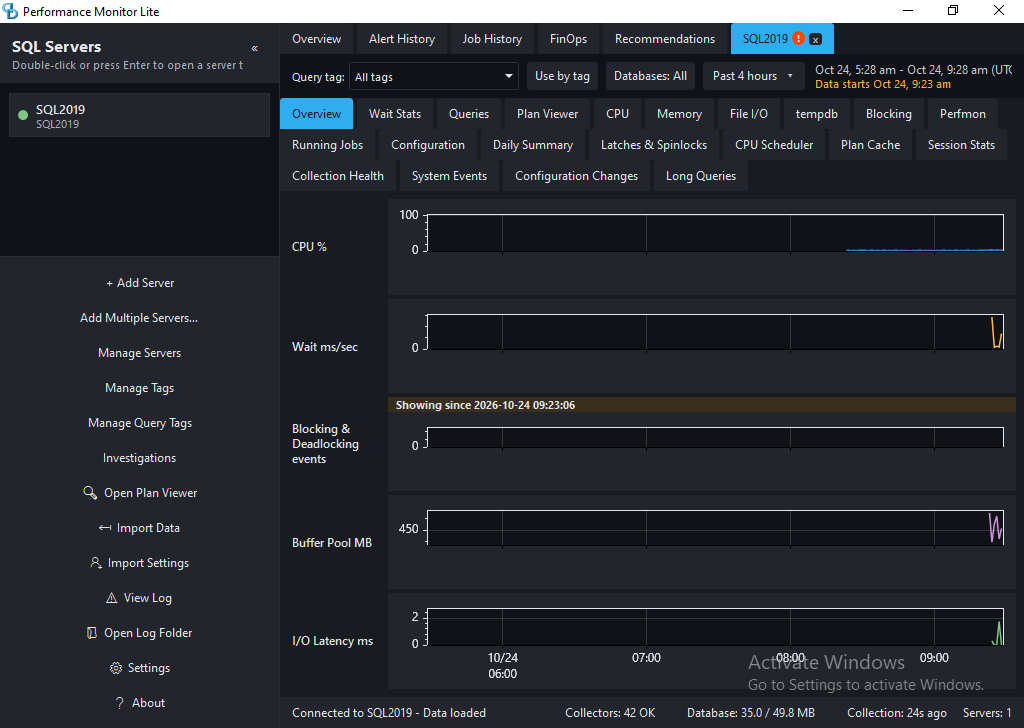
Double-click the server in the sidebar, or select it and press Enter. Its tab opens. The README says data starts to flow within 1 to 5 minutes. In this run the charts had data a few minutes after Save. The lines are short at first because the charts fill over time.
The status bar at the bottom shows the connection state and how many collectors are healthy. It also shows the size of the local database and how long ago the last collection ran.
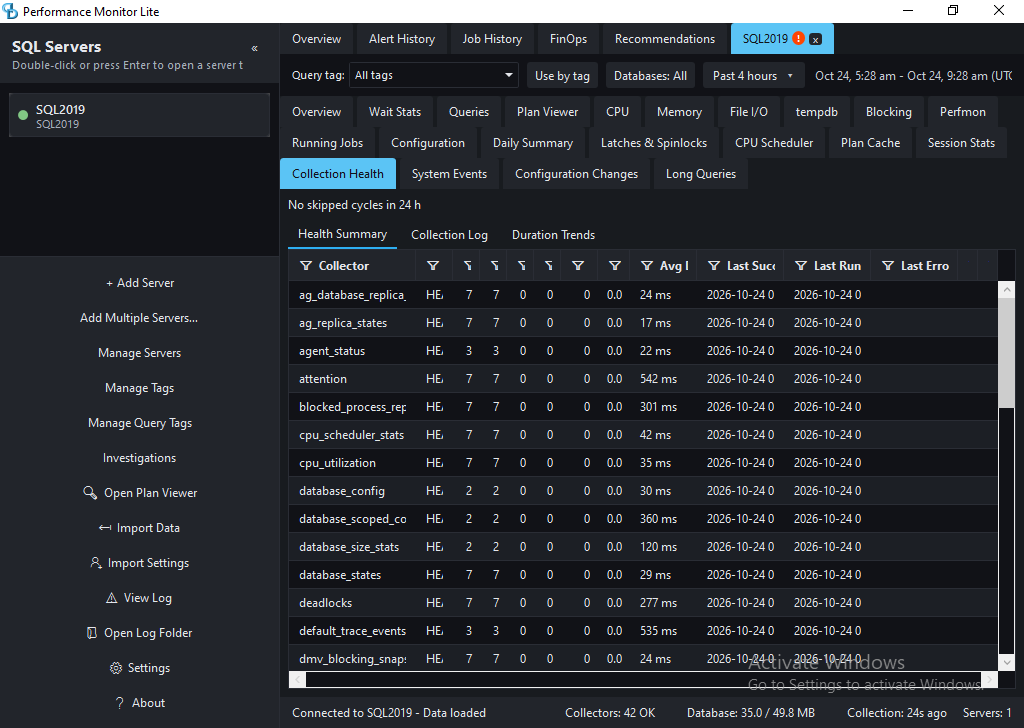
The Collection Health tab lists every collector with its run counts, its average run time, and its last run. If a tab stays empty, look there first.
5. Where the data lives
Lite keeps its data in %LOCALAPPDATA%\PerformanceMonitorLite-Data. That folder is separate from the install folder, so an update or a new Setup.exe run does not touch it.
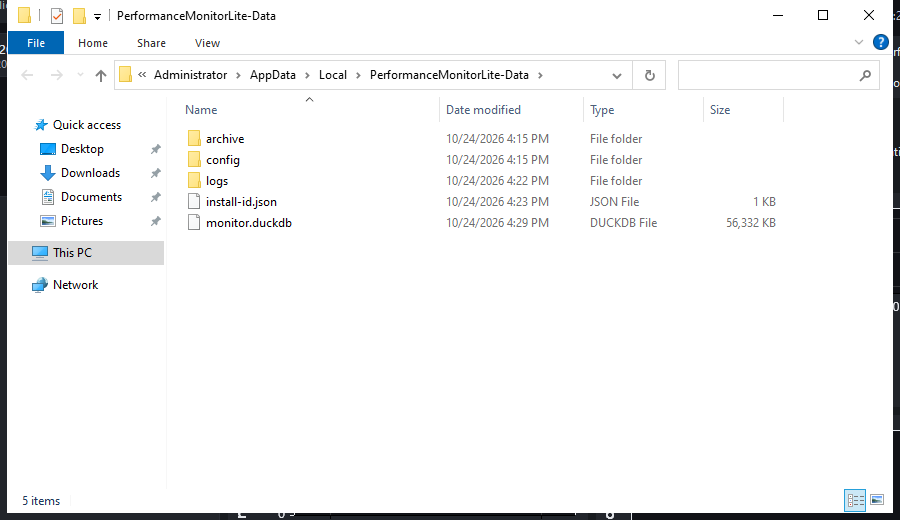
monitor.duckdbholds the recent data, in DuckDB.archiveholds older data as compressed Parquet files. Retention is a rolling 3 calendar months.configholds settings files, such ascollection_schedule.json.logsholds the log files. The sidebar buttons View Log and Open Log Folder open them.
The README gives a typical size of 50 to 200 MB per server per week.
Upgrade
If you installed with Setup.exe, Lite updates itself. You can also run a newer Setup.exe over the existing install. Setup finds the old version and asks first. Click Update.
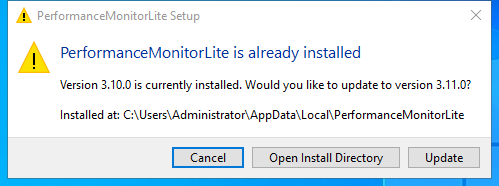
In this run Lite went from 3.10.0 to 3.11.0. The server list was still there when Lite started again.
If you took the ZIP, unzip the newer version. Then click Import Settings and Import Data in the sidebar, and point both at your old Lite folder.
Do not run Setup.exe over an install that is older than the data-relocation fix. On those versions Lite kept its data inside the install folder, and Setup.exe deletes that folder before the new build runs. Update in place instead. Use the About button in the left sidebar, or unzip the portable ZIP over your existing copy. The Lite guide on GitHub has the full warning.
Uninstall
If you installed with Setup.exe, open Settings, then Apps, then Apps & features. Search for PerformanceMonitorLite, select it, and click Uninstall.
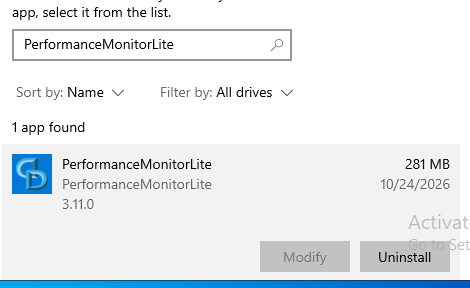
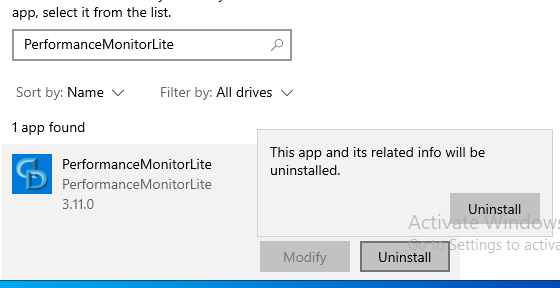
Windows asks you to confirm. Click Uninstall again.
A window then reports Uninstall Complete.
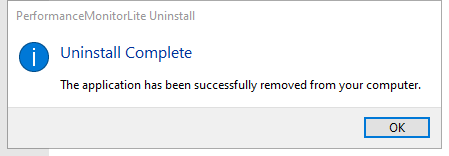
The uninstall removed the install folder. The data folder and servers.json were still there afterward. To remove them, delete %LOCALAPPDATA%\PerformanceMonitorLite-Data and %ProgramData%\PerformanceMonitorLite yourself. Lite also stored a password entry in Windows Credential Manager, with a name that starts with PerformanceMonitorLite_. Delete it there. If you took the ZIP, delete the folder you unzipped.