sp_WhoIsActive is probably one of the most famous utilities in SQL Server. To the point where when I see people using sp_who – sp_who4762, I immediately disqualify their ability as a DBA.
If you think that’s unfair, it’s probably because you use sp_who2.
But anyway, with Mr. Machanic being busy with outside of SQL Server projects, the script hadn’t been getting much attention lately. Since I had been working on a couple issues, and saw other piling up, I offered to help with Adam’s project in the same way I help with the First Responder Kit stuff.
hired
I’ll be working on issues over there to get new stuff and bug fixes into the script. If there’s anything you’d like to see in there, or see fixed, let us know!
Help You
If you’re hitting an issue with the script and you want to do some investigating, here’s what I suggest doing.
Run that along with any of the other parameters you’re using, and click on the sql_text column, that’ll give you the whole query that WhoIsActive runs. Paste that into a new SSMS window, and get rid of the XML artifacts like <?query -- and --?>.
After that, you’ll have to declare a few variables to make things run correctly:
After that, you can hit F5 and it’ll run. If your problem is in the main branch of the script that generates all the complicated dynamic SQL, that’ll help you figure out exactly where the problem is.
Thanks!
Going Further
If this is the kind of SQL Server stuff you love learning about, you’ll love my training. Blog readers get 25% off the Everything Bundle — over 100 hours of performance tuning content. Need hands-on help? I offer consulting engagements from targeted investigations to ongoing retainers. Want a quick sanity check before committing to a full engagement? Schedule a call — no commitment required.
Starting SQL: Monitoring Active Queries With sp_WhoIsActive
Going Further
If this is the kind of SQL Server stuff you love learning about, you’ll love my training. Blog readers get 25% off the Everything Bundle — over 100 hours of performance tuning content. Need hands-on help? I offer consulting engagements from targeted investigations to ongoing retainers. Want a quick sanity check before committing to a full engagement? Schedule a call — no commitment required.
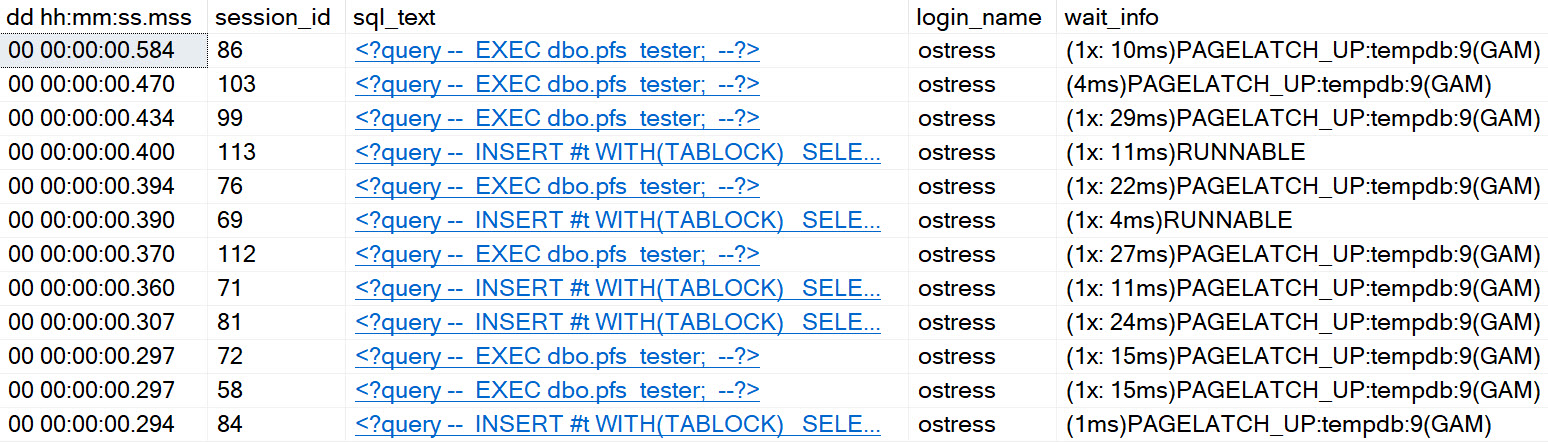
Even on SQL Server 2019, with in-memory tempdb metadata enabled, and an appropriate number of evenly sized data files, you can experience certain types of contention in tempdb.
It’s better. It’s definitely and totally better, but it’s still there. With that in mind, I wrote a stored procedure that you can stick in your favorite stress tool, to see how tempdb handles different numbers of concurrent sessions. You can download it here, on GitHub.
If you need a tool to run a bunch of concurrent sessions against SQL Server, my favorite two free ones are:
If you’re on < SQL Server 2016, you might need trace flags 1117 and 1118
You might have a bunch of other stuff hemming up tempdb, too
Check out this video for some other things that can cause problems too.
Thanks for reading!
Going Further
If this is the kind of SQL Server stuff you love learning about, you’ll love my training. Blog readers get 25% off the Everything Bundle — over 100 hours of performance tuning content. Need hands-on help? I offer consulting engagements from targeted investigations to ongoing retainers. Want a quick sanity check before committing to a full engagement? Schedule a call — no commitment required.
Okay look, you probably should update stats. At least when you do it, you have some control over the situation.
If you let SQL Server get up to its own devices, you might become quite surprised.
One after-effect of updated stats is, potentially, query plan invalidation. When that happens, SQL Server might get hard to work coming up with a new plan that makes sense based on these new statistics.
And that, dear friends, is where things can go bad.
New Contributor ?
Let’s say we have this query, which returns the average post and comment score for a single user.
CREATE OR ALTER PROCEDURE dbo.AveragePostScore(@UserId INT)
AS
BEGIN
SET NOCOUNT, XACT_ABORT ON;

SELECT u.DisplayName,
       AVG(p.Score * 1.) AS lmao_p,
       AVG(c.Score * 1.) AS lmao_c
FROM   dbo.Users AS u
JOIN   dbo.Posts AS p
    ON p.OwnerUserId = u.Id
JOIN   dbo.Comments AS c
    ON c.UserId = u.Id
WHERE u.Id = @UserId
GROUP BY u.DisplayName;

END;
GO
Most of the time, the query runs fast enough for the occasional run to not end too poorly.
But then a recompile happens, and a new contributor decides to look at their profile.
Okay To Worse
What comes next you could fill a textbook with.
EXEC dbo.AveragePostScore @UserId = 3150367;
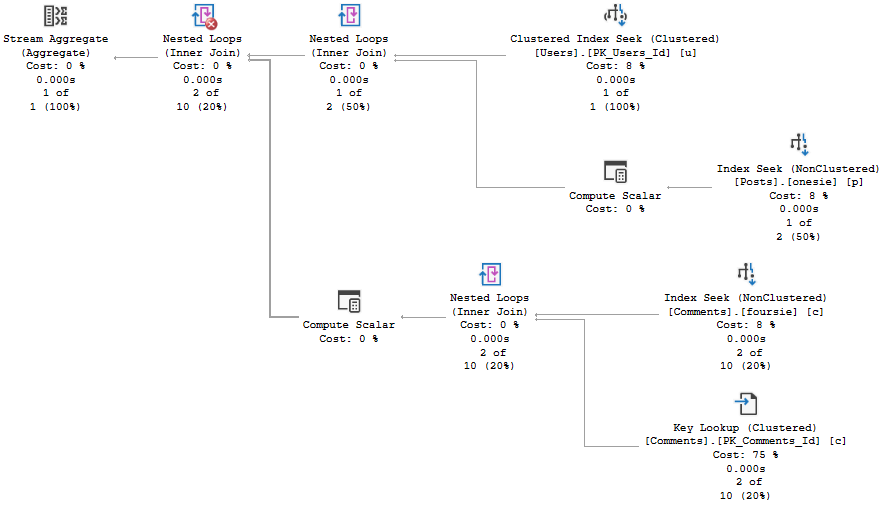
A new plan gets compiled:
wouldn’t get far
And you know, it looks great for a new user.
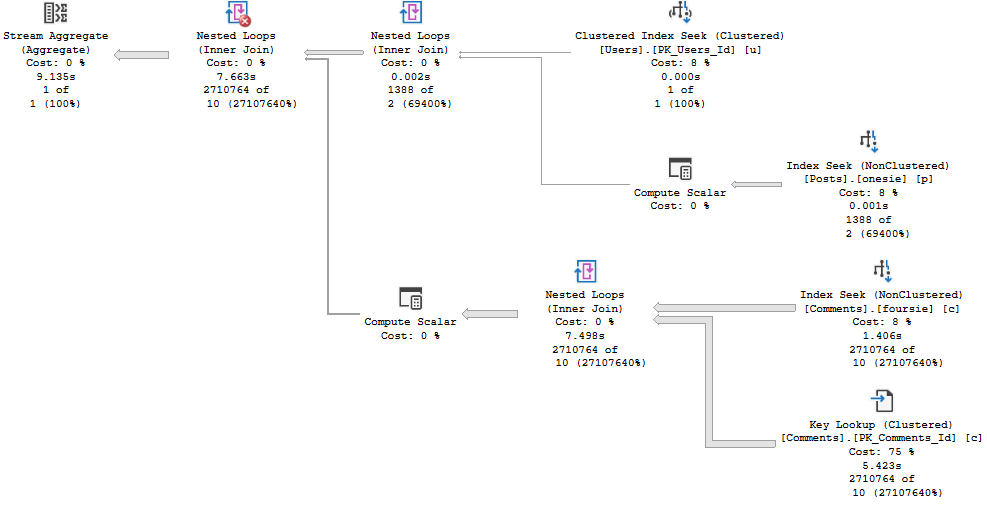
And you know, it looks not so great for a slightly more seasoned user.
you shouldn’t have!
So What Changed?
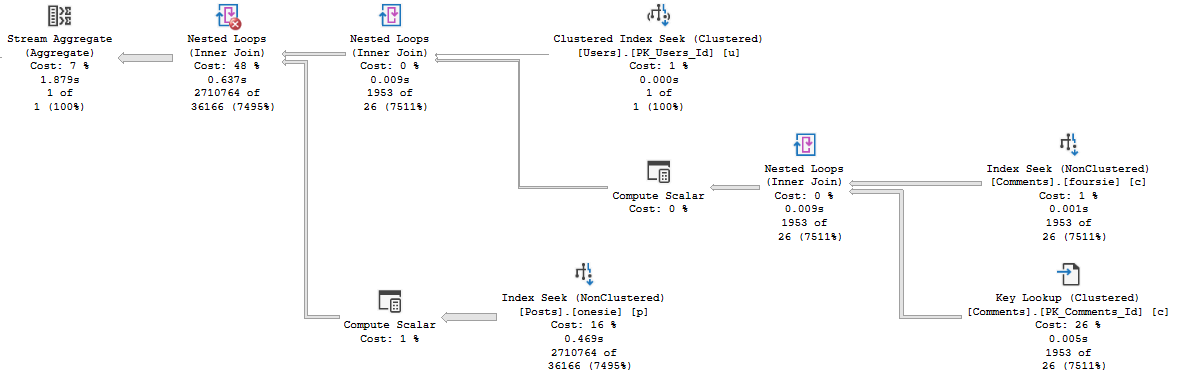
Running the query first for a user with a bit more site history gives us a plan with a very different shape, that finishes in under 2 seconds. Repeating that plan for less experienced users doesn’t cause any problems. It finishes in very little time at all.
JERN ERDR
The plan itself remains largely more familiar than most parameter sniffing scenarios wind up. There are plenty more similarities than differences. It really does just come down to join order here.
Alright, now we know what happened. How would we figure out if this happened to us IRL?
I Shot The Trouble
We can do what we did yesterday, and run sp_BlitzFirst. That’ll warn us if stats recently got updated.
To use DBCC FREEPROCCACHE to target a specific query, you need the sql handle or plan handle. You don’t wanna jump off and clear the whole cache here, unless you’re desperate. Just make sure you understand that you might fix one query, and break others, if you clear the whole thing.
It’s better to be targeted when possible.
And of course, if you’ve got Query Store up and running, you may do well to look at Regressed or High Variance query views there, and force the faster plan.
Thanks for reading!
Going Further
If this is the kind of SQL Server stuff you love learning about, you’ll love my training. Blog readers get 25% off the Everything Bundle — over 100 hours of performance tuning content. Need hands-on help? I offer consulting engagements from targeted investigations to ongoing retainers. Want a quick sanity check before committing to a full engagement? Schedule a call — no commitment required.
This isn’t the way most people do it, but it is the least impactful.
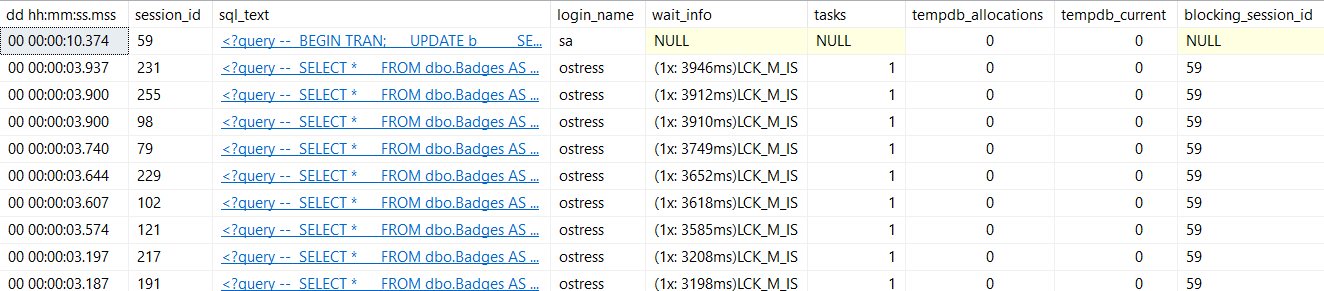
You get back the normal set of results:
peachy
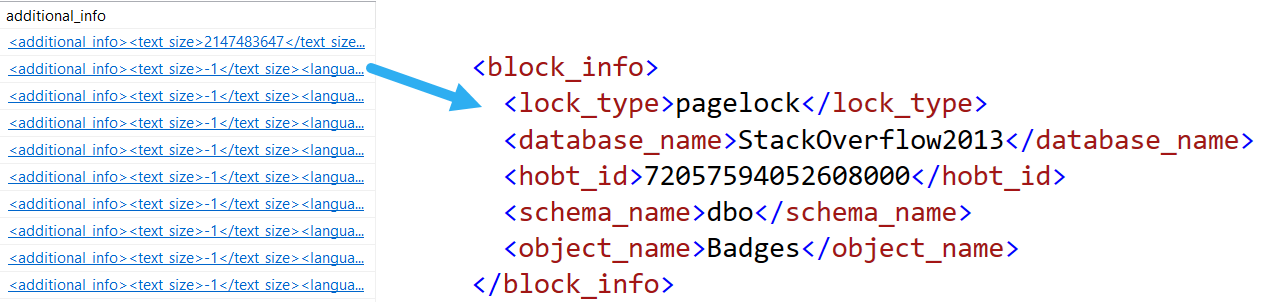
Cool, you can see queries, lock waits, and blocking sessions. But a short scroll to the right also brings you to this additional_info clickable column:
oily water
It’s not so helpful for the query doing the blocking, but it’ll tell you what the queries being blocked are stuck on.
The usual way
EXEC sp_WhoIsActive @get_locks = 1;
This is the way I normally demo looking for blocking with it, because it is more useful to see what the blocking query is doing.
But I’ve also had it be slow. Really, really slow.
That can happen when there is JUST SO MUCH BLOCKING that it takes a long time to enumerate all of it.
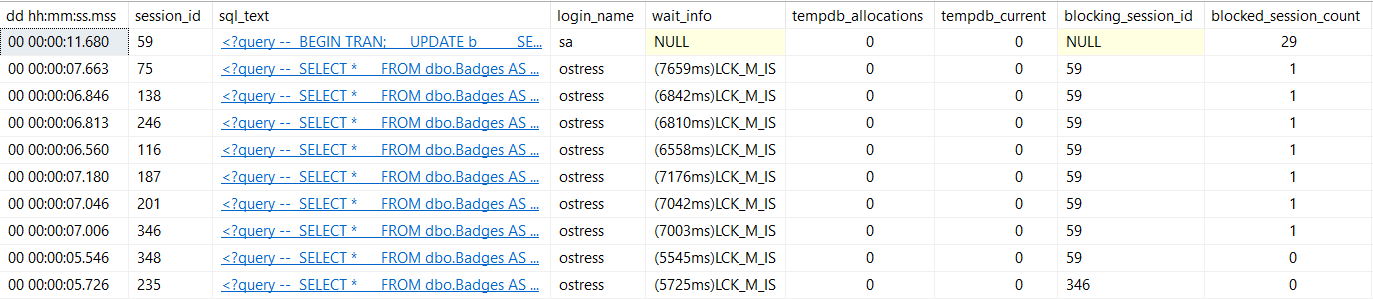
It’s not always obvious by runtime which session is causing blocking, so you can use this command to find blocking chains, and order output by who’s doing the most blocking.
troubleshot
Fixins
When you need to troubleshoot live blocking, these are the ways I usually check in on things with sp_WhoIsActive. It’s hard to beat.
We’ve peeled back a couple scenarios where oddball things can slow a server down. Tomorrow we’ll look at a new one!
What’ll it be?
Your guess is not as good as mine.
Thanks for reading!
Going Further
If this is the kind of SQL Server stuff you love learning about, you’ll love my training. Blog readers get 25% off the Everything Bundle — over 100 hours of performance tuning content. Need hands-on help? I offer consulting engagements from targeted investigations to ongoing retainers. Want a quick sanity check before committing to a full engagement? Schedule a call — no commitment required.
In this video, I delve into the world of troubleshooting parameter sniffing using SPWhoisActive, a powerful yet often underutilized tool that has been around for years. I walk through practical scenarios where you might encounter performance issues and demonstrate how SPWhoisActive can be your ally in diagnosing these problems quickly. By leveraging features like `get average time`, `get outer command`, and `get plans`, I show how to identify parameter sniffing issues, understand the impact of different parameters on query execution, and explore various tuning options to mitigate performance bottlenecks. Whether you’re dealing with a server that’s suddenly under heavy load or simply want to enhance your troubleshooting toolkit, this video provides actionable insights and practical examples to help you navigate these challenges effectively.
Full Transcript
Erik Darling here with Erik Darling Data. And I wanted to record a video, which is why I’m recording a video. I’m having a lot of fun today. I wanted to record a video about troubleshooting parameter sniffing using SPWhoisActive. It’s such a wonderful free tool that’s, you know, been around for so long. But there’s a lot of overlooked stuff in there, and there’s a lot of things, there’s a lot of things that you can do with it that can help you troubleshoot tough issues like parameter sniffing. Now, yes, you can log it to a table, and yes, there are plenty of blog posts out there that teach you how to do that. But, you know, sometimes it’s the middle of the day. You’re sitting by your computer anyway. And we realize that not everyone is soul bound to the F5 key. But say that, you know, you’re sitting there, you’re monitoring tool, and, you know, starts throwing alerts about CPU being really high, or users start, you know, rushing into your, well, I mean, rushing into your Zoom meeting, saying things are slow, or, you know, slack alerts, whatever it is, you get, you, the server is on fire. And you want to figure out what’s wrong. Now, SPWhoisActive can show you all sorts of great stuff. There’s nothing running on my home server right now. So this is going to be blank. But, you know, if you were to run it, you can find all sorts of things, like you might see the blocking session ID column populated. So you might just be dealing with a blocking thing, not a parameter sniffing thing.
necessarily like a query performance thing. You know, blocking will make queries feel slow. It’s not actually queries running slow, it’s queries being blocked from running. So just turn on RCSI, you’ll save yourself a lot of trouble and heartache down the line. But, you know, what if it is parameter sniffing? What if what if we need to figure out if it’s parameter sniffing in pretty quickly? Well, let’s come over here and run our store procedure. And while this is running, you know, you run SPWhoisActive and you might see some stuff happening. You know, you might see that something’s been running for a few seconds, you might see reads creeping up, but you don’t necessarily know that it’s slow. One way to tell if it is slower than usual is to use the get average time parameter. If we run this, we’ll see the query current duration. We’ll also see that the average duration is 111 milliseconds. That’s pretty bad. You know, we’re up to 27 seconds now. And usually this thing runs really quickly. So what on earth is going on? Well, if we look at the query text, we’ll have parent ID in there. And we’ll see that I mean, this is parameterized, but we need to get thing we need to go a step further. We need to get we need to figure out what the parameter value is, right? So let’s run this with get at get I know, I’m not supposed to type in demos, but I’ve been practicing. I got my Mavis beacon CD. Everything is wonderful. So let’s run this with get outer command equals one with nothing executing on the server. Well, it’s what’s the point, right? But if we run that with this thing now? Well, let’s see. Now we have another line of text here. Now notice that the average time did bump up a little because you know, obviously, that thing ran for 40 something seconds. So this did skew up a little bit. But that’s not really the point of what I want to show you for this run. In real life, I would expect you I would expect you to read my mind and read my screen and then just run the command as it is. But we get some extra help here. We can see that using the SQL command, we’re using the get outer command parameter, we now get the SQL command line. So this showed us the query text from the store procedure that was currently in the SQL command.
What we’re currently executing. This will show us how the store procedure was currently executing. Like what the parameter value passed in was, which is really, really helpful when you’re troubleshooting a parameter sniffing scenario. Because now we can see, golly and gosh, this thing sure did get a parameter passed in. But now we know what it ran with and we know the parameter that it was slow running with. So the next step we have to take and this is a little bit redundant now because newer versions of SQL Server give you, you know, a little bit more information about the queries that are actively running. But if we run our store procedure, and we run this, now we’ll have additional information back. So like the average time creeped up a little bit again, because you know, we ran the long running store procedure again. We’ll get back the SQL text, we’ll get back the SQL text, we’ll get back the oops, didn’t mean to click on that, we’ll get back how the store procedure was executed. But now using the get plans parameter, we’ll also get execution plans. And if we look at the execution plan, we can see some stuff in here that that does sort of make our query more sensitive to parameter sniffing.
We’ve got some nested loops joins. And you know, when you’re troubleshooting a problem like this, you know, I don’t want you to walk away thinking that like, lookups are always bad, or that like nested loops joins are always bad. But these are the kind of choices that the optimizer makes, where your queries can become more sensitive to parameter sniffing issues, when your data is really massively skewed. So, you know, when this plan was compiled, I don’t think that the optimizer was like, oh boy, we’re going to have this thing run for 45 seconds, just to mess with your day.
Well, we know that it was executing with a parent ID of zero getting passed in for the parameter. But let’s go look at the execution plan. And we’ll get that select operator. And now when we look at the we look at the execution line, we see the stuff that might be sensitive to parameter sniffing here, you know, might be some other stuff going on. But we get a little grab the select operator and get the properties there. We can do that by right clicking and hitting properties or by hitting F4.
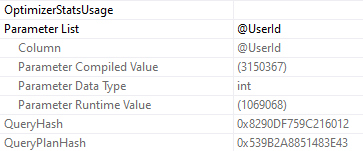
But this properties thing will open up. And if we look at the parameter list, again, newer versions of SQL Server make this a little bit a lot easier, you know, like I’m on this is I’m downloading this on SQL Server 2019. But we can see the parameter compile value was 184618. And the parameter runtime value is zero. So how is this helpful? Well, now we know how to test the store procedure, right?
So we can we know that we have a runtime value of zero and a compile time value of 184618. So I’m going to copy this. All right. And let’s let’s close this to and let’s go back to our store procedure here. Paste that in, get rid of that. And let’s see what happens when we execute sniffles over here with a parameter compile value of 184618.
Well, this is running crazy fast. All right. This runs very, very quickly. All right. Nothing, nothing bad there. When we look at the execution plan, we can see just how quickly this thing runs. But, you know, this is where you have to start making some tuning decisions, because obviously if we run it for 184618, everything’s fine.
If we run it for zero, everything is not fine. This will run for about 45 seconds. But if we I’m going to mess this up because I always I always mess this up. But if we clear out the plan cache and we run this for parent ID zero first, this finishes very quickly.
Right. We have a different execution plan. And now if we run this for 184618, it’s still going to be relatively quick. Right. A lot faster than when when when when the plans got shared in the in the in the opposite order.
So we’d have to ask some questions here. Right. Did did we get a bad plan because 184618 was like the compile value? Is parent ID zero not something that people usually pass in?
You know, should we optimize for parent ID equals zero? You know, should we recompile constantly looks like there’s lots of questions that we could ask ourselves about how we want to fix this. Maybe if we’re feeling crazy, we could we could, you know, change that.
We could rewrite the query or, you know, change indexes to fix the key lookup. There’s a lot of options on the table. There’s a lot of different things you could think about. It’s all going to come down to, you know, what you’re most comfortable with or like how much control you have over the code or the indexes or the application itself.
So there’s all sorts of stuff we could do here. You know, we could even force plans with query store. We could create plan guides. Maybe they’d even work. I don’t know.
It’s crazy. Just don’t wait for the robots to fix it. That’s that’s my advice. Don’t wait for the robots. If you let the robots one up you once, they’ll never stop.
Never be able to live that down. Anyway, when you’re looking when you’re troubleshooting parameter sniffing and you’re sitting in front of the server, SB who is active is a great tool to do that.
And the parameters that I use with SB who is active to help me get the most out of trying to get to the root cause of a parameter sniffing issue are get average time equals one, which will show you which will go into the plan cache and look at how long this query executes for on average. And it will tell you and you can help figure out is this thing running much more slowly than usual or is this thing running slow as usual.
If you’re if it’s a store procedure, get outer command equals one is very helpful because it will show you like just the regular execution shows you the text of the query that’s executing. Using get outer command will also get you the stored procedure and the current execution values for it. And of course, get plans equals one will get you the execution plan on newer versions of SQL Server.
This does kind of make get outer command a little bit redundant because we get the parameter compile value and the runtime value. But on older versions of SQL Server, you could probably do with getting both. But this the getting the execution plan back is probably pretty helpful no matter what, because this is what we start figuring out what which part of our query plan is sensitive to parameters nothing and trying to figure out if and how we want to fix it.
I think it sounded good. We might just want to let it go because we hate our server. We want it to burn slowly.
We want to migrate to a real database. Like text files or Excel or access. I don’t know.
You people are crazy. You know, maybe you just want to write your own database. Just import the Python database library and you’re set. Just forget about SQL Server.
Anyway, thank you for watching. I hope you learned something and I’ll see you in another video sometime. Bye. Bye.
Going Further
If this is the kind of SQL Server stuff you love learning about, you’ll love my training. Blog readers get 25% off the Everything Bundle — over 100 hours of performance tuning content. Need hands-on help? I offer consulting engagements from targeted investigations to ongoing retainers. Want a quick sanity check before committing to a full engagement? Schedule a call — no commitment required.
In the last post, we looked at how to see if your query is misbehaving, or if things are running normally.
Note that I didn’t say “good” here. Just normal.
For you.
What Have You Done For Me Lately?
Using sp_WhoIsActive in a slightly different way, we can see what a query has been up to over a duration of our choosing.
The delta columns are what happened over the span of time we pick. The columns that come back normally are cumulative to where the query is at now.
So for a 5 seconds interval:
EXEC sp_WhoIsActive @delta_interval = 5;
Stacked
I’m stacking a couple screens shots from the normal single line of results, because they’re a little too wide all at once.
What deltas can help you figure out is how “active” your query really is.
In other words, it can answer the question: is my query stuck, or is my query doing something?
As an example, here’s a query that opened a transaction, ran an update, and then… sat there.
Over all, we’ve done 4.4 million reads, 80k writes, and used about 7k ms of CPU.
But in the last five seconds, we haven’t done anything at all.
Thanks for reading!
Going Further
If this is the kind of SQL Server stuff you love learning about, you’ll love my training. Blog readers get 25% off the Everything Bundle — over 100 hours of performance tuning content. Need hands-on help? I offer consulting engagements from targeted investigations to ongoing retainers. Want a quick sanity check before committing to a full engagement? Schedule a call — no commitment required.
Look, it’s impressive enough that sp_WhoIsActive works as well as it does. Most people who’ve been using it for a while are familiar with using @get_plans to retrieve query plans, or @get_locks to see locking information. I’m gonna spend a couple posts talking about less well known flags that I really like.
We’re gonna start off with one that can help you figure out if a particular query is misbehaving, or if things are just cruising along normally.
Nipples
I’ve got a stored procedure. What it does is unimportant. What’s important is that it’s sensitive to parameter sniffing.
We may not know this walking into an emergency, but we can figure it out pretty quickly using sp_WhoIsActive.
EXEC sp_WhoIsActive @get_avg_time = 1;
Breathe Easy
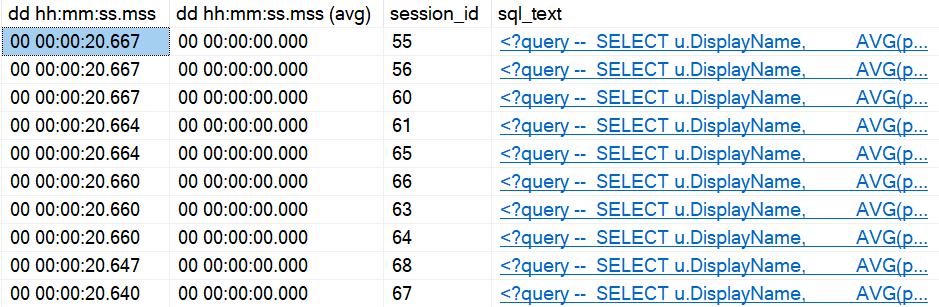
This’ll give us back the usual information about how long our query has been running, but now right next to it is another column that ends in (avg).
When you use this switch, sp_WhoIsActive goes into the plan cache and looks at how long a particular query runs for on average.
If that number is much lower than how long the query has been running for, and it isn’t being blocked, you just might have a case of parameter sniffing on your hands.
Thanks for reading!
Going Further
If this is the kind of SQL Server stuff you love learning about, you’ll love my training. Blog readers get 25% off the Everything Bundle — over 100 hours of performance tuning content. Need hands-on help? I offer consulting engagements from targeted investigations to ongoing retainers. Want a quick sanity check before committing to a full engagement? Schedule a call — no commitment required.
But when I do, it’s usually to tell people they should use RCSI, and then disappear in a cloud of smoke.
Recently I was thinking about lock promotion, because that’s what happens when I get lonely.
While digging around, I found some interesting stuff.
This is the part where I share it with you.
Without Five I Couldn’t Count To Six
The first thing I wanted was a table that I wouldn’t care about messing up, so I made a copy of the Users table.
SELECT *
INTO dbo.IDontCareAboutUsers
FROM dbo.Users AS u

ALTER TABLE dbo.IDontCareAboutUsers
    ADD CONSTRAINT pk_IDontCareAboutUsers_id PRIMARY KEY CLUSTERED (Id);
Then I picked on a Reputation that only has one entry in the table: 20720.
BEGIN TRAN
UPDATE idcau
SET idcau.Reputation = 0
FROM dbo.IDontCareAboutUsers AS idcau
WHERE idcau.Reputation = 20720
OPTION(MAXDOP 4)

ROLLBACK
What followed was a full morning of wishing I paid more attention in internals class.
Number One
The first thing I found is that there were 16 attempts at promotion, and four successful promotions.
4×4
Why did this seem weird? I dunno.
Why would there be only 4 successful attempts with no competing locks from other queries?
Why wouldn’t all 16 get promotions?
Number Two
Well, that’s a parallel plan. It’s running at DOP 4.
I added the hint in the update query above so I wouldn’t have to, like, do more to prove it.
Plantar
Okay, maybe this makes a little more sense. Four threads.
If each one tried four times, maybe another thread was like “nah, yo”, and then got by on the fifth try.
Number Three
Looking at perfmon counters before and after running showed.. exactly four!
This isn’t wrong, necessarily. This is how things look in the DMVs it touches after the update runs, but the transaction is still open.
I’m not mad, but I am curious. I wanna know what happened in the middle.
Number Five
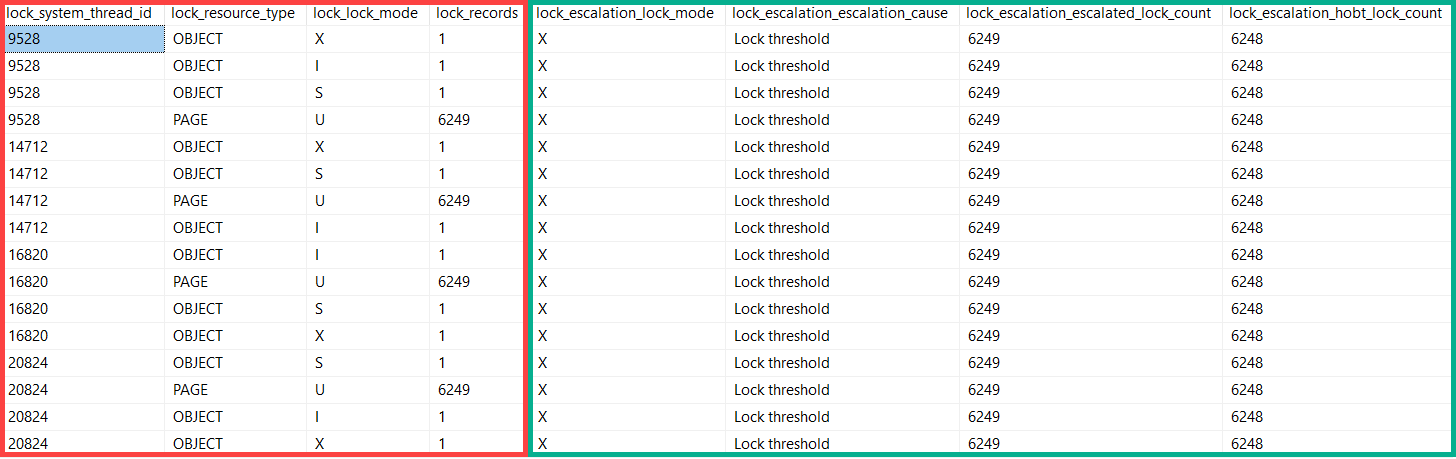
I set up a couple Extended Event sessions, one to capture locks acquired, and one to capture lock escalations.
This was neat.
Tell’em, picture
The red rectangle comes from locks acquired during the course of the update. You can see four separate threads going through and grabbing locks.
Each thread got the okay to escalate at 6,249 page locks.
Number Six
Lock promotion isn’t only denied when competing locks on the table are held by other queries.
Modification queries taking locks will attempt promotion every 1,250 locks.
Documentation regarding lock promotion points to at least 5,000 locks needing to be held before it occurs, as one factor (incompatible locks not being present are another).
If we have four threads asking every 1,250 locks (in this case on pages), they all will have made four attempts before finally escalating at 6,249.
6,249 / 1,250 is right around 5, for those who don’t have a calculator installed.
Don’t freak out if your monitoring tool tells you there’s a lot of attempts at escalation, and very few are successful.
It’s not always a sign that there’s blocking, though you may be able to correlate that with lock waits if both are present.
Thanks for reading!
Going Further
If this is the kind of SQL Server stuff you love learning about, you’ll love my training. Blog readers get 25% off the Everything Bundle — over 100 hours of performance tuning content. Need hands-on help? I offer consulting engagements from targeted investigations to ongoing retainers. Want a quick sanity check before committing to a full engagement? Schedule a call — no commitment required.
When someone says that something is slower than it was before, whether it’s a query, a whole SQL Server, a website, or an app screen, it’s almost never while the perceived slowness is happening, nor is it reproducible (especially when a consultant is watching).
There are some basic things you need to have historical record of if you wanna figure it out:
What queries were running
What queries were waiting on
What was different from last time those queries ran
Microsoft has taken some steps to help us figure this out with Query Store, but really only for SQL Server 2017, when aggregated wait stats were added to the family of Query Store views.
But if you’re like most people, you’re not on SQL Server 2017, and even further into that segment, you don’t have Query Store enabled.
I think there’s more Microsoft could do to improve data that’s collected, but right now it’s just a collection of votes.
Right now, the GUI is so limited in what you can search for that I wrote a sp_QuickieStore to make working with the data easier.
Compared To What?
If you’re on older versions of SQL Server, including those about to be taken off life support, what are your options?
You can use sp_WhoIsActive, and log those results to a table
For Money!
There’s a whole landscape of SQL Server monitoring tools out there, as well as things people get confused with SQL Server monitoring tools.
Ultimately, the best monitoring tool for you is one you:
Will actually use
Will enable you to find problems
Will enable you to solve problems
Getting overwhelmed with meaningless metrics (there werehow many logouts per second?!), standalone charts that don’t allow you to correlate system activity to resource usage (save as image?!), or long lists of queries that may or may not run when anyone cares (yes, CHECKDB did a lot of reads, thanks) doesn’t help anyone. If that sounds like your monitoring tool, it might be time to trade it for a carton of Gatorade.
You’ve got a glorified FitBit strapped onto your SQL Server.
Here And Now
What’s currently happening on your SQL Server is often only a symptom of what’s been happening on your SQL Server for a long time.
There are very few problems I’ve seen that are truly “sudden”, unless someone recently made an ill-advised change to the server, like dropping an important index, etc.
The longer you let things like aging hardware, growing data, and ignoring query and index problems go, the worse things get.
Monitoring your server is a good first step, but it’s still up to you to address the problems, and address the right problems.
Thanks for reading!
Going Further
If this is the kind of SQL Server stuff you love learning about, you’ll love my training. Blog readers get 25% off the Everything Bundle — over 100 hours of performance tuning content. Need hands-on help? I offer consulting engagements from targeted investigations to ongoing retainers. Want a quick sanity check before committing to a full engagement? Schedule a call — no commitment required.