Starting SQL: Why Your Query Can’t Go Parallel, Table Variables Edition

SURPRISE!


The important thing to understand about parallelism is it’s great when appropriate. Striking a balance between what should go parallel, the CPU usage it’s allowed, and what should stay serial can be tough.

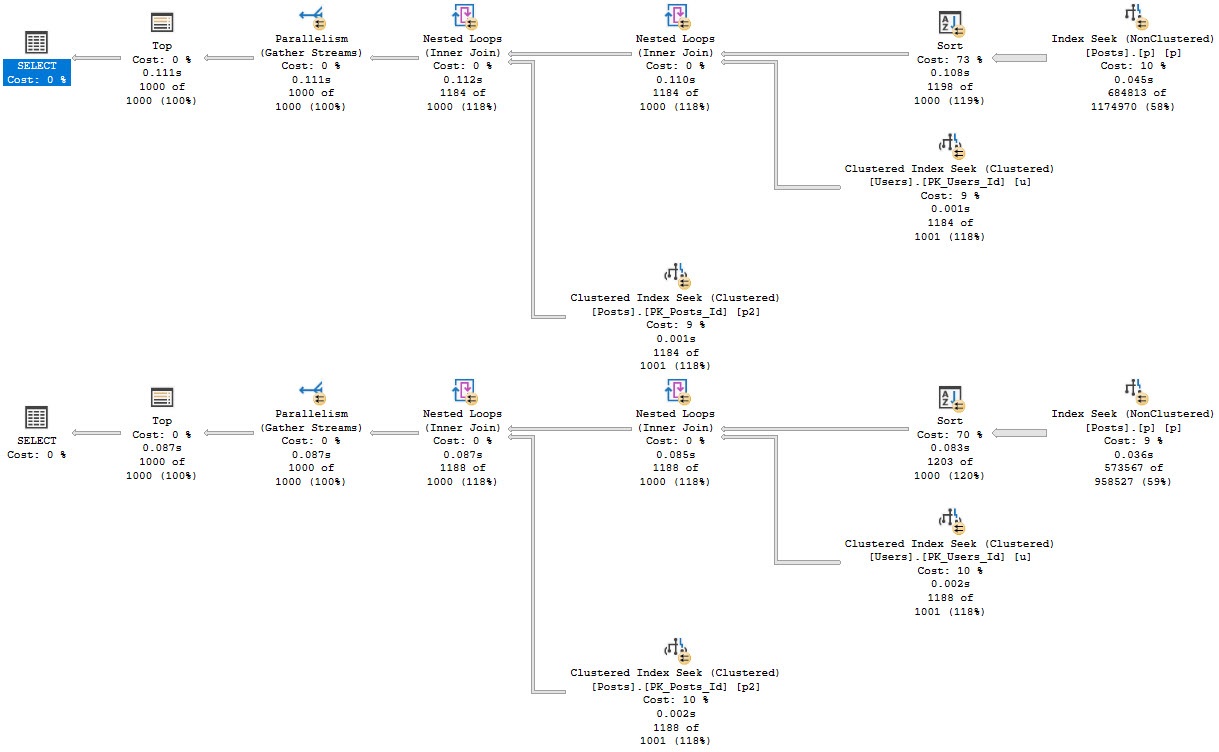
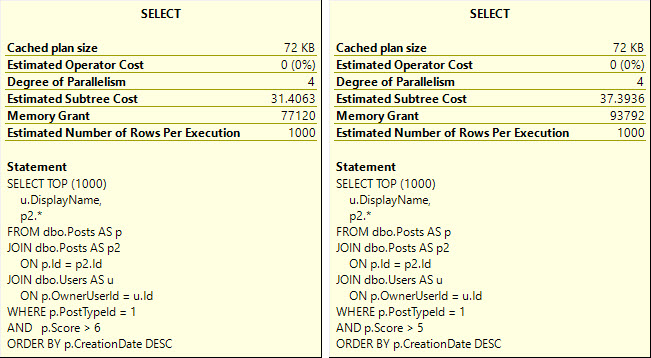
It can be especially difficult when parameter sniffing comes into play. Here are a couple scenarios:

  • For a small amount of data, a serial query plan runs quickly and uses relatively few resources
  • For a large amount of data, a query re-uses the serial plan and runs for >20 seconds
  • For a small amount of data, a re-used parallel plan overloads the server due to many concurrent sessions
  • For a large amount of data, the re-used parallel plan finishes in 2-3 seconds

What do you do? Which plan do you favor? It’s an interesting scenario. Getting a single query to run faster by going parallel may seem ideal, but you need extra CPU, and potentially many more worker threads to accomplish that.

In isolation, you may think you’ve straightened things out, but under concurrency you run out of worker threads.

There are ways to address this sort of parameter sniffing, which we’ll get to at some point down the line.

Wrecking Crew


One way to artificially slow down a query is to use some construct that will inhibit parallelism when it would be appropriate.

There are some exotic reasons why a query might not go parallel, but quite commonly scalar valued functions and inserts to table variables are the root cause of otherwise parallel-friendly queries staying single-threaded and running for long times.

While yes, some scalar valued functions can be inlined in SQL Server 2019, not all can. The list of ineligible constructs has grown quite a bit, and will likely continue to. It’s a feature I love, but it’s not a feature that will fix everything.

Databases are hard.

XML Fetish


You don’t need to go searching through miles of XML to see it happening, either.

All you have to do is what I’ve been telling you all along: Look at those operator properties. Either hit F4, or right click and choose the properties of a select operator.

2020 09 03 15 35 12
nonparallelplanreasonokaybutwhycanyoupleasetellme

Where I see these performance surprises! pop up is often when either:

  • Developers develop on a far smaller amount of data than production contains
  • Vendors have clients with high variance in database size and use

In both cases, small implementations likely mask the underlying performance issues, and they only pop up when run against bigger data. The whole “why doesn’t the same code run fast everywhere” question.

Well, not all features are created equally.

Simple Example


This is where table variables catch people off-guard. Even the “I swear I don’t put a lot of rows in them” crowd may not realize that the process to get down to very few rows is impacted by these @features.

SELECT TOP (1000) c.Id
FROM dbo.Comments AS c
ORDER BY c.Score DESC;

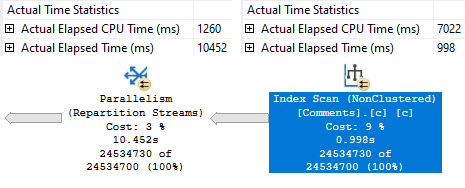
This query, on its own, is free to go parallel — and it does! It takes about 4.5 seconds to do so. It’s intentionally simple.

SQL Server Query Plan
don’t @ me

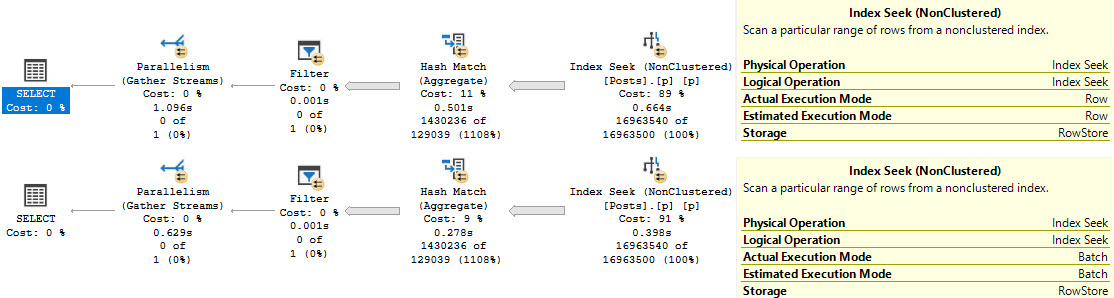
Once we try to involve a @table variable insert, parallelism goes away, time increases 3 fold, and the non-parallel plan reason is present in the plan XML.

DECLARE @t TABLE(id INT);

INSERT @t ( id )
SELECT TOP 1000 c.Id
FROM dbo.Comments AS c
ORDER BY c.Score DESC;
SQL Server Query Plan
well.

Truesy


This can be quite a disappointing ramification for people who love to hold themselves up as responsible table variable users. The same will occur if you need to update or delete from a @table variable. Though less common, and perhaps less in need of parallelism, I’m including it here for completeness.

This is part of why multi-statement table valued functions, which return @table variables, can make performance worse.

To be clear, this same limitation does not exist for #temp tables.

Anyway, this post went a little longer than I thought it would, so we’ll look at scalar functions in tomorrow’s post to keep things contained.

Thanks for reading!

Going Further


If this is the kind of SQL Server stuff you love learning about, you’ll love my training. Blog readers get 25% off the Everything Bundle — over 100 hours of performance tuning content. Need hands-on help? I offer consulting engagements from targeted investigations to ongoing retainers. Want a quick sanity check before committing to a full engagement? Schedule a call — no commitment required.
Starting SQL: Query Memory Grants In SQL Server Execution Plans

Do You Believe?


Memory is so very important to SQL Server performance. It doesn’t solve every problem, but you sure as heck feel it when there’s not enough. Like I said before, memory is a shared resource.

Your buffer pool needs it to cache data pages, and your queries need it for operators that need extra space to write stuff down.

If you constantly have queries and the buffer pool fighting over memory, sure, you might just need more memory. You might also need to grapple with those memory grants in a different way.

You & Me


To recap earlier posts, the most common things you’ll see asking for memory grants in a query plan are Sorts and Hashes. There is one form of optimized Nested Loops that’ll ask for memory, but I don’t see people running into problems with those all too often.

Let’s start with a simple query that will ask for a memory grant to sort data.

SELECT *
FROM 
     (  
        SELECT TOP (1000) 
                 u.Id          -- 166MB (INT)
               , u.DisplayName -- 300MB (NVARCHAR 40)
               , u.WebsiteUrl  -- 900MB (NVARCHAR 200)
               , u.Location    -- 1.3GB (NVARCHAR 100)
               , u.AboutMe     -- 9.4GB (NVARCHAR MAX)
        FROM dbo.Users AS u
        ORDER BY u.Reputation
     ) AS u
OPTION(MAXDOP 1, RECOMPILE);

Now, in a previous post I explained how the optimizer can make some weird guesses about memory grant needs when you get strings involved — not ordering by strings, just selecting them.

The guess made is that string columns will be half full. That can work out okay if your string-column-fullness hovers around the middle ground.

But if it hovers towards the high or low end of how you’ve defined the length of your string columns, you can end up with some crappy memory need estimates.

In the last post, we looked at how much the optimizer would ask for. Now let’s look at how much actually gets used.

Plantains


For the full query, the memory grant is 9.4GB, but only 380MB gets used. That seems bad to be.

2020 09 03 12 44 30
o no.

Now, to be fair, the nice people at Microsoft are attempting to right these wrongs. In SQL Server 2017 we got Memory Grant Feedback, but it was only available for queries with Eau De Batch Mode on.

In SQL Server 2019, it’s available to Row Mode plans. Of course, that’s only in Enterprise Edition. If you’re on Standard Edition, you’re screwed :^)

So for all you screwed folks out there, which is most of you, you might have queries constantly asking for way more memory than they need. In this case, the query asks for about 9.1GB of memory more than it needs.

“Just Select Less”


Well, okay. What if we don’t select that MAX column? All your tables are well-designed, no one has used longer string columns than they should have, and none of your queries select a bunch of columns they don’t need.

SELECT *
FROM 
     (  
        SELECT TOP (1000) 
                 u.Id          -- 166MB (INT)
               , u.DisplayName -- 300MB (NVARCHAR 40)
               , u.WebsiteUrl  -- 900MB (NVARCHAR 200)
               , u.Location    -- 1.3GB (NVARCHAR 100)
        FROM dbo.Users AS u
        ORDER BY u.Reputation
     ) AS u
OPTION(MAXDOP 1, RECOMPILE);

We’ll still ask for 1.3GB of memory, and only use a fraction of it.

2020 09 03 12 47 50 1
just great

What’s interesting is that in total we only use about 100MB less memory without the AboutMe column in there, despite asking for about 8GB less memory.

Reducing Memory Grants


There are a number of ways to help mitigate queries asking for too much memory, but they all depend on what the root cause of the issue is.

  • You might have overly large columns, or queries that do something like select * — you might be able to fix that by rewriting queries. Given enough control, you should resize columns to be a more appropriate size, too.
  • You might be dealing with parameter sniffing, which has a whole bunch of different approaches which will require their own decades of research, ha ha ha.
  • You might be missing an opportune index that could help you avoid a sort, or help the optimizer choose a non-hash join or aggregate.
  • You might be asking queries to put data in order when it’s not necessary
  • You might be using some unfortunate “feature” that messes up cardinality estimation
  • You might be dealing with out of date statistics
  • You might need to apply a query hint to control the size of the grant
  • You might need to use Resource Governor to control the size of memory grants

Of course, all this effort depends on how severe your problems are.

A good way to judge if queries are trampling on each other is to look at resource semaphore waits. That’s queries waiting to get memory to run.

Another might be to look at PAGEIOLATCH_XX waits to see how much time you’re spending reading pages from disk. It’s possible that excessive query memory grants are forcing data out of the buffer pool.

Thanks for reading!

Going Further


If this is the kind of SQL Server stuff you love learning about, you’ll love my training. Blog readers get 25% off the Everything Bundle — over 100 hours of performance tuning content. Need hands-on help? I offer consulting engagements from targeted investigations to ongoing retainers. Want a quick sanity check before committing to a full engagement? Schedule a call — no commitment required.
Starting SQL: Things SQL Server Query Plans Might Tell You

The Fox


Interpreting query plans and problems has gotten a lot easier over the years. Especially with more actuals getting added to actual plans. A lot of the ambiguity about where time and effort was spent in a query plan is gone.

Taking the guesswork out of performance tuning is awesome! The faster I can tune a query for someone, the better. And boy howdy, sometimes I get some awfully big query plans to look at.

But once you know what was slow, what do you do with it? How do you make it not slow?

The Hound


There are the “obvious” things, which we’ve talked about earlier in the series. They’re a good place to start.

There’s other stuff too, which we’ll talk about in detail next week. Normally I’d feel like a broken record, but having all of my fundamentals stuff in one set of posts seems like a reasonable idea. I think that’s the point of all this, anyway.

It’s stuff that isn’t surprising, if you’ve been around the block a little tuning queries. But T-SQL anti-patterns are like a bad haircut. Sometimes you don’t believe you have one until someone tells you.

A lot of the time I spend with clients is showing them how seemingly harmless choices are wrecking performance. Someone a long time ago read about this ~great new feature~ and used it everywhere and now the whole show is slumping towards catastrophe.

Thousand Dollars


This is another place where actual plans tell you way more than estimated or cached plans, but if you know enough about what to look for in a query plan you can find The Usual Suspects for performance issues.

You see, there are some things that nearly guarantee you’ll get one of those “bad estimates” that people blame things on before rebuilding every index in sight.

But all the rebuilt indexes in the world won’t fix these anti-patterns, because most performance problems aren’t because your data pages are a little out of order.

So what might your query plans tell you?

  • If you got a huge memory grant
  • If your query was forced to run serially
  • If you have missing indexes
  • If you have missing-missing indexes
  • If you have very sneaky missing indexes
  • If there was an icky function in your query
  • If there’s a table variable hanging about
  • If there’s implicit conversions
  • If there’s inappropriate scans

And that’s just the estimated plan! With actual plans, you get even more detail. On top of stuff we’ve already talked about, like operator times and wait stats, you can also see if your memory grant got used, spills, and other important details.

Thanks for reading!

Going Further


If this is the kind of SQL Server stuff you love learning about, you’ll love my training. Blog readers get 25% off the Everything Bundle — over 100 hours of performance tuning content. Need hands-on help? I offer consulting engagements from targeted investigations to ongoing retainers. Want a quick sanity check before committing to a full engagement? Schedule a call — no commitment required.
Starting SQL: Things SQL Server Query Plans Can’t Tell You (But Should)

Hidey-Hole


When you’re looking at the execution plan for a query that someone is griping about, one thing to keep in mind is that it’s just part of the picture. There’s a lot of things that a query plan can’t tell you about the state of the server surrounding the query.

Query plans are, rightly, quite focused on the query at hand. If every query plan sucked in a bunch of other information, it’d be a nightmare.

I do think that actual execution plans should have blocking warnings, in the same way that we have spill warnings on some operators. Or at the very least, blocking waits should register in the wait stats that query plans collect.

Action Plan


We know we can’t see blocking in execution plans, which wouldn’t make a lot of sense at all to show in cached plans. If they’re only blocked sometimes, the value of that kind of feedback diminishes.

You can sometimes figure that out by comparing CPU and duration — if CPU is far less than duration, it could be a blocking problem.

Just like blocking, it’s nearly impossible to tell if a query was slow because the server was all manner of fiery catastrophe just by looking at the execution plan.

A lot of people will jump right to parameter sniffing when a query is sometimes slow, completely discounting other things that go bump in the night. While query plans can tell us a great story, they often can’t tell us a full story.

Going back to something we talked about much earlier in the series: We need to make sure we have the right information to solve the right problem. This is, again, where having a good monitoring tool is indispensable.

What It Is, It Is


We already spent a few days talking about some wait stats, and some things you might be able to do to compensate for them.

Any sporadic performance issue can be a tough nut to crack, and not every symptom is going to be obvious in the places you might first look.

They might not show up as in wait stats, because they’re not happening constantly. They might not show up in query plans because it’s not the fault of the query.

It’s an important thing to keep in mind, though, to not get too rabbit-holed looking at the wrong thing.

Thanks for reading!

Going Further


If this is the kind of SQL Server stuff you love learning about, you’ll love my training. Blog readers get 25% off the Everything Bundle — over 100 hours of performance tuning content. Need hands-on help? I offer consulting engagements from targeted investigations to ongoing retainers. Want a quick sanity check before committing to a full engagement? Schedule a call — no commitment required.
Starting SQL: Actual Plans Are Important For SQL Server Performance Tuning

No, Really


Estimated plans are like giving someone driving directions. You might know an awesome way to get somewhere, but you don’t know that a truck full of beer crashed into a truck full of monkeys. And though there were no fatalities, the street scene is not one that encourages forward progress.

That’s a lot like what happens to the optimizer. Sometimes it comes up with a good route for Tuesday at noon, but now you gotta make the trip Friday at 5:30. Actual plans can help you identify where things backfired in a way that cached and estimated plans usually can’t.

Really, No


Here’s an example I love using in my training classes. If you saw this in a code review, you might just skip right past it.

SELECT TOP (10)  
    u.DisplayName,
    p.*
FROM dbo.Posts AS p
JOIN dbo.Users AS u
    ON p.OwnerUserId = u.Id
WHERE p.ParentId = @ParentId
ORDER BY u.Reputation DESC;

But queries like this terrify experienced query tuners:

  • Do we really need everything from Posts?
  • Do we have a good index on Posts for the where clause and join?
  • Is the ParentId column a highly skewed data set?
  • Is there an index on Users to avoid needing to Sort by Reputation?

Under the right circumstances, even the simplest queries can backfire. This is a great example of that.

Indecent Deeds


Query plans can spend a lot of time lying to you. It takes a while to develop an eye for those lies, and figuring out where things went wrong in estimated or cached plans. Actual plans will tell you the truth about most things.

2020 08 28 12 05 46
invisible touch

Of course, getting cached or estimated plans is often better than not getting anything at all. But imagine someone sending you this and saying it’s really slow. What would you say? What would you ask for next?

2020 08 28 12 10 43
here to baffle you

All you have are estimates. Seeks and estimates.

Go Crazy


You could even get the parameter from the properties, and see if the estimate lines up.

SQL Server Query
maybe we don’t need to update stats.

Eyeballs


Different types of plans provide different levels of information. Identifying bad plan choices in Estimated plans is certainly more difficult, but not impossible with enough practice.

Understanding those poor choices and fixing them is what we’re here to do, of course.

The more estimated plans you look at, the more suspicious you become of every operator and choice, and realize that operator costs are often not well-aligned with reality.

Many query tuning efforts start with Estimated plans, and end with Actual plans.

Why? Because we get lied to enough.

SQL Server Query Plan
honesty.

Thanks for reading!

Going Further


If this is the kind of SQL Server stuff you love learning about, you’ll love my training. Blog readers get 25% off the Everything Bundle — over 100 hours of performance tuning content. Need hands-on help? I offer consulting engagements from targeted investigations to ongoing retainers. Want a quick sanity check before committing to a full engagement? Schedule a call — no commitment required.
Starting SQL: What’s So Great About SQL Server Query Plans, Anyway?

In The Dark


All query plans are based on estimates. The best we can hope for is that the estimates were good enough to get a good plan.

When you get an “actual plan”, all of the estimated metrics remain, but you also get the runtime metrics. Often query tuning is checking that those things lined up reasonably well.

As of now, there’s nothing that updates cached plan estimates after execution; there’s no runtime information added to them. Also notable is are the estimated metrics that don’t have “actual” counterparts, like operator costs.

Live Nude Plans


Microsoft has been adding some cool stuff to query plans, but actual plans are the recipients of most of it.

  • Wait stats
  • I/O Stats
  • Memory Grants
  • Spills
  • Thread usage
  • Operator Times
  • Statistics used
  • Row goals

What a list! You can do a whole lot of figuring out with a list like that accompanying such pretty drawings of what your queries did. And yet, we often need to get metrics about queries from other sources.

Jingling


SQL Server will keep lots of metrics about cached plans around to help you figure out where queries fall on the pain-causing scale. But the plan cache is an unreliable place, at times.

The plan cache can get wiped out for many reasons, like memory pressure, settings changes, running naughty DBCC commands, and of course restarting SQL Server.

The plan cache can also be difficult to interpret, because of recompilations and compilations. Recompilations kind of cover up a query’s trail, and compilations mean you could have the same query plan over and over again, but it’s not getting reused.

Both of those situations can make getting a clear picture of what a query has been doing over time.

Enter the Query Store. Though not a replacement for the plan cache, Query Store can be a quite helpful tool for finding performance issues. Especially on SQL Server 2017+ where high-level wait stats are also logged. Being able to tie queries to waits is pretty awesome.

Rubber, Glue, Flaming Pants


Another problem with execution plans is how they can lie to you, both by obfuscation and omission.

With all the detail involved in an execution plan, there are still some key data points missing from the estimated versions. That’s why we need stuff like DMVs and Query Store to act as additional sources of truth for what a query has been up to.

And even with all that, understanding query performance issues can still be tough.

Let’s spend some time learning how to figure out where your queries, and query plans, are going wrong.

Thanks for reading!

Going Further


If this is the kind of SQL Server stuff you love learning about, you’ll love my training. Blog readers get 25% off the Everything Bundle — over 100 hours of performance tuning content. Need hands-on help? I offer consulting engagements from targeted investigations to ongoing retainers. Want a quick sanity check before committing to a full engagement? Schedule a call — no commitment required.
Starting SQL: Compensating For Lock Waits In SQL Server

No, Lock


Locks are necessary, I’m told. There’s this whole “ACID” thing that makes databases work. It’s generally a good idea for people who into correct answers.

But blocking is one of the most common performance problems I see. Why? Because a long time ago Microsoft made the silly choice to use a pessimistic isolation level by default.

That changes in Azure SQL DB, but what it means for everyone else is that when modification queries come trotting along with their incessant need to lock things, other queries that might want to work with that data have to wait.

For other write queries, that’s a totally acceptable scenario. For queries that need to read data, it’s not cool at all.

In Your Area


Other database platforms use an optimistic isolation level, often called multi-version concurrency control (MVCC).

Under those implementations, queries that need to read data currently being modified will read the previously committed version. Think of it as reading the last known good version of the data.

You can do that in SQL Server using Read Committed Snapshot Isolation (RCSI), or Snapshot Isolation (SI). I don’t want you to think it doesn’t exist — it totally does — it’s just not the default. You have to turn it on.

There are interesting differences between the two, which you can read about here. The biggest general difference is that when you turn on RCSI, all read queries will start using it unless your request asks for a different one. You can do that in a connection string, by setting the transaction isolation level, or using table hints in the query (like NOLOCK).

Overall, this is my favorite way to compensate for locking waits. Sure, you’ll still have blocking for write queries, but your read queries will have a much easier time of things.

Writes vs Writes


When you need to get write queries to cooperate, there are some general steps you can take.

  • Get rid of under-used indexes
  • Batch modifications into smaller chunks
  • Tune the modification queries to be as fast as possible
  • Make sure your modification queries have the right indexes
  • Don’t do goofy things with triggers and foreign keys (especially cascading ones)
  • Only use Change Tracking or Change Data Capture if you really need to

Is this stuff covered in glory? No, not usually. But it’s taking care of the little stuff along the way that makes life easier as your database and userbase grows.

  • Cleaning up poorly utilized indexes will give you fewer objects to lock when queries need to modify data.
  • Batching modification queries gives you a more reliable number of locks, and is kinder on your transaction log
  • Tuning modification queries to get rid of inefficiencies will give you shorter locking durations
  • Giving update and delete queries good indexes to find rows of interest will do the same
  • Not making SQL Server do extra work as data changes gives you fewer side effects to worry about

We’ve covered a lot of ground this month, and I hope you’ve been enjoying it. The last thing we have to talk about is query plans, which is going to help us start tying a lot of stuff together.

Thanks for reading!

Going Further


If this is the kind of SQL Server stuff you love learning about, you’ll love my training. Blog readers get 25% off the Everything Bundle — over 100 hours of performance tuning content. Need hands-on help? I offer consulting engagements from targeted investigations to ongoing retainers. Want a quick sanity check before committing to a full engagement? Schedule a call — no commitment required.

Starting SQL: Compensating For Memory Waits In SQL Server

Scrabble Words


You spend most of your life waiting. Sometimes it’s not bad. Even a long wait can be okay if you only have to do it once.

Once I waited an hour for a lobster roll. Once.

But let’s face it — it’s a lot different waiting for something you really want. When you’re waiting for a query to finish, it’s probably just to do your job.

That probably isn’t fun, like waiting all year to get a glass of Port Ellen in Seattle only to have PASS get moved to Houston and then have a pandemic break out.

Or something.

Semaphored Kind Of Life


Memory is precious, that’s why VM admins give you so little of it. SQL Server also thinks memory is precious, and will only give certain things so much of it. For instance, it’ll only give Windows a tiny bit, ha ha ha.

Just kidding. Sort of. Set Max Server Memory responsibly, though. Especially if you lock pages in memory.

SQL Server will dedicate memory to two main areas:

  • Caching data in the buffer pool
  • Giving to queries temporarily to use as scratch space

I posted earlier in the series about what queries use memory for, but to recap:

  • Building hash tables
  • Sorting data
  • Optimized nested loops
  • Column store inserts

The most common uses will be hashing and sorting, but you should be aware of the others.

RAM, Limited


It’s “fairly” easy to figure out how big your buffer pool needs to be to deal with your most commonly used data. The real wild card becomes figuring out queries and memory grants.

  • SQL Server might make a bad guess for a memory grant
  • It might happen because you’ve picked unforgivably large sizes for string columns
  • It could make a good guess for one parameter that’s bad for another parameter
  • Or it might just be a bad guess all around, even if you picked good sizes for string columns

And any of this could happen at any time, because databases are completely insane places.

Will There Be Enough Room?


When memory grants go wild, either because a small number start getting huge grants, or because a swarm of queries all get small to medium sized grants, they start stealing space from the buffer pool.

Sure, this sucks because as data gets pushed out, you might have to re-read it from disk. If your disks aren’t awful, you might not notice too much strain. Things’ll be a little less snappy, but it might not be the end of the world.

It’s not like you “run out” of buffer pool space, it just turns into a weird gas-station-sushi montage of things going out as fast as they go in. You absolutely can run out of memory grant space, though. And that, my friends, is when the real waiting can happen.

The wait that shows up when you run out of memory to give to queries is called RESOURCE_SEMAPHORE. I demo that happening in a video here. At that link, you’ll also find an easy to run script to help you figure out which queries might be causing those problems.

Rock n’ Roll, Deal With It


There are some interesting ways to fight inflated memory grants. You do need to strike a balance between memory grant sizes and potential spill sizes, but that’s well beyond a blog post. That also assumes that memory grants can’t be properly addressed via other means.

You may hit some of this stuff for reasons that will sound eerily familiar to other potential query fixes.

  • Are you writing crappy queries that make the optimizer make bad guesses?
  • Do you need to add an index to fix a sort?
  • Does adding a better index get you away from a hash join or aggregate?
  • Does separating data into relational and informational pieces help?

After that, you’re looking at more heavy-handed fixes, like Resource Governor, or query hints.

If you have a good alternative plan, you may be able to force it with a plan guide, or using Query Store. But that assumes you have a good alternative plan that’s good for a wide range of parameters. And that’s a big assumption.

What’s a good place to find information about memory grants? Well, we got those there query plan things, and maybe we should start poking around those.

Thanks for reading!

Going Further


If this is the kind of SQL Server stuff you love learning about, you’ll love my training. Blog readers get 25% off the Everything Bundle — over 100 hours of performance tuning content. Need hands-on help? I offer consulting engagements from targeted investigations to ongoing retainers. Want a quick sanity check before committing to a full engagement? Schedule a call — no commitment required.
Starting SQL: Compensating For Disk Waits In SQL Server

Repairer Of Reputations


CPU waits are relatively easy to figure out once you wrap your head around the settings that contribute to them, and the queries that cause them. There’s a pretty direct correlation between parallelism, thread usage, and CPU usage.

Compensating for disk waits is a bit of a different game, because there’s a bit to consider from a few different angles. But first, let’s distinguish a little bit.

Waits that commonly crop up when you’re waiting on disk:

  • PAGEIOLATCH_**
  • WRITELOG

When people hear they’re waiting a lot on disk, their first inclination might be that they need faster disks. For WRITELOG waits, that can definitely be a factor. For PAGEIOLATCH waits, it probably shouldn’t be your first move.

Relatively Speaking


When SQL Server hits PAGEIOLATCH waits, it’s to signal operations needing to read pages from disk into memory. If you just rebooted, this is inevitable. You start with a totally cold buffer cache.

But if you have enough memory, you’re not likely to see queries consistently waiting on it. Why? Because if data you need is already in memory, that’s where you go get it from. Why go to disk if you don’t have to? It’s icky out there.

If you really want to compensate for this wait, you’re going to need to think about a few things, like

  • How much memory you have, and how much memory you’re allowed (non-Enterprise versions have limits)
  • How much data you have, and how many indexes you have

Let’s say end user queries are consistently waiting on reading from disk. It doesn’t matter much if the wait is fast or slow, what matters is that the data isn’t in memory. Sure, it matters more if the waits are slow, but the first question is memory.

  • Do you have enough?
  • Can you add more?
  • Would what you have be enough if you had fewer indexes? (Unused/Duplicative)
  • Would what you have be enough if you had less data? (Purging/Archving)

Judgement Night


The reason getting memory right is so crucial is because of how much it’s responsible for.

Aside from caching all those thoughtfully crafted data pages, queries need it to sort and hash data, and there are all sorts of other lower level caches that rely on it. The plan cache is probably the most obvious.

Once you realize that memory is a shared resource, you treat it a whole lot differently. Especially if you know just how much memory some things can take.

To learn more, check out my videos:

Costing


Yeah, memory is cheap. Unless you need so much that your next step is going to Enterprise Edition.

But there’s an intermediate step in the mix that not many people talk about. You can have 2-3 Standard Edition boxes with data split out, and have it potentially be more cost effective than jumping to Enterprise Edition.

This is a better fit for applications/servers that use multiple databases, of course, but I’ve seen people do it with archival data too.

Of course, there are some disk things that you should fix. Like if you’re on a SAN and using <8Gb networking, or if you’re using a VM and not using PVSCSI disks.

The point though, is that if you have room to add memory, you should do that before fiddling with disks. It just plain goes further, because you’re not just helping queries read data into memory faster. You’re caching more pages overall, and you have more memory available for query memory grants (and other caching activities).

Faster disks also won’t do anything to help the waits we’ll talk about tomorrow, that can for sure be a sign that SQL Server doesn’t have adequate memory.

Thanks for reading!

Going Further


If this is the kind of SQL Server stuff you love learning about, you’ll love my training. Blog readers get 25% off the Everything Bundle — over 100 hours of performance tuning content. Need hands-on help? I offer consulting engagements from targeted investigations to ongoing retainers. Want a quick sanity check before committing to a full engagement? Schedule a call — no commitment required.
Starting SQL: Compensating For CPU Waits In SQL Server

Fast Car


Some waits relate, but nearly all waits can be compensated for.

It’s all pulling levers, really. The Great And Powerful Oz has nothing on SQL Server.

More to the point, you can end up in quite a tangle with wait stats. I see people get bogged down in one or two metrics that they read are they worst thing you can ever see on a SQL Server, only to have them be totally unrelated to the problem at hand.

Go figure, the internet misled someone. At some point, this post will probably be misleading too. It might even be misleading right now.

Let’s talk about how to compensate for the common waits we talked about yesterday.

CXPACKET and CXCONSUMER


The fastest answer here is to check your settings. If these are at the defaults, you’re messing up. There’s a lot of competing points of view about how to set parallelism settings in SQL Server. The thing is, any of it can be wrong.

I don’t want to write this and have you think what I say is set in concrete. I want you to understand that I’m giving you a starting point, and it’s going to be up to you to figure out where to go from here.

MAXDOP (Max Degree Of Parallelism)

This is a fun one, because of the number of misconceptions around it. Here’s the way I go about it.

  • If you have one NUMA node with <= 8 cores, you can probably leave it alone, though sometimes I’ll set it to 4 on a server with 8 cores (like my laptop, ha ha ha) if the server is in tough shape
  • If you have one NUMA node with > 8 cores, set it to 8
  • If you have more than one NUMA node with <= 8 cores, set it to the number of cores in a NUMA node
  • If you have more than one NUMA node with > 8 cores, set it to 8

Will this work perfectly for everyone? No, but it’s a better starting place than 0. There are even some maintenance tasks that you might want to run with higher or lower MAXDOP, but that’s way beyond anything I want to get into here.

Plus, there’s all sorts of oddball CPU configurations that you can see, either because your VM admin has a permanent vape cloud around their head, or because some newer CPUs have non-traditional core counts that don’t follow the power of 2 increases (2, 4, 8, 16, 32, 64…) that CPUs have generally used.

If you leave MAXDOP set to 0, parallel queries can team up and really saturate your CPUs, especially if you don’t change…

CTFP (Cost Threshold For Parallelism)

The default for this is 5. This does not mean seconds. It meant seconds on one computer in the late 90s, but not anymore. I’d link to the post that talked about that one computer, but Microsoft nuked the blog it was on. Thanks, Microsoft.

It’s probably important for you not to have to think about all those old blogs when you’re concentrating so hard on quality CUs and documentation.

For everyone now, they’re sort of like Monopoly money. They don’t mean anything relative to your hardware. It’s not like weight, where you weigh different amounts based on the amount of gravity in your environment. These costs are only meaningful to the optimizer in coming up with plan choices.

Thing is, it’s really easy for a query to cost more than 5 of these whatevers. What’s important to understand up front is how this number is used.

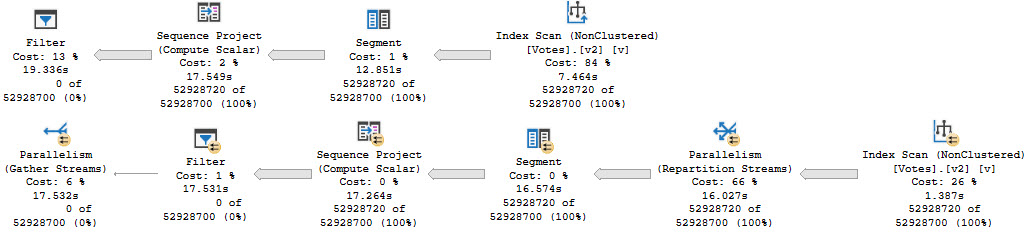
When the optimizer gets a query that it needs to come up with an execution plan for, the first thing it comes up with is a serial execution plan. If the cost of that serial plan is over the CTFP threshold, the optimizer will consider parallel plans (assuming nothing is preventing a parallel plan from being formed, like scalar functions, etc).

If the cost of the parallel plan is cheaper than the cost of the serial plan then SQL Server will go with that one. I’m gonna put this in bold, because it’s a question I answer all the time: The cost of a parallel plan does not have to be higher than CTFP.

Setting Cost Threshold For Parallelism

Well, okay then. This seems important to set correctly. If you have to start somewhere, 50 is a nice number. Do you have to leave it there? No, but just like MAXDOP, it’s a setting you’ll wanna tweak after some observations.

Most importantly, if critical queries got slower after making changes. If they did, we need to figure out if it’s because they either stopped going parallel, or stopped having a higher available degree of parallelism available to them.

Some people will tell you to look at the query costs in your plan cache to figure out what to set this to, but there are some really big problems with that advice: your plan cache could be really unstable, your plan cache could not have plans that are a good representation of your workload, and query plans lie.

Most of that goes for Query Store, too. Even though it theoretically has more history, it’s up to you to sift through everything in there to find the queries you care about trying to get MAXDOP right for.

Sure, it’s nice if those CX waits go down when you make changes, since that’s what the settings we talked about most closely control. But there’s a more important wait that changing these can help limit, too.

THREADPOOL


This is a wait you generally only want to see in demos done by professionals.

Why? Because it means SQL Server ran out of worker threads to give to queries so that they can run. It’s a really bad situation, because you might have a hard time figuring out what’s wrong.

  • You might not be able to connect to your SQL Server
  • Your monitoring tool might not be able to connect to your SQL Server

On top of that, your applications might not be able to connect, and even RDP connections might fail. You can mitigate some amount of THREADPOOL incidents by MAXDOP and CTFP correctly. Fewer queries going parallel, and perhaps going parallel to a lesser degree can reduce the number of worker threads that a workload consumes.

But just doing that can’t fix everything. If you just plain have a higher degree of concurrency than your hardware can handle, or if queries are stacking up because of issues with blocking, you still run the risk of this happening. You might need to add hardware or do significant query and index tuning to fix the problem completely.

And no, setting MAXDOP to 1 isn’t a viable solution.

Thanks for reading!

Going Further


If this is the kind of SQL Server stuff you love learning about, you’ll love my training. Blog readers get 25% off the Everything Bundle — over 100 hours of performance tuning content. Need hands-on help? I offer consulting engagements from targeted investigations to ongoing retainers. Want a quick sanity check before committing to a full engagement? Schedule a call — no commitment required.