I’ve been spending a lot of time lately working on my free scripts. And, I know, I’ve been recording videos about them, but some folks out there like to read things.
In this post, I’ll be talking about some additions and changes to sp_PressureDetector, my script to quickly detect server bottlenecks like CPU, memory, disk, locking, and more. Well, maybe not more. I think that’s all of them.
Disk Metrics
I added high-level disk metrics similar to what’s available in other popular scripts to mine. Why? Sometimes it’s worth looking at, to prove you should add more memory to a server so you’re less reliant on disk.
Especially in the cloud, where everything is an absolute hellscape of garbage performance that’s really expensive.
By default, I’ll show you results where either read or write latency is over 100ms, but you can change that with the following parameter:
This only works for SQL Server Enterprise Edition right now, because it uses a DMV related to Resource Governor.
In the wait stats output, you’ll see how many hours of CPU time queries have consumed since server startup. I know, someone could clear out the Resource Governor stuff, but I’m willing to embrace that as an incredible rarity.
yay!
I’m also aware of the fact that I could get similar information from sys.dm_os_schedulers, but that’s only available in SQL Server 2016+, and I sometimes have to support older versions.
On the fence a bit about doing some checks, but right now it’s like…
Are we on Enterprise Edition? Use the Resource Governor thing
Are we on Standard Edition? Is it 2016 or better? Use the other thing
If not, then what?
I wrote a similar bit of code into sp_BlitzFirst, and the fallback is to sum all the CPU time from queries in the plan cache, but that’s awfully iffy. Most plan caches I see, all the plans are less than 24 hours old.
If I figure something else out, I’ll work on it, but for now I’m sticking with this.
New Columns
Down in the CPU details section, there are some new columns that detail things like
torso
These are useful, especially during THREADPOOL demos, ha ha ha.
Thanks for reading!
Going Further
If this is the kind of SQL Server stuff you love learning about, you’ll love my training. Blog readers get 25% off the Everything Bundle — over 100 hours of performance tuning content. Need hands-on help? I offer consulting engagements from targeted investigations to ongoing retainers. Want a quick sanity check before committing to a full engagement? Schedule a call — no commitment required.
I’ve been spending a lot of time lately working on my free scripts. And, I know, I’ve been recording videos about them, but some folks out there like to read things.
Why haven’t I been writing lately? I haven’t felt like it. I’ve been enjoying getting my video recording set up worked out, even though one anonymous user hates that I clear my throat sometimes.
I can assure you, anonymous user, it would be far more unpleasant to listen to me talk with a bunch of allergy in my face. Tis the season, and all that.
Anyway, the next few posts are going to detail what I’ve been working on. This one is about sp_QuickieStore, which is my stored procedure to get and search through Query Store data.
All Of’Em
The first thing on the list that I want to talk about is the ability to cycle through all databases that have Query Store enabled.
If you have a lot of databases with it turned on, it can be a real hassle to go through them all looking for doodads to diddle.
Now you can just do this:
EXEC sp_QuickieStore
    @get_all_databases = 1;
And through the magic of cursors, it’ll get all your worst queries in one go.
AdProc
The next thing is the ability to filter to a specific type of query, either ad hoc, or owned by a module.
Why? Well, sometimes I work on vendor systems where the user queries are submitted via ORM-type things, and more complicated background/overnight tasks are owned by stored procedures.
I also work on some systems where folks write stored procedures to touch vendor tables, and they want to focus on those because they can’t touch the vendor code.
For that, we can do this:
/*ad hoc*/
EXEC sp_QuickieStore
    @query_type = 'a';

/*module*/
EXEC sp_QuickieStore
    @query_type = 'literally any other letter in the alphabet';
I know this looks silly, but there’s no great way to differentiate what kind of module owns the code for non-ad hoc queries. View? Function? Procedure? Whatever.
If you care about only ad hoc queries, put an ‘a’ in there. If you care about code owned by modules, put anything else in there. That’s all it’s checking for, anyway.
Time Light Zone
This was a tough one to do, and it’s something that not even the Query Store GUI does correctly when searching through data.
The first command will show you first and last execution times in whatever valid time zone you choose, which can be used to override the default behavior of displaying them in your server’s local time.
That’s cool and all, but now when you search through Query Store data based on start or end dates, I’ll convert your search to UTC time, which Query Store stores data in.
In the background, I find the difference in minutes between your local time and UTC, and manipulate your start and end dates to match.
Thanks for reading!
Going Further
If this is the kind of SQL Server stuff you love learning about, you’ll love my training. Blog readers get 25% off the Everything Bundle — over 100 hours of performance tuning content. Need hands-on help? I offer consulting engagements from targeted investigations to ongoing retainers. Want a quick sanity check before committing to a full engagement? Schedule a call — no commitment required.
sp_HumanEventsBlockViewer: Now With 100% More Query Plans And Prioritized Results!
Video Summary
In this video, I discuss some recent updates to SP Human Events Block Viewer, a utility script that helps analyze blocking issues in SQL Server by examining the blocked process report XML data from extended events. I’ve made two significant changes: one involves adding a second result window that queries the plan cache for execution plans related to the blocking processes, providing more context and insights into the queries involved. The other change prioritizes the output based on which objects or indexes have experienced the most blocking activity, helping DBAs focus their efforts where they are needed most. These updates enhance the usability of SP Human Events Block Viewer and its sister procedure, SP Blitz Lock, making it easier to troubleshoot and resolve blocking issues in SQL Server environments.
Full Transcript
Erik Darling here with Darling Data, rated by several prominent publications, Winesniffer Magazine, Beargut Magazine, and well there are some others, but they all got together and voted and they rated me the most capable SQL Server consultancy in the entire world. Even Atlantis is part of that. I don’t know how computers work underwater, but there’s a strong possibility that if humans had stayed underwater, we would not have nearly as many DNS problems as we do today. This is just a short video on this kind of grotesque Sunday to talk about some changes that I made to SP Human Events Block Viewer.
Now, this started off as a utility script that I could use to look at the blocked process report XML data from the extended event that SP Human Events would set up to get information about blocks, but I extended the usability of this procedure a while back to look at any extended event session that has blocked process report XML in it, because, you know, because, you know, because, you know, human events is great and it catches blocking, but, you know, it just uses the ring buffer and oftentimes, you know, not a lot of data stays in the ring buffer at once.
So it worked really well in the context of the human events procedure, which would log stuff from the ring buffer off to a table. But, you know, in the in the longer term sort of, you know, gathering blocking data with clients, you know, you kind of you don’t often want to set up things of that complexity. You just want to have an extended event that captures the block process report and you want to read data from and get information from it.
Now, the there are two changes here. And the cool thing is that since SP since a while back when I did a rewrite of SP Blitz Lock, SP Human Events and SP Blitz Lock share nearly the same code. So SP Blitz Lock is over in the first responder kit. And that looks at the deadlock extended event stuff. And thankfully, the deadlock extended event stuff in the block process report extended event stuff is pretty darn close XML wise.
So they share nearly the same code. Just, you know, one looks at deadlocks, the other one looks at blocking. But of course, blocking begets deadlocks. So our blocking begets deadlocking, I think would probably be the better way of saying that. So we’ve got two for the price of one almost anyway, the two changes that are in SP Human Events block viewer and that I also have in a pull request out for SP Blitz Lock are, I think, good changes.
Because of the way that the procedures used to work, where they’re like, you know, so the first change is around SQL handles. So identifying plans that were involved in the blocking. It used to be that both SP Human Events and SP Blitz Lock would show you the SQL handles. But then it was up to you to go use whatever plan cache mining script you care about to go out to the plan cache and look for the execution plans of the queries that were involved in blocking or deadlocking.
What I did was I added a second result window to both of those store procedures that will go out to the plan cache and look for SQL handles that were involved in the blocking and bring back some metrics about them. Now, it doesn’t use query store because I don’t know if query store is on. I didn’t want to add a bunch of complicated checks and, you know, all that other stuff. It just seemed like a lot of work. So I’m not doing that. But I am looking at the plan cache.
So what I did was I added a section of code that goes out to the plan cache and looks for execution plans for any of the queries that were involved in and well for for block viewer for blocking for SP Blitz Lock, it’ll look for anything involved in deadlocks. Now, if you’ve been watching my videos for any period of time, you’ll know that I have slowly fallen out of love with the plan cache over time. And I think the reason for that is at least somewhat obvious here, because not every plan is going to be in the plan cache when you go and look.
If your plan cache is unstable, which a lot of servers that I look at, the plan cache is somewhat unstable. If you go and look, you might not find a very a lot of historical data in there. Often the plan cache is less than 24 hours old.
But I figured it would be better to do this and make a good effort at finding execution plans for people than it would be to have them try to make the next logical step in the in the in the result output and go look for query plans of things that were involved. And for this procedure blocking for SP Blitz Lock deadlocking. So that’s the first change and you can see the separate results here and available plans.
And I think this illustrates pretty well why I am not totally in love with the plan cache. We only have blocking for a couple of things in here and we have a whole bunch more blocking granted some of these blocks were like many months and days ago. So I don’t expect that to be in there, but I just want to show you this to sort of level set, like make sure that expectations are right, that not everything that is in the blocking the block process report is going to have a plan available for it.
But I want to make a good effort to go and find that stuff for you and show it to you. So, you know, for this for this for the available plans that we have here, we can see this most recent blocking thing up here. And this is the query that was involved in the blocking.
And this is the query plan for it. You know, granted, you could probably do something with this knowledge where, you know, you have the predicate on a, you have a seat predicate. And then we have, well, it’s kind of funny how modification queries show up in here with this type of execution plan, because there’s a predicate on the column that we’re updating, which is not technically a predicate, because we’re not actually searching on it.
We’re just looking for where where ID equals something, but because we’re updating the age column, some reason it shows up as a predicate here. So we get the execution plan back. And then I also grab as many execution metrics as I can from the plan cache. So, you know, you’ll get when the plan was created, the last execution time, the count, you know, worker time, elapsed time, stuff like this, you know, so like all the sort of standard stuff that you would expect to get from a query going out and looking at looking for execution plans and query metrics.
So it’s a pretty good amount of stuff, pretty good amount of information in there. That’s the first change. The second change is that I started ranking or I started prioritizing the output by which things had the most blocking associated with them. So before the only thing that I was ordering by was check ID. I added another column to the findings table, which is a sort order, which when I do the inserts into the findings table, I order them by which thing had the most stuff going on.
And then on the way out, like I have a sorting column specifically for that. And on the way out, I sort also by I check check ID and then that column. So when you go look at the results now, you’ll see in the findings column, which should probably expand a little bit so that comes a little bit more obvious what I’m doing here. We come over here, we can see that Stack Overflow has been involved in 37 blocking sessions, which ranks above temp DB, which had two blocking sessions.
And then for more specific checks like which objects, indexes, stuff like that have had more blocking associated with them. You can see 14, 8, 5, 3, 3, 2, 1, 1. And then throughout all the results, you know, like 35, 2, 26, 1, 2, 1, you know, 38. So like all this stuff is ranked, all this stuff is sorted in here by which, you know, things had the most blocking associated with them.
I, like I said, since Blitzlock shares nearly the same code base as this, I also added that change in a pull request out to SP Blitzlock. You should see that in the next first responder kit update whenever that is, who knows? Brent’s busy playing the slots, you might not get around to pushing that pull request through for a while, who knows?
But everything in here is ranked. So you see like even like the timing in here is ranked by which things had the most time associated with it. So you can kind of get a sense of where you should concentrate your efforts by like, you know, which database tables, indexes, stuff like that had the most blocking events and blocking time associated with them.
So hopefully two good changes that will make your life easier when dealing with blocking and deadlocking issues. This is all available in the main branch of my GitHub repo for human events block viewer. Again, for SP Blitzlock, there’s a pull request out for it.
You can go hunt down the that branch over there and look for it if you want to sort of, you know, beta test a little bit that version. But other than that, that’s about it. But anyway, two changes that I’m really happy with.
This kind of, this work was kind of a part of a weird like code frenzy that I went on with like this and SP Quickie store with the time zone stuff. I don’t think, I don’t think anything changed in SP pressure detector along with these two. But, you know, again, stuff that I’m really happy with, stuff that makes my consulting job easier and that I want, I want, you know, to pass along to make your life easier troubleshooting SQL Server.
Because who knows, someday you’ll say, you know what, that Erik Darling, he sure does a lot of good work. We should, we should hire him just to say thank you. We shouldn’t actually like have him do anything.
We’ll just pay him money, say thank you for all the hard work, and then go about your job with, with great aplomb or something. Don’t worry, I’m not shaking you down. If I were shaking you down, I’d show up at your job, or your house, wherever, or I guess that’s both for a lot of people.
Anyway, it’s Sunday, I got stuff to do. I just wanted to put this out there so that you would be more aware of changes to this store procedure. Happy hunting for blocking, happy, have a lot of fun resolving blocking.
Getting, getting your server in tip-top shape. Remember, read committed snapshot isolation level is the key to resolving most blocking issues. So you should, when possible, use that for your SQL Server databases because it takes care of the most idiotic blocking scenarios that exist in databases when read queries and write queries can block and deadlock with each other.
So really, I can’t, I can’t recommend making that change more than I already do. If you’re on SQL Server 2019 and up, accelerated database recovery is a wonderfully complimentary settings change to use alongside read committed snapshot isolation because you take the, you take tempdb out of the equation.
You use the persistent version store per database to read row versioning information from, which is great. It’s really, really smart move on Microsoft’s part. So you can take all the, you know, the, the worries about tempdb contention.
If you have a lot of databases that you would want to use RCSI, you can take that out of the picture and have them use that information instead. Anyway, I’m going to get going now. I’m going to get off my soapbox chit chatting about this stuff, but enjoy the rest of your hopefully long weekend.
Uh, it’s July 4th coming up for my American friends. We’re going to celebrate our independence from our British friends. I guess it wasn’t always that friendly, but, you know, we’ve got, got a special relationship these days.
Anyway, uh, thank you for watching. I hope you learned something. I hope you enjoyed the free scripts.
I hope you use them. I hope they are useful to you. Uh, and, uh, I think that’s about it. All right. We’re at lucky number 13 minutes now. So I’m going to, I’m going to cut this here.
Goodbye.
Going Further
If this is the kind of SQL Server stuff you love learning about, you’ll love my training. Blog readers get 25% off the Everything Bundle — over 100 hours of performance tuning content. Need hands-on help? I offer consulting engagements from targeted investigations to ongoing retainers. Want a quick sanity check before committing to a full engagement? Schedule a call — no commitment required.
sp_QuickieStore: Time Zones, Time Zones, Time Zones
Video Summary
In this video, I delve into the intricacies of searching Query Store data accurately in SQL Server. After receiving feedback from the Darling Data community, particularly a valued member named Rick, I realized that query store data is stored in UTC but isn’t being searched correctly due to time zone issues. This led me to develop SP_QuickieStore, which not only displays all query store dates in your local time but also allows you to search through query store data using the correct UTC time. The process involved a lot of trial and error, especially with understanding how SQL Server handles date and time functions, as well as dealing with the limitations of older SQL Server versions. Despite these challenges, I hope this script makes it easier for everyone to work with Query Store data accurately.
Full Transcript
Erik Darling here with Darling Data. And I’m a bit of a mess. It’s been a week. A lot going on. Busy, busy, busy. Getting a lot of things ready. Getting a lot of work done. And working on my free open source scripts that I provide to you, the SQL community writ large. I’m not sure what that means. I saw it in a book recently and I really liked the way it sounded writ large. But one thing that I’ve been putting a lot of work into recently is SP underscore QuickieStore because it was brought to my attention by a valued member, the Darling Data community, a fellow named Rick, that I was not, that query store data is stored in UTC. But we were not searching in UTC values. And I know that probably sounds like a big gigantic deal, like a big oversight. But the query store GUI also doesn’t do that correctly. I profiled every single query from all of the views that you can run in query store. That’s the high variance, regress, all those things. And I’ve been doing that for a lot of time.
And this is what they all look like. I mean, this isn’t exactly what they all look like, but they all do roundabout the same thing where you see this where clause written completely backwards, where first execution time is not greater than the end time. And the last execution time is not less than the start time. But the parameter values that get passed in there are never converted to UTC for accurate searching. And, you know, I saw that every time I looked at what query store was running. And I thought, well, maybe something magical happens. Maybe this is the right way to do things because there’s not a lot out there about the right way to search query store. It’s not even talked about a whole lot. I think only Aaron Stellato has a couple blog posts about query store dates being stored in UTC. But as I was working on quickie store to do two things. One is display all of the query store dates to you in your local time. And two is to search through query store in UTC time.
What it became really hard to do was figure out a way for you to pass in dates and times without the offset and still search accurately. Now, if you’re just looking for a whole day of data, it might matter a little bit less. All right. If you were just searching for this whole span of data, it might not matter a little bit that the UTC offset is not precise. It might, depending on how far away, like the further away you get from UTC, obviously, the more it would matter. But, you know, if I am finding everything for the full day of June 27th, it’s a little bit less critical that, you know, I have everything to within UTC perfect time.
Now, where things get difficult is when, like I was saying, when you don’t pass in an offset, it becomes harder to search accurately. Now, sysdateTime, the function does not return with an offset, a time zone offset. So if I run this query and I look at the results, I’m going to keep this up here, we have the start date, which is, for me, right now, like accurate.
Right? That’s like the actual time, but SQL Server is inferring, it is implicitly casting my current time with UTC time. I can guarantee you that this time is correct for me here. You can see down in the, actually, you can’t see, it’s a little bit under my armpit, but right about there, it says that it’s 8 p.m.
And we ran that at 16.59, which is just about 8 p.m. So SQL Server is taking 8 p.m., thinking that it’s UTC time. And then when I say, let’s go back to Pacific Standard Time, I mean, we can go back seven hours from now, but that’s not right, because Pacific is four hours from Eastern, it’s seven hours from UTC, so that’s wrong.
And then when we, if we try to cast it back to UTC, it just goes back to my time, Eastern time. So that is a really difficult problem to solve, and I haven’t quite figured out a way to do that. Now, it all changes when you use sysDateTimeOffset, because this returns with the correct date time offset for where I am.
So my SQL Server is in Pacific time, so this is correct here. And when I go and search, and when I go and cast this at the time zone UTC, now the reason my SQL Server is in Pacific time is because I installed Windows on a VM, I didn’t really pay much attention, and then bingo, bango, many years later, I found out it was in Pacific time, so that was fun.
I guess I don’t care about my VMs all that much, but slightly embarrassing. But anyway, so my date time offset is here, right, this is correct from UTC, and when I cast that to UTC, I do get the correct date time where it is officially a little bit past tomorrow.
So it’s 1 a.m. UTC, which is 7 hours from Pacific and 4 hours from Eastern, and you can tell, again, by the little clock under my armpit where it says 8 o’clock and 4 hours, it’ll be, I actually know it’s 5 because of the daylight savings, but, you know.
These date functions aren’t daylight savings aware, either. So the picture gets even foggier as we go through. And I know, this is all very boring and confusing, and it doesn’t give you a lot of faith in SQL Server or Microsoft or the summer interns who write these date functions.
Now, SQL Server 2022 does introduce a couple things that would make life easier, but, of course, ain’t no one in the world using SQL Server 2022 in a widespread enough way for me to only write scripts that work with SQL Server 2022.
So here I am writing scripts that have to work for folks using Query Store going back to SQL Server 2016, which, you know, I’d rather be able to help them than not, but, you know, even if you were on 2019, this wouldn’t help.
These functions are so new that the SSMS parser does not recognize them. We get these wonderful little red squiggly lines here where SQL Server, or rather SSMS says, I don’t know who you are.
But if we had these available, then we could maybe do something to figure out which time zone people are in easily and use that to correct dates passed in without the time part. But even that would get really challenging for a number of reasons that, trust me, I’d bang my head off and I couldn’t quite figure out.
Now, older versions of SQL Server, you can read the registry with XP Reg Read, and you can also get Pacific Standard Time back. However, the last thing I want to have to deal with is explaining to someone why I need to read the registry in order for them to query Query Store data.
So this is out. There’s some XP Reg Read stuff that I wrote into the Blitz scripts that I often have to not use when working with clients because they’re like, get out of my registry.
I’m like, I’m just reading it. And they’re like, no. So I found myself in a tough situation. But in order to make it as easy on you as possible, you can at least use the DateTimeOffset function here to figure out what your DateTimeOffset is.
So when you want to search accurately through Query Store data, which SP underscore Quickie Store does, because in my where clauses, I cast my start date at UTC time so that my searches are accurate. So anytime that there’s a start date parameter in the Dynamic SQL, it’s cast a time zone UTC.
That’s up here. That’s up here, too, where you can see UTC all over the place. And, well, there’s this one up here, but that just goes back.
This one just uses sys UTC date time to go back and search there. So, you know, that’s about that. Maybe I should use sys date time offset for that.
I haven’t quite decided yet. We’ll figure it out. But I think sticking with UTC is the smart thing to do there. Anyway, when you want to search through Query Store to look for stuff, this is what you have to do.
Put in the date, you put in the time, and you put in the offset, which you can find out, again, by running this and looking at what the sys date time offset is. So if I search through Query Store using this, I get nothing on purpose. And I want you to see that I get nothing because I am searching accurately.
And when I expand my search by two minutes, I get back a whole bunch of stuff. And since I’m showing the, using the time zone parameter here, we’ll display times in the current time zone. You can see that information if you go over here.
We have the first execution time in your time zone. All right. That’s helpful. All right.
We can see that that is indeed the correct Pacific time offset for what I’m looking for. And we see the, well, I search on the last execution time. So that’s going to be this column.
But you can see all of that that happened at 5.04 falls into the window of 5 to 5.05 that I was looking for. I also show you the UTC times just in case you ever would need them. I, that was first suggested to me by the lovely and talented Sean Ghilardi.
And I said, hey, man, that’s weird. And then as I was troubleshooting this and I, and I was trying to really figure out the UTC thing, I was like, oh, yeah, I’m just going to show. So, so, so thank you.
Thank you, Sean Ghilardi for, for pointing that out that I should do that because it ended up being a very valuable troubleshooting step for me. And I decided to keep it in there just in case it might ever be a valuable troubleshooting step for you too. Cool.
So, the time zone parameter in SP Quickie Store does validate the time zone if, when you use it, if you don’t, if you leave it blank, it will default to UTC. It seems reasonable to me since everything is stored in UTC. But if you try to use a time zone that does not exist in the DMV sys.timezoneinfo, then I will yell at you and say, please check sys.timezoneinfo for a valid list.
Cool. So, if you ever need to learn about how to use any of the stored procedures that I write, you can use the help parameter.
The help parameter will describe all of the parameters that you can pass in and their various uses. I’ve shown this in other videos before and for some reason this mouse will not grab onto this thing where I want it to. So, we’re just going to have to deal with a little bit of a scroll bar because I don’t feel like making you sit here and watching me wrestle with trying to grab onto this thing and shrink it.
It is just not doing it. Oh, there it is. Nope, not happening.
Nope, not happening. Nope, not happening. Nope, not happening.
So, trying to make it as easy on you to troubleshoot this stuff as possible. And also this helpful note to use the sys.timezoneinfo DMV if you need to figure out what to pass in for a time zone above. I would I could do more to automate the timezone stuff but oops not Tim zone sister time zone info if you if you look at what’s in here there like I was like I told with the idea of being like okay well I could look up the sys date time offset of someone’s local time and I could go with that right but there are there are a lot of date time offsets that have the same value minus seven for a bunch of stuff minus an eight and nine for a bunch of stuff and then like you think about crossing day boundaries think about you know people who are on half hours and stuff and it just became incredibly difficult and really just all too much to bear but anyway spquickiestore now does what the query store DMVs do not do when it lets you search the correct UTC time for queries in query store it also display it also allows you to display times to you in the time zone of your choosing as long as that time zone exists in the sys.timezoneinfo DMV and uh well don’t we all feel like more complete people now at least I do anyway um it is nearly 8 15 p.m.
here scenic New York uh I’m gonna go watch baseball uh I wanted to get this video out because I would have just kept me up last night and uh you know I don’t like when things keep me up and when things keep me up I assume they’ve kept you up at some point maybe not to the same degree or maybe I just care too much it’s something I’ve frequently been accused of uh anyway uh thank you for watching hope you learned something hope you enjoyed yourselves if you decide that this video is worthy of your respect then give me the old thumbs up if you decide that you want to learn more about how arduous sql server is uh you can subscribe to my channel and uh of course you can get all of my open source scripts over on github that’s about it thank you for watching
Going Further
If this is the kind of SQL Server stuff you love learning about, you’ll love my training. Blog readers get 25% off the Everything Bundle — over 100 hours of performance tuning content. Need hands-on help? I offer consulting engagements from targeted investigations to ongoing retainers. Want a quick sanity check before committing to a full engagement? Schedule a call — no commitment required.
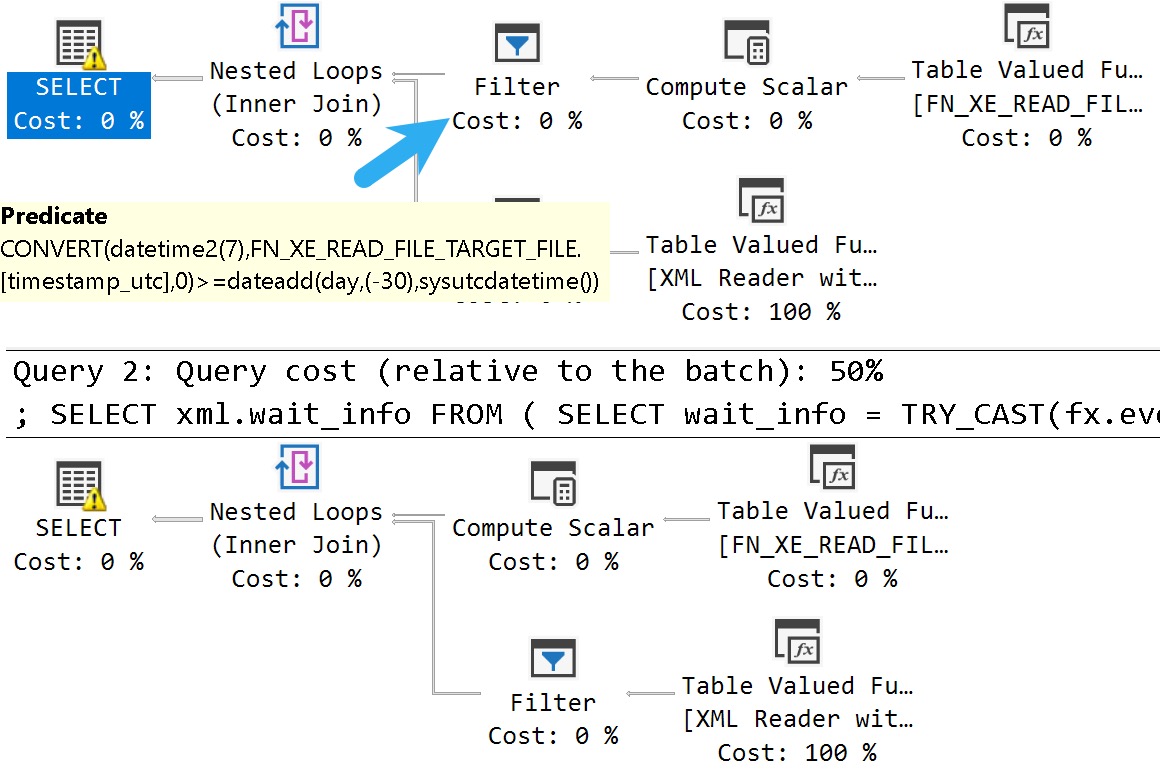
SQL Server has had the fn_xe_file_target_read_file function for a while, but starting with SQL Server 2017, a column called timestamp_utc was added to the output.
Somewhat generally, it would be easier to filter event data out using this column… if it worked correctly. The alternative is to interrogate the underlying extended event XML timestamp data.
That’s… not fun.
But if you write your query like this:
SELECT
    xml.wait_info
FROM
(
SELECT
    wait_info =
        TRY_CAST(fx.event_data AS xml)
FROM sys.fn_xe_file_target_read_file(N'system_health*.xel', NULL, NULL, NULL) AS fx
WHERE fx.object_name = N'wait_info'
AND   fx.timestamp_utc >= DATEADD(DAY, -1, SYSUTCDATETIME())
) AS xml
CROSS APPLY xml.wait_info.nodes('/event') AS e(x);
It will return no rows. Not ever. But at least the predicate is pushed down to a reasonable place: when you touch the file.
But if you write your query like this, it’ll work, at a cost:
SELECT
    xml.wait_info
FROM
(
SELECT
    wait_info =
        TRY_CAST(fx.event_data AS xml)
FROM sys.fn_xe_file_target_read_file(N'system_health*.xel', NULL, NULL, NULL) AS fx
WHERE fx.object_name = N'wait_info'
AND   CONVERT(datetime2(7), fx.timestamp_utc) >= DATEADD(DAY, -1, SYSUTCDATETIME())
) AS xml
CROSS APPLY xml.wait_info.nodes('/event') AS e(x);
The cost is an additional filter operator in the plan, which causes the entire file to be read and then filtered.
For large on-disk XML storage files, that can be really painful to deal with. It’s especially ugly because there’s no parallel read for these files.
If this is the kind of SQL Server stuff you love learning about, you’ll love my training. Blog readers get 25% off the Everything Bundle — over 100 hours of performance tuning content. Need hands-on help? I offer consulting engagements from targeted investigations to ongoing retainers. Want a quick sanity check before committing to a full engagement? Schedule a call — no commitment required.
What SQL Server Parameter Sniffing Looks Like In sp_WhoIsActive
Video Summary
In this video, I delve into the often-overlooked `sp_whoisactive` stored procedure to explore parameter sniffing issues in real-time on a SQL Server. Using SQL Query Stress, I run through a demo that highlights how parameter sniffing can manifest by comparing query performance and execution plans under different conditions. By leveraging `sp_whoisactive`, we focus on the average milliseconds column to identify potential parameter sensitivity problems, where queries might perform well most of the time but occasionally take much longer. This video is perfect for anyone looking to catch these elusive issues early before they become major bottlenecks in their SQL Server environment.
Full Transcript
Erik Darling here with the unstoppable Darling data. And we’re going to use an often overlooked parameter for SP who is active to look at what parameter sniffing can look like while it’s happening to your SQL Server. And we’re going to actually recycle a demo from last time, just like I promised. And I’m going to be using SQL query stress to do a thing. The thing that SQL query stress is going to run is, well, it’s going to look like the last demo that I did on what parameter sniffing looks like in query store. If you are watching this video, that would be the one that I’m referencing where we use query store to identify queries that might be parameter sensitive. Wew call so WA are using. Just back Andcr ow. move on. So what of Las огрwh here and code.
here of mystic call. we are going to use the small query plan for whenever the second part of the sys date time call modulus by five equals zero then we’re going to go and use the big one so what we’re going to see is most queries finishing pretty quickly than every five seconds a bunch of queries taking like four five plus seconds there might be some more if we can introduce decent temp db contention in there we’ll see what happens we’ll see we’ll see what we catch we don’t know yet i do all these demos without practicing so you can imagine how good i am when i actually do practice but anyway oh wait that’s the that’s the old demo we don’t need that anymore you can see now where i embarrassingly copied and pasted my code so if we run sp who is active right now nothing is running nothing is running there are no rabbits up my sleeve and now if i run sql query stress and we look at what happens here we’re going to see a column that a lot of folks often miss and that’s this column here with the avg at the end this is how long the query runs for on average so every once in a while when we see the average milliseconds still low but the actual seconds that something is taking be pretty high that’s a pretty good sign that we are hitting a parameter sensitivity problem right this has got seven seconds there on average it’s 100 163 milliseconds and so that’s kind of what it looks like when things start getting weird we can go look at the execution plan the execution plan is going to look like again classic parameter sniffing and what we see here is that uh this query was expected to let’s zoom in on this sql server was expecting 4756 rows which with the uh other with the other parameter is not is just kind of about right but when we use the further back parameter is just about wrong and so that’s why we have this high number of rows here now sometimes if we get lucky and we look in the uh plan we look at the uh plan details we’re using actual parameters and not local variables because local variables mess this up but if we look at the parameter values here we can see exactly what it was compiled with which is useful because how do we know how can we test parameter sensitivity unless we have a starting point and the good starting point here would be to you know test our query in a parameterized sort of way with um should be all done now test the query in a parameterized sort of way like this again this is the good parameterized parameterized dynamic sql now granted it being sensitive to parameter sniffing is not good but you know there are various ways of fixing that but what we would want to do is kind of going back to the the demo from the previous run previous video and we don’t have to go 50 times to do this uh we would want to test let’s just make sure everything is every all things are equal here dbcc free proc cache we’re going to get rid of everything and we’re going to run this with the parameter compile value that we found in the plan cache all right let’s let’s turn on query plans for this one it won’t won’t hurt us since we’re not running it 50 million times we run that and get the execution plan and again sql server’s guess here was pretty gosh darn good for a range predicate right we got back we we expected 4756 rows we got back oh just about 300 200 and some odd more maybe actually that is pretty close to 300 isn’t it i guess it is you know about 300 rows extra 300 more rows than estimated uh cardinality estimated not just not just a guesstimate there and then if we are intrepid query tuners we could go and look at what happens if we use that same execution plan but with a value that gets more data in this case just like last time we’re going to go back to 2011 12 30 from 2013 12 30 and if we run this we’re going to see a query plan that looks fairly close to what we saw when we ran who was active where we got let’s see uh 1808340 we got 1.8 million rows back rather than the 5 000 or so rows back that we got on the other query and of course ending up in a loop and all that stuff when you have way way more rows than would make sense to loop over can be rather caustic on the cpu so we have the serial execution plan not not for serial just uh you know serial because sql server came up with the execution plan based on a parameter that was expected to return a low number of rows and it did but now that plan doesn’t make a whole heck of a lot of sense when we have to return way more rows and that isn’t that something isn’t that ain’t that parameter sniffing so anyway uh that is what parameter sniffing will look like when you uh use sp who is active to look at what is currently running on your server again the two parameters that i typically use to figure this stuff out one is to get average time because i need to know if what i’m seeing is what normally happens when the query runs right so like you know you see get average time the average time is normally really low but now all of a sudden you’re seeing the average time like the average run time like the the actual run time way higher than the average time well that’s a sign that something has something has run amok with your query now does it have to be parameter sniffing not necessarily your server could be under an unduly high load the query could be blocked it could be uh some other sort of resource contention going on all right it could be all sorts of things that aren’t parameter sniffing but if you if you use this and you are and you think that it might be parameter sniffing you are curious about a potential parameter sniffing problem on your server well that’s when you know using uh sp underscore quickie store to look at query store data again that expert mode parameter we talked about the video before this one was a good way to figure out what was going on there especially sql server 2017 and up will collect high level query weight stats and it could be really useful to look at those to see if maybe there were some weights that you wouldn’t expect this query to hit like maybe a bunch of lock weights or something so that’s typically what i do when someone says hey eric it’s an emergency we need to pay you to fix our sql server because that’s what you do for a living and i say okay what’s wrong and they say i think it’s parameter sniffing this is one of the very first things i do so i come in make sure that the remote dac is enabled all right the dedicated administrator connection very important for these things run sp who is active get average time see if there’s any big discrepancies between the current run time and the average run time columns and then we go from there all right we have to choose our own adventure we have to figure look at weight stats you have to look at you know overall server load remember all good old sp pressure detector it’s a good one for that dig into all sorts of fun things anyway it’s hot in here and my hair and makeup crew wasn’t available today so i’m a little little shiny i hope that doesn’t offend you too much i hope that you uh you can deal looking at my shiny countenance and uh i don’t know i’m gonna go towel myself off and then i’m gonna record another video about about sp who is active and how you can tell the difference between queries that are doing work and queries that are stuck all right cool thank you for watching hope you enjoyed yourselves i hope you learned something i hope that you will uh find it in your lungs to like this video and subscribe to my channel so i can hit the 3000 subscriber mark sometime before the 50th president of the united states states is elected that’d be that’d be cool i’m still doing sql server by then who knows maybe this will still be useful to some maybe these fossils will still be useful anyway uh thank you for watching you’re cool and good looking young if i wasn’t married i would
Going Further
If this is the kind of SQL Server stuff you love learning about, you’ll love my training. Blog readers get 25% off the Everything Bundle — over 100 hours of performance tuning content. Need hands-on help? I offer consulting engagements from targeted investigations to ongoing retainers. Want a quick sanity check before committing to a full engagement? Schedule a call — no commitment required.
How To Tell Which Queries Are Actually Doing Work In SQL Server Using sp_WhoIsActive
Video Summary
In this video, I delve into the utility of using `sp_whoisactive` to monitor query performance and identify work being done by queries over time intervals. I demonstrate how the `delta_interval` parameter can be particularly helpful when dealing with a long list of queries or when you need to quickly assess which queries are actually doing work versus those that might just be sitting idle. By showing examples where blocking is involved, I highlight how this tool can assist in troubleshooting and tuning SQL Server queries effectively.
Full Transcript
Lo and behold, it is my, what is this, let’s see, one, two, three, this is my fifth video of the day which satisfies my requirement to schedule five days of blog posts so I don’t have to think about it for another five days. You’re welcome. It’s a grind, but, you know, I hear SEO is important if you want to stay in business. People have to be able to find you and all that stuff, right? I don’t know if, I don’t know, I don’t know. I’m not good at that stuff. I don’t have, I’m not a marketing whiz. Obviously. If I were, hmm, I don’t know. If I were, I don’t know. If I were, I’d be able to find out. Or I could probably just do live videos. So, this video, we are going to look at how you can tell if queries are doing work with SP who is active. Now, I’m going to grant you this. If we just run a query that does a bunch of work, and we, you know, keep hitting F5, we’ll see various metrics and counters like CPU go up every time we run this.
Oops. We got to re-highlight that. And now it’s done. So, let’s try that again. So, like, where’s CPU? There we go. There’s CPU. And if we run this again, we’ll see that, oh, you know, CPU went up a whole bunch. But sometimes, but sometimes I run who is active, and I just don’t, I don’t remember all the numbers. I don’t, I can’t keep track of everything that ever happened.
All right. I’m not looking at all this stuff. And that’s when it becomes useful to use the delta interval parameter, which apparently Atom Mechanic is not a marketing whiz either, because delta interval is about the worst name for a parameter that does this. You know, too late to change now, but let’s say that we execute this query, and we hit this for the whole thing this time.
What it’ll do is it’ll take an initial measurement of what’s going on on the server, wait for five seconds. That’s the delta interval. Thankfully not a jet blue interval.
And then we’ll get some additional columns back. So, it’ll tell you, actually, I think over here is probably where things get more interesting. So, we’ll get the CPU, right, like how much it used, and then how much it used over that five seconds.
So, in a five-second period of time, it used about 30 seconds of CPU time. All right. So, we can kind of measure what queries are doing work using this.
If we add something else into the mix, and let’s just use blocking, because blocking is pretty easy. All right. And we really quickly run this, run this, and then run this.
We’ll get back the, well, kind of, little, slightly weird order here. All right. This query up here, which was being blockade.
Let’s get over to the CPU stuff. The query up top that was being blocked used absolutely no CPU over that period of time. The query that did the blocking used about 10 seconds of CPU in that time.
Now, of course, if we keep running who is active, we’ll see that this blocked query just keeps getting stuck and doing nothing. And since this modification query is all done running, that took about six seconds. That it’s not going to show doing any more work either.
But this can also be valuable in different scenarios, particularly troubleshooting blocking. If we scroll over here a little bit, it’s fairly obvious that a sleeping query is not going to be doing any more work. It’s done, right?
So that’s one thing that might clue you into some sort of code or application error that this query has finished working and is just sitting around like, well, now what? No one has committed or rolled back or done anything else. And this query up here is still stuck behind it.
So some other useful information you can get out of who is active when you’re troubleshooting stuff like blocking. But for me, I kind of like this, particularly if, you know, when a lot of my consulting work is, you know, someone hands me a list of queries to tune. And sometimes when I get that list of queries to tune, like I don’t know what to expect from them.
Like I don’t know if they’re going to be super fast or super slow or, you know, like which part or like rather if it’s like a big long store procedure, I don’t know which parts are going to have problems. And so it’s helpful for me to not only run SP who is active to see where things are getting jammed up or stuck, but also to use the delta interval parameter so that I can figure out how much work queries are doing over, you know, two, three, four or five seconds. Because at least I get a sense of if the query is really pushing stuff or if it’s maybe stuck on something else.
Like, you know, if I ran this and found that a query did, you know, one second of CPU work in a five second interval, I would be curious what was preventing that query from doing CPU work. What was it stuck on? What were we waiting on reading pages from disk?
Did we get blocked? Like there’s all sorts of things that can happen that can make a query sort of feel artificially or variably slow that are very interesting to the avid query tuner. So the next time you are looking at a server using SP who is active and you’re curious if the queries that you’re running are doing any work, especially if there’s a long list of queries and it’s hard to keep track of what all the numbers are, it can be very, very useful to use the delta interval parameter, no matter how poorly it’s named, so that you have a sort of a running log of how much work each query did over the span of time you looked at the server.
Anyway, that’s going to do it for me today. That’s five. I don’t know what tomorrow might bring.
Might have to figure some other stuff out. I hope you liked this video a little bit. I hope you liked this video enough to like the video, the little thumbs up dude out at the bottom. I also hope you liked this video enough to subscribe to my channel so that I can become a YouTube billionaire and have a YouTube house.
That’d be cool. It’s a house full of cameras always watching me. And then you, constant watcher, could constantly watch me do a SQL Server.
Wait. No. All right. I’m going to park this one here. Thanks for watching. I will see you in some stuff tomorrow when hopefully these horribly hot lights are making me sweat a little bit less.
All right. Have a good one. All right.
No.
Going Further
If this is the kind of SQL Server stuff you love learning about, you’ll love my training. Blog readers get 25% off the Everything Bundle — over 100 hours of performance tuning content. Need hands-on help? I offer consulting engagements from targeted investigations to ongoing retainers. Want a quick sanity check before committing to a full engagement? Schedule a call — no commitment required.
Query tuning is hard work, especially when queries run for a long time and you have to test various changes trying to get it down to a reasonable runtime.
There are, of course, things you pick up intuitively over time, and figuring out where problems in actual execution plans has gotten easier with operator runtimes.
Beyond basic query tuning intuition comes the really creative stuff. The stuff you’re amazed anyone ever thought of.
I’m going to show you some examples of that.
Cross Tops
Let’s say you want to find the top 1000 rows for a few whatevers. In my case, whatever are users, and the table is Posts.
We’ll start by creating an index to support our query:
CREATE INDEX
    p
ON dbo.Posts
    (OwnerUserId, CreationDate DESC)
WITH
    (SORT_IN_TEMPDB = ON, DATA_COMPRESSION = PAGE);
The most intuitive way to write the query looks like this:
SELECT TOP (1000)
    p.*
FROM dbo.Posts AS p
WHERE p.OwnerUserId IN (22656, 29407, 157882)
ORDER BY
    p.CreationDate DESC;
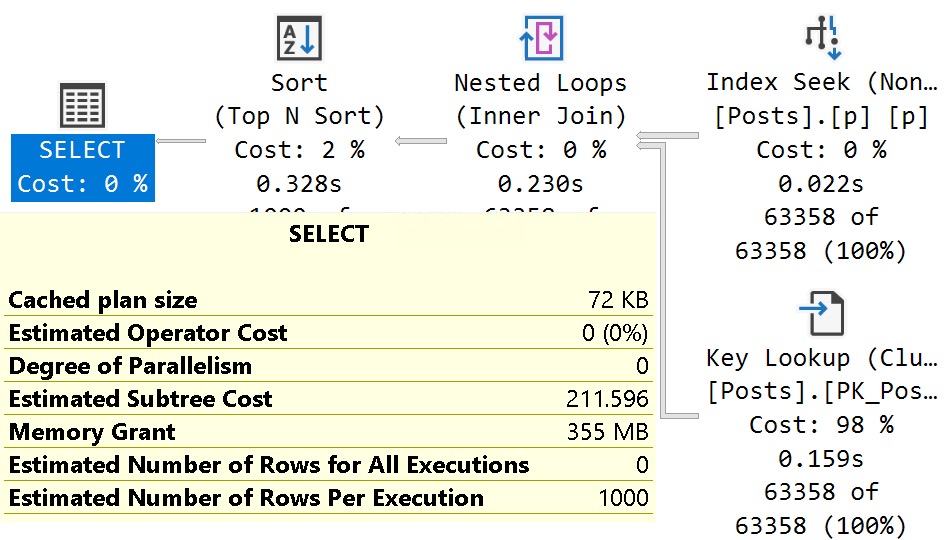
Because of my super professional indexing skills, the query plan looks like this:
i am iron man?
Is this good? Bad? Good enough? Well, it takes 328ms, and asks for memory to sort data. It’s a little bit weird that we need to sort anything, because our index has CreationDate in order, and we’re doing what would appear to be equality searches on OwnerUserId.
One query pattern I’ve seen and written copied on multiple occasions is something like this:
SELECT TOP (1000)
    p.*
FROM
(
    VALUES
        (22656),
        (29407),
        (157882)
) AS x (x)
CROSS APPLY
(
    SELECT TOP (1000)
        p.*
    FROM dbo.Posts AS p
    WHERE p.OwnerUserId = x.x
    ORDER BY p.CreationDate DESC
) AS p
ORDER BY
    p.CreationDate DESC;
It’s a little more complicated, but we use the VALUES clause to list our literals, and CROSS APPLY them with the Posts table.
Is it better? Best? Finally good enough?
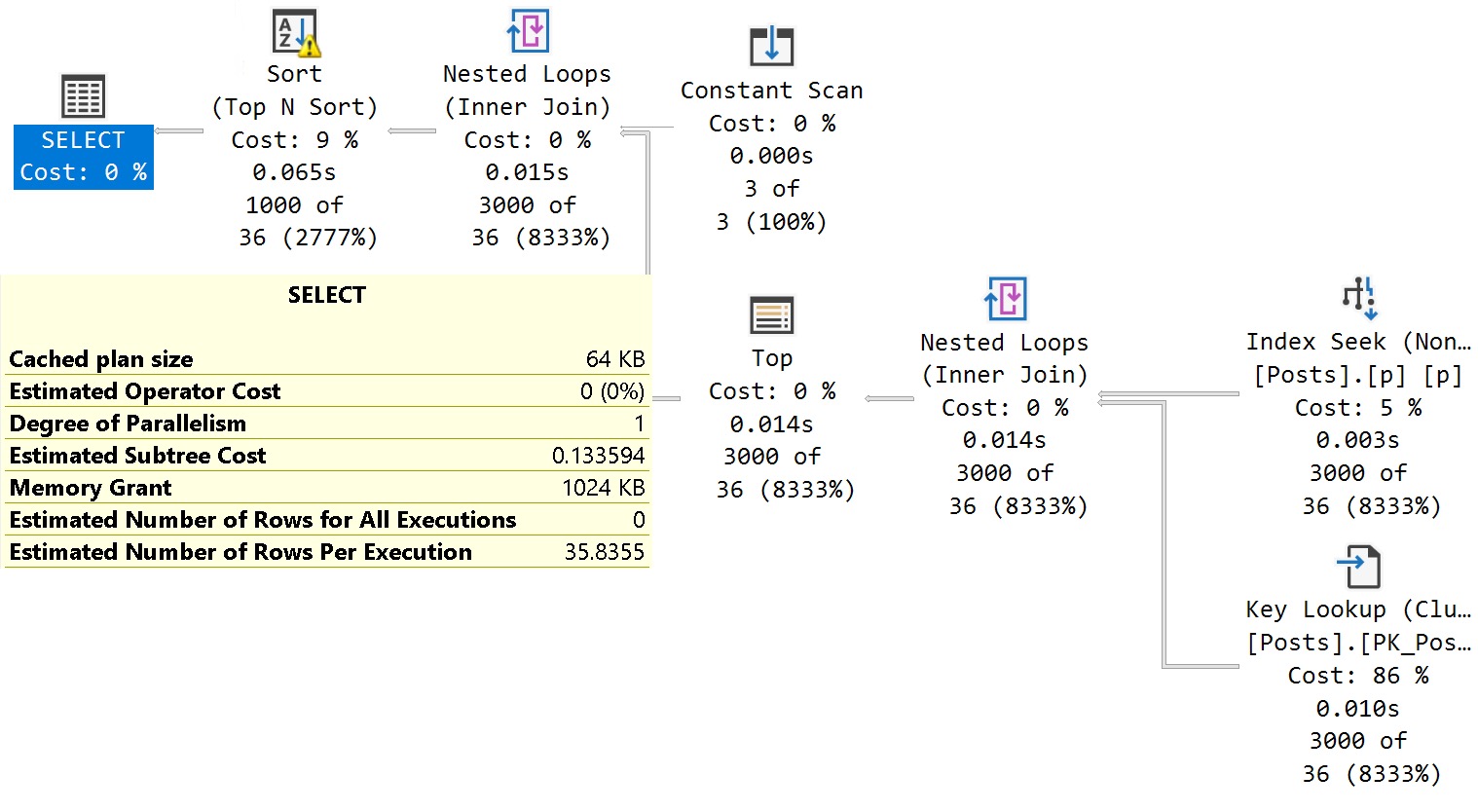
woogy
Well, it finishes a lot faster, but it still results in a sort, and a ~3x increase in the memory grant, up to 1GB. A fascinating conundrum.
SELECT TOP (1000)
    p.*
FROM dbo.Posts AS p
WHERE p.OwnerUserId IN (SELECT 22656 UNION SELECT 29407 UNION SELECT 157882)
ORDER BY
    p.CreationDate DESC;
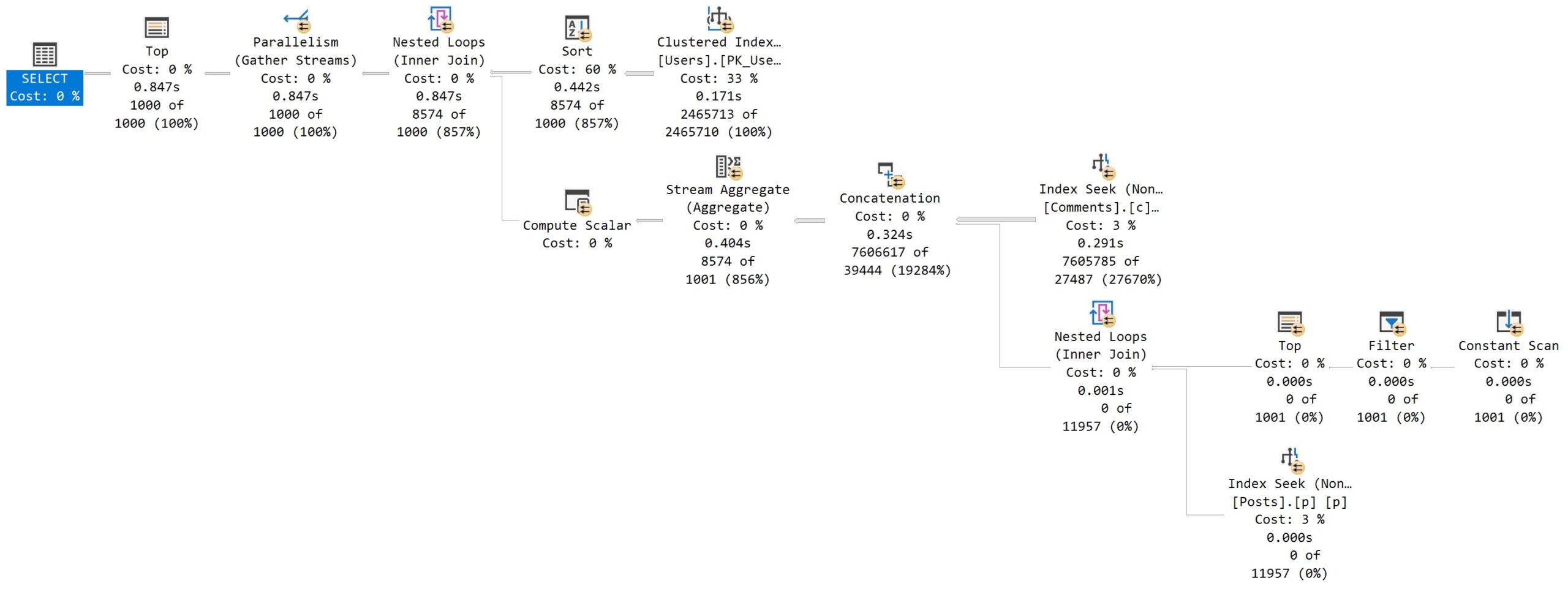
Rather than just listing values by comma, or using the VALUES clause, we’re selecting each value UNIONed (not UNION ALLed) in the IN clause.
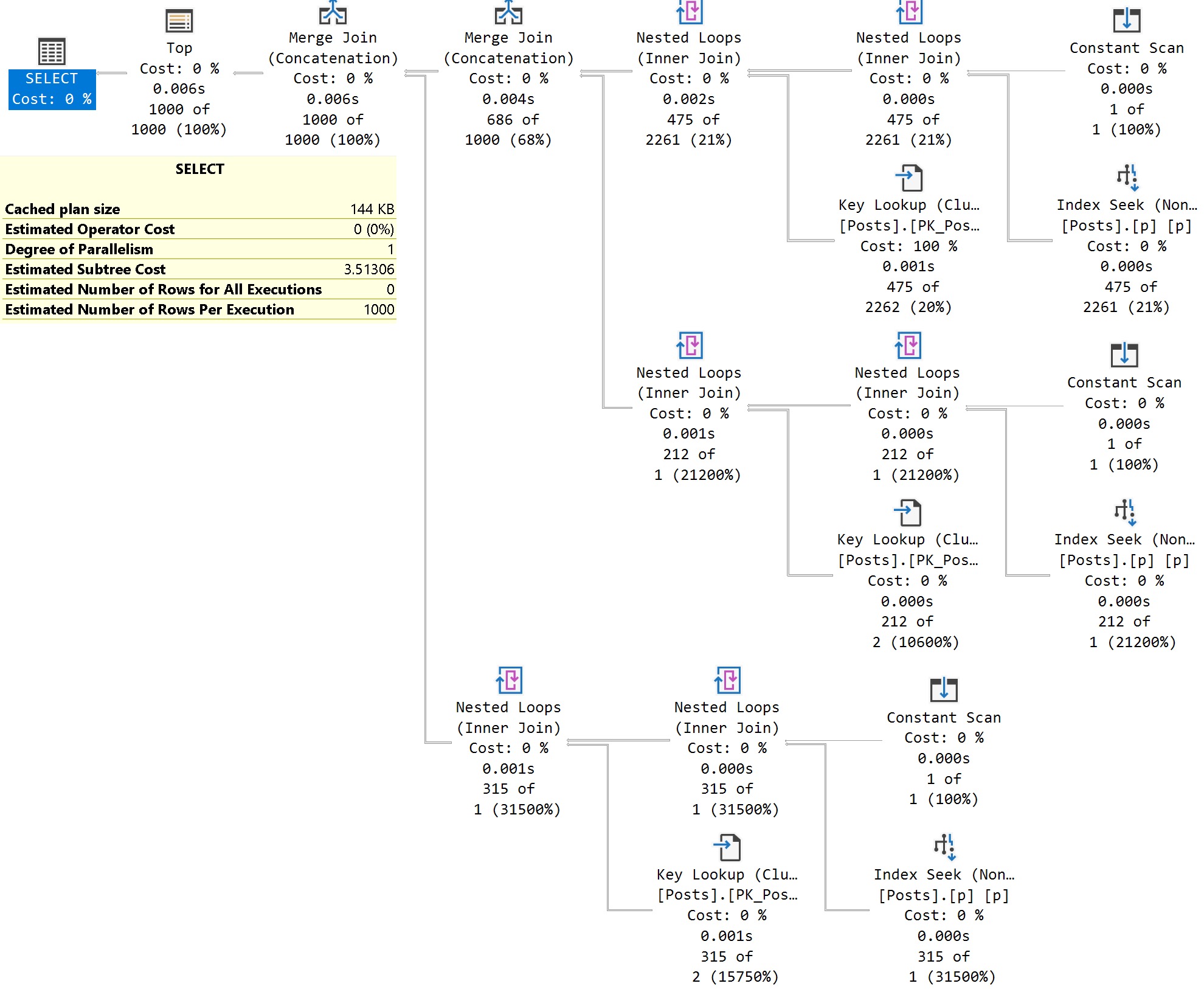
How do we do here? Good? Done? Finally?
caption me please i beg of you
Well, the query plan is a hell of a lot bigger, but it finishes and doesn’t ask for any memory. The order is preserved by Merge Concatenation.
Like I said: casserole.
Paster Blaster
One of the very first demos I saw that made me feel totally out of my depth in T-SQL is this one.
Seriously. Watch the video to get a full explanation for the query and why it’s written this way.
Because the code is hard to read and the video is sort of blurry, I’m going to reproduce it here using the same basic idea in the Stack Overflow database:
First, some supportive indexes:
CREATE INDEX
    p
ON dbo.Posts
    (OwnerUserId)
INCLUDE
    (Score)
WITH
    (SORT_IN_TEMPDB = ON, DATA_COMPRESSION = PAGE);


CREATE INDEX
    c
ON dbo.Comments
    (UserId)
INCLUDE
    (Score)
WITH
    (SORT_IN_TEMPDB = ON, DATA_COMPRESSION = PAGE);
And now, the reproduced query:
SELECT TOP (1000)
    u.DisplayName,
    ca.Score
FROM dbo.Users AS u
CROSS APPLY
(
    SELECT
        Score = SUM(x.Score)
    FROM
    (
        SELECT
            c.Score
        FROM dbo.Comments AS c
        WHERE c.UserId = u.Id

        UNION ALL

        SELECT
            p.*
        FROM
        (
            SELECT TOP (1)
                f = 1
            WHERE u.CreationDate >= '2016-01-01'
            AND   u.Reputation = 10
        ) AS f
        CROSS APPLY
        (
            SELECT
                p.Score
            FROM dbo.Posts AS p
            WHERE p.OwnerUserId = u.Id
        ) AS p
    ) AS x
) AS ca
ORDER BY
    u.Reputation DESC;
And the reproduced query plan:
going yard
Seriously. There’s a SELECT TOP (1) with no FROM clause, and a WHERE clause.
I can’t imagine how much alcohol it would take to figure that out.
Thanks for reading!
Going Further
If this is the kind of SQL Server stuff you love learning about, you’ll love my training. Blog readers get 25% off the Everything Bundle — over 100 hours of performance tuning content. Need hands-on help? I offer consulting engagements from targeted investigations to ongoing retainers. Want a quick sanity check before committing to a full engagement? Schedule a call — no commitment required.
What Parameter Sniffing Looks Like in SQL Server’s Query Store
Video Summary
In this video, I delve into the world of parameter sniffing within QueryStore, specifically focusing on a classic scenario involving an index on the `users` table and the `sp_quickie_store` stored procedure. I highlight how parameter sniffing can lead to suboptimal query plans, especially when dealing with large data ranges, and explain why this issue is particularly challenging for queries without direct equality predicates. Using `sp_querystore`, I demonstrate how to identify these problematic queries by analyzing their execution metrics in QueryStore, such as duration and CPU usage. The video also touches on the importance of using expert mode to get a more detailed view of query performance, offering insights into when parameter sniffing might be affecting your SQL Server workloads.
Full Transcript
Guess who? You know, I don’t like that start, but I’m not going to redo it. I might have said that at the very beginning of the last video, I just don’t remember. So, Erik Darling here with Darling Data, and in this humdinger of a video, which I might have said about the last one too, hard to tell.
I can’t go watch it now because that would be embarrassing, and I hate the sound of my own voice, so we’re not going to do that. Anyway, in this video, we’re going to talk about what parameter sniffing looks like in QueryStore, specifically when you use myStore procedure, sp underscore quickie store, which is the only thing worth using to look at QueryStore. The QueryStore GUI is like read committed, the pessimistic garbage isolation level, it is an abomination.
God, man, cats, dogs, chunky peanut butter, it is the Chicago pizza of user interfaces. So, let’s get to it. Now, parameter sniffing, of course, can happen to any query that is parameterized.
If your queries aren’t parameterized, there’s a very, very low chance of there being a parameter sniffing problem. So, move that out of the way. I’d also like to mention that sometimes parameter sniffing is a good thing, specifically for most OLTP-ish workloads, because you want lots of plan reuse.
You don’t want SQL Server, you know, mucking around with things. You really don’t. So, what shall we do?
Well, we’ve got an index on the users table on the creation date column. And this is going to be sort of a classic parameter sniffing scenario where a plan with a simple index seek and a key lookup is good enough for small amounts of values, but not good enough for large amounts of values. It’s also worth noting that this query is ineligible for the SQL Server 2022 parameter sensitive plan optimization because we have, we don’t have an equality predicate here.
This is not an equality even though it is greater than or equal to. We are looking for a range of values and the parameter sensitive plan optimization simply does not comply with queries that do not have direct equality predicates in them. So, I’ve defeated you again Microsoft.
Alright, so let’s clear out query store because we don’t care what’s in there right now. Well, the most important thing happening is this demo. Nothing else is important.
So, what I’m going to do is I’m going to run this in a loop 50 times. And query plans are off, which is a good thing. And that finished rather quickly.
That finished in about a second. Now I’m going to change this. And I’m going to run this query, which goes back a little bit further in time. But I’m only going to run it once because I don’t feel like sitting here and staring at this thing running 50 times in a loop.
It takes a couple few seconds to run. If we ran a 50 time loop for 4 seconds, guess who would have a bad time? You and me!
50 times 4 is a number I can’t possibly conceive of. So, in order to look at this query specifically, we’re going to use a couple parameters for query store. One of them being query type.
And this is just simply an A to look for ad hoc queries. And we’re going to use expert mode so that we get a more full result set of columns. So, if we run this and we look at…
Well, we can get some of this junk out of the way. We don’t need all this clutter. Right? If we run this and we scroll over a little bit further, we’re going to see our query plan here, which, you know, look at that. Classic parameter sniffing, index seat, key lookup.
And if we scroll over a little bit further, we’re going to get to some duration and CPU metrics. Alright? So, average duration, 110 milliseconds.
Total duration, 5 seconds. Last duration, 4.2 seconds. Minimum duration of 17 milliseconds. And a maximum duration of 4.2 seconds.
This is going to also correlate with some CPU metrics and some read metrics. So, average CPU, 110. Total CPU, 5.
Last CPU, 4.2. Min CPU, milliseconds, 17. Max CPU, milliseconds, 4.267. And we’ll also see sort of a similar pattern with the reads here. So, the min reads is 142.
The max reads is 45,000. So, one good way, if you are concerned about parameter sniffing going on with your queries, one very good way to figure out which queries might be, might fall into those categories, is to run spquickiestore.
You don’t need the query type for that. It might be, I only used A here to filter down to ad hoc queries, since that’s dynamic SQL. It’s not attached to a store procedure. You might find lots of store procedures that are also parameter sensitive, so heads up there.
But, a good way to do that, mostly to use the expert mode equals one parameter, which will get you a bunch of extra columns. If you don’t use expert mode equals one, the only thing that I show in the columns is the average and total for like CPU duration logical reads.
Just because I don’t want a big cluttered result set, I don’t know, like, you know, if I don’t know what the, if I need to dig deeper, I can. And that’s why the expert mode switches there.
I don’t necessarily need every single column under the sun in my initial result set. So this is a little bit of a dig deeper scenario. This is what experts do when they look at query store.
But if you see a big variation between, you know, average, min, max, last, you know, I mean, last might even be okay, but mostly the mins and the maxes and the averages. If there’s a, you know, you’re on average, you’re doing okay, but sometimes you do not so okay.
Well, you might have a parameter sniffing problem. It might even be classic parameter sniffing, which is when you have an index seek in the key lookup. How you choose to resolve those problems.
Well, that’s between you and your maker. If you need help with that sort of thing, I am available for hire. My business model is not just making free ad-free YouTube videos. It’s mostly consultancy.
So you can hire me to do it. You can also buy my training if you want to learn how I do it, which is might be suitable for you if you’ve got that kind of time on your hands and you can sit through more of me babbling about SQL Server. Anyway, I think a video that I’m going to record next, because the demo is here and it’s nice and handy, is I’m going to show you what parameter sniffing looks like in SP who is active.
It should be a good time, I think, for everyone. All right. Cool.
Thank you for watching. I hope you learned something. I hope you enjoyed yourselves. I hope you find it somewhere deep within your soul in the crevices where there’s all sorts of, you know, Cheez-It crumbs and old coins, popcorn. To like the video and subscribe to my channel.
I would love to hit the 3000 subscriber mark sometime before I turn 50. So, yeah, that’d be cool. Anyway, thank you for watching.
Stay tuned for how to spot parameter sniffing in SP underscore who is active. Thank you for watching.
Going Further
If this is the kind of SQL Server stuff you love learning about, you’ll love my training. Blog readers get 25% off the Everything Bundle — over 100 hours of performance tuning content. Need hands-on help? I offer consulting engagements from targeted investigations to ongoing retainers. Want a quick sanity check before committing to a full engagement? Schedule a call — no commitment required.
Why SQL Server’s ROWLOCK Hint Doesn’t Always Just Lock Rows
Video Summary
In this video, I delve into a fascinating aspect of SQL Server query hints and lock behavior, specifically focusing on the roll lock hint. I share my discovery about Windows services having a delayed start window of just two minutes, which led to some unexpected manual starts of SQL Server 2022 due to its unique configuration. Moving on from this amusing anecdote, I demonstrate why the roll lock hint is often misunderstood and can sometimes fail to deliver the expected row-level locking behavior. Through a simple query demo, I illustrate how lock escalation can override the roll lock hint, resulting in broader object-level locks instead of the intended key-level locks. This video aims to clarify common misconceptions about this hint and provide practical insights for optimizing SQL Server queries.
Full Transcript
Erik Darling here with Darling Data. So, delayed start. Recently I learned that if you have any services in Windows with a delayed start, that delayed start window is two minutes. I learned that in a sort of a weird way because for some reason SQL Server 2022 has a delayed start when no other version of SQL Server that I’ve ever installed has one. And I was wondering why I kept having to go in and start it manually when it turns out I just had to wait two minutes. So every time I start up my VM, I go smoke half a pack of cigarettes and then come back and SQL Server 2022 is there waiting for me. Just kidding. I can’t actually smoke half a pack of cigarettes in two minutes. I would be I don’t even know how that would feel. Anyway, in this video we’re going to talk about why the roll lock hint is a bit of a misunderstood misnomer in that it does not guarantee that you will only ever take roll locks. And we’re going to do that with a pretty quick demo. I don’t think this one this one hits the five minute mark. I’ll be pretty impressed with myself. I don’t know. Let’s see what happens. We’re already a solid two minutes in and I thought that for some reason I wasn’t recording but it turns out I am recording. So if you notice me look panicked and distracted in the video that’s exactly why. But anyway, we got a pretty simple query here.
What I’m going to do is just select the top 5000 rows out of the users table. I’m going to do this in a transaction again because it lets me talk to you longer. You dreamy, dreamy, constant watchers you. And then we’re going to look at SP who is active. And then we’re going to see what kind of locks this thing takes. All right. Now we’ve got an index on the users table on the reputation column so we can do all our seeking the leads sorry that leads with the reputation column so we can do all our seeking into this into that index to find the values we care about. This isn’t a demo that shows like oh look you don’t have an index to support the roll lock and you can’t take roll locks you’re a big dummy. This is something that people get flipped up on tripped up on whipped up on all the time. So without further ado let’s begin to run this thing and I want you to notice the roll lock hint right down here.
All right. And if we come over here and we run SP who is active you can tell I’ve been practicing this one. And we look at the locks that get taken we notice a bunch of key locks across both of both the clustered and the nonclustered index.
All right. So we got all the data that we needed there. All right. So just lock those things on the keys. No big deal.
In and out. Quick as can be. Groovy. Now where the roll lock hint can fall apart is of course in matters of lock escalation. Ooh la la.
Such big words. So if I delete one zero off of this. So instead of looking for greater than a hundred thousand I look for greater than or equal to ten thousand. And we run that same query.
And we look at SP who is active. And we look at the locks. We will see one big goofy object level lock on the users table. All right.
Request mode X grant count one. So our feeble attempt at only locking rows was escalated to an object level lock because we hit a lock escalation threshold. So the next time you are thinking about using the row lock hint in order for it to be honored at all by SQL Server, you need to have an index that suits the where clause of your query so that you can only take locks on rows in that index.
And you also need to make sure that you do not hit any lock escalation thresholds because if you do, SQL Server will bump you up to a full object level lock. Which is surprising to a lot of people. So, you know, a few things to make sure of.
One, suitable index. Two, you’re not going to go update 50 bajillion rows anyway. Because it’s just not going to work out the way that you hoped it would.
Anyway, I have hit nearly five and a half minutes, which I didn’t expect to do. Thank you for watching. I hope you learned something.
I hope you enjoyed yourselves. Please find it in your big, enlarged hearts to like and subscribe. Or like the video, subscribe to the channel, you know, all that stuff.
And I’m going to go record a different one now that talks about something else. So, yeah, I’m going to go do that. Thanks for watching. Oh, wow. I’m going to actually, you know what?
I’m going to ride this out until I hit the six minute mark. Because I want to spend more time with you. So, that’s enough.
Going Further
If this is the kind of SQL Server stuff you love learning about, you’ll love my training. Blog readers get 25% off the Everything Bundle — over 100 hours of performance tuning content. Need hands-on help? I offer consulting engagements from targeted investigations to ongoing retainers. Want a quick sanity check before committing to a full engagement? Schedule a call — no commitment required.