There are two forms of conditional logic that I often have to fix in stored procedures:
Branching to run different queries at different times
Complicated join and where clause logic
The problems with both are similar in terms of performance. You see, when smart people tell you that SQL is a declarative language, and not a procedural language, they’re usually trying to get you to stop using cursors.
And that’s not always wrong or bad advice, trust me. But it also applies here.
When you’re developing stored procedures, the thing you need to understand is that SQL Server builds query plans for everything in them first time on the first compile, and then after any causes of a recompile.
It does not compile for just the branch of logic that gets explored on compilation. No no. That would be too procedural. Procedural we are not.
There are two exceptions to this rule:
When the branches execute dynamic SQL
When the branches execute stored procedures
If this sounds familiar to you, you’ve probably hear me talk about parameter sniffing, local variables, SARGability, and… well, more things dealing with SQL Server performance.
Hm.
Problem 1: IF Branching
Like I mentioned above, the only way to get if branching to only compile plans for explored branches, is to tuck them away.
Probably the easiest way to demonstrate this is to create a stored procedure with logical branching that accesses an object that doesn’t even pretend to exist.
CREATE OR ALTER PROCEDURE
    dbo.i_live
(
    @decider bit = NULL
)
AS
BEGIN
    SET NOCOUNT, XACT_ABORT ON;

    IF @decider = 'true'
    BEGIN
        SELECT
            dp.*
        FROM dbo.DinnerPlans AS dp;
    END;

    IF @decider = 'false'
    BEGIN
        SELECT
            dp.*
        FROM dbo.DinnerPlans AS dp WITH(INDEX = 2);
    END;

    IF @decider IS NULL
    BEGIN
        SELECT
            result = 'please make a decision.'
    END;
END;
GO

EXEC dbo.i_live
    @decider = 'true';
If you run this, you’ll get an error saying the index doesn’t exist, even though the code branch doesn’t run.
Where things get even weirder, but is well besides the point of the post, if you execute a store procedure that references a table that doesn’t exist, but not in the branch that executes, no plan will be cached for it.
You may love a big, messy, sloppy, join or where clause, but SQL Server’s query optimizer hates it. This may be disappointing to hear, but query optimization is a really hard job.
Feeding in a bunch of runtime complexity and expecting consistently good results is a shamefully naive approach to query writing.
The query optimizer is quite good at applying its craft to a variety of queries. At the base of things, though, it is a computer program written by people. When you think carefully about the goal of a generalized query optimizer, it has to:
Come up very quickly with a good enough execution plan
Regardless of the surrounding hardware
Respecting the logic of the query
Within the confines of available indexes, constraints, hints, and settings
As you add complexity to queries, various things become far harder to forecast and plan for in a generalized way.
Think of it like planning a car trip. The more stops you add, the harder it is to find the fastest route. Then throw in all the unexpecteds — traffic, construction, weather, people randomly gluing themselves to the road, breakdowns — and what have you got?
Chaos. Pure chaos.
While the idealism of writing everything in one big query seems attractive to SQL developers — stacking common table expressions, nesting view upon view and subquery upon subquery, and adding in all the OR logic one can possible surmise — it only opens the optimizer up to error, mis-estimates, and even missed opportunities.
The reality is that query optimizers across all database platforms have plenty of issues, blind spots, and shortcomings. Sometimes you need to write queries in a way that is less convenient to you in order to avoid them.
Thanks for reading!
Going Further
If this is the kind of SQL Server stuff you love learning about, you’ll love my training. Blog readers get 25% off the Everything Bundle — over 100 hours of performance tuning content. Need hands-on help? I offer consulting engagements from targeted investigations to ongoing retainers. Want a quick sanity check before committing to a full engagement? Schedule a call — no commitment required.
There are only a few data types that make me nervous when I see them:
MAX strings, or approaching the upper byte limit (except for dynamic SQL)
XML
sql_variant
It doesn’t matter if they’re stored procedure parameters, or if they’re declared as local variables. When they show up, I expect something bad to happen.
One thing that makes me really nervous about string data specifically, is that many developers don’t pay close attention to varchar vs. nvarchar.
This doesn’t just apply to stored procedures. Many ORMs suffer the same issue with data types not being strongly typed, so you sometimes end up with all varchar(8000) or nvarchar(4000) input parameters, and other times end up with n/varchar strings with lengths inferred at compile-time based on the length of the string passed in. That means that if you have an ORM query that takes, let’s say a name as input, it might the infer the string as unicode when it shouldn’t, and if you were to pass in different names for different executions, you’d get all different plans, too.
Erik: nvarchar(4)
Kendra: nvarchar(5)
Al: nvarchar(2)
Tom: nvarchar(3)
You get the picture. It’s a nutty nightmare, and it’s made worse if the name column you’re searching is a varchar data type, regardless of length. But those are ORM problems, and we wield mighty stored procedures like sane and rational people.
Let’s play a game called pattern and anti-pattern.
Anti-Pattern: One parameter for searching many columns
The sheer number of times I’ve seen something like this justifies most of the self-medicating I apply to myself.
CREATE OR ALTER PROCEDURE
    dbo.BadIdea
(
    @SearchString nvarchar(whatever)
)
AS
BEGIN
    SET @SearchString = N'%' + @SearchString + N'%';

    SELECT
        p.*
    FROM dbo.Posts AS p
    WHERE p.Id LIKE @SearchString
    OR    p.OwnerUserId LIKE @SearchString
    OR    p.AcceptedAnswerId LIKE @SearchString
    OR    p.CreationDate LIKE @SearchString
    OR    p.LastActivityDate LIKE @SearchString
    OR    p.Tags LIKE @SearchString
    OR    p.Title LIKE @SearchString
    OR    p.Body LIKE @SearchString
    ORDER BY
        p.ViewCount DESC;
END;
All sorts of bad things happen when you do this. You can’t index for this in any meaningful way, and comparing non-string data types (numbers, dates, etc.) with a double wildcard string means implicit conversion hell.
You don’t want to do this. Ever.
Unless you want to hire me.
Pattern: Properly typed parameters for each column
Rather than get yourself into that mess, create your procedure with a parameter for each column, with the correct data type.
Next, don’t fall into the trap where you do something like (p.OwnerUserId = @OwnerUserId OR @OwnerUserId IS NULL), or anything resembling that.
It’s a rotten idea. Instead, watch this video to learn how to write good dynamic SQL to deal with code like this:
Anti-Pattern: Passing Lists In Parameters And…
Splitting the string directly in your join or where clause.
When you do this, SQL Server can’t make good cardinality estimates, because it has no idea what’s in the list. Worse, I usually see generic string split functions that can deal with any data type as input and output.
You might be outputting wonky data types that compare to column(s) of different data type(s), and suffering implicit conversion woes.
A cleaner option all around is to use Table Valued Parameters, backed by User Defined Table Types with the correct data types.
You may still need to follow my advice below, but it’s a bit easier to manage.
Pattern: Passing Lists In Parameters And…
Dumping the parsed output into a #temp table with the right column data types.
When you do that, two nice things happen:
SQL Server builds a histogram on the values
You can index it for large lists
I find myself changing to this pattern quite a bit when tuning code for clients. They’re often surprised by what a difference it makes.
Even when using Table Valued Parameters, I find myself doing this. Since Table Valued parameters are read only, you don’t need to worry about the contents changing even if you pass them to other procedures.
Anti-Pattern: Using Unnecessary MAX Types
I’ve blogged before about why you shouldn’t declare parameters or variables as MAX types in the past, but the issue is mainly that they can’t be used to seek into an index.
Because of the internals of MAX parameters and variables, you’ll see a filter after data is acquired in the query plan, which is usually much less efficient than filtering out data when a table or index is initially accessed.
It’s also a bad idea for columns in tables for similar reasons. I understand that there is some necessity for them, but you should avoid them for searches as much as possible, and make them retrieve-only in your queries.
A good example is an Entity Attribute Value table, where developers allow searches on the Value column, which is either sql_variant, or nvarchar(max) so that it can accommodate any contents that need to be stored there.
Pattern: Using Reasonable Data Types
The number of times that I’ve seen MAX types used for anything involved in searches that actually needed to be MAX is relatively small compared to the number of times I’ve checked the max length of data and found it to be around 100 bytes or so.
Making significant changes like that to large tables is sometimes painful. Often, it’s easier to add computed columns in various ways to allow searching and indexes to be easier:
TRY_CAST or TRY_CONVERT to integers, dates, etc.
SUBSTRING to an appropriate string type with a reasonable length
Hashing the contents of the column to make binary searches possible
As long as you don’t persist the computed columns, the table isn’t locked when they’re added. However, you do need to index them to make them useful for searching. That will only be painful if you don’t pay Microsoft enough money.
Plans Within Plans
As you review stored procedure code, keep an eye out for these anti-patterns. Fixing small things can have big downstream effects.
While not every change will yield many seconds or minutes of performance improvements, it helps to follow the rules as well as possible to clarify what the real issues are.
Getting a stored procedure to the point where you’re sure exactly what needs to change to improve performance can be a tough task.
Having a mental (or written) checklist of things that you know to fix makes it faster and easier.
Thanks for reading!
Going Further
If this is the kind of SQL Server stuff you love learning about, you’ll love my training. Blog readers get 25% off the Everything Bundle — over 100 hours of performance tuning content. Need hands-on help? I offer consulting engagements from targeted investigations to ongoing retainers. Want a quick sanity check before committing to a full engagement? Schedule a call — no commitment required.
I’ve talked about isolation levels a bit lately because I need you all to understand that no isolation level is perfect, and that most everyone is completely wrong about how they really work.
For a very high percentage of workloads, Read Committed Snapshot isolation is the best choice. Why?
Because most developers would expect:
Read queries to not block with write queries
Read queries to not deadlock with write queries
Read queries to return correct results from committed transactions
You only get *one* of those things from Read Committed, but you get all of those things from Read Committed Snapshot Isolation.
Sure, there’s a thing you don’t get from it, but if you want that thing, you have to put up with read queries blocking and deadlocking with write queries.
That thing is: Reading only the most current version of row values, which is the only meaningful guarantee that Read Committed will give you.
If you’ve been battling stupid locking problems for a long time, you’ve probably got NOLOCK hints everywhere, which means you’re not getting that anyway.
You’re getting back garbage.
So hear me out: If you’ve got some queries that require the most current version of row values to work correctly, you have the READCOMMITTEDLOCK table hint to save you.
What Read Committed Doesn’t Get You
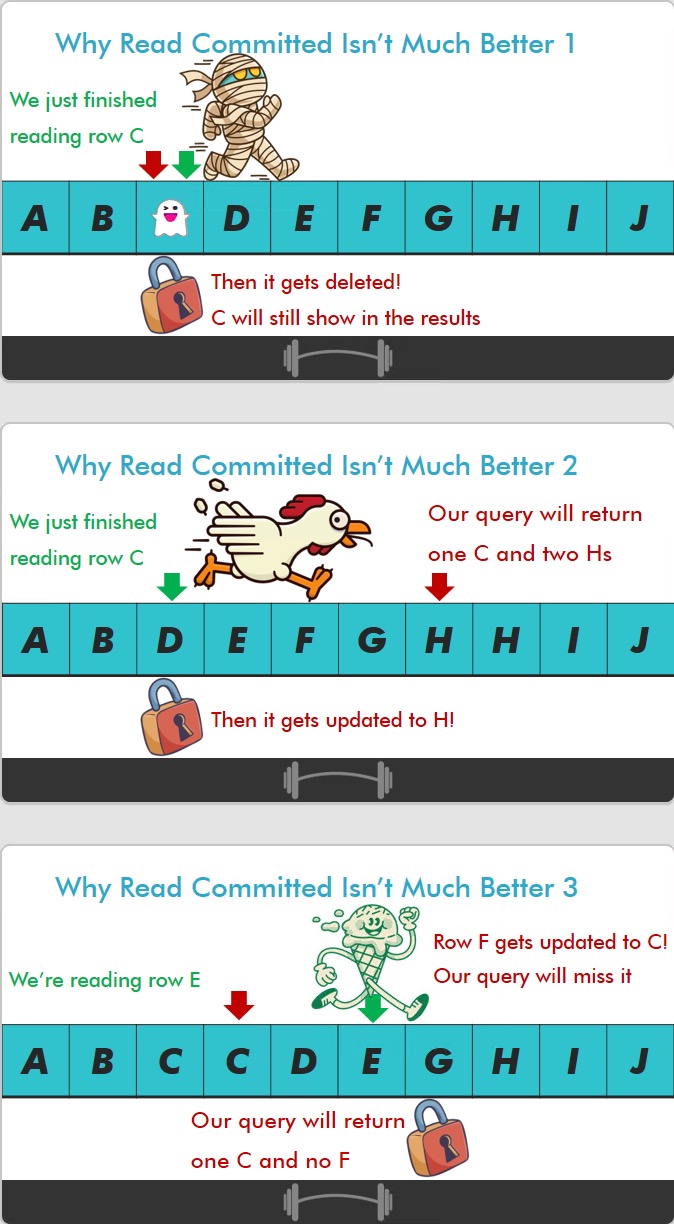
To illustrate the concurrency issues that can arise under Read Committed, here are some slides I made for a thing:
read committed: not great
If any of these surprise you, you’re not allowed to argue with me about Read Committed Snapshot Isolation.
Read Committed Snapshot Isolation And Dumb Queries
Queries that are susceptible to race conditions with optimistic isolation levels are queries that are written in stupid ways.
One example is a query like this:
BEGIN TRANSACTION;
     DECLARE
         @name nvarchar(40) = 'Erik';

    UPDATE dp
      SET
          dp.name = @name,
          dp.is_free = 0
    OUTPUT
        Inserted.*
    FROM dbo.DinnerPlans AS dp
    WHERE EXISTS
    (
        SELECT
            1/0
        FROM dbo.DinnerPlans AS dp2
        WHERE dp.id = dp2.id
        AND   dp2.is_free = 1
    );
COMMIT;
It will behave differently under optimistic vs. pessimistic isolation levels. Let’s pretend that two people try to book the very last seat at the very last time.
Under Read Committed, the update to DinnerPlans would block things so that the read in the exists subquery would wait for it to complete, and find no rows.
Under Read Committed Snapshot Isolation, the update to DinnerPlans would generate a row version, and the read in the exists subquery would read that version where it would find a row.
This is, of course, a very stupid query. If you’re just using direct updates, you won’t have problems:
UPDATE
    dp
  SET
    dp.name = N'Erik',
    dp.is_free = 0
FROM dbo.DinnerPlans AS dp
WHERE is_free = 1;
For Every Occasion
There are likely times when each and every isolation level is appropriate, or even required, for parts of a workload to function correctly.
Just like settings for parallelism, max server memory, and many other things in SQL Server, it’s your job to set them as appropriate guardrails for the workload as a whole.
Most workloads work better using Read Committed Snapshot Isolation. If there are specific queries in your workload with different needs, you have many wonderful options to fix them.
In some cases the READCOMMITTEDLOCK hint may be the minimum effective dose. You may also read this post and realize that you need a stronger isolation level with better guarantees, like Repeatable Read or Serializable.
Many people are surprised that Repeatable Read only takes its special locks on rows as it’s reading them, and that changes ahead of where the reads have occurred can still occur, and inserts can still occur between rows that have been read.
Like I said before, no isolation level is perfect, and many developers are surprised by the details of each one.
Most people think that Read Committed works the way Serializable does, where the set of rows you’ve read and are yet to read are somehow a golden copy of the data. That is not true.
The misunderstandings usually arise from a lack of testing for expected results under high concurrency.
Tools like SQL Query Stress and ostress can be invaluable for making sure you’re getting what you want from whatever isolation level you’re using.
Thanks for reading!
Going Further
If this is the kind of SQL Server stuff you love learning about, you’ll love my training. Blog readers get 25% off the Everything Bundle — over 100 hours of performance tuning content. Need hands-on help? I offer consulting engagements from targeted investigations to ongoing retainers. Want a quick sanity check before committing to a full engagement? Schedule a call — no commitment required.
Locking hints are funny. Normally I see them in awful products like Dynamics, on select queries, and hilarious levels of blocking and deadlocking issues ensue.
Another place where they’re common is when developers think that adding hints like ROWLOCK means you’ll always only ever lock rows, and that you’ll never have lock escalation when you use it.
Both of those things are wrong. Here’s a video about why:
Perhaps I’m a bit salty because I spent a lot of today rewriting merge statements into separate actions. Perhaps I’m just salty generally.
When Do You Need Locking Hints?
Locking hints (aside from NOLOCK), have the most impact when you need to protect data beyond the scope of a single query in a transaction.
They have the second most impact when you’re doing strangeland things in the database, like processing queues. You can see my example of how to do that here: Building Reusable Queues In SQL Server Part 2
More often than not, though, you’ll want to use them if you do things like this:
BEGIN TRANSACTION
DECLARE
    @NextUser integer;

SELECT TOP (1)
    @NextUser = u.Id
FROM dbo.Users AS u WITH(UPDLOCK, SERIALIZABLE)
WHERE u.LastAccessDate >=
(
    SELECT
        MAX(u2.LastAccessDate)
    FROM dbo.Users AS u2 WITH(UPDLOCK, SERIALIZABLE)
)
ORDER BY
    u.LastAccessDate DESC;

INSERT
    dbo.Badges
(
    Name,
    UserId,
    Date
)
VALUES
(
    N'Most Recent User Award',
    @NextUser,
    GETDATE()
);
COMMIT;
Why? What if someone else logs in after you assign this variable?
What locking hints do you need each time you touch the Users table?
Do you need a transaction to protect the entire thing?
Look at the join order
What if someone logs in after the first scan of the Users table?
Is this great for concurrency? Well, that depends on how fast the queries are. With some Good Enough™️ indexes, this’ll be just fine.
Without them, you’ll be in a HEAP of trouble. Ahem. This is the time for laughter.
Thanks for reading!
Going Further
If this is the kind of SQL Server stuff you love learning about, you’ll love my training. Blog readers get 25% off the Everything Bundle — over 100 hours of performance tuning content. Need hands-on help? I offer consulting engagements from targeted investigations to ongoing retainers. Want a quick sanity check before committing to a full engagement? Schedule a call — no commitment required.
I somehow talked database genius and actual professor Andy Pavlo to talk to me about databases, OtterTune, the future, and who has the best query optimizer.
Video Summary
In this video, I had the pleasure of interviewing Andy Pablo, an associate professor at Carnegie Mellon University and CEO of Autotune, a database tuning service. We delved into his journey with PostgreSQL, discussing why he believes it’s a great choice for most database projects due to its flexibility and extensibility. Andy highlighted how PostgreSQL’s ability to extend the system through various means sets it apart from other databases but also poses challenges in terms of extension conflicts. He shared insights on ongoing research at Carnegie Mellon University exploring these issues, particularly focusing on how different extensions interact with each other, which can lead to unexpected behavior and performance issues.
We also touched on the practical implications of PostgreSQL’s extensibility for cloud deployments, where major vendors impose restrictions on certain extensions due to security concerns. Andy’s expertise in database optimization and his experience working with both PostgreSQL and SQL Server provided a rich comparison between these two powerful systems, offering valuable perspectives for anyone looking to choose or optimize their database solution.
Full Transcript
Yeah, all right. Recording progress. I’ll record twice, too, on my Surface. Then… Yeah, all right, cool. We’re good to go. All right.
How’s my audio? You sound great. You sound great. You look great. Yes, we’re good on it. All right, cool. So, I don’t know, do you want to introduce yourself? Because no one knows who you are.
Sure, yeah. You want to be like, hey, guys, I’m there, like that kind of stuff? Yeah, sure.
Nice little intro. Make sure everyone is cool with your bona fides and whatnot. This is your podcast, right? This is like, it’s not… I was just going to stick this on YouTube or something. Yeah, okay, sure, sure. All right.
Hey, guys, this is Andy Pablo. I’m an associate professor of databaseology at Carnegie Mellon University. I’m also the CEO and co-founder of Autotune, the automated database tuning as a service based on machine learning. And I’m talking to Eric, even though it’s your podcast.
Yeah. So, cool. Nice to have you here, Andy. Yeah, thanks for having me. Yeah, of course. So, you do a lot of stuff with databases that are not SQL Server. And I pretty much do a lot of stuff with only SQL Server because I’m not smart enough to use other databases or I’m not smart enough to learn more database stuff.
My head is just crammed with SQL Server. I couldn’t possibly fit another database in there. So, tell me, what sort of stuff about Postgres?
Like, what drew you to Postgres? What got you in there? What made you a Postgres fan? So, I mean, one, there’s a couple of things. One, I’m biased because my PhD advisor invented Postgres.
So, there’s that. Okay, that works. It is open source. And I guess my journey to using Postgres, and I would say for my students that take the database classes at the university, I mean, I tell them for any new project, the default choice should be Postgres. And the reason why I say this is because it, in terms of all the open source, freely available relational database systems, by far, it’s the best in terms of the capabilities, the features, the functionality.
And, you know, when you think of maybe the alternative is like SQLite, SQLite is very, very good. But of course, obviously, it doesn’t, it has its own quirks and it’s embedded database. So, it’s not really limited.
Fit limited. Fit limited. And MySQL, I would say, how I ended up, you know, coming around and being a huge Postgres fan was, the first database I used when I was in high school was MySQL, MySQL 3. Oh, yeah.
It’s huge for like just about every beginner database project. Right. And so, there’s a lot of, like I said, like, oh, I just didn’t know. I’m like, oh, this is how databases are. And MySQL had its own quirks. And it wasn’t until like, I started using Postgres more and more.
I’m like, oh, I realized, I go, oh, this is what it really should be like. This is how you really should care about these kind of things. And it sort of expanded upon that. Yeah.
And there’s like the Oracle competitive checklist of things that it needs to get in there. And plus whatever like database meme of the moment is really popular. It’s like, oh, we got to get graph in there. Oh, we got to get node in there.
Oh, we got to get vector search in there. We got to get ledger in there. Like, they just push out this stuff that is like, you know, like sounds good to like, you know, people who write checks, but maybe probably isn’t like, like anything that database like, like developers or admins are like psyched on. Right.
So you’re at this like, like the weird mercy of this company just being like, like people beg for stuff for years. Like, please, we just need this one thing. And then it shows up like four releases later to like, you know, little fanfare because everyone’s like, oh, oh, goddamn time. Yeah.
It’s tough to say that, you know, that SQL Server, I wouldn’t definitely, I would not have come as a bad data system. Right. No, no, it’s not bad at all. And I love it. But, you know, there are certain things that are frustrating working with it in that way.
Yes. I mean, I would say also to like T SQL is, it’s not that different than sort of Postgres SQL’s dialect or other data systems. Sure.
It’s different enough. Yeah. Yeah. Well, I think, I think Postgres, Postgres implementation is, I mean, I might be wrong about this, but I do think it’s a lot closer to the ANSI standard. And I think it’s been extended in really useful ways beyond that, that like, like stuff that I’ve been jealous of for years over there is just like, like, I can’t even, I can’t imagine that ever showing up in SQL Server and just being like, oh, cool.
We finally have that. Like, like we just got generate series in SQL Server 2022, which is wild. I would say the double colons that like, like for typecast or casting types.
Yeah. For like that one is like, I use that all the time. Yeah. It’s cool. It’s not the SQL standard. And, but it’s like, it’s one of those things like when I use another data system, because in the class, I like to demo other systems, like SQL Server.
Like I, I find myself like, that’s like my muscle memory. I try to type that all the time. And it’s just not there.
Yeah. Yeah. I would say, you know, for SQL Server for despite his age, right. You know, I’m sure your, your viewers are familiar with the lineage of it’s a fork of Sybase and so forth. Yeah.
So we’re talking like, you know, code base. And that’s, that at least originated from the 1980s, even though it’s been rewritten several times over and over again. Yeah. Um, despite its age, it’s, it’s still one of the, you know, I guess, a, a, a state of art database system. Uh, and if, and if it wasn’t the fact that it costs money, maybe close source, I would some cases recommend that over, over Postgres.
Cause it certainly does things a lot, lot better than Postgres does. Yeah. In some places.
Uh, but in, I, I think in, in places where, so like, like, like outside of optimizer stuff or like, you know, like sort of internals, I think one place. But for optimizer stuff, like, like we’ll get to the internals. Like, like that’s huge.
Like, don’t, don’t. Yeah, it is. It is. But like the, the point that I was going to make is like, like, uh, a lot of SQL Server DBAs will look at Postgres and be like, oh, well, like, you know, it doesn’t have the great high availability stuff that SQL Server does. It doesn’t have like the great, like, you know, like, like availability group type stuff.
But I like the cloud is changing a lot of that. Cause the cloud is just like, well, well, we got you, we got your back on that anyway. Yeah. But the stuff that like, I think we’re probably more keen on, which is the internal stuff and the optimizer stuff is where, uh, I don’t know. I think, I think there’s probably room for like pistols at dawn in some places.
And what do you mean in terms of like a bake off against Postgres? I don’t think, I don’t have process to even come close to what SQL Server can do. Yeah. Well, I mean, it has a query like planner, not a query optimizer, right?
It’s like, you know, like two like distinctions there. Like everyone, everyone likes to throw that around. But, uh, I don’t know, I think for what you get out of Postgres, uh, and for the price of Postgres, it’s, you know, it’s not a bad choice at all for, like you said, just about any database project starting out. You know, like if you, if you hit a real wall with the optimizer and Postgres, like, what are you going to do?
Like migrate to SQL Server to get a better query plan? That’s a, it’s a tough, it’s a tough swap. Yeah. Yes.
Uh, to one percent agree. Um, I mean, the, another interesting aspect that I think differentiates Postgres and other digital systems, and this is something that we’re currently researching back at the university is, is it’s flexibility and extensibility. Yep.
And that’s very unique to Postgres, but it’s a blessing and a curse too, right? Um, and so the way to figure out is just like how, how much freedom or how much flexibility you have in extending the data system through the extensions or plugins, whatever you want to call them. Uh, in addition to UDFs and UDTs and all that stuff.
But then there’s also like how wild is actually the, the ecosystem, meaning like there’s, in the case of Postgres, people are, you know, you’re dropping in compiled shared objects, like C, you know, C code into identity system. Yeah. And no commercial symbol would even let you do that at all.
So like, yes, you can extend it, but like, like there’s no guarantee those extensions are gonna knock or break things. Yeah. You know, it’s, it’s like, it’s like the, uh, the Android app store in like 2008 or nine or 10 or something like that. We’re like, you could download anything.
It was just like wild west. Or browser extensions. Right. And then. Yeah. Yeah. And it’s interesting. Cause like other databases like SQL light, their, their extension ecosystem is a bit much more narrow, um, for, uh, for my SQL, you know, as well, like redis, these systems actually have a well-defined API of what you, how you extend it. Whereas, um, whereas Postgres is like, again, you literally, you install extension.
You can overwrite functions that are built into Postgres. Yeah. And it’s crazy. Yeah. Um, no, I’ve definitely, I’ve definitely had a few people talk like, uh, so I was at, uh, past summit, which is like, you know, the big data conference.
And there was a, there was a much heavier Postgres presence there this year. Uh, like the local Postgres user group actually had a booth there and like, they all volunteered and showed up and like answer questions. They had sessions and stuff there, but, uh, you know, like, so I was just talking to a few people about Postgres stuff and, you know, I think one person was talking about, like, they tried to, sorry, I got some sort of fire emergency going on outside, but, uh, the joys of joys of podcasting in New York.
Right. Uh, so like, uh, they were talking about how, you know, when they first got started with Postgres, they saw like the bright, shiny extensibility stuff and they just like completely crashed. And it wouldn’t start back up after trying to like turn on a few things and like, like the, and like, like one thing that a lot of people would take for granted with the extensibility aspect is like the interoperability of the extensibility.
So like, you know, like one extension and other extension, just really fighting with each other. Yeah. I could talk about that because that’s actually what our research is looking into.
Nice. It turns out. I didn’t even know that. Wow. Yeah. Yeah. So it turns out, uh, some extensions, they literally copy paste Postgres source code into the extension and they make some minor changes to it. And so when you compile the shared object, it overrides the function in, in the, in the, in the address space of the program.
And so then when Postgres normally would call it, it’s whatever function, it ends up calling this extensions, you know, modified version of it. Right. So that’s all fine and dandy until you have two extensions that both do, do the exact same thing.
They make changes to the same function. Uh, so then, then they clobber each other. Or another problem with in Postgres is that there’s no, there’s no sort of central manager for extensions. And so it’s up to the extension itself to make sure that they call whatever extension was installed before it.
Right. Literally writing like, Hey, call this extension. And it just calls where the last one that was loaded and that exception that has to call the next one that was loaded before it. Cause it’s overriding is taking over functions.
Right. So there’s some extensions that don’t actually do that. So you can install extension, install another extension. And then that kills off the first one. And then you just, you don’t know, cause it’s just silently happens in the program code. Um, It’s, it’s funny that that, that just brings you back to like, when I first started using computers and like, you would have to just like, like, like copy over driver files and stuff.
And let’s like do all sorts of weird stuff. It just, it’s just like that level of crazy. Yes.
And then this is why also too, like the major cloud vendors for Postgres. Uh, so like, you know, Amazon, Microsoft and Google and others, like you can install some extensions, but there’s a, there’s an allow list of which ones you’re allowed to install that are vetted by them. Um, and it’s usually the ones that are, that are more innocuous that they’ve already vetted.
Sure. For the, for other things, customer stuff that you can’t run those. Yeah, man. Wow. So like what, what Postgres extensions are you looking at that like fight with each other or are you not allowed to say? Uh, I mean, this is research, right?
This is, we haven’t published it yet. Uh, I situs wasn’t one that was, was called a lot of problem. Right. Yeah. Yeah. They make a lot of changes. Um, there’s a lot of them have to do with, uh, touching the query optimizer and internal profiling things.
So I think there’s like, there’s, there’s one called, um, I think PG plan hits. Yeah. Because again, SQL Server out of the box has plan hits.
Postgres extension. That one does some, some funky stuff. Uh, there’s like, there’s like PG, uh, there’s a bunch of profiling things that get like from queries run, like information about what the data system actually did. Yeah. Yeah.
So like, I, I was, I was reading about one recently that sort of enables like the, the Postgres version of wait stats and SQL Server. So like, so you, you can figure out like what the query like waited on when it ran. Was it goes at disk words and memory was at walks, like whatever it was.
Yeah. So like, and like, you know, I think like stuff like that is, I mean, crucial if you’re going to like performance tune a database system. Like, how do you, like, I don’t know how anyone would live without that. Like just having worked with SQL Server for so long.
And like, the first thing I do is like, all right, like what are the overall server weights? I can’t imagine like walking into a server and someone being, or like, you know, like sitting down in front of a computer to figure out, figure out like, like performance on something and not having that to look at like first, just to like get some stuff. And so where things are.
Yes. So we, I think we looked at, it’s over like a hundred extensions. Yeah. And I think about 20% of them have problems with like playing, playing us with others. Wow.
There’s, I mean, there’s other things like, you know, Postgres, you can, you know, it’s interesting because like this, this idea of sensibility was the original, sort of one of the original, uh, uh, mantras or the, the, the, the, the origin story of, of, of Postgres. Right. Uh, and so they’ve had UDTs and for a long time, you, you, you, you, you, you, you, you find aggregates, you, you find types.
Yeah. And so when you, when you start, start, start installing some of these other UDTs, they install custom indexes. Yeah.
There’s an API that Postgres provides where if you want to add a new, you want to add a new user defined type, you have to implement these functions, but some of them are optional. But if you want to use an index with them, you have to implement those. And so some of the UDTs don’t actually implement them.
So they, like, it crashes when you try to load them. That’s fine. That’s fine. Yeah. Yeah. I mean, I, I think it’s an interesting story to share, like in the, the origin of Postgres of, of when, you know, Stonebreaker was building it at Berkeley. One of the stories he likes to tell is the reason why he had this idea of extensibility of being like baked into the original idea of the system was when they were selling ingress, the commercial version of ingress in the early 1980s, they would go to like, to Wall Street and talk to a bunch of these banks that were looking to adopt, you know, bring in a relational database system.
Yeah. And I think like the default data type for at the time in ingress was, was based on like the Gregorian calendar, but all the banks computed interest based on the Julian calendar. Right.
So you had to like override, they had no way to easily override and introduce new, you know, Julian calendar types. Yeah. There’s things like that. Like, but a lot of the extensions that we see in Postgres, they’re based on like, uh, observability hooks, like things that weren’t really meant for like debugging, really meant for providing new functionality. But over time, it’s grown, going to add additional features and people have write a lot of things.
Yeah. Yeah. Uh, so like, like the, this, I think the SQL Server version of that was when they introduced CLR programming into it. So you like, you could write stuff in C sharp and that could be a function that like you add to SQL Server.
And just like the amount of like, like hell on earth stuff I’ve seen from people doing that poorly, or just like screwing up somewhere in the C sharp. And that ends up just like doing all sorts of weird stuff with like app domains and memory allocation. And there’s other stuff in SQL Server that it has, that it has like no way of just saying like, no, shut it down or override or just like get it out of here.
It’s like someone, someone like programmed that on top and whatever they did was just God awful. Is it sandbox? Is it sandbox? Sort of.
Like sort of. So like you have like trusted and untrusted ones. And of course the untrusted ones are like, you know, again, like, like way more Android app store early days where like people can do just about anything in those. Like, like, like to the point where like, like, Azure SQL DB, like disallows CLR because of the amount of stuff you could reach out and do that is none of your business. Like you could, you can just go out to like any other database and do any other stuff you want.
Like Microsoft had to pull that real quick. And they were just like, wait a minute. Yeah. I think Oracle, when you have, if you want to run these sort of untrusted extensions, I think they sandbox you in a separate process. Really?
Yeah. Yeah. I don’t know. I don’t know what SQL OS does for that. To be honest. I’ve never, I’ve never dug deep enough between into like how CLR interacts with that to tell you. I, I, there’s no way I can’t imagine. Just like, let them like trash any address in memory.
It’d be terrible. Yeah. Yeah. Let’s let you do it. Yeah.
Well, I mean, it’s like, uh, like, it’s just like handing a teenager the car keys, right? It’s like make good decisions. Uh, it’s handing the car keys and then like saying, then like cutting away the seat belts, right? There’s nothing, there’s, there’s nothing to prevent you from like just shooting yourself in the foot or crashing the car.
Well, I mean, you know, not safe for production use, right? Put that in the header of every script file. So, I mean, long-term what we think we want to do is, uh, I, I, I suspect, you know, so the postgres, the lot of extension API that people are using now that was added in 2006.
So it’s almost 20 years, uh, but postgres really hasn’t taken off and all of these extensions have sort of, you know, become more popular more recently. Mm-hmm . And so I think that, I think that the, at least on the research side, where we think we want to go is almost like an a POSIX API.
Or what extension should be for it. And it, and this is not to be for postgres, this is be for across any database system.
Sure. So the idea is that you could maybe then have this, this well-defined API that allows you to do some things that are very common, uh, like, you know, adding a new index, for example. Mm-hmm .
And there’s, there’s a standard that you could, that, that these database systems could then implement. So then I could take a index data structure that was built maybe for postgres, but I could plop that into a SQL Server or something else. And they support this API.
You know, in the same way, you know, you, you, you take a C program and in theory, you can run across different, you know, Linux and Unix. Right. Right. And then the next step is to apply more modern practices to actually do better sandboxing. And for this one, we’re looking for inspiration from, uh, the, the Linux EP, EPBF project, that Berkeley, extended Berkeley packet filters.
Okay. I mean, that, that, that’s way beyond my, my knowledge in there. It’s good.
So it’s basically like a, uh, it’s, it’s a way right. Yeah. It’s like, you can write kernel modules and run, but not like, again, not C code that you can link in anything they want. There’s a verifier pass that, that makes sure that you can’t, you can’t do certain things. Mm-hmm .
Like you can’t allocate memory. And it’ll reject your program if you try to do that. And then when you actually then run the, the kernel module, they only let you in for a certain number of instructions before you get, before you get kicked out. So that prevents like, you know, infinite loops and things.
Right. So like you would get sort of, you would have like, uh, I believe in, in, I don’t, I don’t know if how general it is, but like in SQL Server, like a query, when it runs, it has a quantum of like around four milliseconds. So you would get that time and then get knocked off.
So something else could do work. Yeah. So like, so like you wouldn’t be able to just preempt everything for hours. Yes. Yeah. But I would say, but it’s more than just like, Hey, my quantum’s up. Yeah.
It’s like, because in the case of SQL West, it’ll go back and keep running your thread after, after you get scheduled again. Yeah. This would be like, you’re, you know, you’re not coming, like you’re running way too long. Kill you. Yeah.
So, so that, that’s funny because, uh, what, so, uh, like in Linux, they have like, if you started, like, you’re not, you’re going to have to help me on this one. Yeah. Because SQL Server, like, you know, will by default use like just all the memory that it can possibly get its grubby little hands on.
But Linux has a certain thing where it will like kill stuff. Uh, like, you know, for when it like gets too close to some memory limit. Yeah.
It’s called the OEM killer. Yeah. Out of memory killer. Yeah. So SQL Server, when they first got to Linux, got bonked by that all the time. Yeah. Yeah. Uh, so it’s, it’s a business idea. And I think for, for Linux, I think the default is to kill whatever processes using those memory.
Yeah. It turns out to be like the easiest thing. SQL Server. Every time. Best thing. Yeah. So, so it’s sort of the same idea.
I mean, this is Richard. I don’t know how it’s gonna work out, but like, this is, this is the path, I think. Yeah, no, that’s, that sounds fantastic. So what, what do you think the odds are of Microsoft accepting any sort of extension like that? Like, like, like, let’s say you wanted to give them like JSON B because, uh, you know, Microsoft’s JSON implementation is basically just in bar car max, uh, with a bunch of fancy brackets in it.
Yes. I, I, I would say this is, this is above my pay grade, right? This is sure.
Sure. Because you, you, you, you would need somebody champion on the inside actually, you know, for sure. Yeah. Yeah. Because the, the last, the last sort of, uh, probably what we could call it an extension that Microsoft allowed from kind of outside, like the official Redmond gates was scalar UDF inlining. Mm-hmm.
Which our, our Lord and Savior Karthik developed in the university and kind of, that kind of got stapled on and that has had a rough path internally. Like with, uh, Mike, like Microsoft needing to go back and add in a lot of limitations and like really limited to a very like specific set of like scalar UDF, like functionality. And, uh, like query expressions and even, um, like levels of recursion within the, within the function.
So, uh, I mean, what you would, you would need a great, you would need a grand champion. You would need like DMX to come back and. Uh, I was gonna say also too, I mean, Karthik was a Microsoft employee, right?
Yeah. Yeah, absolutely. I, I, you know, I don’t, there’s no plans for me right now to, you know, to be a Microsoft employee. So, um, Good.
I, it’s, it’s, it’s, I would say, I would say this is actually one of the things that I’ve learned being part of Autotune, like spitting off the university research as a, as a startup. Is that I’ve been exposed to a lot more things of how like people running databases in the real world. And a lot of the assumptions or things that we maybe assumed in the research lab.
Didn’t actually aren’t, aren’t how things actually work in the real world. So extensions are one of them. They’re way more common than, you know, I think people in academia pay attention to. And then I think proxies are another one where we see things like, again, this is mostly in the space of Postgres, but it comes up in other ways.
Like people, a lot of you are running Postgres with a proxy in front of it. Yeah. Then proxies are like, no one has really looked at them and see what, how you actually can make them work better and work faster.
Right. Yeah. Gotcha. So, uh, yeah. And, you know, I, I, with Microsoft, I always, always imagine it being very walled off in that regard. I think it would, it would take a really weird C chain, C change and like the database landscape for them to open up SQL Server in any meaningful way.
And I think like, even if it were to get opened up to allow, like, even, even like what you were talking about, like very like restricted, safe extension extensibility things. Like they’re never going to like, just let you look under the hood of the optimizer and be like, well, here, just make a couple of tweaks. Go ahead. I’m sure you know what you’re doing.
Yeah. You look trustworthy. Yes. So to be very clear, I think it had to be very restricted, restricted API. Oh yeah. Yeah. Like all the post-crusty stuff that you do, you like, I actually don’t think it makes sense for a lot of stuff. Yeah, sure.
So what, what, what, what, aside from like the extensibility and the proxy stuff, what are some of the biggest surprises you run into with auto tune looking at real world databases, stuff away from the polished ivory? Uh, I would say, um, that we overestimated, uh, not the sophistication of database users, but I think we overestimated. You can say competence. It’s okay.
No, even then, no, but, but, but people, you know, people, like people have their, it’s like, you have your day job, you have all this other stuff you have to do. At the end of the day, a lot of places don’t have DBA shops. They don’t have an area. Right.
Uh, so the, we’ve had, so, so the, the, obviously the, the, the, the, the spectrum of sophistication varies a lot. Um, on one hand that people, there’s people that, that know what they’re doing. Um, but like, they just don’t have the time to do it or like their Oracle SQL Server, you know, DBAs.
Right. And all of a sudden that someone foisted a, a, a MySQL Postgres database on them. And they’re like, I don’t know what to do. The ideas are roughly the same, but like they don’t have time to go figure things out.
And then on the other end of the spectrum are people that are, have told us that they thought Amazon was tuning their database for them. Uh, and I was like, that’s not happening. Um, so I, so I would say that there’s, I think some of our earlier papers we did with auto tune and just for the background here is, is that if we’re using machine learning to automatically optimize, uh, the configuration knobs of database systems for MySQL Postgres.
So buffer pool sizes, caching policies, uh, log file sizes and so forth. Sure. Um, so the, in some of our earlier papers, I think that when we ran our experiments, you need to compare against something to say like, okay, well, how, how good is it can our turn actually make things better?
And so we obviously didn’t want to compare against like, okay, you download and install Postgres and just don’t do any configuration, just turn it on. Cause nobody really does that. Right.
Uh, cause I think by default Postgres, as soon as you have like, you know, running on a box with 120, 128 megabytes of RAM, like nothing. Yep. Uh, so we, we did some tuning to, to be our baseline. We’d be like, oh, this is what, like, you know, a reasonable human would do.
Uh, and I think that we overestimated what a reasonable person would do. And so like, it’s actually, so we find our turn actually working better in the real world. Yeah.
The baseline is actually lower. Yeah. Um, you know, that, that, that, that’s, that, I mean, that’s, that’s awesome to hear one, because that, you know, speaks to like how, like how good of a product it is. But like, I mean, that’s, that’s a lot of what I run into doing consulting where, you know, a lot of like people have.
Like, I think, I think, especially for SQL serve the assumption is for the amount of money you pay for it. And for the amount of like headlines that have come out of like Microsoft things where it’s like the, the self tuning self healing, like most amazing show on earth database. That they, they, they expect it to be able to do a lot of things that it just can’t do.
Or like that it just doesn’t do. And like, like they expect like the out of the box configuration to like, no one care what their setup and their hardware and everything else looks like. But like, they don’t really, they don’t realize that like databases are incredibly generalized pieces of software.
Like, especially like the optimizer, where it’s like, you know, that thing is designed to be able to work well on a computer that has like 128 cores and four gigs of RAM or four cores and like 12 terabytes of RAM. Like you should be like, it’s like, it’s, it doesn’t care what’s outside. Like it doesn’t like, like the outside world doesn’t matter to it. It’s just like, you want to join these tables together? Cool. There you go.
Actually, let me ask you like, you know, Microsoft was at least from the research perspective, there was this research project called auto admin by Surgit Chaudry and other people at Microsoft research. To me, that was always at the cutting edge. And I know a lot of those things ended up in, in, in the product. So like when you got in the field, do you actually use a lot of those auto admin tools to do like auto tuning or is everything so manually?
So if by auto admin, you mean the stuff with like, uh, index tuning, the index tuning, the plan correction stuff, I don’t end up using that a lot. The, so the cool thing is that a lot of that stuff, and this happens a lot with SQL Server features. The cool thing is that a lot of that stuff ended up in the product. The uncool thing is that a lot of it like was V1 and done.
So like that stuff doesn’t get a lot of like a lot of development. There’s not a lot of exploration. There’s not like, like there’s not a lot of like constant iterating on it. But what Microsoft has been doing a lot of work on is the IQP, the intelligent query processing set of features. So like, like every release, there’s kind of like a new set of tweaks and knobs that heuristics that come out that help like certain things happen automatically better.
So like adaptive joins, like batch mode on rowstore, like batch mode memory grant feedback. It’s no longer just batch mode memory grant feedback. There’s like a lot of like, like a cardinality estimator feedback. There’s like a lot of cool stuff that comes along that helps either a plan do better at runtime or it helps the optimizer take a second look at a plan and be like, okay, well, where did I screw up? So like, or like, where did I go wrong? Because like before it was all this very YOLO, like it didn’t matter what happened before or after, like, that was the query plan you got and we’re sticking with it.
So like that stuff, I think is really neat. Because that stuff, I mean, well, it makes you know, writing demos and stuff really hard and confusing as you get into like more modern features. Like I think it really does help people who actually like, you know, have workloads that either are third party vendor apps that they can’t like, like meaningfully tune themselves, like the code is all black box. And if you change indexes, you break your support agreement. So that stuff is really cool. But like, like a lot of the, the automated stuff, especially where on the indexing, like in Azure SQL DB, it’s just kind of a nightmare.
It’s not too far off from like the missing index requests that you would get in like query plans or like the dynamic management views. And a lot of the like, you know, AB testing is very, very limited to like, like, like, like helping a specific part of the query. It’s all very like where clause centric. Like, like, like, once you get beyond the where clause to like others, other other like relational stuff that like would totally be great that like have, you know, some index ordering for like joins order by group by window and functions with the partition by order by stuff.
Like it’s, it’s still very blind to those things. And, you know, like you still you still kind of need to, you still kind of need a human being to come in and be like, No, no, no, no, no, no. Like, good job. Appreciate you. But Is that all this sort of adaptive stuff you just mentioned, is that turn on my default? So like, Sort of. I mean, of course, Enterprise Edition, you have to fork over money for it.
There are some things that the standard edition gets like, like standard edition got UDF inlining, which was cool, because I think they needed to expose that to as many people as possible, like figure out things was going. Yes, but but a lot of most of it is Enterprise Edition only, and where Microsoft kind of gets you like really sticks in the ribs is a lot of that stuff is only on under two circumstances. If you are in the highest compatibility level available like like compact like database compatibility level unlock certain features.
It also unlocks weird cardinality estimator stuff you probably remember 2014 or so when they introduced the new cardinality estimation model. So like you get that along with some of that stuff, and then there are a bunch of database scope configurations where you can turn different flags on and off. There are trace flags or like all sorts of settings that allow you to like interact with with it with things in different ways.
So a lot of this stuff does happen by default, assuming that you’re on Enterprise Edition and you’re in a like high enough compatibility level. And then some of the some of the stuff that some of the settings are still opt in, though. Got it. Okay.
I mean, again, so none of those things exist in Postgres, right? Like, right, it’s it’s basically almost like a an empty car frame. You got to like tweak it and modify it to do whatever it is that you want to do. So, um, we might see something.
So I think it’s the same thing. Yeah. So like so like my big question is, uh, so like what we were talking about earlier where Postgres by default doesn’t have a lot of stuff in it. So how do you like like just like the thing about like weight stats and like the extension that allows you to see weight stats and Postgres like how does auto tune go in and figure out if the changes that it’s making are generally good, generally bad, or like what needs to get tweaked or rolled down.
Like what’s like what’s the sort of like, I mean, you don’t have to like give me technical details just sort of what’s like the general philosophy behind like figuring that stuff out. So let’s just focus on knobs. Um, the way I guess because I mean indexes and query tuning is a whole nother beast.
Um, and you know, our, we have found that over the other, we do some query tuning, we do some index tuning. We have found that people are primarily coming to us for the knob tuning stuff because in some ways in the performance is a bigger win for performance difference. Sometimes it doesn’t require any change to the application code, right?
People like that. Yeah. So the first step you have to sort of figure out is okay, what, what knobs are actually wanted to. Um, and the way we do that is we basically just do a sweep across all possible knobs. You can tune.
Mm-hmm. We obviously throw things out where like you wouldn’t want to tune like a, like a file name or a port number. Like things that if you change, it affects the, you know, the system. Yeah.
You want the performance knobs. Yeah. And then there’s other knobs too, where we also, uh, we, we disallowed the, the models from tuning them. Cause you know, could affect like safety of data. Like, right.
Sure. Machine learning learns very quickly that if you turned off disk rights, you go faster. Right. So it does that every time. Yeah. Um, it does change all the tables to non log. You’re fine. Yes. Yes.
Uh, so, uh, we, we, we basically do a sweep and then you do a statistical analysis of, to measure the influence or the impact of how much knobs affect the objective functions. So like you’re trying to minimize latency, reduce CP utilization, whatever you care about, and you can come up with a ranking. Uh, okay.
And then from that, we, we sort of say, okay, 10 seems, seems to be like the right number eight or 10, 10s of the database system. And that’s because beyond those sort of core 10 knobs, like maybe that’ll get you 85, 80, 80, 80, 90% of the benefit. Yeah.
The, the remaining knobs beyond that, although there may be maybe a couple dozen more, it really depends on like what the application is. Right. So there’s no, like the 10, the top 10 knobs you find that’s most universal for every single workload. These are the ones you always want to do.
Yeah. Like buffer pool size, of course. Sure. Um, so then, uh, so, so now you have your list of rank knobs, there’s additional curation we’ve done to then say, okay, what are the range of possible values? Mm-hmm .
And, and that’s tied often to the hardware, right? Like if you’re, if you’re in a box with a hundred gigs of RAM, it doesn’t make sense to try to tune the buffer pool to two terabytes. Right. Right. Sure. We’ve curated that. And then the, uh, the high level where the algorithm works is you, you work a lot of runs for a little bit.
We collect the internal telemetry of the database system, suck that out and put that into a repository. And then we train machine learning models that can try to predict how the database systems will, performance will change according to the objective function of like CPU or whatever. Uh, based on how you start tweaking the knobs and then you apply the changes, observe a bit more, get a feedback, and then see whether that makes things better or worse.
And then eventually the models will converge and say for your current workload, this is what we think is the best configuration. Sure. So I, I have, I have two questions, uh, follow up on that.
The first one is, uh, like obviously no database change. It like, it doesn’t matter what it is, is like inherently risk-free. How do you, how do you sort of manage that risk in the, in the things that you change?
Yeah. So this is another one that like a good difference between what we assumed in the, in the, in the university versus what’s changing the real one. Yeah.
So when we were the university project and a bunch of people reached out to us and said, we want to run autotune, which is eventually why we decided to do the startup. We were talking to, uh, the, the, the, you know, they weren’t customers. They were, you know, I guess collaborators, whatever you would call them.
The people that wanted to use autotune we were talking to, they had the ability to take snapshots of the database and run it on spare hardware or capture workload traces and run replay. Oh, cool. In the real world, most people cannot do that.
Yeah. Uh, and especially for Postgres and my SQL, the tooling to do these things, especially work of replay is nowhere near as sophisticated as what exists in commercial enterprise systems. Like, I mean, SQL servers stuff is not even all that great.
Like distributed replay was like just a boat anchor to use. Uh, yeah. So the Oracle one was really good. The Oracle one’s really good.
It’s called like, yeah, rapid application testing rat. Yeah, yeah, yeah, yeah. So because now people can’t run, people can’t run on clone hardware. We had, they had to run on production databases.
Yeah. And so that’s, that’s, that’s kind of like, it’s a hard ask now to say, Hey, point this machine learning thing that it’s going to figure out in a couple of days, you know, how to make your database better. Yeah.
And so we, we essentially had to put in more guardrails and to make sure that the, the algorithm is more conservative that we kind of, um, at least in the very beginning on Amazon databases, we know that the default configuration that someone has that is bad. Yeah. So you don’t really need to have the model or the machine learning algorithm do like a random walk, trying to feel around its way in the world.
Right. Kind of like you push the model towards like, what you know is going to be at least in the general direction that’ll make things better. Sure.
So there’s a bunch of things like that that we had to do to make sure that things were, and then there’s other things like, um, uh, people want to only tune the database at, at certain times of the day. Uh, we also realized that, you know, people would turn on auto tune at like, at like nine in the morning and we start tuning in that sort of like the workload is getting, you know, the workload is getting, getting more, uh, you know, there’s more queries showing up. Right.
It’s heating up. It’s heating up. And then like it drops down as, as the day ends. Yeah. So we, we changed our observation windows to actually be 24 hours by default. So we see the day night pattern and then you, then you got to skip weekends. You got to skip holidays.
So there’s a bunch of crap like that. Yeah. Not hardcore, you know, research or hardcore machine learning, but like you have to do, cause you’re dealing with databases in the real world. Yeah. So, I mean, so that, I’m going to get to the second question in a second, but that’s interesting because, you know, like at least, you know, SQL Server world, you know, uh, you’ll have like daytime stuff, which is going to be like the OLTP ish stuff. And then people running reports and whatnot.
And then nighttime activity is usually either like maintenance or some type of like ETL ish task, either like pushing data to another database or server or something like that. So like, like, like does auto to like, does what auto tune, like try to like, sort of like, like, like, like ignore some stuff, like, like, you know, like, let’s say like, like, it’s not going to like try to tune stuff to like make backups faster or to make like, like, or like try and like, like you, like you, like, like, how do you focus on query workload patterns? Like, like, like, like, like, like, like, like, like, you know, just general sort of stuff that maybe wouldn’t, uh, wouldn’t be improved.
Yeah. So, um, so we, we don’t do anything really sophisticated right now. Like you can sort of set the time window during the day when you, when you want to look at stuff. Um, we’ve had people ask us like, Hey, I’m just exactly as the use case you’re saying, like, Hey, during the day, I want this configuration.
Cause I’m trying to do right. Heavy stuff on OTP. Yeah. And then at night switching this. Yeah.
Configuration. We don’t, we don’t do it yet. Um, that would be cool though. Another use case is people have said like, well, I know at the end of the month, I’m gonna do a bunch of a reporting jobs for, you know, for my, my challenge or whatever. So when, when, when this happens, switch to this mode or there’s other things too.
Like, uh, we’ve had customers say, I know that come, come the holiday season, I’m also going to have a huge flood of traffic and it’s gonna look different than what I normally have. So I want something on a time base, like, you know, every, every November 1st, switch to this config. Yeah.
Yeah. You can start doing more sophisticated things. Like, Hey, if I see a workload pattern, it looks like this, then triggers, triggers something else. Yeah. We just haven’t done, we haven’t, haven’t done that yet. Yeah. I mean, you know, it’s, it’s good to have those things in your pocket though, when you get bored. Right.
Yeah. So the second question I had, uh, is, is there any sort of like recommendation engine where like, like, like, like, so like, you know, coming back to like me consulting. Uh, if like, I might look at someone’s hardware set up for the size of the data they have and the workload they’re trying to run.
And I, I might just be like, sir, this is impossible. Like, like, like, like I have a laptop sitting next to me. That’s way better than whatever you’re trying to do.
Like, like I could, I could, I could turn all the knobs that you want, but you know, there would never be, uh, like, you would just never see that 80, 90% improvement in things because, you know, it’s like the hardware just isn’t capable. It’s also in our world too, since we don’t auto tune, can’t add indexes. So like, if you’re just doing nothing but sequential scans, no matter what we tune the knobs, it’s not gonna make a difference.
But, um, to your point, like, basically, can we do identify whether you’re undersized or oversized? Um, so we haven’t done this yet. We’re actually going to start looking at this 20, 24.
This is, we think this is something that machine learning models can help us. They already have can help guide us. Um, the reason why we haven’t really focused on this is because, um, we’re not really focused on this. Um, when, when we, when we first decided to do the startup, it was right when the pandemic was starting.
Yeah. And so at the very beginning, we were trying to get, you know, just get funding and figure things out. And Dana, my PhD student, she was still writing her thesis.
So she was sort of finishing up. And then as the pandemic kind of kept going, the, all the tech companies were flushing cash. Yeah.
Everyone’s working at home for whatever. And no one really asked us to save them money. Okay. There was one travel, one travel site cared about saving money. Because obviously they were not making any money. I got, because with bookie.com, I can say this publicly.
Um, and so, uh, and then, but then, and so everyone just cared about performance. But now in the last year, I think it’s come back around where everyone’s like, hey, how can auto-tunity money? Yeah.
So this is, and so in, you know, in, in a, in something like on AWS, especially in RDS, where you pay per like instance, if it’s provisioned, unless you turn on, you know, unless you downsize, there isn’t any savings to be found. Aurora’s a little different because you pay per IOP.
And that one, we can save money. Yeah. Uh, but we don’t, we don’t do a good job servicing that. So that’s the plan in 2024. Nice. Nice. Yeah. Um, I, I think, you know, like a big part of especially, uh, like cloud database consulting, and I’m sure, you know, where, where auto-tune is going is like, you know, like the, the price of your service versus how much money that service can save you by making sure things are tuned in such a way that you like make the best use of the hardware you have. And that hardware can get smaller to save you money long-term.
Like, like there, like there has to be some sort of like you pay for yourself something. That was the problem we had in the beginning. Like when, when I was saying when all the tech companies were flushing cash, they would say, Hey, come make my database faster. And we were like, okay, great.
Here’s this machine or anything. Yeah. You gotta, you gotta set this up. You gotta do this. Give us the permissions. And then people basically say like, why, why won’t I pay you to do that? I’m just going to jack up my instance size on, on RDS and just pay Amazon more money. Right?
We saw that a lot. Yeah. And because, and, but, and there’s obviously diminishing returns and certainly postcards can’t scale vertically. As well as SQL Server can, but like that we were up against people being lazy and just paying Amazon more money. Sure.
Yeah. The tide is, or the pendulum has swung back the other way now. Yeah. Yeah. No, I mean, I, I, I find a lot of people who are just like, you know, we, we, we kept bumping up the instance size. We kept bumping it up and up and up.
And now it’s like, like our cloud bill is like, like 40 grand a month for this thing. Yeah. And like, we can’t figure out, we can’t figure out where the end is like, where the end might be in sight for like, where we, like, where are like things are just going to work well with what we have. And no, again, coming back to like people being surprised at what SQL Server will and won’t do for you out of the box.
Like a lot of them are just like, well, like, like, why doesn’t the optimizer make these queries better? If it like they all, if they’re all slow, like, why doesn’t the optimizer do something different? Why doesn’t the optimizer fix this?
Like, why doesn’t, why doesn’t like understand that what it’s doing isn’t good? And this is like, well, you just might not have a good choice. Like the optimizer is kind of limited by like, you know, how you write the query, the indexes you have, like a lot of things. And like, you know, of course, like the optimizers can’t give you like wrong results.
Well, I mean, it can, but it generally doesn’t. But so like, Do most of your customers, are they running on prem or like self hosted SQL Server in the cloud or like the SQL Server as a service from Azure? So, I mean, it’s definitely been shifting.
I work with a lot of people who still use either a self hosted VM or a cloud VM. The Microsoft offerings like managed instance and Azure SQL DB, like there’s a little bit of that, but it’s a, it’s a, it’s a much smaller percentage than I think like the sort of more than like the, like the VM workload, like might be a VM in a cloud somewhere. But like the, like the, the, the like managed stuff is, is, is a little bit more rare than like, even like I’m, I’m sort of surprised by how rare it is because you know, you, you read about how many people are using it and all this other stuff.
And like, you know, you know, it’s still the same product with the same problems and the same issues and whatnot. So like, I wonder if like, you know, they just have maybe, maybe people who do that stuff just maybe have more savvy teams or maybe, you know, like you were talking about, they’re just happy to keep, you know, turning the instant size knobs up. Their problems go away for, you know, another like month or six months.
And also like, if someone’s paying for SQL Server, I mean, it’s not cheap, right? No, no. $7,000 a core enterprise. Right.
So you’re already paying for it. I’m surprised. I mean, I guess, I guess going, going to the managed versions, there’s some tax on top of that. Yeah. Yeah. Yeah. I mean like, and then there’s like, you know, even levels of service within those, there’s like the general tier and the business critical tier. And you can really, you can, there’s really like, there’s really a lot of options out there.
Yes, of course. Yes. Like you can pay more, more and more money for it. I make the joke that the business critical tier is you get a senior DBA. The general purpose tier is you get the junior DBA setting up your system.
Nice. Yeah. But yeah, it’s, I don’t know. It’s, I don’t know. I, I, I, I like the direction things are going in, but you know, at the same time, it’s just sort of like, you know, when you think SQL Server is closed off. Like, like, like as a, like as a whole, the managed stuff is even more closed off.
And you have to like, like, like, you know, like start up with a whole different set of people to get like, like, like the whole, like the whole promise of like Azure SQL DB and managed instances was you are going to be running on the newest version of SQL Server at all times. You’re going to have everything like before everyone else. And that’s just not true. There are a bunch of features from like even SQL Server 2019 that aren’t available in those things.
So like, it’s, it’s, it’s, there’s a weird dichotomy and there were people just like, like, yeah, we want to be on the newest and the best. And I’m like, well, you should run SQL Server 2019 in a VM then. Cause they have way more stuff than you get.
Yeah. Like, like, like big features too. Like, like, like in memory, temp TB is one where like, like that, like that has solved a ton of like, you know, temp TB contention problems for a lot of people that I’ve worked with. But in managed instance, you don’t get that for some reason.
It’s just like, it’s not even on like a roadmap and it’s just weird. Cause like, you’re like, you’re in the cloud. You should be, you should have everything first. Like you should get all this cool stuff, but yeah, just doesn’t always pan out that way. Yeah.
And you would think it’d be, you know, not, maybe not exactly the same code base, but like pretty similar that you just turn them on. Like you get it, you know, you compile it for the on-prem. Yeah.
It’s a host version and just, you get it for the cloud one. Yeah. Well, I mean, from what I understand it, it is the code base just with like certain like feature flags flipped on and off. Yeah. So it’s like, like, and you don’t have access to that stuff. Just like, like, and like dumb things too, like Amazon RDS, you have to like go through a weird different store procedure or something to look at the error logs.
This is like, this is like, you just can’t just use the regular out of the box stuff. Yes. There’s just a lot of weird quirks and like just limitations and things that you would think that like the cloud wouldn’t wouldn’t need wouldn’t need to impose on its users for what they charge them. Yeah, of course.
Yeah. Yeah. So you mentioned that we’re good about five minutes left here. Uh, you mentioned a few things on the roadmap for auto tune. Uh, what, what are like, what are some, what’s some other stuff roadmap wise that you’re really excited about, uh, getting it in the next year or so.
Uh, so I’ll talk about auditing stuff and I’ll talk about research stuff. Um, I think again, what I like about being, you know, still, you know, even though we’re doing the startup and that’s been fun doing the, um, you know, still being involved in research is it’s nice. Cause like, you know, I can put my CV you had on to go talk to companies and I’m like, and you’re a neutral, neutral party, like in Switzerland.
Um, so with auto tune, I think that. Exposing cost savings is, is, is a, is a big one. Um, I think we need to do a better job also of.
Uh, hand, not hand. Yeah, but I guess hand holding, but managing expectations and, and explaining to people, uh, in auto tune, like, okay, we’re going to tune, you know, you’re turning, turning on auto tune on. We’re going to watch your database for this amount of time.
And in the next config will come in this amount of time. Yep. Um, and sort of, and then give some kind of signal to them of like, okay, like we, we, this is the best it’s going to, we think we can do. Yeah.
Um, which is not easy to do, but like. Just some kind of, it doesn’t need precise. So some kind of hint to say like, Hey, you know, you’re 95, 95% of the way there. Yep. Let’s keep going. But like, this is probably managed expectations because. We found that like people.
You know, they’ll get like the, the, you know, maybe, maybe eight, uh, the full benefit or the 80% of the benefit of improving things within, uh, within two weeks. But then after that, like, maybe you think, oh, you know, I thought I was going to get another 80% reduction. And after that, no, you’re like, we’re at the bone.
There isn’t, there isn’t much more for us to cut off. Um, I mean, the same thing happens to me with query tuning too, where, you know, someone’s like, well, this thing runs for 30 seconds and you’re like, cool. Like, you know, spend a few minutes, get it down to like two or three seconds.
And they’re like, well, we want it to be like sub 500 milliseconds. And I’m like, yeah, that that’s going to take me a little while. Yeah. Um, and then we, we haven’t exposed this yet, but I think there’s a lot of fun stuff we could start doing about doing schema recommendations. Okay.
Um, that’s cool. Like, you know, it could be sort of simple things like, uh, like normalized, denormalized, UZAV. Uh, I don’t, I don’t want to go that far. No, honestly, there’s like stupid shit.
Like, uh, uh, like we’ve seen cases where they’ll name the column, like, like UID. And then the, the type is like Varchar. Yeah.
Okay. Postgres has a native UID type, which is way smaller. It’s like things like that. Yeah. Um, but in the challenge of that is just like with query tuning, uh, query tuning, especially in extremely less so, but like, because it’s just, you know, we can’t make the change automatically. You have to go change application code.
Right. And that’s a bigger ask. So like people say, okay, great. Thanks. You told me that I got problems, but like, yeah, I gotta go modify my code, submit the PR and test it all. Yeah.
And then run the schema change. So that one is, those kinds of things are hard. They’re like, they scratch a database itch for me, but it’s like, I, it doesn’t move the needle for a lot of people. Sure.
Yeah. So on the, on the university side, um, this is very, very, very, very preliminary, but we, we were thinking about building a new sort of experimental system at the university. And this is because, uh, at Carnegie Mellon, we, we actually hired another database professor, uh, Jignesh Patel.
We, we poached him from Wisconsin. Uh, and this is good for you. Yeah. It was not, not easy, but I can’t, can’t tell you what it’s called. Um, oh, cause he had tenure at, at Wisconsin.
We had a transfer tenure to CEOs. Like, right. You gotta, you gotta, you gotta all the stars have to align and make that happen. Yeah, for sure. So, uh, but he, you know, Jignesh is like me, he likes building database systems. So this is something that like, you know, we’ve been talking about, you know, what we might build.
Uh, and this, this would be the, my third or fourth system that I helped, you know, work on. And so there’s a bunch of mistakes I’ve learned from over the years, much of the things that he’s mistakes he’s learned. And we’re probably gonna write it in rust.
Okay. Nice. Just because it, it, when we, our, our PV systems were in C++. And one of the problems we face in academia is we have this revolving cast of students. Yeah.
Like, you know, work on it for a bit, come and go. And so like, rust doesn’t solve all the problems, but it, it solves like at least the memory management piece. And there’s, it, you know, for new students coming along, they’re less likely to break stuff. Well, I know a hell of a rust developer if you’re in the market.
I can’t, I’m not in the market unless they’re a student, right? I can’t afford it. Oh, okay. So, nevermind. So, the one thing I’m actually really interested in, and I want to spend most of my time on, and I, I would admit, it’s the thing I know the least about in databases is the query optimizer. Okay.
And so, the SQL Server is probably the second best query optimizer in the world. All right. Who is number one? Umbra at, at a Munich. Okay.
It’s an academic system. Okay. What do you think it does better? So, it’s, they, they support, in particular, they support better, they can unnest any or any subquery and convert it to joins. Okay.
There’s a paper. Yeah. There’s a research group at TUMnick. There’s a research paper that, where they show here’s a general framework to convert any Nested query into a join. Okay.
SQL Server is probably the second best, but they have a bunch of papers on how they do it. But it’s a lot of it’s like handling corner cases and it doesn’t handle everything. Right. So, we actually have a paper coming out in CIDR in actually next month, where we show that if you want to inline UDS, which we don’t have the way to do this in Freud, the Freud way in other systems. So, there’s another technique where you convert basically UDS into a bunch of lateral joins with subqueries.
Yep. And Oracle chokes on them, Postgres dies on them. SQL Server probably does the next best, but then DuckDB does really well on it.
Yep. But because my students submitted the patch to DuckDB, that follows the way the hyper, sorry, the Munich guys did it. So…
Oh, that’s awesome. But anyway, the point is, so I know the least about query optimizers. I might be setting myself up for a disaster because like, you know, as I said, I’ve revolving cast of students. So, I maybe get them for two years and no students coming in with any query optimizer experience.
Right. So, how am I actually going to build this thing? So… Yeah. That seems like one of those things that like, you have to be deeply embedded in for like, you know, 10, 20 more or more years before like, you know, the world starts making sense. Right now, there’s no like, there’s no like standalone optimizer service other than CalSite, other than Orca.
Mm-hmm. And CalSite is pretty good, but like, it doesn’t, doesn’t handle everything. Yeah. Yeah. And so, I think the other thing with how we want to design the system is going back to where you said about adaptability. You know, these optimizers are based on the model of the 1970s where like, the query shows up, you got one shot to generate the query plan, and then you set it up in the wild, hope it does okay.
Whereas I really think it should be this iterative process. And actually, while the query is running, you’re getting feedback about what decisions you made, and can decide whether you want to re-optimize or re-plan things.
Yeah, I mean, Microsoft’s, you know, even a victim of that as well, like their, their query optimizer is like still assumes that you’re on like spinning rotational storage and like, it costs random IO incredibly high compared to sequential IO. So there’s, there’s even a lot of stuff in there where I’m just like, how, like, how can you, like, how can you, like, like, no one is using that anymore. Like, everything is SSDs and flash and RAM, like, no one is sitting there on the kind of rotational storage that you’re anticipating them having.
So like, and like, I get that there, there are like even limitations with that stuff. If you’re on a SAN, like maybe the bandwidth is crappy or something like that. But like, like, like this, like this understanding that random IO is not the enemy anymore would be a great step. But I would say again, this, the SQL Server, what query optimizer is the cascade stuff is very, very good. Oh, no, I love it. Like, you know, a lot of like a lot of people who I am friends with, and, well, you know, and then just kind of know out in the world have worked on it, and done a lot of great things with it. Like, you know, I think my complaints are all like, very specific to the things that I end up having to fix and like, and do and just like, like, like SQL Server as a product, like, well, it has a lot of cool stuff in it. And it has a lot of, but a lot of that stuff is completely misunderstood by developers, or has been like marketed in a way that it’s not going to be a good idea.
Like, it’s a weird way to make it sounds like it’s something that not it’s something, I think it sounds like it’s something that is not. And so like, there’s just like so many landmines in the system that like people step on and they’re like, but why? Why isn’t that better? Why is it? Why aren’t these two like types of temporary objects comparable? Like, like, why do I have to care about this? And not that? Why don’t local variables get me the same cardinality? Like, that’s like the stuff that people constantly step in. And there’s no like guidance or warnings or anything. It’s just, it’s really funny to watch. And people like, it’s like, it’s like the same call every time where people just like head down, like, it doesn’t do that. Like, nope. Yeah. Nope, nope, nope, you’re screwed. All right. You have to get a young, young child from preschool. So I’m going to let you let you go and do that. Thank you very much for joining me. It’s a pleasure. Hope. Well, I’d say as always, except this is the first time. So hopefully next time I’ll get to say it’s a pleasure as always. Yeah. We should try to do this in person at some point. So yeah, absolutely. That’d be great.
All right, man. All right. Yep. Take care. Have a good one. I’ll kill recording and then I’ll send it to you tonight. Okay. Yeah. I mean, I have a local copy too, but if you, if yours is better than we’ll use yours. Mine might, might not be like, uh, actually there’s no presentation. So yeah, let’s yeah. Whatever. All right. I’ll send you. We’ll look at it. All right.
Take care. Have a good one. Yep.
Going Further
If this is the kind of SQL Server stuff you love learning about, you’ll love my training. Blog readers get 25% off the Everything Bundle — over 100 hours of performance tuning content. Need hands-on help? I offer consulting engagements from targeted investigations to ongoing retainers. Want a quick sanity check before committing to a full engagement? Schedule a call — no commitment required.
Automatic tuning is a half-assed feature that has a lot of problems. I wouldn’t trust it any further than I could throw Entity Framework.
Back in October, I opened an issue with Microsoft to document a new-ish stored procedure. It was closed, and to be clear, it was the PM, not the docs team, that refused the request.
Here’s why that’s a bad choice:
This stored procedure exists and can be executed
The only documentation for it is going to be this blog post
Many other configuration procedures that can be misused are documented and regularly executed by end users
For example, sp_configure is well-documented, and there are many changes one could make via those calls to totally hose a SQL Server.
What this would effectively do is turn automatic tuning off for a specific query based on its query_id in Query Store.
If there’s a plan already being forced, you’ll have to unforce the plan too. You can do that with sp_query_store_unforce_plan.
There you have it. Erik Darling cares about you more than Microsoft does.
Thanks for reading!
Going Further
If this is the kind of SQL Server stuff you love learning about, you’ll love my training. Blog readers get 25% off the Everything Bundle — over 100 hours of performance tuning content. Need hands-on help? I offer consulting engagements from targeted investigations to ongoing retainers. Want a quick sanity check before committing to a full engagement? Schedule a call — no commitment required.
Transactions and error handling often go hand-in-glove, to make better use of XACT_ABORT, manually manage rollbacks, and try to make the best use of all those ACID properties that database people seem to care deeply about.
The main things to understand about transactions in SQL Server are:
There’s no respect for nested transactions
The default read committed isolation level can be a bad time
Not everything requires an outer transaction
The lack of nested transactions has been well-documented over the years. Though savepoints do exist, they’re not really the same thing.
For the remaining points, let’s talk a little bit more.
Blocking, Blocking, Blocking
This is a big enough problem with singular modification queries under the default Read Committed pessimistic isolation level.
If you’re going to take it upon yourself to involve multiple queries in a transaction, it also falls upon you to make sure that:
You use the appropriate locking hints
You handle any errors and rollbacks
You make sure that thing is as short and sweet as possible
Everything you do between BEGIN TRANSACTION and COMMIT TRANSACTION will hold whatever locks are required or specified until the bitter end.
Think of the duration of a query, and then the duration of a transaction as a whole, as the surface area.
The larger that surface area gets, the more opportunity there is for it to interfere, or be interfered with, by another surface area with a similar trajectory.
You also need to really understand the isolation level in use, and how that can make results weird.
Let’s take this piece of pseudo code, and assume it’s running under the default Read Committed pessimistic isolation level.
BEGIN TRANSACTION
    DECLARE
        @UserToPromote integer = NULL;

    SELECT TOP (1)
        @UserToPromote = u.Id
    FROM dbo.Users AS u
    WHERE u.Reputation = 1
    AND   EXISTS
    (
        SELECT
            1/0
        FROM dbo.Posts AS p
        WHERE p.OwnerUserId = u.Id
        AND   p.PostTypeId = 1
        AND   p.Score = 0
    )
    ORDER BY
        u.CreationDate,
        u.Id;

    /*IRL you might bail here if this is NULL or something*/

    WITH
        UserToPromote
    AS
    (
        SELECT TOP (1)
            p.*
        FROM dbo.Posts AS p
        WHERE p.OwnerUserId = @UserToPromote
        AND   p.PostTypeId = 1
        AND   p.Score = 0
        ORDER BY
            p.Score,
            p.CreationDate
    )
    UPDATE utp
        SET utp.Score += 1
    FROM UserToPromote AS utp;
COMMIT TRANSACTION;
Leaving aside some of the obvious stuff that a professional performance tuner would avoid (like local variables), and ignoring the fact that I haven’t done any error handling, what’s wrong with this code?
We only get the first user whose data was currently committed in the Users table
… And who has a question in the Posts table
Then we try to update a row in Posts for that user
What that leaves out is:
The user could delete their profile after we find them
Someone could vote on their question after we find them
They could delete their question after we find them
Read Committed is not a consistent snapshot of your data during a transaction. In a highly transaction environment, all sorts of things can change right underneath you.
All Read Committed guarantees is that the data you read was committed at the time it is read. Quite flimsy once you think about it for a moment.
If you want to avoid those changes, you’d need to add hints like UPDLOCK and SERIALIZABLE to your select query (and exists subquery) to prevent those changes until the update completes.
Even if you were to do all that work in a single query rather than two, you could run into the exact same issues without those locking hints.
Once those read cursors find the row(s) they want, anything goes until the exclusive locks start being taken.
Don’t Transact Me, Bro
Let’s look at some more psuedo code. It’s a pattern I’ve noticed with more than a few clients now.
BEGIN TRY
BEGIN TRANSACTION
    INSERT
        dbo.HighQuestionScores
    (
        Id,
        DisplayName,
        Score
    )
    SELECT
        u.Id,
        u.DisplayName,
        p.Score
    FROM dbo.Users AS u
    CROSS APPLY
    (
        SELECT
            Score =
                MAX(p.Score)
        FROM dbo.Posts AS p
        WHERE p.OwnerUserId = u.Id
        AND   p.PostTypeId = 1
    ) AS p
    WHERE NOT EXISTS
    (
        SELECT
            1/0
        FROM dbo.HighQuestionScores AS hqs
        WHERE hqs.Id = u.Id
    );

    UPDATE hqs
        SET hqs.LastQuestionBadge = b.Name
    FROM dbo.HighQuestionScores AS hqs
    CROSS APPLY
    (
        SELECT TOP (1)
            b.Name
        FROM dbo.Badges AS b
        WHERE b.Id = hqs.Id
        AND   b.Name LIKE N'%Question%'
        ORDER BY
            b.Date DESC
    ) AS b;
COMMIT TRANSACTION;
END TRY
BEGIN CATCH
    IF @@TRANCOUNT > 0
    BEGIN
        ROLLBACK
    END;

    /*Do some error stuff maybe*/
    THROW;
END CATCH;
The idea of the code is to insert any new users to the HighQuestionScores table. For the sake of completeness, let’s say there’s another query in the mix that would update the high score for existing users too.
It’s just invisible 👻
The problem here is also fairly obvious. There’s absolutely no reason to ROLLBACK new users inserted into the table just because the ensuing update query fails for some reason.
Let’s say that the Badges table was recently modified to accommodate a new, longer, badge name, but the HighQuestionScores table wasn’t.
We would get a truncation error, obviously. But that truncation error should not invalidate the new users inserted at all.
Likewise, if our invisible Score update query produced a bigger integer and failed trying to insert it into an integer column, it should not invalidate new users inserted.
It’s not their fault.
The bottom line: Transactions should only encapsulate queries where correctness would be effected by one failing.
Thanks for reading!
Going Further
If this is the kind of SQL Server stuff you love learning about, you’ll love my training. Blog readers get 25% off the Everything Bundle — over 100 hours of performance tuning content. Need hands-on help? I offer consulting engagements from targeted investigations to ongoing retainers. Want a quick sanity check before committing to a full engagement? Schedule a call — no commitment required.
The goal of batching modifications is to accomplish large numbers of row modifications with exacerbating locking problems, and being kinder to your server’s transaction log.
There is generally an appreciable difference in transaction time in modifying 1,000 rows and modifying 10,000,000 rows. Go try it, if you don’t believe me.
Probably the canonical post about batching modifications is written by my dear friend Michael J. Swart.
In many cases, that code is good to go right out of the box. Just replace the table and column names.
But you may have other requirements, too.
Control
One post I had an enjoyable time writing was this one, about how to track before and after values when batching updates.
I also talk a little bit at the end about how to retry modifications when they hit deadlocks, but anyway!
This is something most developers don’t think about at the outset of writing batching code: Should I keep all the prior changes if one set of changes produces an error?
Another thing you may need to think about is this: What if data changes in the course of your code?
Lemme give you a couple examples.
Champion
If you do this, which is a subset of my code from the above post:
SELECT
    @NextBatchMax  =
        MAX(x.id)
FROM
(
    SELECT TOP (1000)
        aia.id
    FROM dbo.as_i_am AS aia
    WHERE aia.id >= @LargestKeyProcessed
    ORDER BY
        aia.id ASC
) AS x;

/*Updateroo*/
UPDATE
    aia
    SET aia.some_date =
            DATEADD(YEAR, 1, aia.some_date),
        aia.some_string =
            aia.some_string + LEFT(aia.some_string, 1)
    OUTPUT
        Deleted.id, Deleted.some_date, Deleted.some_string
    INTO
        dbo.as_i_was (id, some_date, some_string)
FROM dbo.as_i_am AS aia
WHERE aia.id >= @LargestKeyProcessed
AND   aia.id <= @NextBatchMax;
Or even this:
/*Updateroo*/
UPDATE
    aia
    SET aia.some_date =
            DATEADD(YEAR, 1, aia.some_date),
        aia.some_string =
            aia.some_string + LEFT(aia.some_string, 1)
    OUTPUT
        Deleted.id, Deleted.some_date, Deleted.some_string
    INTO
        dbo.as_i_was (id, some_date, some_string)
FROM dbo.as_i_am AS aia
WHERE aia.id IN
      (
          SELECT TOP (1000)
              aia.id
          FROM dbo.as_i_am AS aia
          WHERE aia.id >= @LargestKeyProcessed
          AND   aia.id <= @NextBatchMax
          ORDER BY
              aia.id ASC
      );
There’s a problem, isn’t there?
Isolation Levels
If you’re using:
Read Committed (Pessimistic)
Read Uncommitted (Anarchy)
Only the table that is either only locked when the update runs (first example), or only the instance referenced by the update (second example) will ever have exclusive locks taken against it.
The part of the operation in both examples that only reads from the table will take normal shared locks on rows or pages as the reads happen.
Even under Read Committed (Pessimistic), some lousy things can happen:
You can miss rows that are updated by other processes
You can see rows twice that are updated by other processes
You can include rows that have been deleted by other processes
Read Committed is not a point in time read of all the data your query needs.
Heck, even Repeatable Read (Quite Pessimistic) only locks rows as it needs them. That means rows can change ahead of your seek/scan position freely.
For really interesting cases, you might need to use Serializable (Perfectly Pessimistic) to do your batching.
And Stay Out
I ran into a client process recently that actually had to do this.
SET TRANSACTION ISOLATION LEVEL SERIALIZABLE;
BEGIN TRANSACTION
/*Updateroo*/
UPDATE
    aia /* You could also do this WITH (SERIALIZABLE) */
    SET aia.some_date =
            DATEADD(YEAR, 1, aia.some_date),
        aia.some_string =
            aia.some_string + LEFT(aia.some_string, 1)
    OUTPUT
        Deleted.id, Deleted.some_date, Deleted.some_string
    INTO
        dbo.as_i_was (id, some_date, some_string)
FROM dbo.as_i_am AS aia
WHERE aia.id IN
      (
          SELECT TOP (1000)
              aia.id
          FROM dbo.as_i_am AS aia /* You could also do this WITH (SERIALIZABLE) */
          WHERE aia.id >= @LargestKeyProcessed
          AND   aia.id <= @NextBatchMax
          ORDER BY
              aia.id ASC
      );
COMMIT TRANSACTION;
If you’re deleting a small number of rows, and you have appropriate indexes in place to support your queries finding the data they need to modify, this isn’t painful.
Just be wary of:
Triggers
Foreign keys
Indexed views
Which can make life more interesting than most people care to deal with.
Now I know, a couple posts ago I told you that there’s very little benefit to error/transaction handling if you’re not going to do anything with them — and that I’ve left that out of this pseudo code — you’ll just have to forgive me my transgression here.
I had to save something for tomorrow.
Thanks for reading!
Going Further
If this is the kind of SQL Server stuff you love learning about, you’ll love my training. Blog readers get 25% off the Everything Bundle — over 100 hours of performance tuning content. Need hands-on help? I offer consulting engagements from targeted investigations to ongoing retainers. Want a quick sanity check before committing to a full engagement? Schedule a call — no commitment required.
Debugging, like error handling, is a design choice that is fairly easy to make at the outset of writing a stored procedure, and is usually a lot easier to get in there if you do it from the get-go.
The number of times I’ve had to go back and add debugging into something only to introduce debugging bugs is actually a bit tragic.
One of the first things I added debugging to is sp_Blitz, because sometimes queries would fail, and we’d have no idea which one was failing.
Sure, there would be an error message, and a line number, but that all goes pear shaped when you’re dealing with dynamic SQL and nested dynamic SQL and whatnot.
My bright idea was to add lines like this to know which check was starting:
IF @Debug IN (1, 2) RAISERROR('Running CheckId [%d].', 0, 1, 185) WITH NOWAIT;
They’ve changed a little over the years, but it took a few tries to get all the substitution numbers right, and to get them in the right place so they didn’t prevent checks from running.
But now if you @Debug, everything is cool. And if a check fails, you can figure out which one and be a top notch open source contributor by reporting (and even fixing) issues.
Where I’m making a really pleasant face in the thumbnail, apparently.
You should check those out if you haven’t already.
Thanks for reading!
Going Further
If this is the kind of SQL Server stuff you love learning about, you’ll love my training. Blog readers get 25% off the Everything Bundle — over 100 hours of performance tuning content. Need hands-on help? I offer consulting engagements from targeted investigations to ongoing retainers. Want a quick sanity check before committing to a full engagement? Schedule a call — no commitment required.
Just like Erland, it has three parts and three appendices. If you want to learn how to do a whole lot of things right, give yourself a couple days to read through and digest all that.
What I’m here to talk about is some of the stuff you should think about before implementing any error handling at all.
Namely, what do you hope to do with certain errors and conditions?
As far as I’m concerned, there are four outcomes:
Print an informational message and keep chugging along
Raise and log the error somewhere and stop everything (maybe rollback, maybe don’t)
Raise and log the error somewhere and keep going
Use the type of error to retry the thing you’re trying to do
If you’re not going to do one of those things, there’s no point in even considering error handling (and to a large extent, transactions) in your procedures.
Let’s talk through some examples of each one.
Is This Right?
Here’s a simple example: You have a stored procedure that accepts start and end date parameters.
What do you want to do if someone passes in a start date that’s after the end date?
Throw an error and call someone a bonehead
Be nice and swap them around
Be psychic and change them to dates that they probably meant
Add or subtract time from one or both of the parameters
But let me ask you: if this is coming from a a front end application, why would you wait until the query gets to SQL Server to figure out that the start date is after the end date?
The application should tell you that. The application is capable of telling you that. The application server is a lot cheaper than the SQL Server.
You don’t need error handling in SQL Server for that.
Is This Permanent?
There may be times when it’s sensible to halt a stored procedure when it hits an error.
Let’s say a critical step is to populate a temporary object. If that step fails, all further effort is wasted because no results will be returned.
You could also have a check to look at the ROWCOUNT_BIG() after the insert to have it bail if zero rows end up in the temporary object, too. But that’s not an error, really, that’s just pure human kindness.
Other times, like if your query is just returning a bunch of selects (or if a minor snag somewhere only has a minor impact on the overall results), an error in one place might not be enough of an issue to stop everything.
If you want everything to stop and rollback, use SET XACT_ABORT ON; at the beginning of your stored procedure.
If you want to accept small errors as long as you get the larger result set, don’t do anything.
If you want to log and swallow transient errors, use an empty TRY/CATCH block around queries that may not matter to the outcome.
There are situations where all of those things make sense. Make sure you choose the right one for your arrangement.
A good example of this is in sp_BlitzLock. Sometimes part of the script will fail to get Agent job names depending on permissions and stuff, but that doesn’t impact the overall analysis much.
Try And Retry
There are plenty of good uses for retrying things. Like the start/end date example above, this is usually more wisely done in application code.
But if your stored procedure isn’t being called by an application, doing it in T-SQL isn’t a horrible alternative.
In my life, I’ve used retry logic in stored procedures to:
Catch deadlock errors and attempt the modification again
Wait for a lock timeout and try again
Check in sp_getapplock locks and try again
Look for available records in a queue and try again
I’m sure there are more, but these are some simple examples where writing retry logic into T-SQL was the best available option.
You Don’t Always Need Error Handling
Some processes require a certain amount of robustness in terms of a few things:
Error handling and logging
Retrying certain types of transactions
Self-healing in the event of certain failures
I didn’t talk much about the self-healing part, because it’s pretty complicated depending on what you’re doing.
But as a small preview, let’s say you’re building a process to move data from one big table to a more normalized schema.
You have to anticipate failures, and be able to pick back up from any point when the process is re-executed.
Exciting times we live in, no?
Thanks for reading!
Going Further
If this is the kind of SQL Server stuff you love learning about, you’ll love my training. Blog readers get 25% off the Everything Bundle — over 100 hours of performance tuning content. Need hands-on help? I offer consulting engagements from targeted investigations to ongoing retainers. Want a quick sanity check before committing to a full engagement? Schedule a call — no commitment required.